









How to Charge a Service Fee at Checkout
A service fee is an extra amount added to the order total. Customers see it at checkout before they pay. It stays off until you turn it on.
Set a service fee for every order
Open the VaocherApp dashboard and go to Settings.
- Select Checkout.
- Open the Service Fee tab.
- Turn on Charge a service fee.
- Enter a fixed amount per order, a percentage of the order total, or both.
- To show a short note under the fee, fill in Service fee description. Customers see this in the checkout payment summary.
- Click Save Changes.
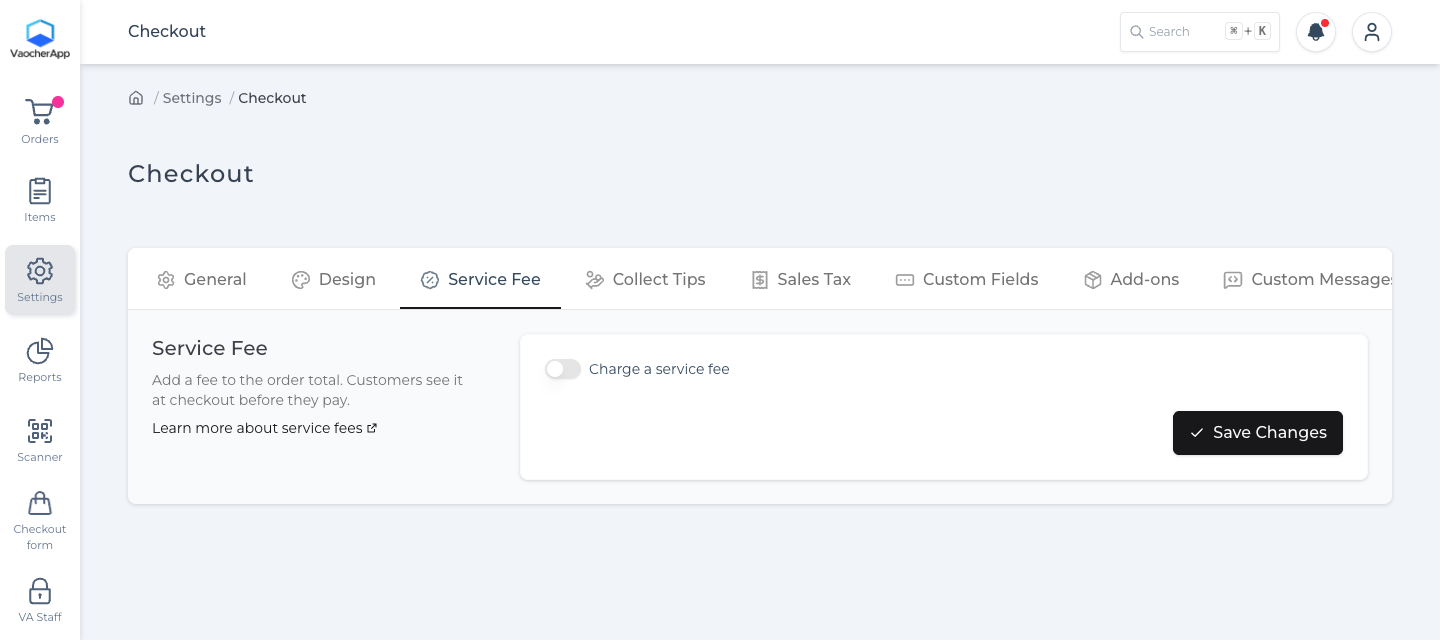
This fee is used for items that are still on your default service fee.
When Charge a service fee is on, a short note about card payment rules may appear. Card payment surcharge rules change for businesses in Australia on 1 October 2026. Read the official notice for the details that apply to your business.
Set a different fee on one item
Open the VaocherApp dashboard and go to Items.
- Open the item you want to change.
- Under Advanced Settings, find Your default service fee and click (change).
- In the Service Fee section, turn on Charge a service fee and enter the amount for this item.
- Click Save Changes.
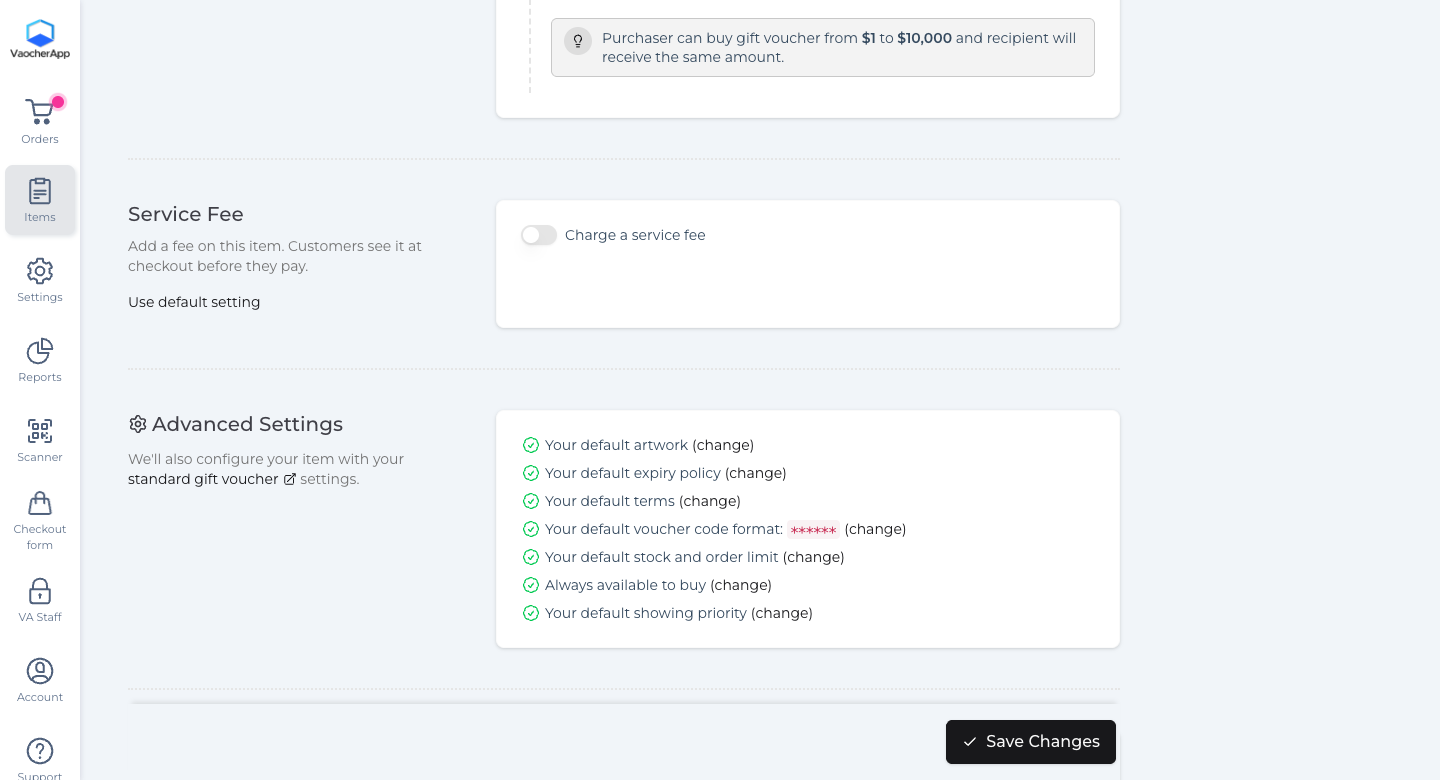
This item then uses its own fee instead of the checkout default. Click Use default setting if you want it to follow the checkout fee again.
How the amount is worked out
The percentage is worked out on the item amount first. The fixed amount is added after that.
Example: a $100 voucher with a 10% fee and a $5 fixed fee.
- 10% of $100 is $10.
- Add the $5 fixed fee.
- The service fee is $15, so the customer pays $115 before other charges such as delivery.