









How to Redeem Gift Vouchers (Web Dashboard)
When customers arrive at your store and want to redeem their gift vouchers, you can quickly validate and process the redemption directly from your VaocherApp dashboard.
Step-by-step: Redeem a voucher
1. Log in to your account
Go to VaocherApp and log in using your credentials.
2. Search for the voucher
You can locate a voucher in two ways:
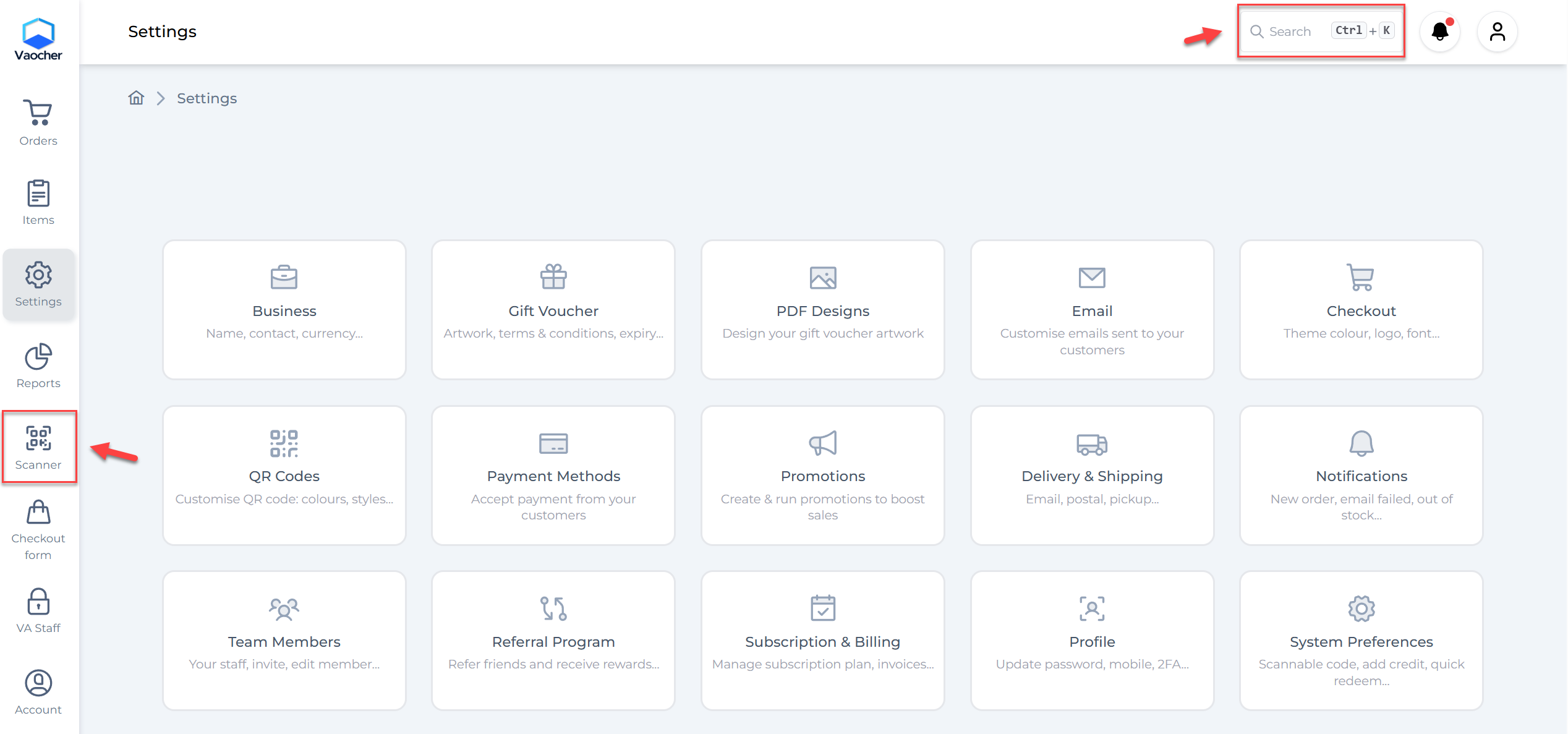
- Search bar (top-right corner)
- Scanner tool (left sidebar) for QR/barcode scanning
3. Open the voucher and click “Redeem”
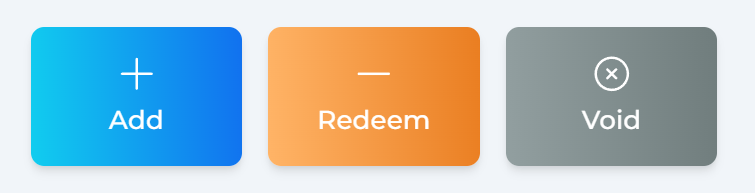
Once you’ve found the voucher, open it and click the Redeem button.
4. Enter redemption details
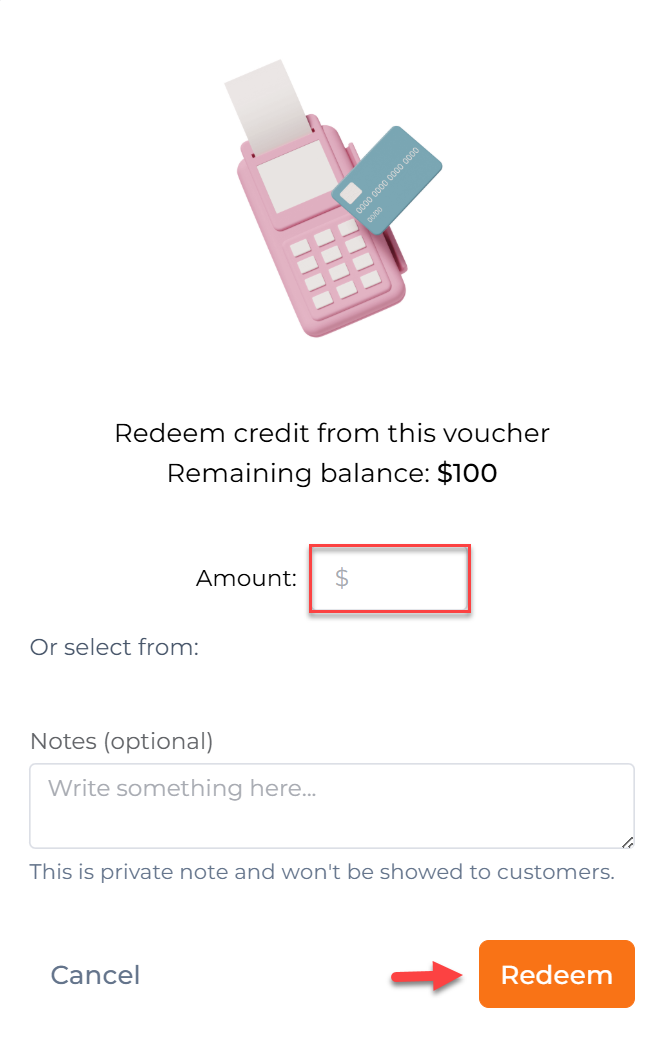
You will now see the redemption screen where you can:
- Enter the amount to redeem
- View the remaining balance
- Add internal notes (not visible to customers)
- Click Redeem to confirm the transaction.
Notes:
- Redemption can be partial or full
- Notes are private and used for internal tracking only
Quick Redeem (New Feature)
To make voucher redemption faster for your staff, you can enable Quick Redeem.
This feature allows you to:
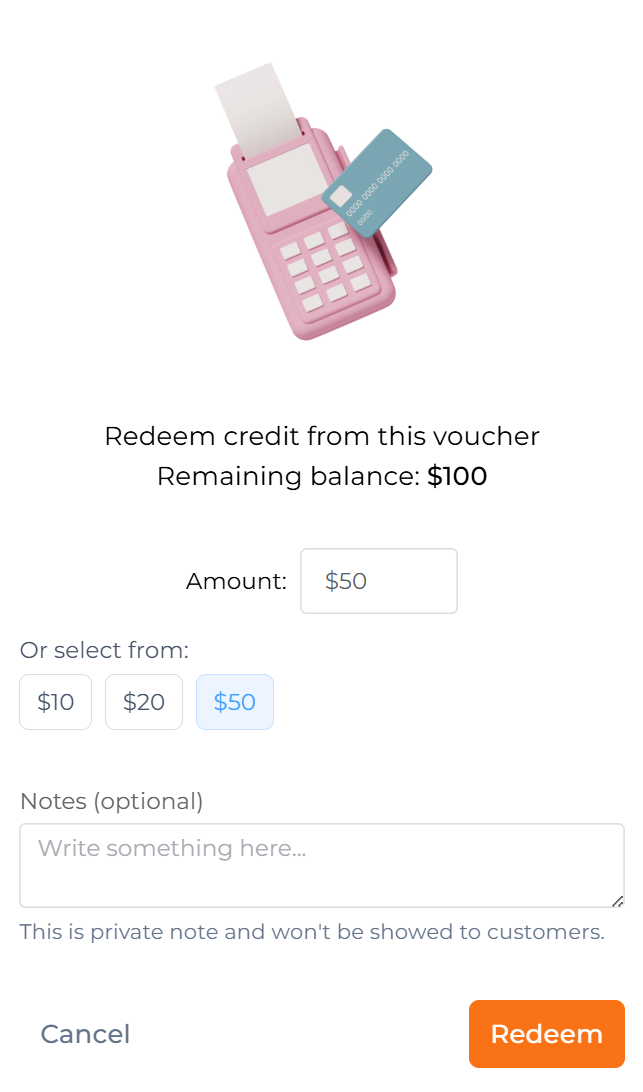
- Instantly select predefined amounts
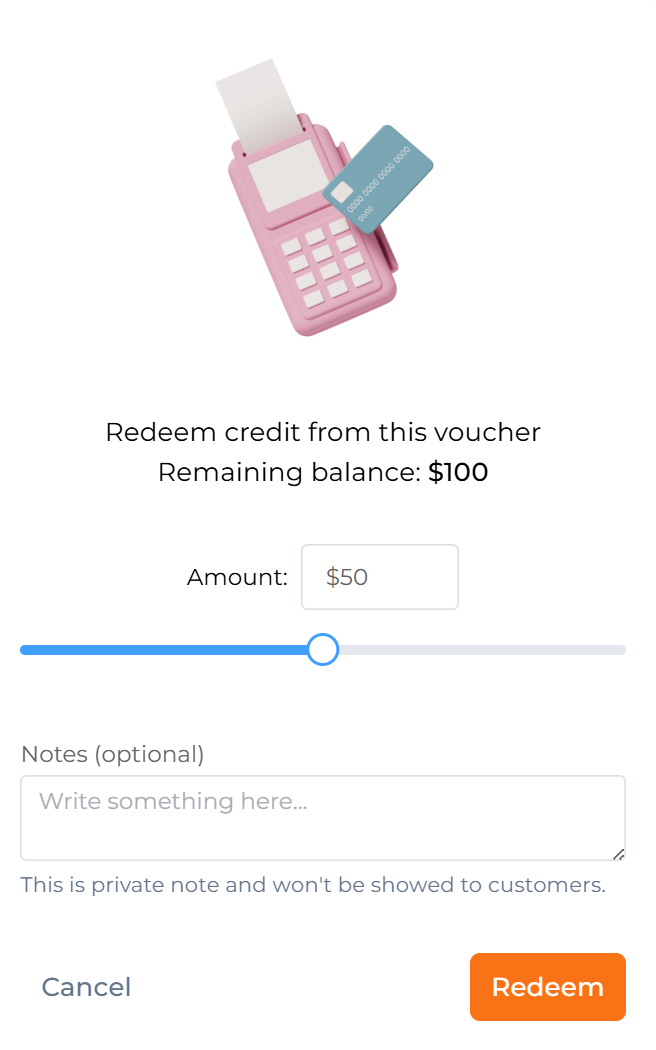
- Use a slider for quick adjustments
How to enable Quick Redeem
- Go to Settings
- Navigate to System Preferences
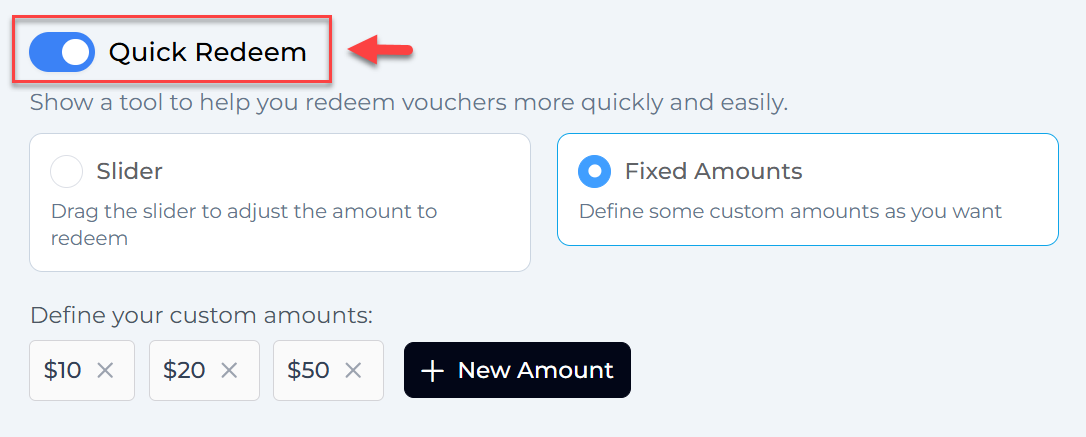
- Toggle Quick Redeem ON
Choose your preferred mode
1. Slider mode
- Drag to adjust the redeem amount dynamically
2. Fixed amounts mode
- Define common values (e.g. $10, $20, $50)
- Staff can redeem with one click
👉 This is ideal for busy retail environments where speed matters.
When should you use Quick Redeem?
Quick Redeem is especially useful when:
- You have standard pricing (e.g. services, meals)
- Staff need to process transactions quickly
- You want to reduce manual input errors