









Lightspeed Restaurant (K-Series) Integration
Connect VaocherApp with Lightspeed Restaurant (K-Series) to sell, issue and redeem gift vouchers directly from your POS.
Overview
The VaocherApp and Lightspeed Restaurant (K-Series) integration allows you to:
- Sell gift vouchers online through VaocherApp
- Redeem vouchers directly within Lightspeed POS
- Create gift vouchers from the POS for walk-in customers
- Support partial voucher redemptions
- Validate voucher balances in real time
- Automatically email vouchers to customers
- Track voucher sales and redemptions in VaocherApp
Perfect for restaurants, cafés, bars, hotels, golf clubs and hospitality venues using Lightspeed Restaurant (K-Series).
Before You Start
Before setting up the integration, make sure you have:
- An active VaocherApp account
- An active Lightspeed Restaurant (K-Series) account
- Administrator access to both systems
Step 1: Create a “Gift Vouchers” Accounting Group
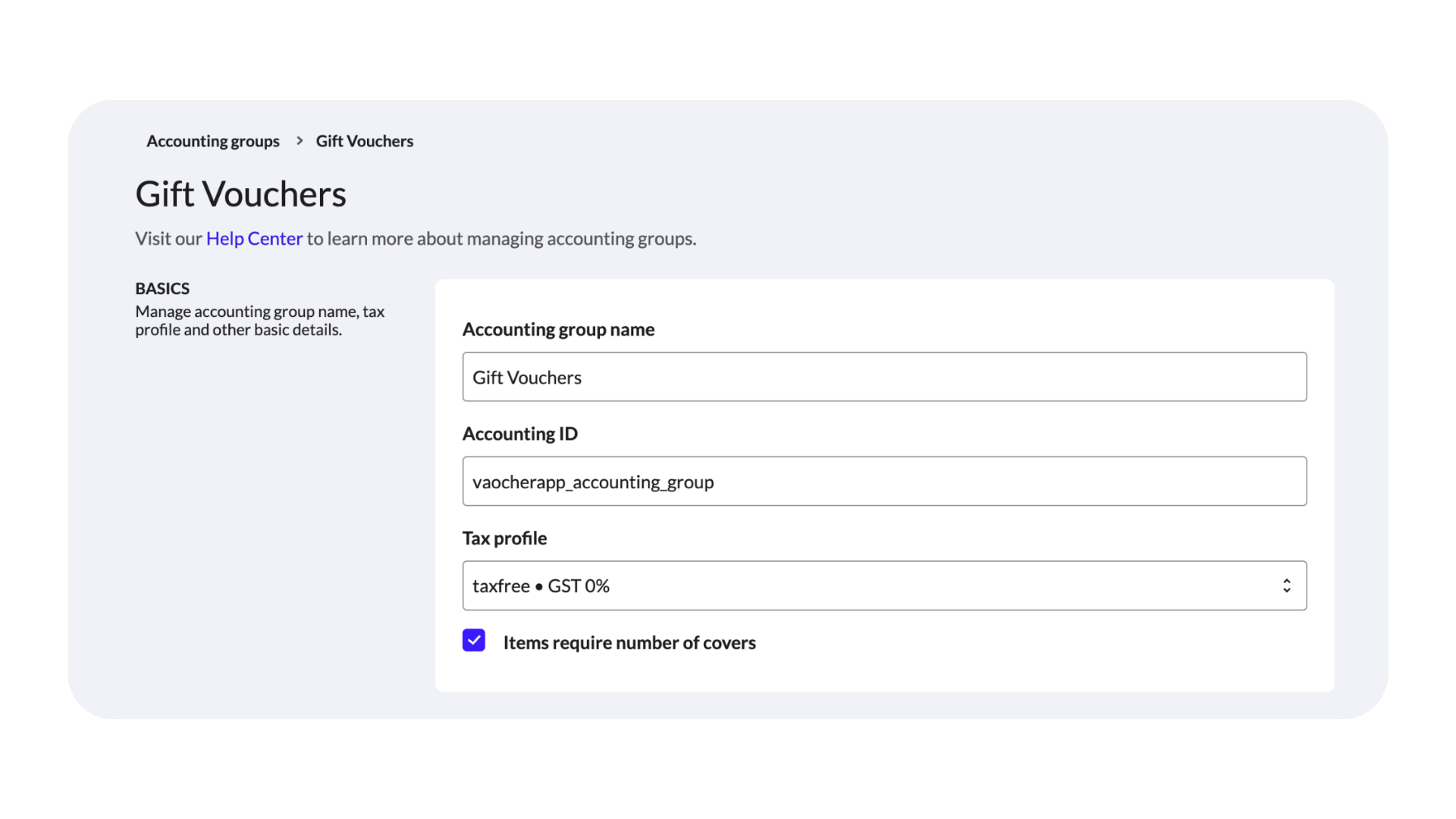
In Lightspeed Back Office, navigate to:
Menu → Accounting Groups
Click Add Accounting Group.
Configure the following:
| Field | Value |
|---|---|
| Name | Gift Vouchers |
| Accounting ID | vaocherapp_accounting_group |
| Tax Profile | Tax Free |
Click Save.
Step 2: Create a Gift Card Item
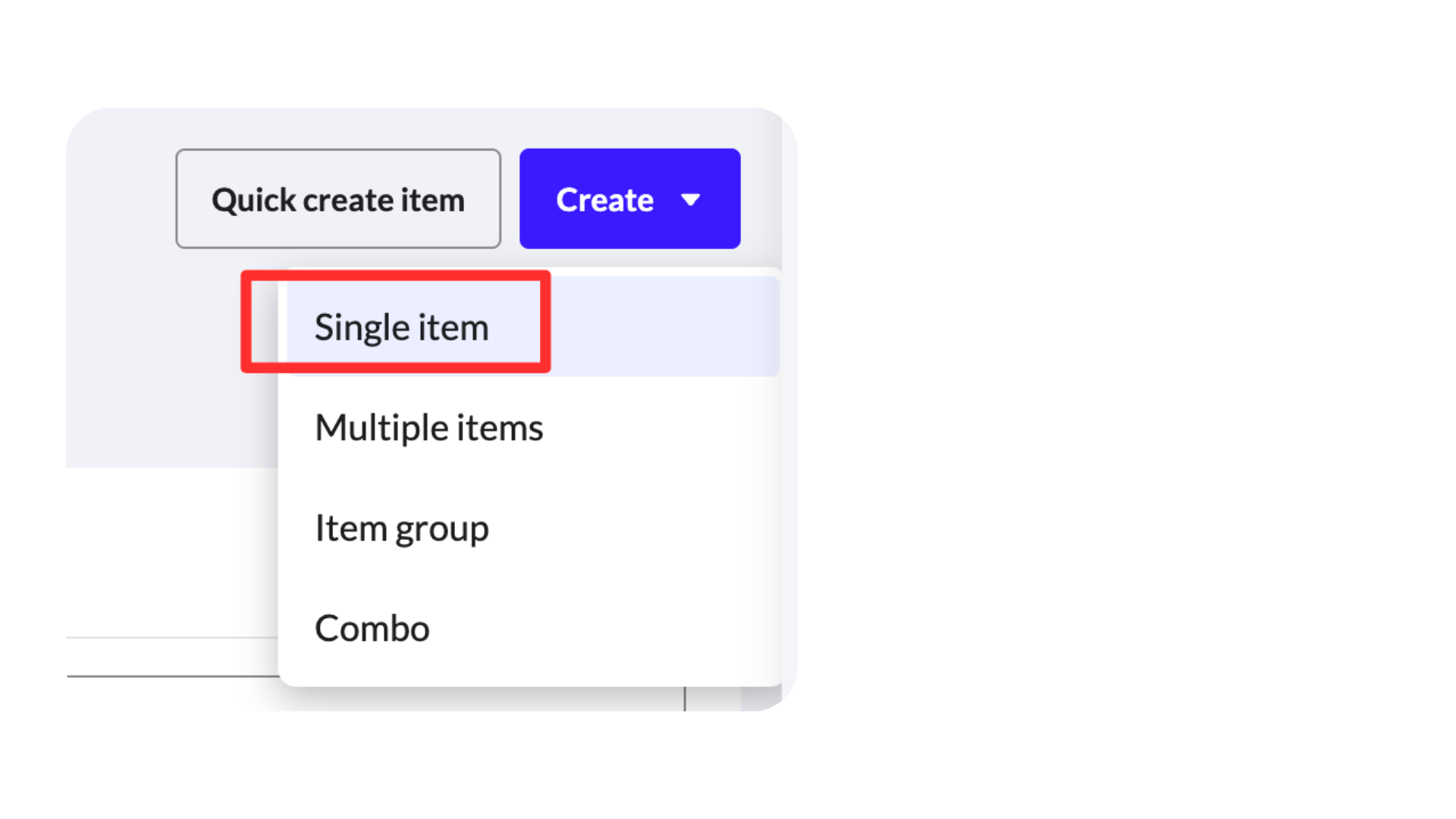
Navigate to: Items → Create → Single Item
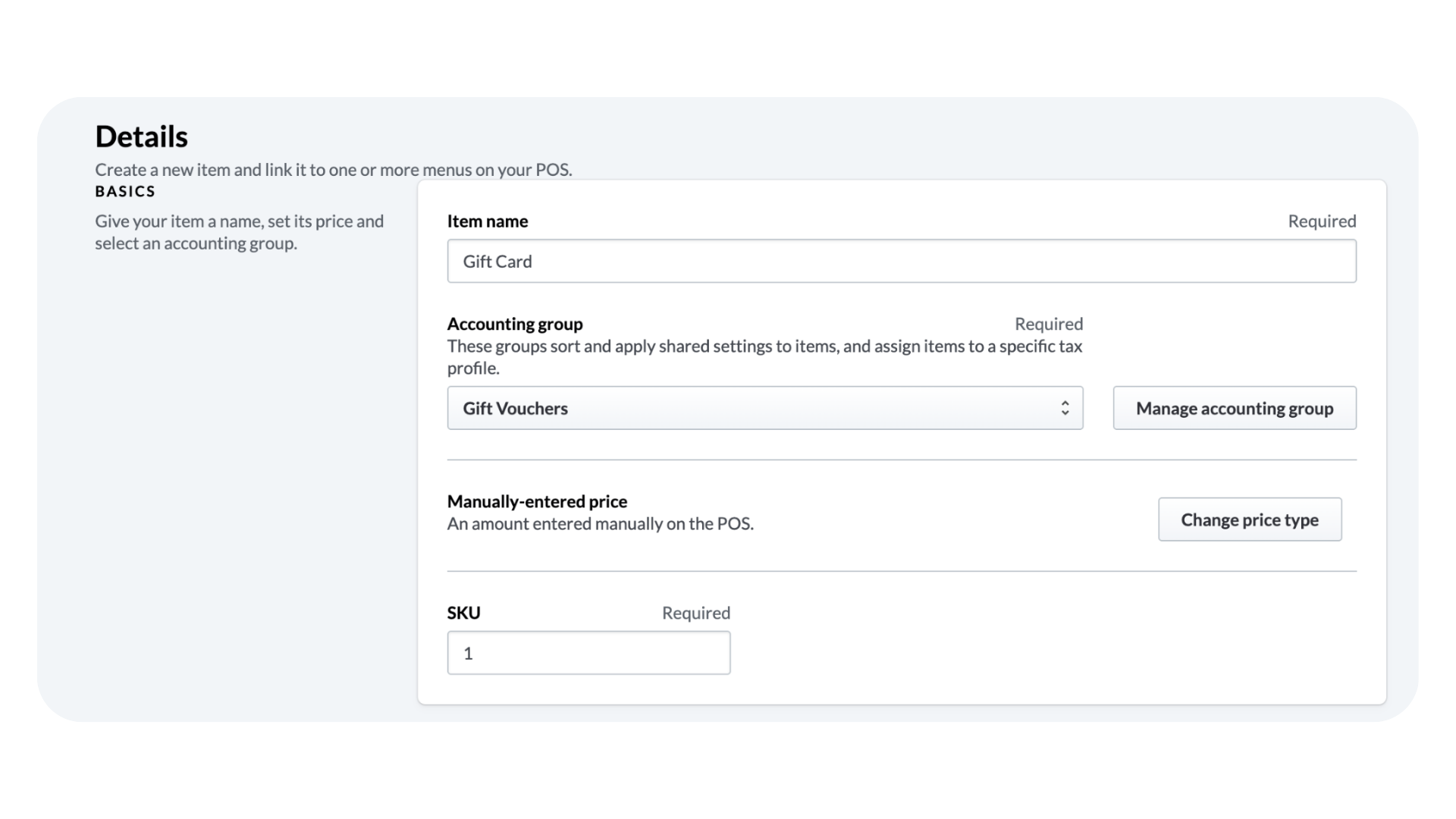
Configure:
| Field | Value |
|---|---|
| Item Name | Gift Card |
| Accounting Group | Gift Vouchers |
| Price Type | Manually Entered Price |
Click Save.
Step 3: Connect Lightspeed to VaocherApp
Log in to your VaocherApp dashboard: https://vaocher.app
Navigate to:
Settings → Integrations → Lightspeed Restaurant (K-Series)
Or go directly to:
https://vaocher.app/settings/integrations/lightspeed-pos-k-series
Click: Connect Lightspeed
You will be redirected to Lightspeed.
Approve access and return to VaocherApp.
Step 4: Configure the Integration
Once connected, configure:
- Business
- Location
- Gift Card Item
Select the Gift Card item created in Step 2.
Click Save.
The integration is now connected.
Step 5: Create the VaocherApp Web Extension
The Web Extension allows Lightspeed POS to communicate directly with VaocherApp.
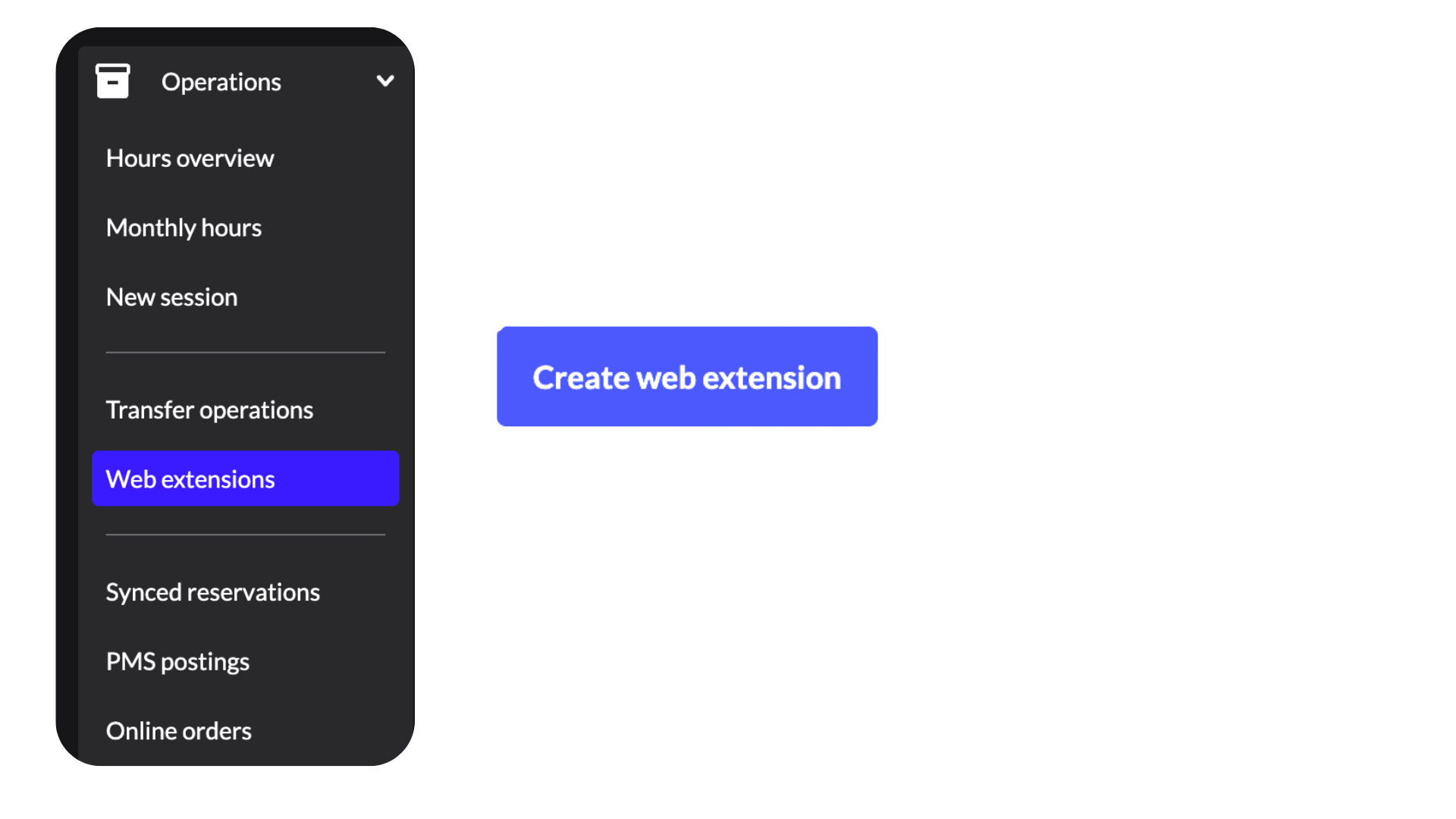
In Lightspeed Back Office navigate to: Operations → Web Extensions
Click: Create Web Extension
In another browser tab, open:
https://vaocher.app/settings/integrations/lightspeed-pos-k-series
Copy your unique Web Extension URL.
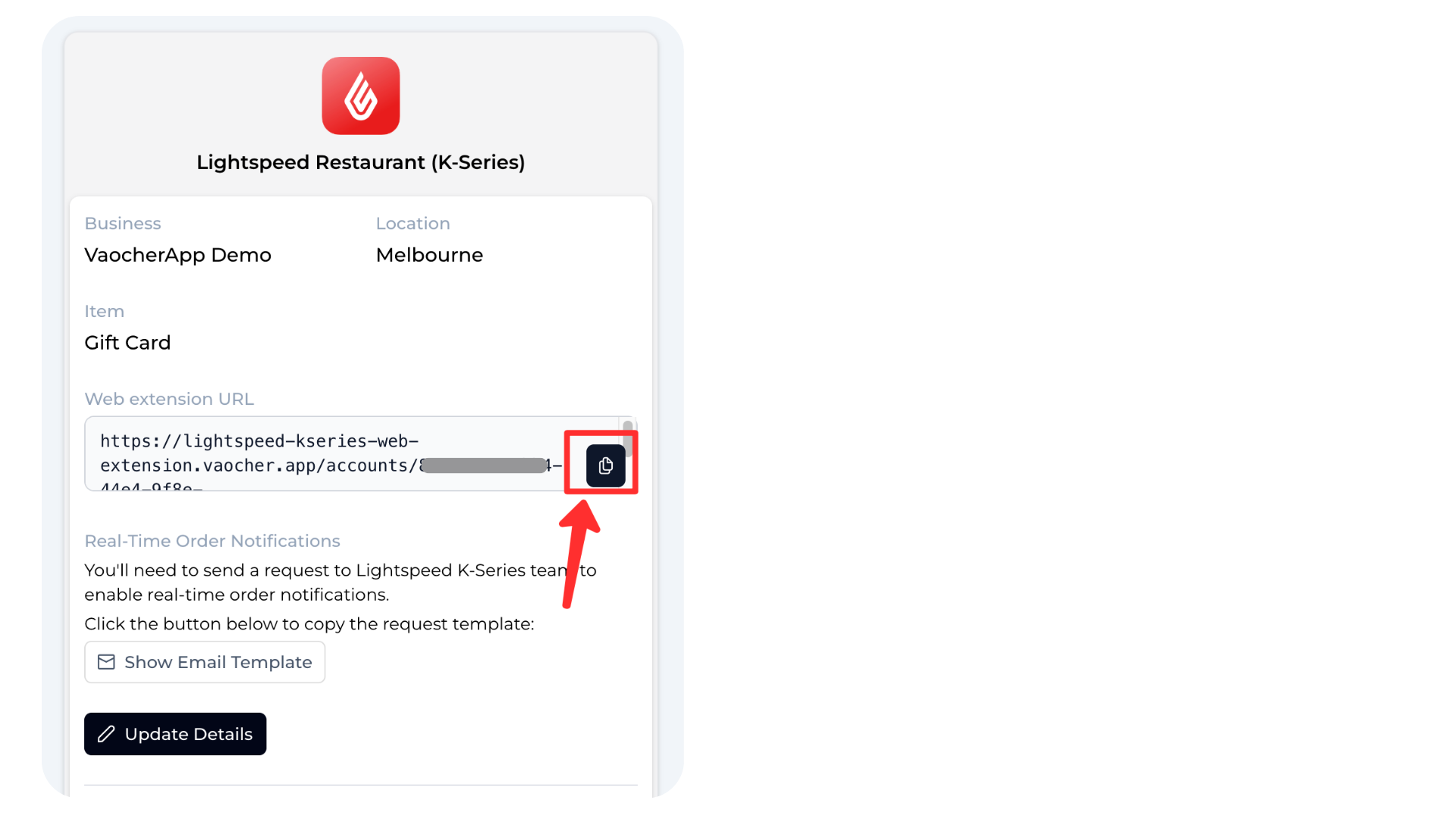
Return to Lightspeed and configure:
| Setting | Value |
|---|---|
| Name | VaocherApp Gift Cards |
| URL | Your Web Extension URL |
| Provide Javascript Context | Enabled |
| Allowed Loading Domain | lightspeed-kseries-web-extension.vaocher.app |
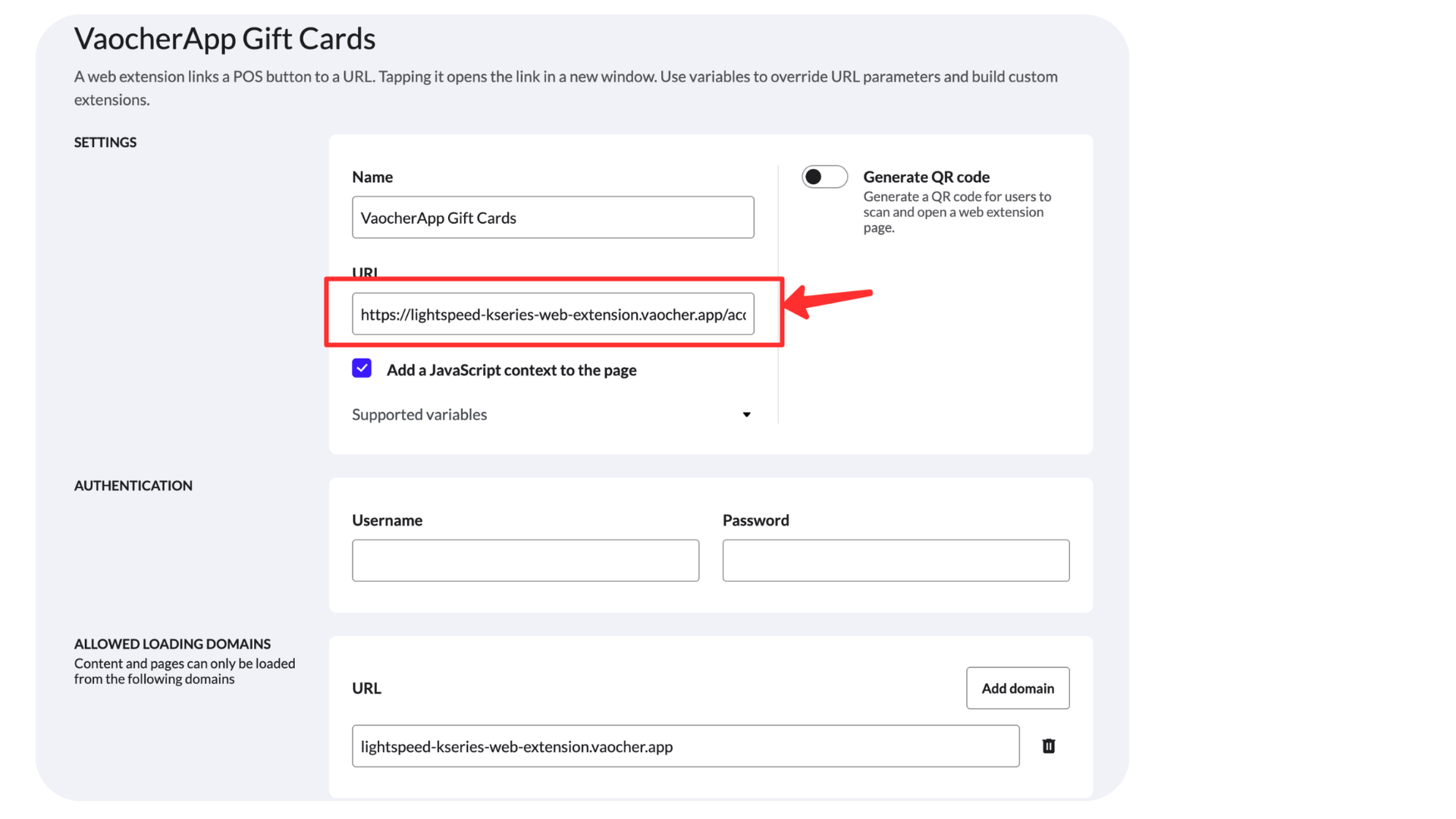
Click Save.
Step 6: Add Gift Cards to Your POS Menu
Navigate to: Menu Management → Menus
Open your active menu.
Under Main Screens click: Add
Configure:
| Setting | Example |
|---|---|
| Name | Gift Cards |
| Colour | Any visible colour |
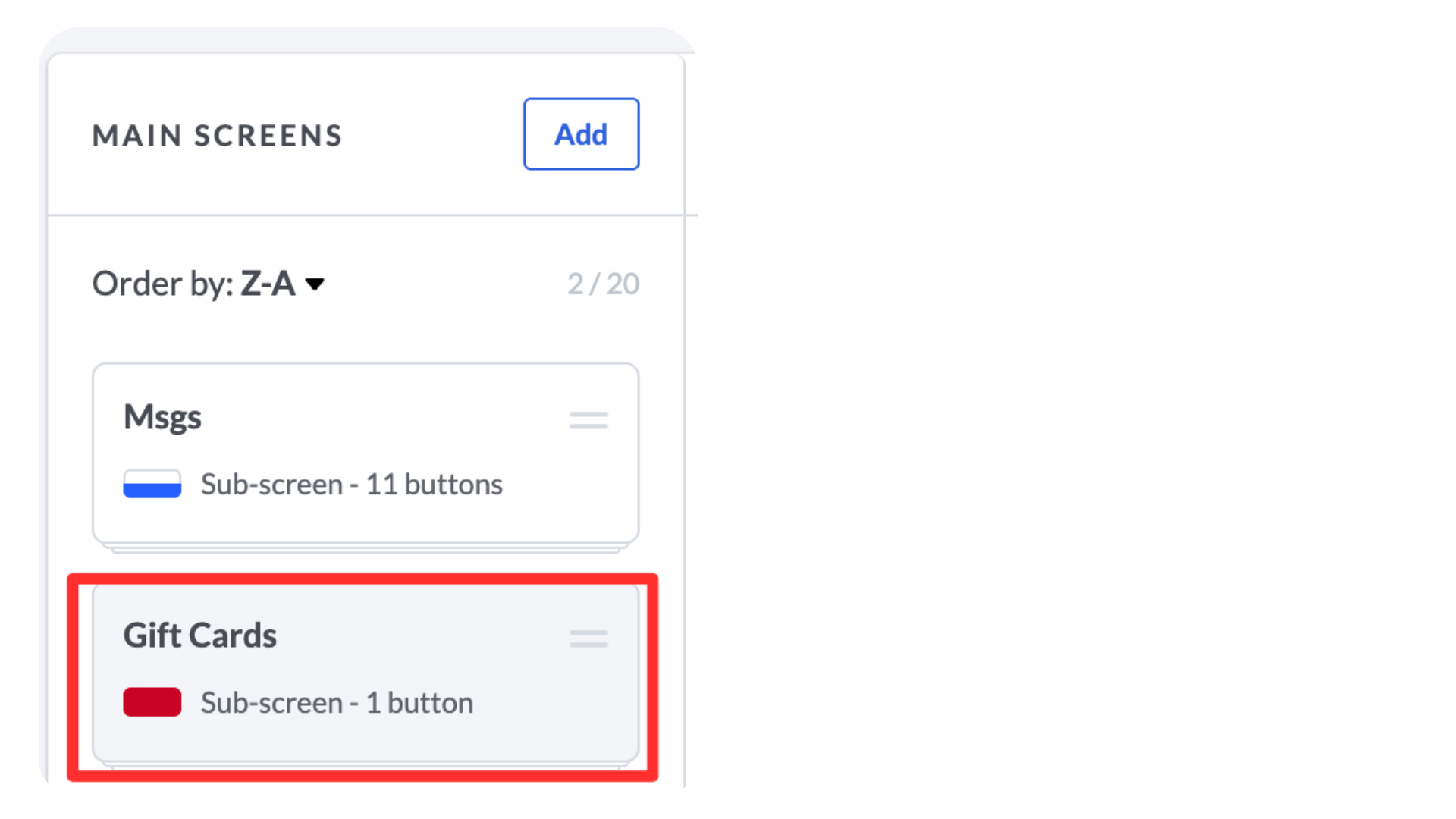
Click Save.
Open the new Gift Cards button.
Click: Add Button → Web Extension
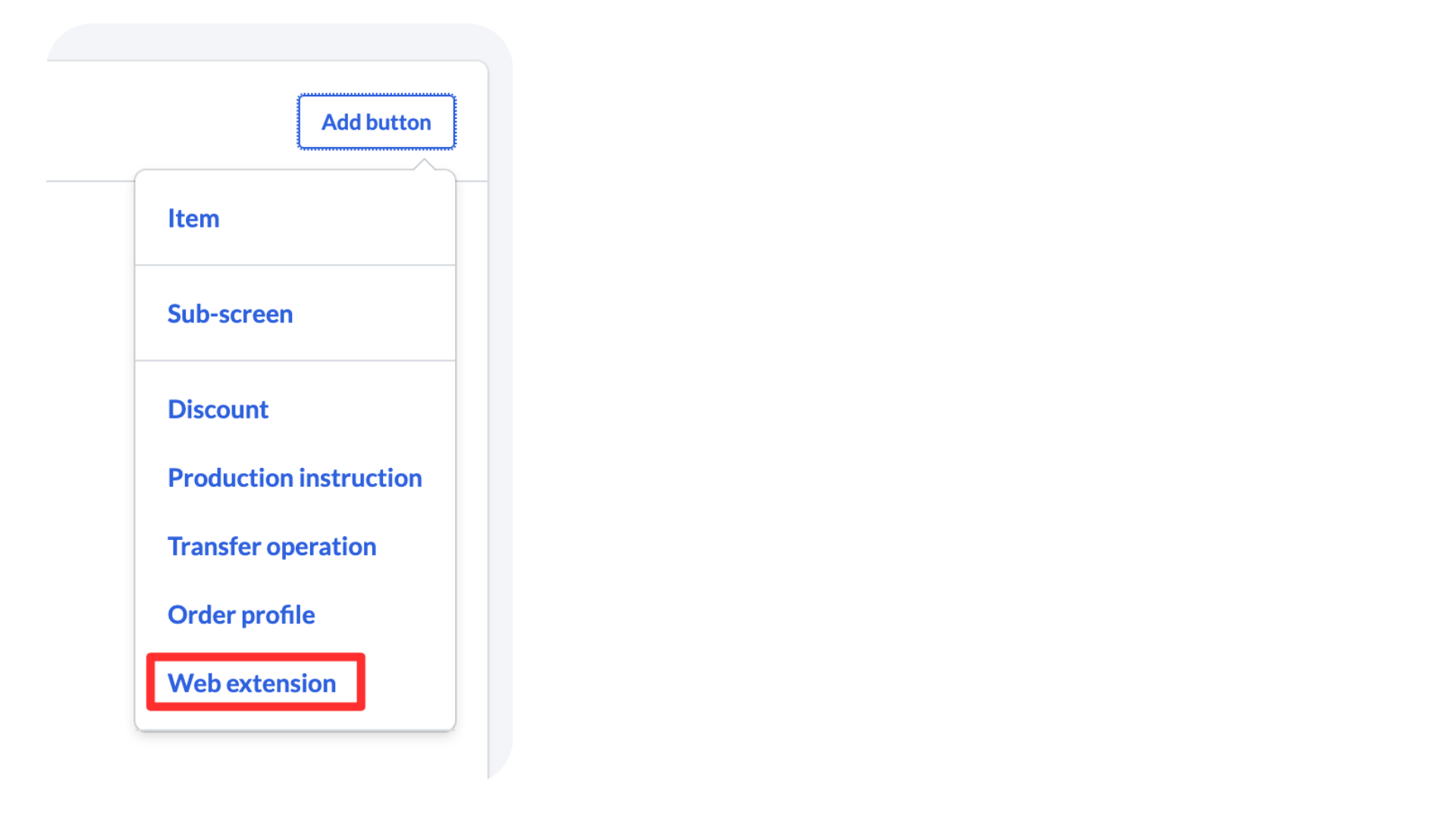
Click: Add Button
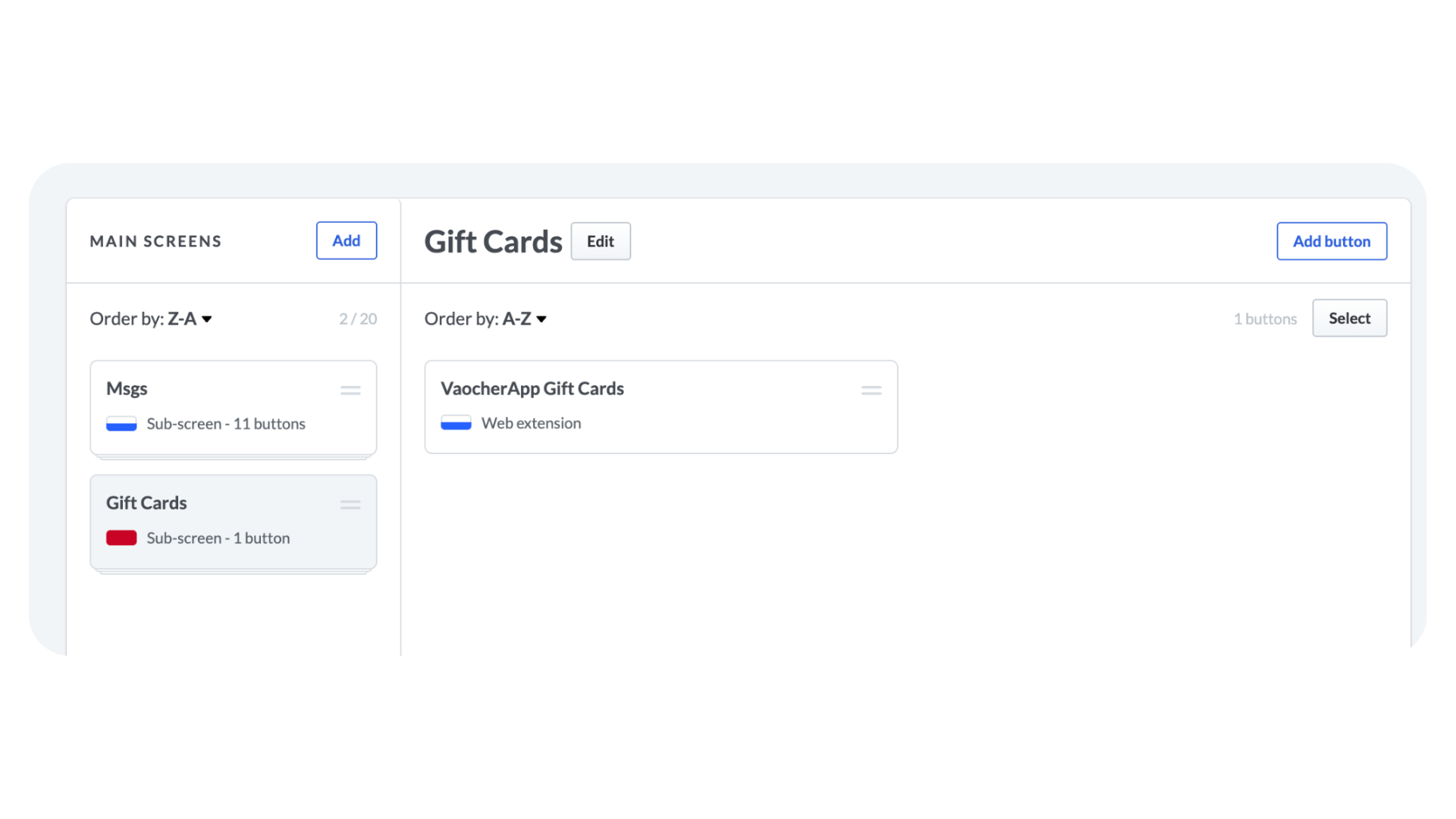
Click: Update & Reload Devices
The Gift Cards button will now appear on your POS.
If you use multiple menus, repeat this process for each menu.
Step 7: Enable Real-Time Order Notifications (Required)
This step is required for voucher creation from the POS.
Without Real-Time Notifications enabled, vouchers sold through Lightspeed cannot automatically sync to VaocherApp.
Navigate to: https://vaocher.app/settings/integrations/lightspeed-pos-k-series
Click: Copy Notification Template
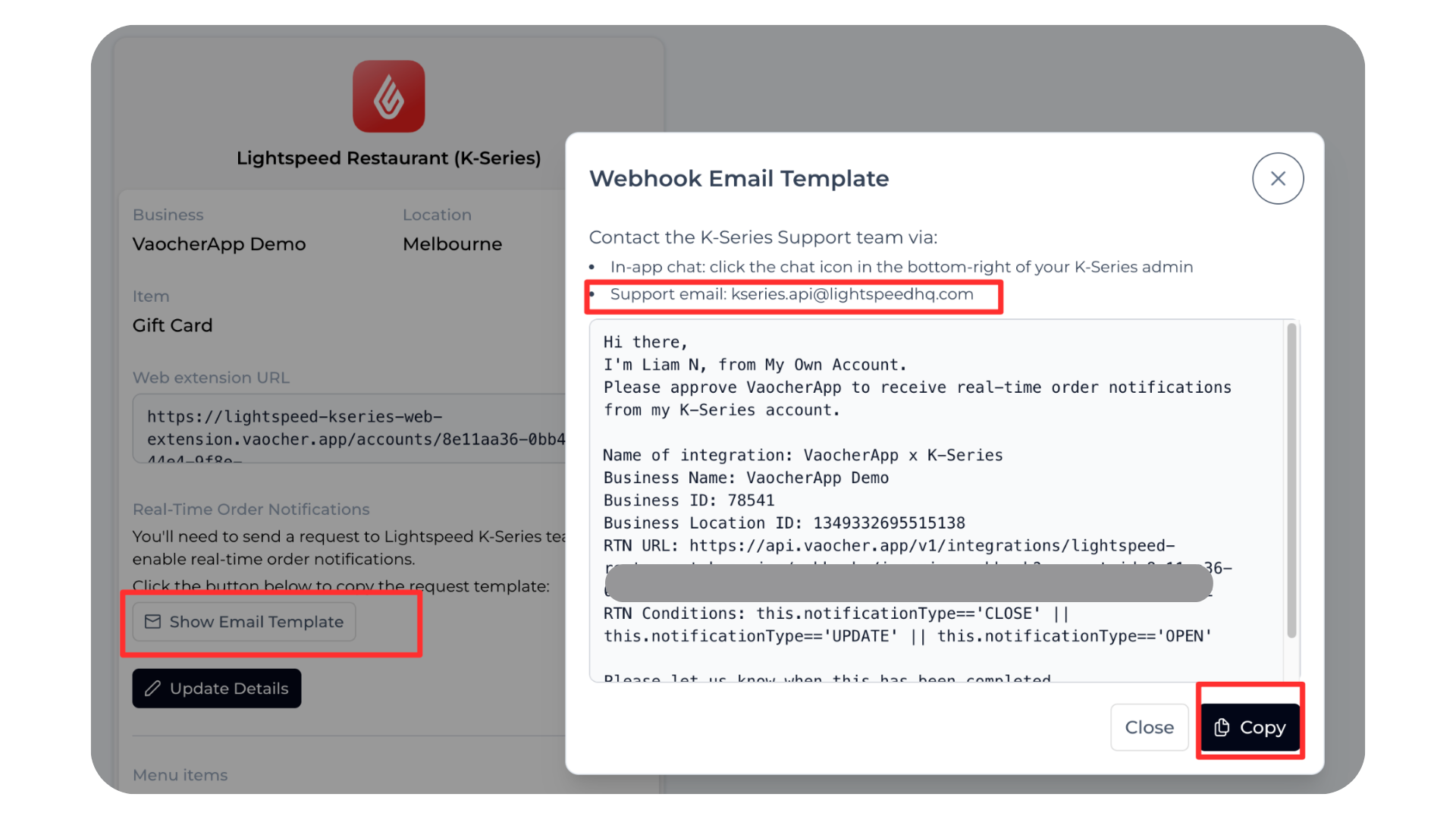
Contact Lightspeed support and request Real-Time Notifications (RTN) be enabled.
Support options:
- In-app chat
- k-series.support@lightspeedhq.com
Once enabled:
- Voucher sales sync automatically
- Voucher orders are created instantly
- Voucher emails are sent automatically
Step 8: Create a VaocherApp Payment Method
Create a dedicated payment method in Lightspeed.
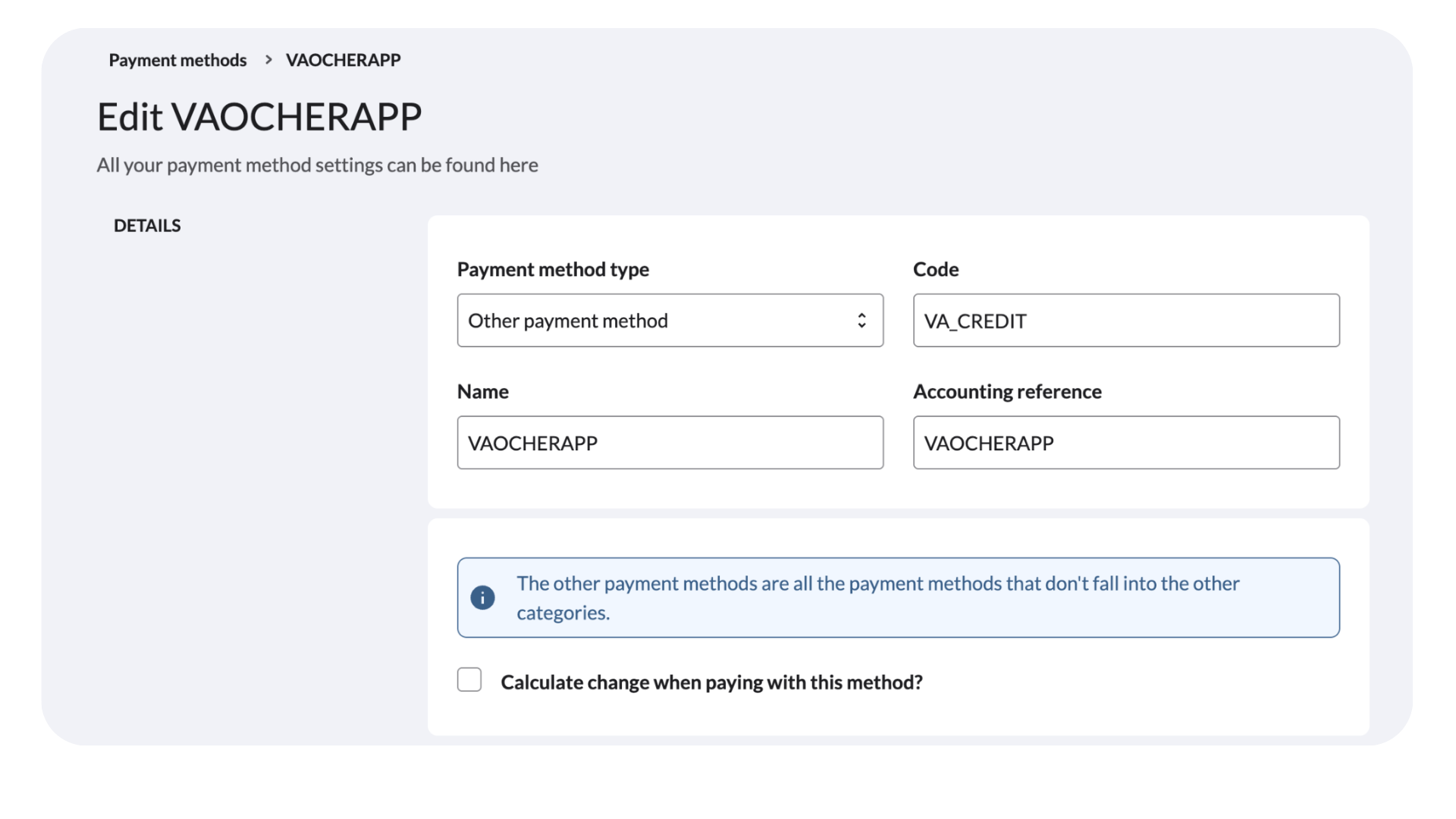
Example: VAOCHERAPP
After creating the payment method:
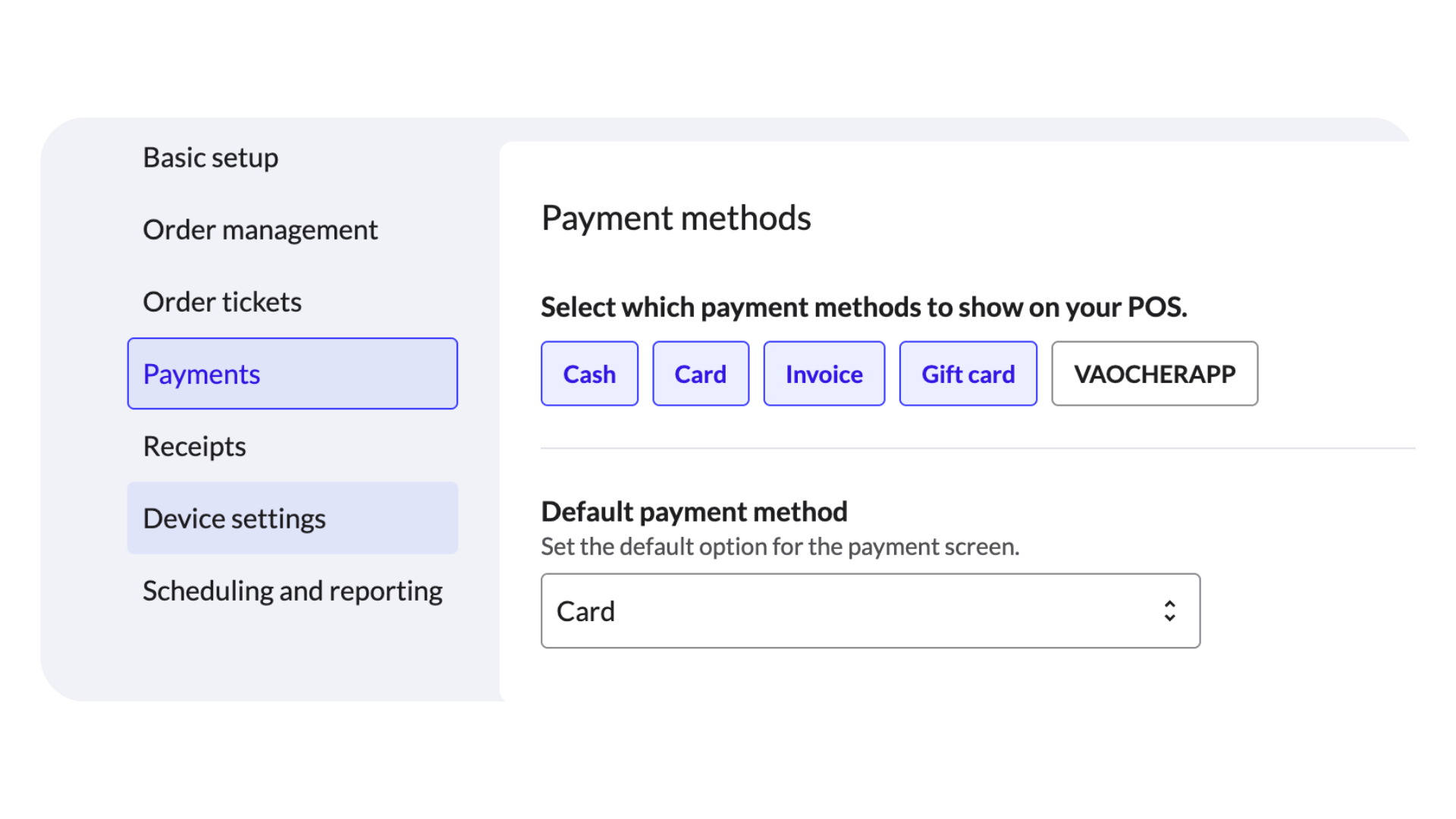
Navigate to: POS Configuration → Payments
Go to POS Configuration → Payments
Unselect VAOCHERAPP from accepted payment methods (leave it inactive)
Step 9: Test Voucher Redemption
Create a test voucher in VaocherApp.
Open a sale in Lightspeed.
Select: Gift Cards
Enter or scan the voucher code.
Confirm:
- Voucher is found
- Balance is displayed
- Redemption succeeds
- Remaining balance updates correctly
Voucher Redemption Video
https://www.canva.com/design/DAHCM2G-cdw/gtQuo0K0Sb2xcBELwzuI-w/watch
Step 10: Test Voucher Creation
Create a test sale using the Gift Card item.
Enter:
- Voucher value
- Customer email address
Complete payment.
Confirm:
- Voucher appears in VaocherApp
- Voucher email is delivered
- Voucher can be redeemed
Voucher Creation Video
https://www.canva.com/design/DAHCM4BzTlM/1OPYOVv_UlnKFaaKkcVATA/watch
Go Live Checklist
Before launching, confirm:
- [ ] Gift Vouchers accounting group created
- [ ] Gift Card item created
- [ ] Lightspeed connected to VaocherApp
- [ ] Gift Card item selected in integration settings
- [ ] Web Extension configured
- [ ] Gift Cards button added to POS
- [ ] Real-Time Notifications enabled
- [ ] VaocherApp payment method created
- [ ] Voucher redemption tested
- [ ] Voucher creation tested
- [ ] Voucher email delivery confirmed
Common Setup Mistakes
Real-Time Notifications Not Enabled
This is the most common setup issue.
Voucher creation from the POS will not work until RTN has been enabled by Lightspeed.
Wrong Gift Card Item Selected
Ensure the item selected in VaocherApp is the same item created in Lightspeed.
Forgot to Update & Reload Devices
After adding the Gift Cards button, always click:
Update & Reload Devices
VaocherApp Payment Method Left Active
The VaocherApp payment method should not be available as a standard payment option.
It should only be used internally for voucher processing.
Troubleshooting
Gift Cards Button Not Appearing
Check:
- Web Extension has been created correctly
- The Gift Cards button has been added to the active POS menu
- Menu changes have been published
- Devices have been reloaded
Voucher Balance Not Updating
Check:
- Internet connection
- Lightspeed integration remains connected
- Voucher exists in VaocherApp
- Voucher has remaining balance
Voucher Not Created After Sale
Check:
- Real-Time Notifications have been enabled by Lightspeed
- The Gift Card item is configured correctly
- The correct location is selected in VaocherApp
- Customer email address was entered correctly
Voucher Email Not Received
Check:
- Customer email address is correct
- Voucher order exists in VaocherApp
- Spam or junk folders
Frequently Asked Questions
Can vouchers be redeemed offline?
No.
Voucher validation requires a live internet connection because balances are checked in real time.
Can customers partially redeem vouchers?
Yes.
Unused balances remain available until fully redeemed.
Can I create vouchers directly from Lightspeed?
Yes.
Staff can create and issue vouchers directly from the POS.
Can voucher codes be scanned?
Yes.
Voucher codes can be scanned or entered manually.
Can customers use the same voucher across multiple visits?
Yes.
Balances are updated automatically after every redemption.
Do I need a dedicated payment method?
Yes.
We strongly recommend creating a dedicated VaocherApp payment method for cleaner reporting and reconciliation.