Before connecting the integration, create an accounting group in Lightspeed for gift voucher transactions.
Note: You only need to create this accounting group once. If you’ve already created a Gift Vouchers accounting group, you can skip this step.
In Lightspeed Back Office, go to:
Menu → Accounting Groups
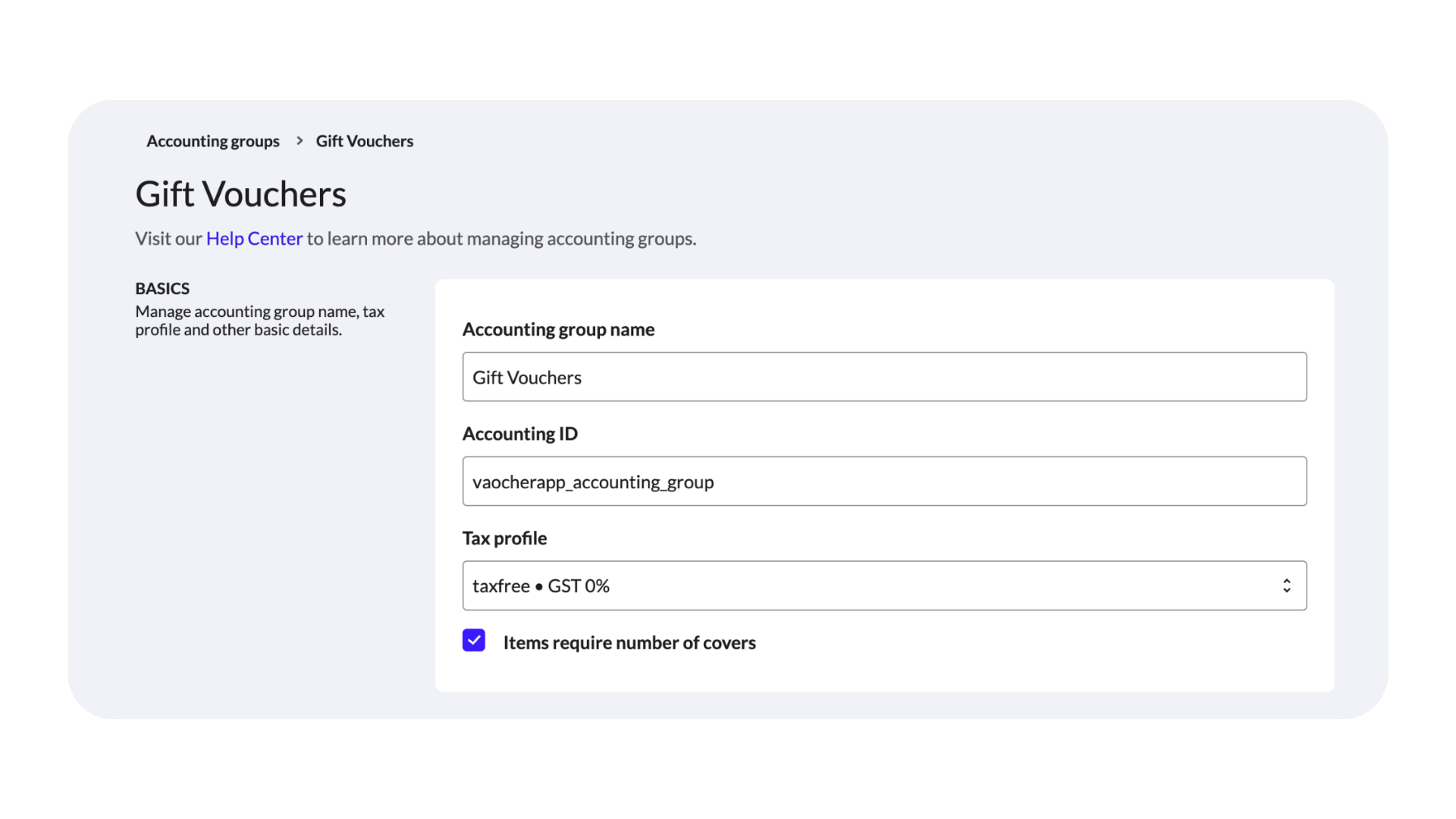
Create a new accounting group with the following settings:
Name: Gift Vouchers
Accounting ID:vaocherapp_accounting_group
Tax Profile: Tax Free
Click Save.
Create Gift Vouchers accounting group
2. Create a Gift Card item
Next, create a dedicated Gift Card item that Lightspeed will use when processing gift voucher sales and redemptions.
Go to:
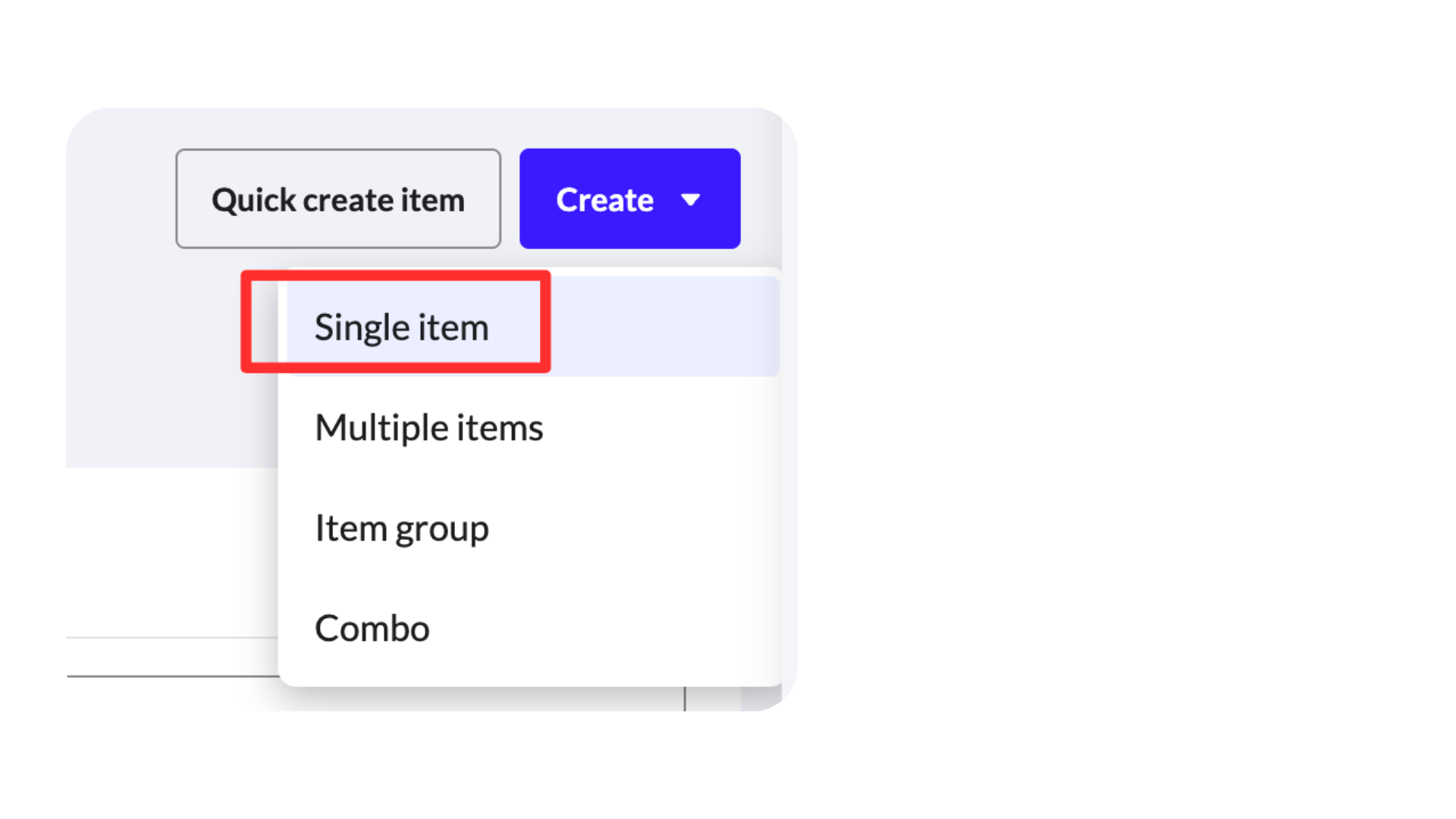
Items → Create → Single Item
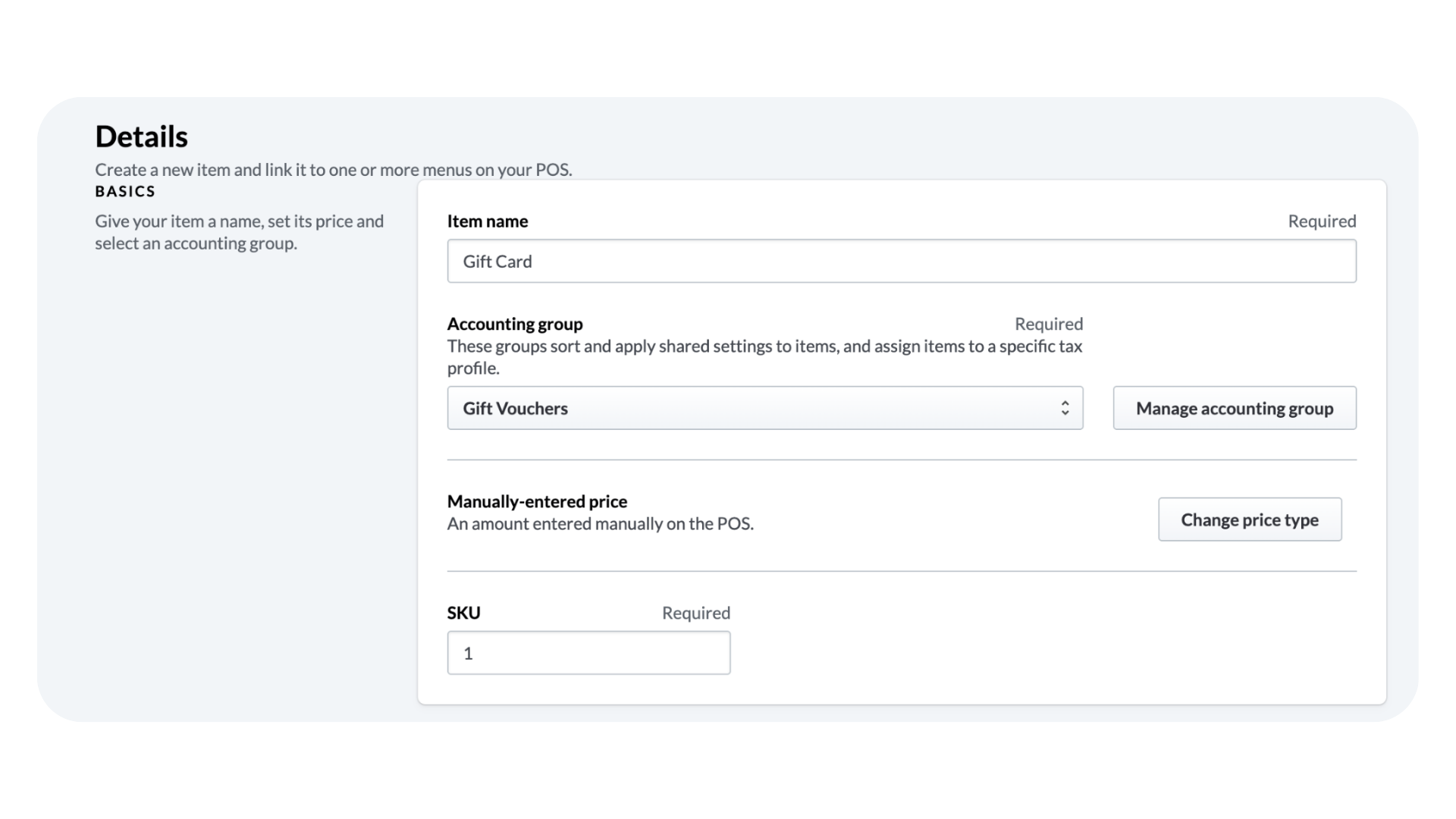
Configure the item with the following settings:
Item Name: Gift Card
Accounting Group: Gift Vouchers
Price Type: Manually Entered Price
Click Save.
Create Gift Card itemGift Card Item Details
3. Connect Lightspeed
To connect your Lightspeed account with VaocherApp:
Log in to your VaocherApp account.
Open Settings → Integrations → Lightspeed Restaurant (K-Series).
Click Connect Lightspeed.
Sign in to your Lightspeed account if prompted.
Approve the connection request.
Return to VaocherApp.
Once the connection is complete, the integration status will display as Connected.
4. Configure the integration
After connecting Lightspeed, configure the integration by selecting:
Business
Location
Gift Card Item
Choose the Gift Card item you created earlier, then click Save Changes.
These settings tell VaocherApp which Lightspeed business, location and Gift Card item should be used when issuing and redeeming vouchers.
5. Create the VaocherApp Web Extension
The VaocherApp Web Extension runs inside your Lightspeed K-Series POS and gives staff access to VaocherApp’s gift voucher features without leaving the POS.
Integration settings showing Business, Location and Gift Card Item
Staff can use the extension to:
Issue new gift vouchers.
Look up voucher balances.
Redeem existing gift vouchers.
Without the Web Extension, these gift voucher functions aren’t available within Lightspeed POS.
To create the Web Extension:
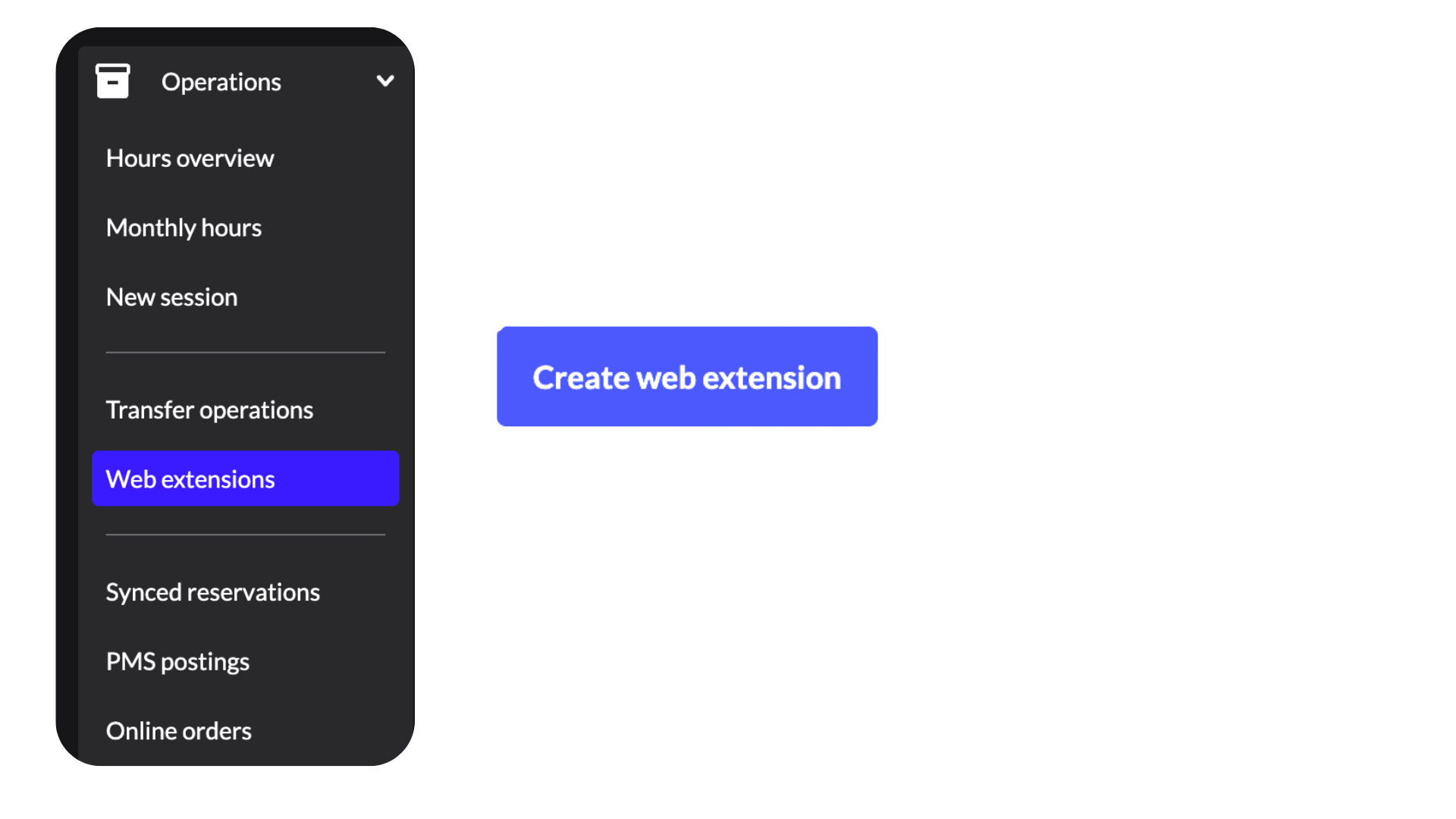
In Lightspeed Back Office, go to:
Operations → Web Extensions
Click Create Web Extension.
Configure the extension using the following settings:
Name: VaocherApp Gift Cards
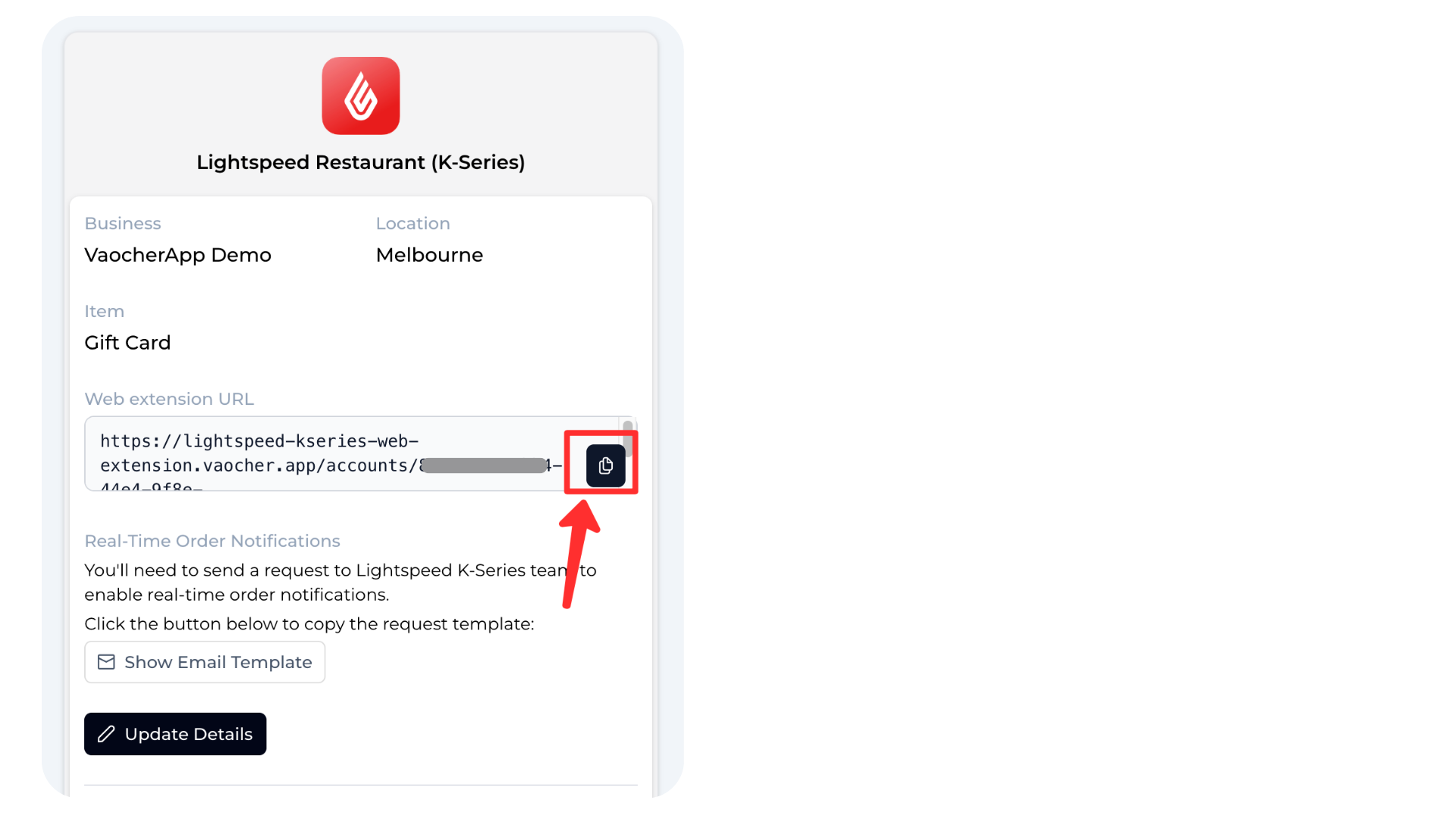
URL: Copy the Web Extension URL from your VaocherApp integration page.
In Lightspeed K-Series, menus control which buttons are available to staff on the POS during service.
Adding the VaocherApp Web Extension to your menu creates a Gift Cards button, allowing staff to access gift voucher functions directly from the till.
To add the button:
Go to:
Menu Management → Menus
Then:
Open your active menu.
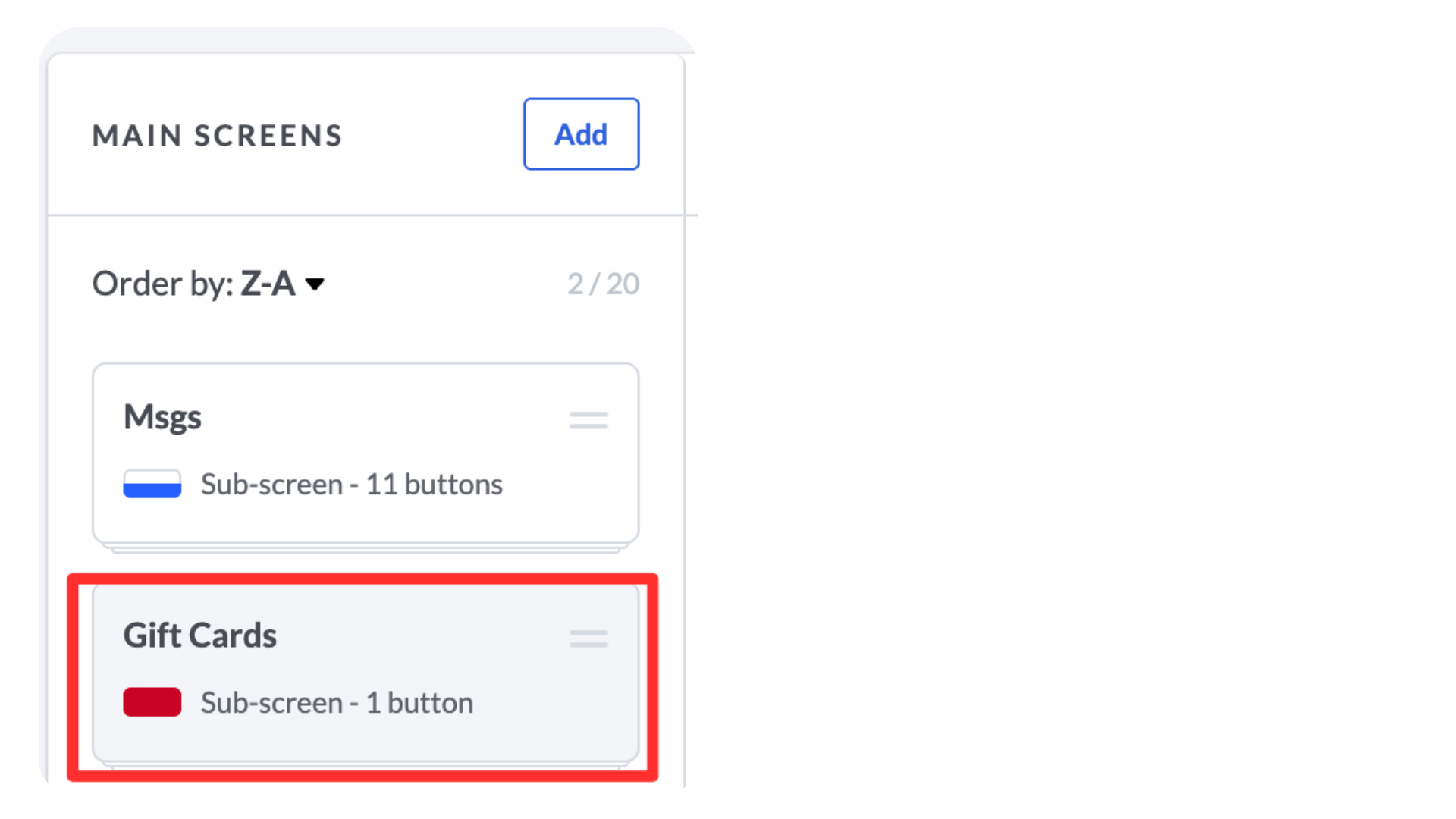
Under Main Screens, click Add.
Create a new button named Gift Cards.
Select Add Button → Web Extension.
Choose VaocherApp Gift Cards.
Click Update & Reload Devices.
The Gift Cards button will now be available on your POS.
Insert screenshot:
Add Gift Cards button to POS menu
7. Enable Real-Time Notifications
Real-Time Notifications (RTN) are Lightspeed’s webhook system.
When a sale is completed and paid for on the POS, Lightspeed immediately sends the transaction details to VaocherApp.
VaocherApp uses this notification to automatically create and issue the customer’s gift voucher.
Without Real-Time Notifications, VaocherApp won’t know that the payment has been completed, so gift vouchers sold through the POS won’t be created automatically.
To enable RTN:
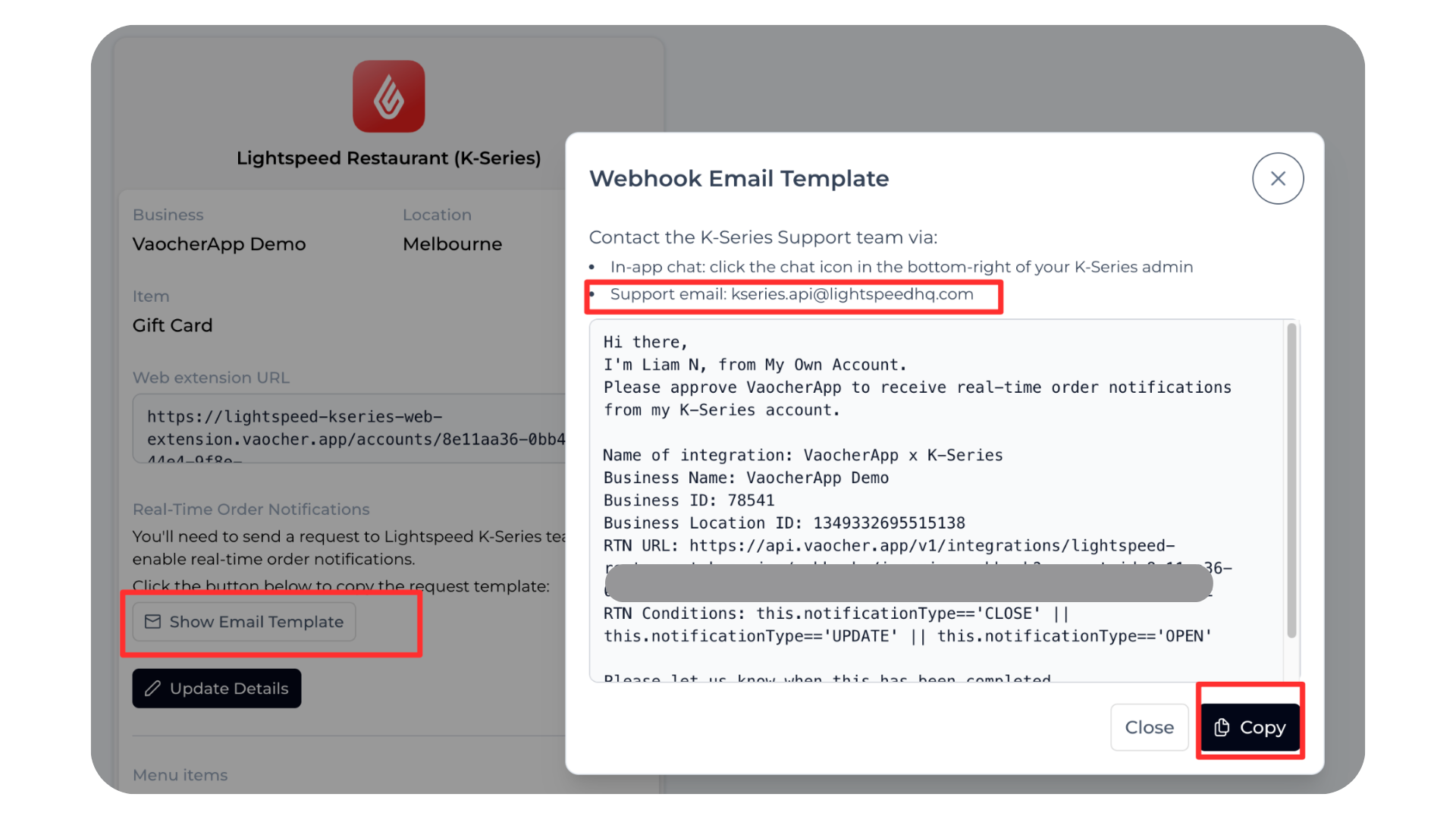
Open your Lightspeed Restaurant (K-Series) integration page in VaocherApp.
Click Copy Notification Template.
Follow the instructions provided on the integration page to enable Real-Time Notifications in Lightspeed.
Enabling Real-Time Notifications is required for the integration to work correctly.
Next steps
Your Lightspeed Restaurant (K-Series) integration is now ready.