
Reports and exports
Gift Voucher Reporting & Reconciliation
Make Voucher Activity Easier to Check
See what was sold, what was redeemed and what still has value left — then export the records you need to check against your other systems.
Need the staff redemption flow? See redemption and balances
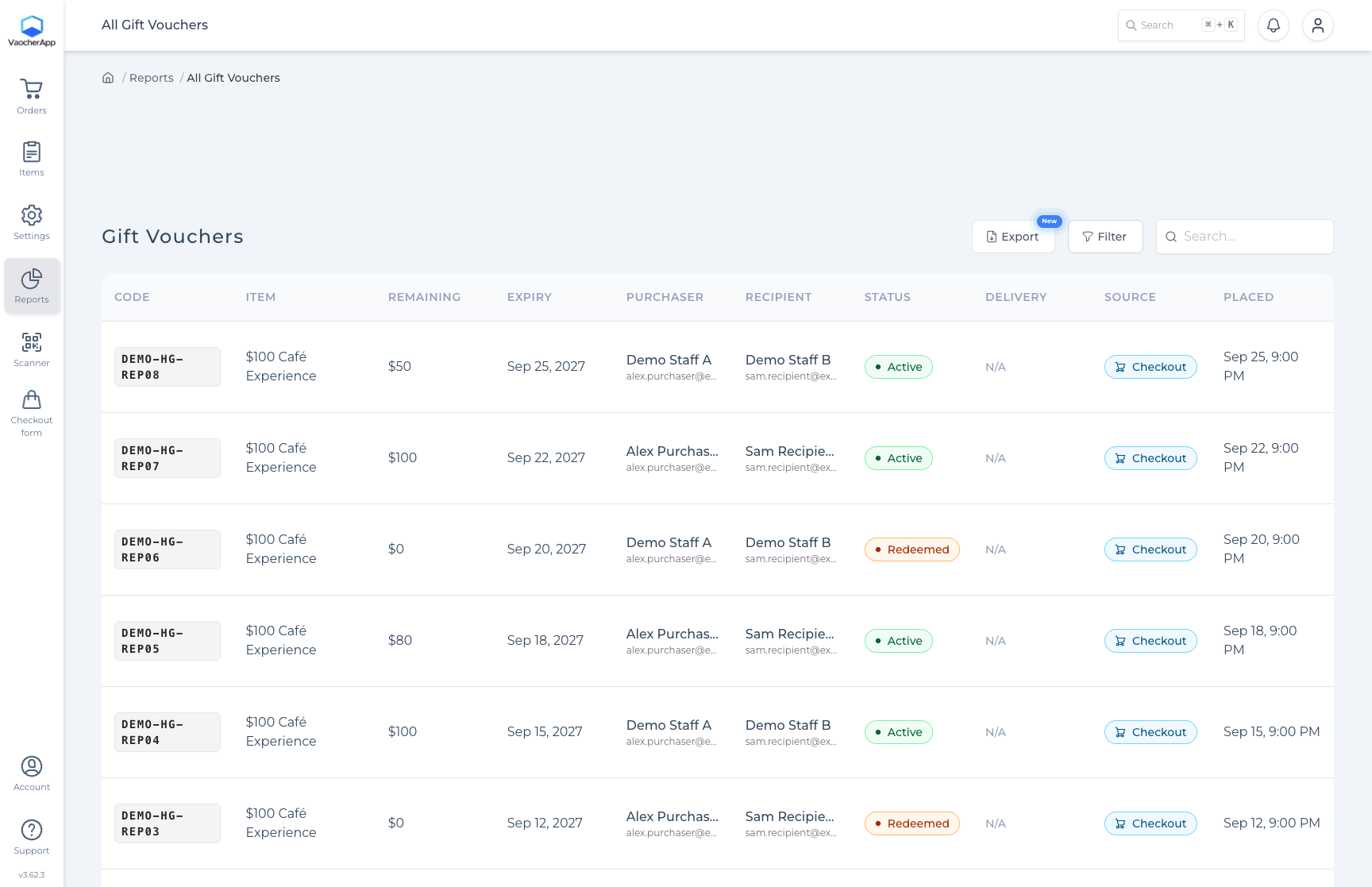

Sales visibility
See voucher activity across the periods you care about.
Redemption records
Review who redeemed what, and for how much.
Exports
Download records to check against your other systems.
Which report to open
Start with the business question.
Use the report that matches what you need to check — then filter and export from there.
| Business question | Report | Filters | Output |
|---|---|---|---|
| What vouchers are outstanding? | Gift vouchers list | Status, search and period views in Reports | Codes, remaining balances and status |
| What was redeemed in a period? | Redemptions report | Date range and staff member filters | Redemption rows with amounts and codes |
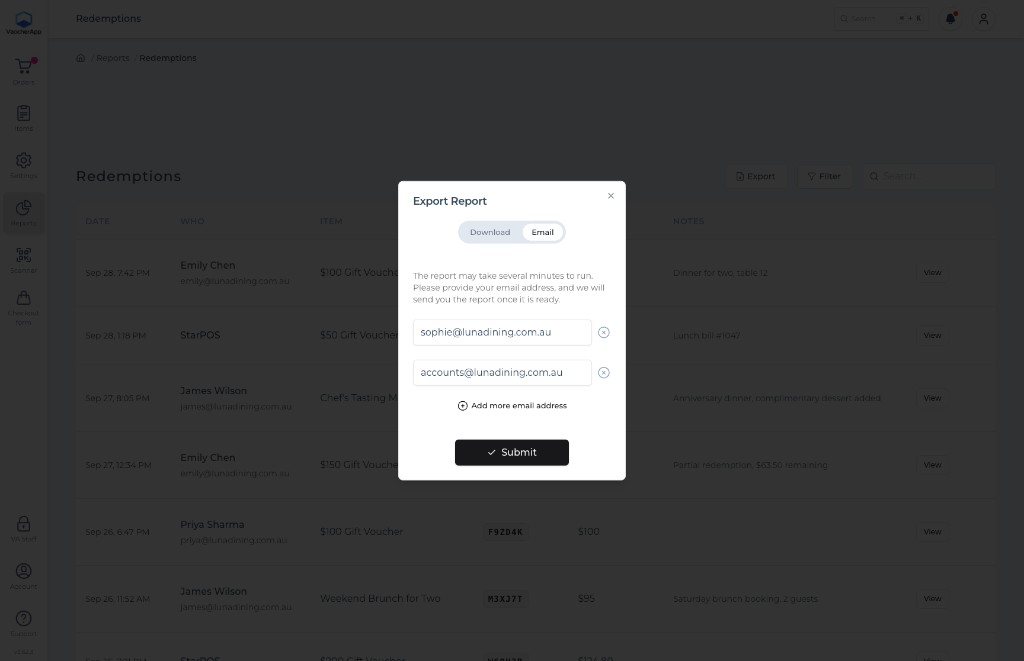
| How do I take records elsewhere? | Export | Same report filters before export | Downloadable CSV for your own checks |
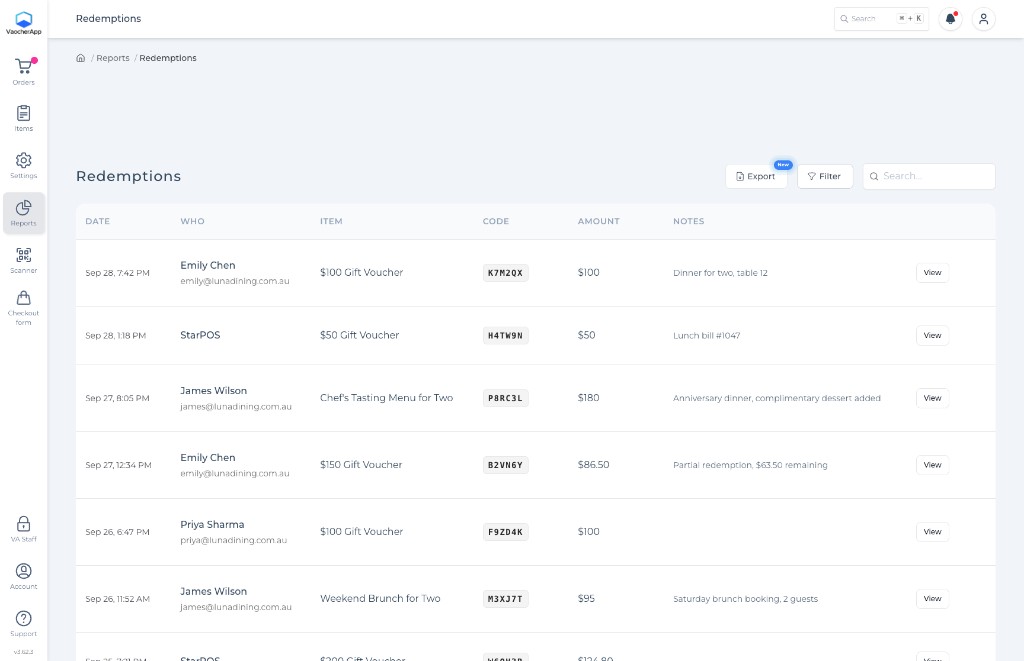
Redemption report
See each redemption in the period.
Filter by date range and staff member, then review each row: when it happened, who redeemed it, which voucher, and how much.
- Date and member filters
- Amount redeemed per event
- Partial redemptions can create multiple rows

Reconciliation workflow
Export records. Compare them yourself.
VaocherApp does not automatically match bank or POS statements. Use reports and exports as the voucher side of your check.
- 01
Choose the period
Pick the dates that match the statement or till report you are checking.
- 02
Export the records
Download the CSV from the report you need.
- 03
Compare elsewhere
Check against POS, payment provider or accounting records.
- 04
Investigate differences
Look for timing, partial redemptions or complimentary vouchers.
Sample CSV excerpt
Illustrative sample rows using demo voucher codes. Use your live export for real reconciliation.
date,voucher_code,item,initial_balance,remaining_balance,status
2026-07-09,DEMO-HG-100A,"$100 Café Experience",100.00,65.00,active
2026-09-08,DEMO-HG-REP02,"$100 Café Experience",100.00,65.00,active
2026-09-12,DEMO-HG-REP03,"$100 Café Experience",100.00,0.00,redeemed
How to read the numbers
A few distinctions that matter.
These differences often explain gaps when you compare voucher reports with payment or till data.
Sale date vs redemption date
A voucher sold in one month may be redeemed later. Match the report type to the question you are asking.
Face value vs money received
Voucher value on the gift is not always identical to cash collected after fees, discounts or complimentary issues.
Partial redemption events
One voucher can appear more than once when guests use part of the balance across visits.
Complimentary vouchers
Redeemed complimentary vouchers can appear in redemption reports even when no payment was taken.
Before you rely on reports
Try a report on sample activity.
Create a few test orders and redemptions, then open the same reports your team will use each week.
See how redemptions are recorded- 1
Generate sample activity
Use Test Mode for a sale and at least one partial redemption.
- 2
Open redemptions and voucher lists
Confirm filters, amounts and remaining balances look right.
- 3
Export a CSV
Download a sample export and walk through your comparison steps.
Common questions
Reporting, explained.
Need help choosing the right report for your check?
Talk to our teamCan records be exported?
Yes. From supported reports you can export records, including CSV download, so you can review them outside VaocherApp.
Can reports be filtered by redemption period or staff member?
Yes. The redemptions report supports date and member filters so you can focus on the period and staff you need.
Read the redemption report guideWhy might a voucher appear more than once?
Partial redemptions can create multiple rows for the same voucher code — one row for each redemption event in the period.
Are complimentary vouchers included?
Redeemed complimentary vouchers are included in the redemption report. Treat them carefully when comparing to payment records.
Does reconciliation happen automatically?
No. VaocherApp gives you reports and exports. Comparing those records with POS or payment statements is a manual check your team runs.
What about several venues?
Organise selling with item groups and venue checkout links, then use account reports to review activity. Confirm cross-venue and attribution needs for your setup.
Ready for clearer voucher records
Check voucher activity with reports you can export.
Review redemptions, outstanding balances and CSV exports as part of your weekly checks.