









Redemption Report: How to Check Gift Voucher Redemption Periods in VaocherApp
The Redemption Report in VaocherApp allows you to track when gift vouchers are redeemed and review redemption activity over a specific time period. This is useful for reconciliation, reporting, and understanding how and when customers use their vouchers.
With the Redemption Report, you can easily check:
- Which vouchers have been redeemed
- When they were redeemed
- Voucher values and balances
- Redemption activity within a selected date range
What Is the Redemption Report?
The Redemption Report provides a detailed view of redeemed gift vouchers in your account. It helps you monitor voucher usage and confirm redemption periods for accounting, auditing, or operational purposes.
This report is especially helpful when:
- Reconciling redemptions with POS records
- Reviewing voucher usage over a specific period
- Tracking outstanding and redeemed balances
- Investigating customer or staff queries
How to Access the Redemption Report
Follow the steps below to view the redemption report in VaocherApp.
Step 1: Go to Reports
- Log in to your VaocherApp dashboard
- Navigate to Reports
- Select Redemption
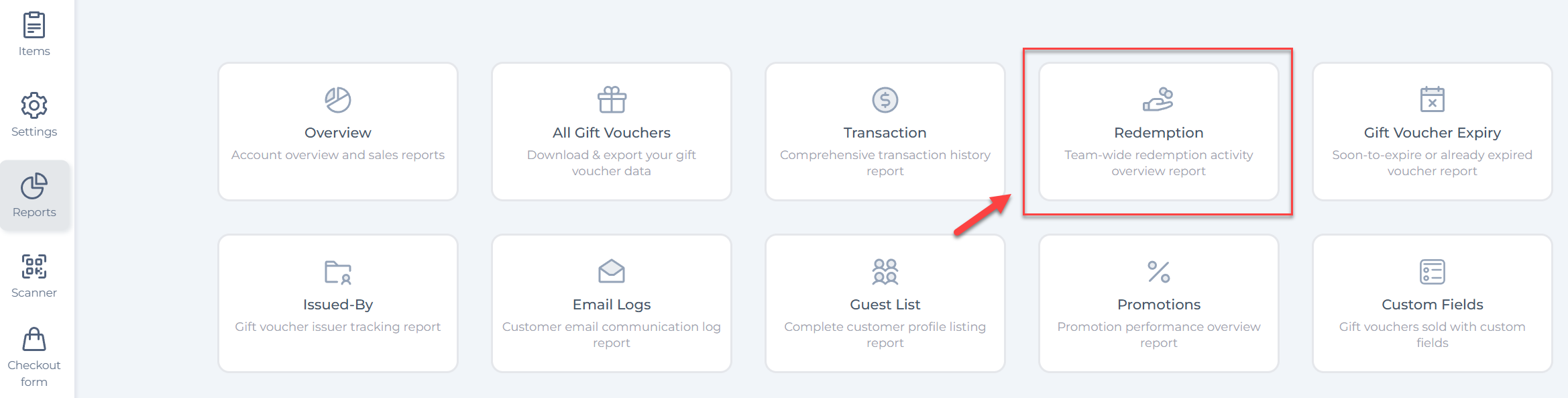
How to Check Voucher Redemption Periods
You can filter the redemption report by date to review voucher usage within a specific timeframe.
Step 2: Select the Redemption Period
- Use the Filter at the top of the report
- Choose a Member or Redeemed (date range)
- Apply the filter to update the report
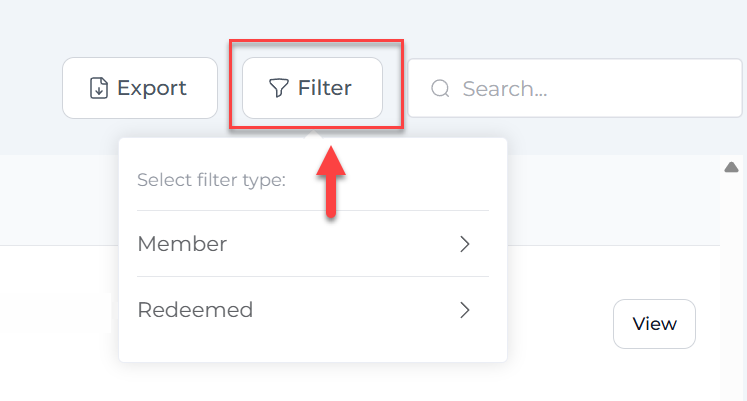
The report will now display all voucher redemptions that occurred within the selected period.
Understanding the Redemption Report Columns
Each row in the redemption report includes important voucher details, such as:
- Who
- Menu item
- Voucher UUID
- Voucher code
- Amount
- Notes
- Date

This information allows you to clearly confirm when a voucher was redeemed and how much value was used.
Exporting the Redemption Report
If you need to keep records or share data with your accountant, you can export the redemption report.
- Apply your preferred date range
- Click Export
- Download the report as a CSV file
This makes it easy to reconcile voucher redemptions with external systems.
Important Notes
- Only redeemed vouchers appear in the redemption report
- Partially redeemed vouchers may appear multiple times
- Complimentary vouchers are also included if redeemed
- The redemption date reflects the actual time the voucher was redeemed