









Customising Receipts to Meet Tax Invoice Requirements
By default, VaocherApp automatically sends informal receipt emails when a voucher is purchased. The image below shows what a typical receipt email looks like.
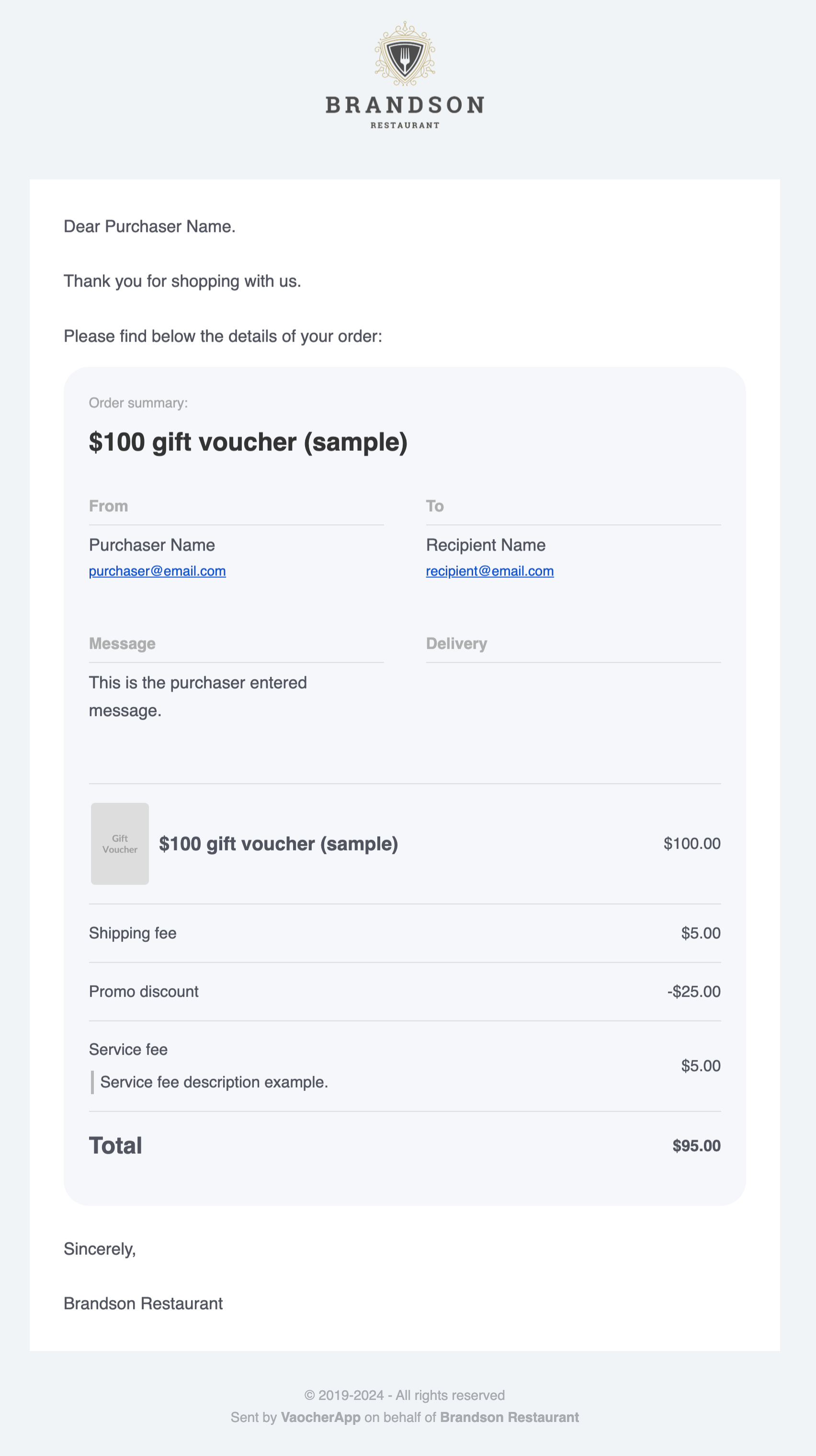
When businesses purchase gift vouchers, they may request a Tax Invoice to aid their financial record-keeping. VaocherApp enables you to customize your receipts by adding crucial information such as your ABN, business name, and address.
Additionally, if you need to present a detailed breakdown of sales tax on your receipts, you can activate sales tax for your future orders. You have the option to configure taxes to be included in the sale price or added separately during the transaction. For more details, you can read the full article here: Applying sales taxes
Follow these instructions to customize your receipts and meet your customers’ expectations. This enables you to provide your clients with an informal invoice that addresses their accounting requirements.
Step 1: Adding Your Business Details to the Signature Section
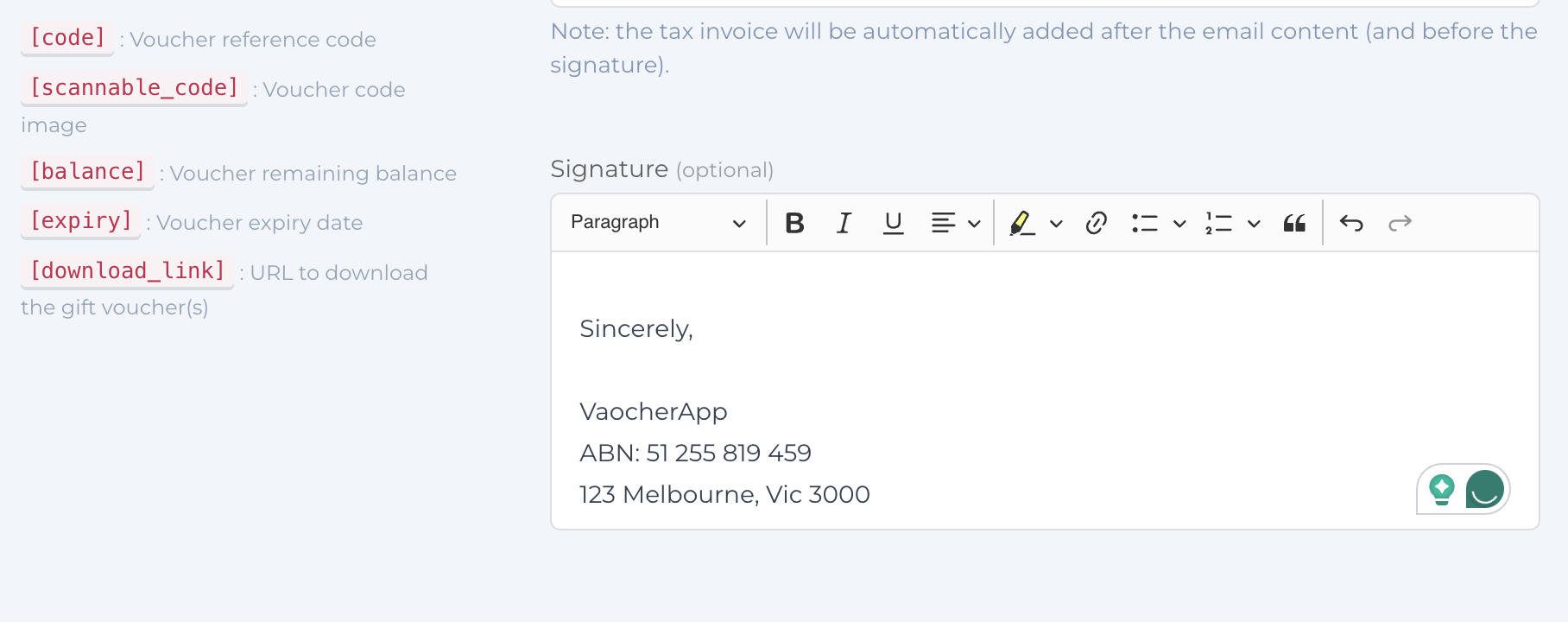
You can enhance the standard receipt by adding your company details, including your ABN and address, to the signature section of the receipt email. Follow these steps:
- Go to your Email settings in VaocherApp.
- Select “Purchaser” to edit the receipt email.
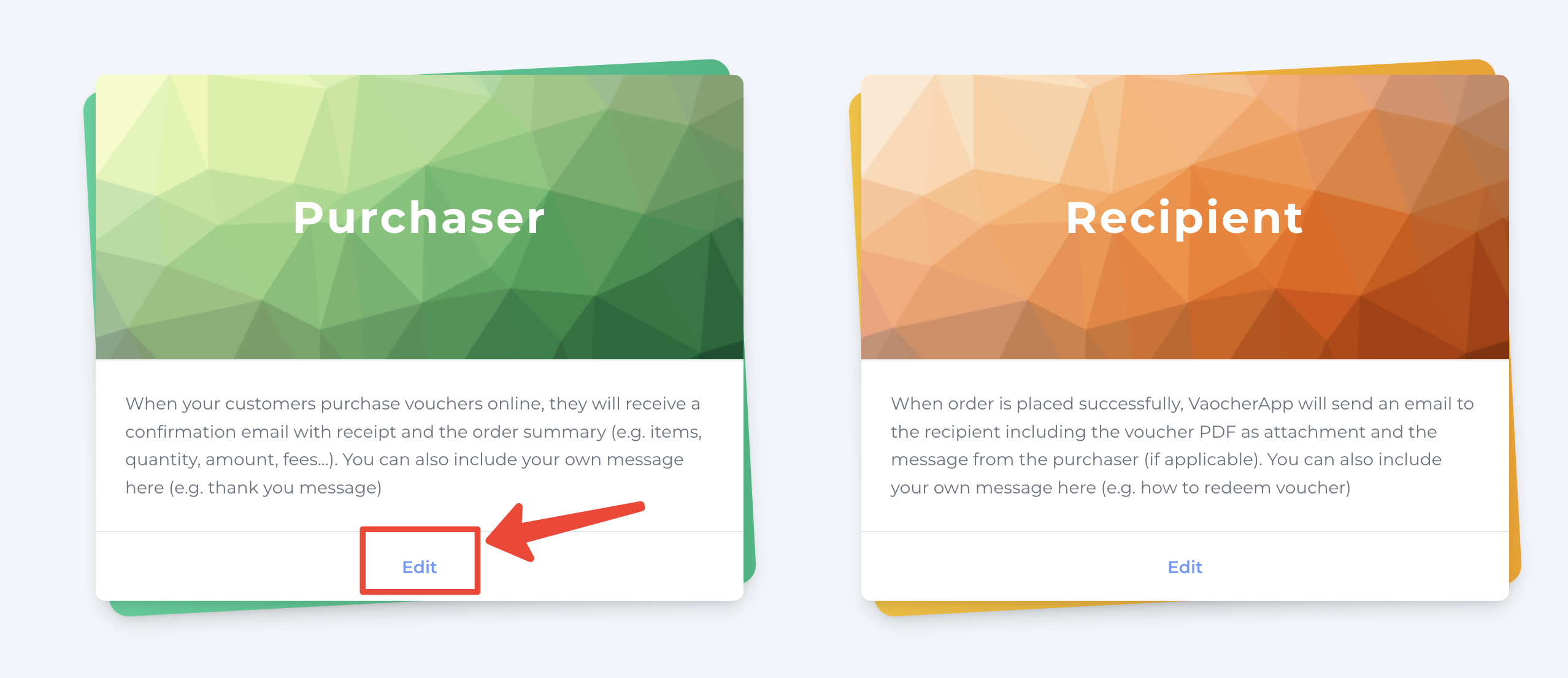
Select "Purchaser" to edit the receipt email - Edit the signature section of the email.
- Add your company name, ABN, business address, and any other relevant information.
This ensures that every receipt email sent to customers includes your business details for reference.
Step 2: Including GST in the Receipt
If you need to add GST to your receipts, you can enable this feature through the platform settings:
- Go to Settings > Checkout.
- Scroll down to the “Apply sales taxes” section.
- Set up the GST rate (e.g., 10%) and ensure it is applied to your vouchers.
Once enabled, GST will appear on the receipt email, showing the tax breakdown clearly for the customer.
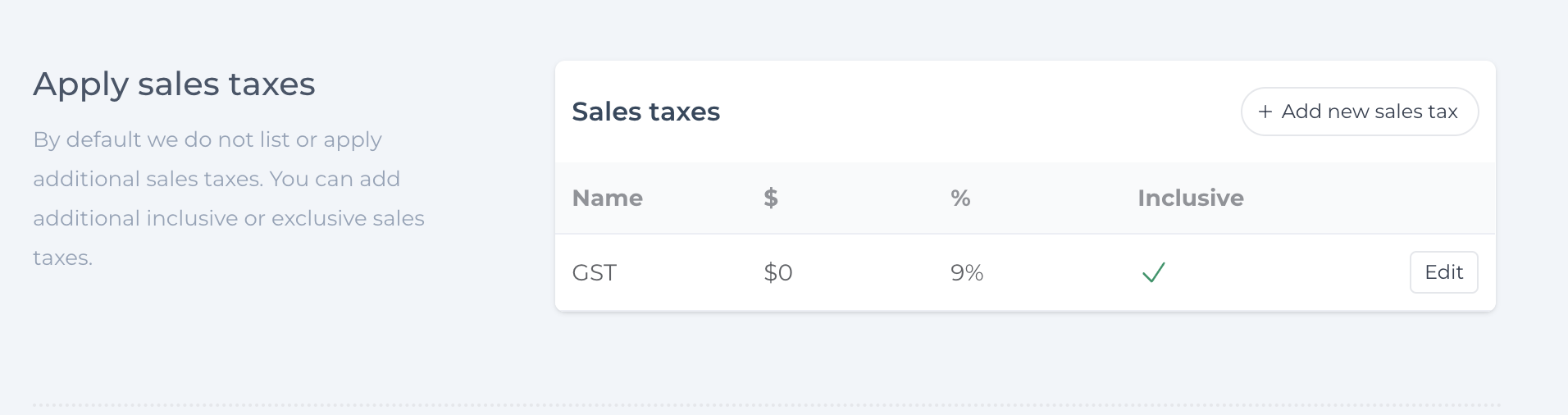
You can find detailed instructions on applying sales tax in this article: Applying sales taxes
Step 3: Enhancing the Receipt to Resemble a Tax Invoice
While the receipt email is not a formal Tax Invoice, you can modify its presentation to make it clearer for customers. Here are some tips:
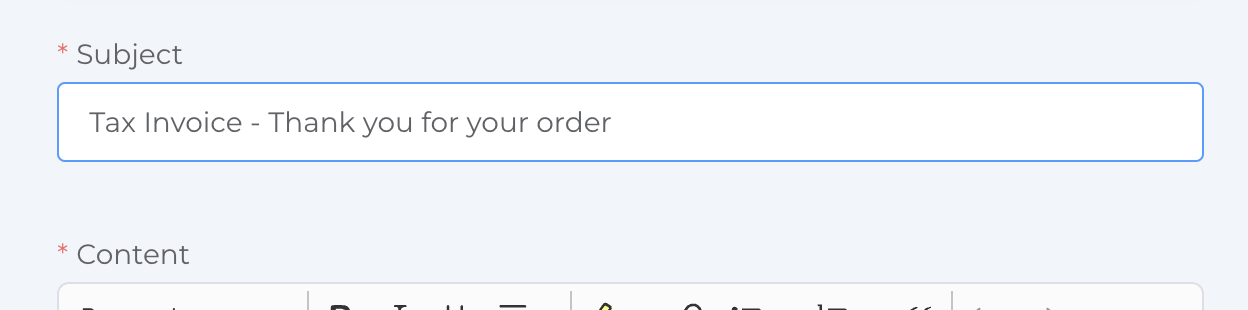
- Include the words “Tax Invoice” in the email subject line or body of the message.
- Ensure your ABN and other business details are prominent in the signature section.
- Include the GST breakdown so customers can easily see the tax component.
These changes provide customers with all the necessary information they typically expect in a Tax Invoice.
Including your ABN, business name, and GST details within the receipt email provides your customers with the necessary documentation for their records. Although this enhanced receipt email does not constitute a formal Tax Invoice, it generally fulfills the requirements of businesses purchasing vouchers.