









Applying Sales Taxes
As a business owner, understanding and correctly applying sales taxes is crucial to staying compliant with local, state, and federal tax regulations. Sales taxes can vary widely depending on your location, the nature of your products or services, and the customers you serve. Whether you’re selling goods in-store, online, or across state lines, knowing when and how to charge sales tax can prevent costly mistakes and penalties. This guide will walk you through the essentials of applying sales taxes correctly, ensuring your business remains on track with its tax obligations while also maintaining customer trust and satisfaction.
By default, VaocherApp does not apply sales taxes to your transactions. If your business needs to include sales taxes, you can easily set up either inclusive or exclusive tax options through the Checkout Settings page.
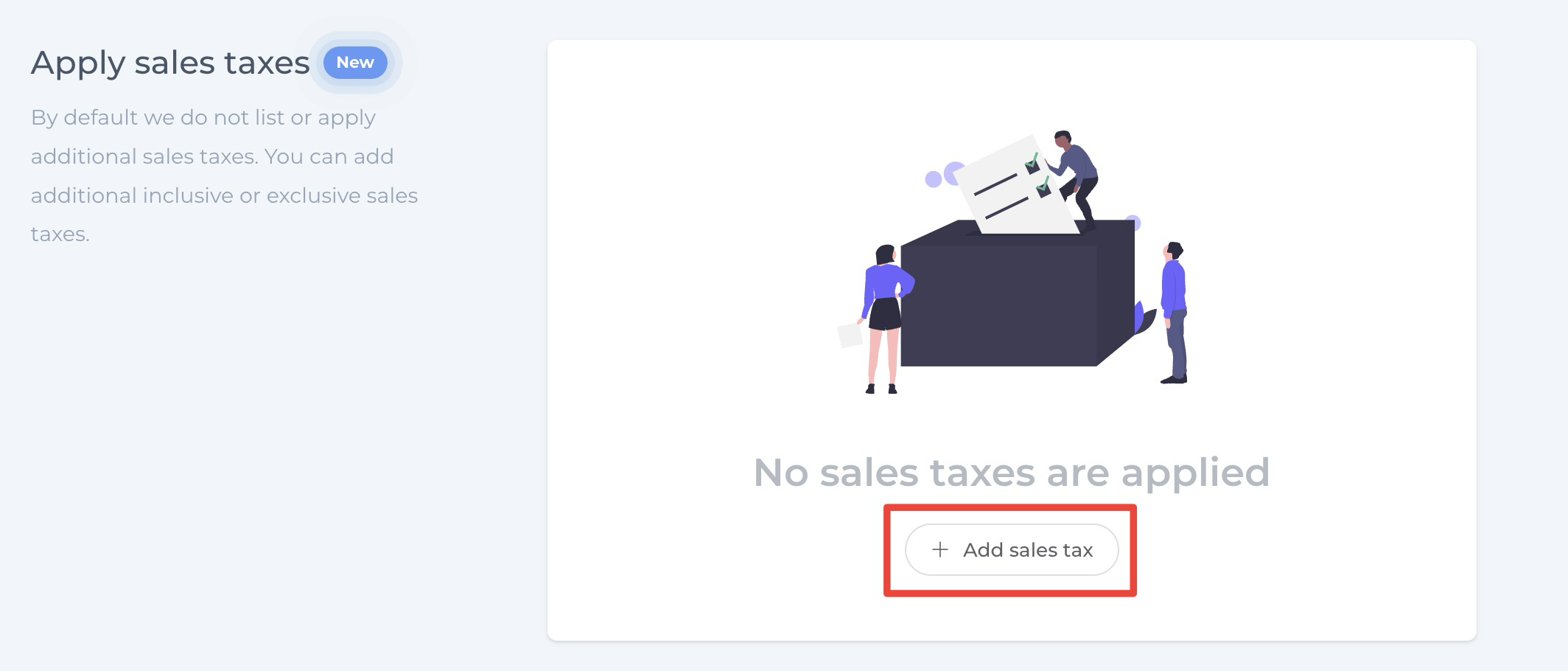
Setting Up Inclusive Sales Taxes
In some cases, it’s advantageous to display the gift card price with sales tax included. This approach enhances transparency by showing customers the total amount they are paying, ensuring both the buyer and the recipient understand that sales tax is part of the gift card price.
How to Configure Inclusive Sales Taxes:
- Navigate to the Checkout Settings in your VaocherApp dashboard.
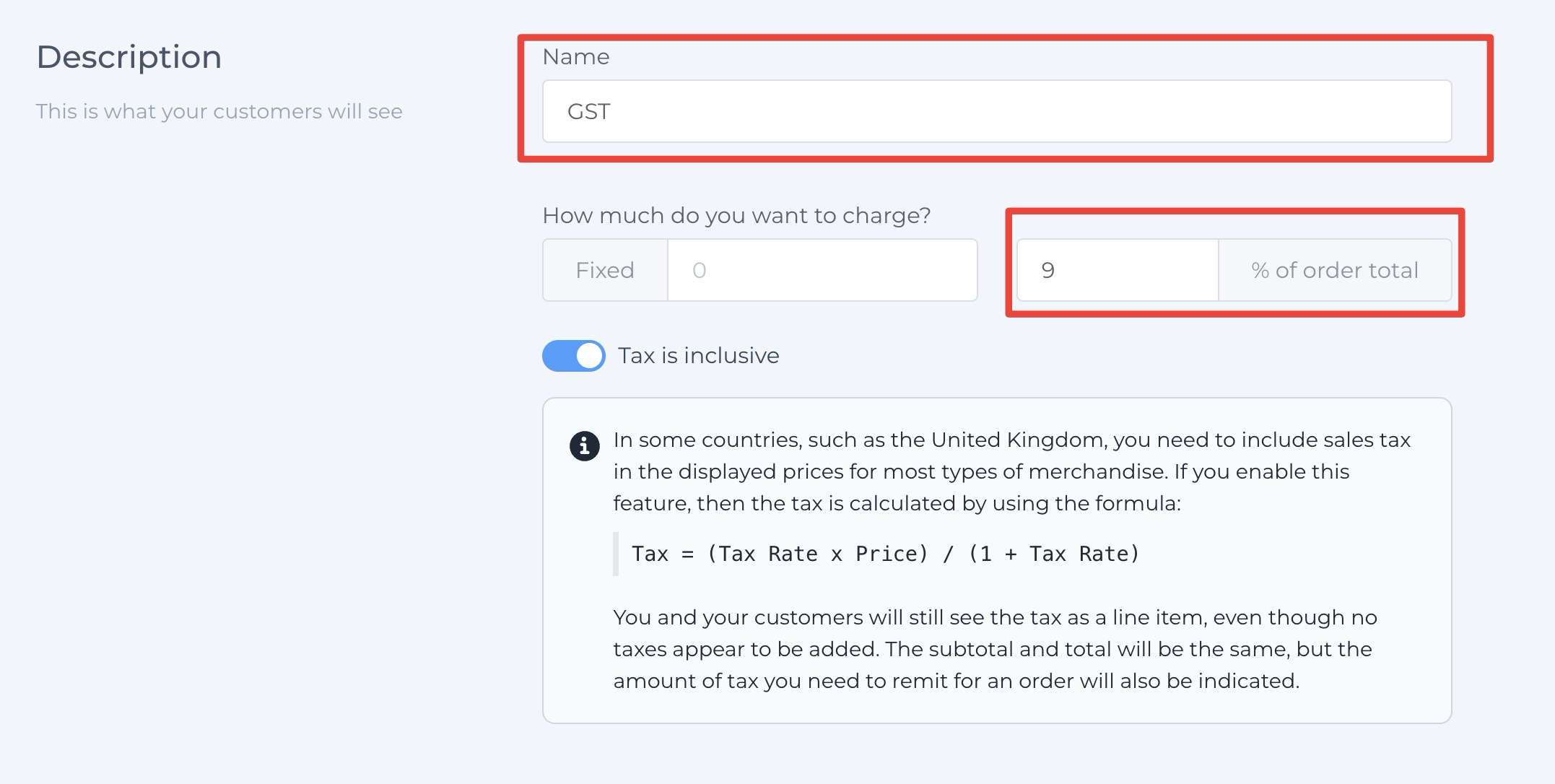
- Assign a name to the tax (e.g., VAT, GST) and specify the corresponding rate.
- Select which components of the order should be included in the tax calculation. By default, only item prices are taxed, but you can opt to include shipping costs if necessary.
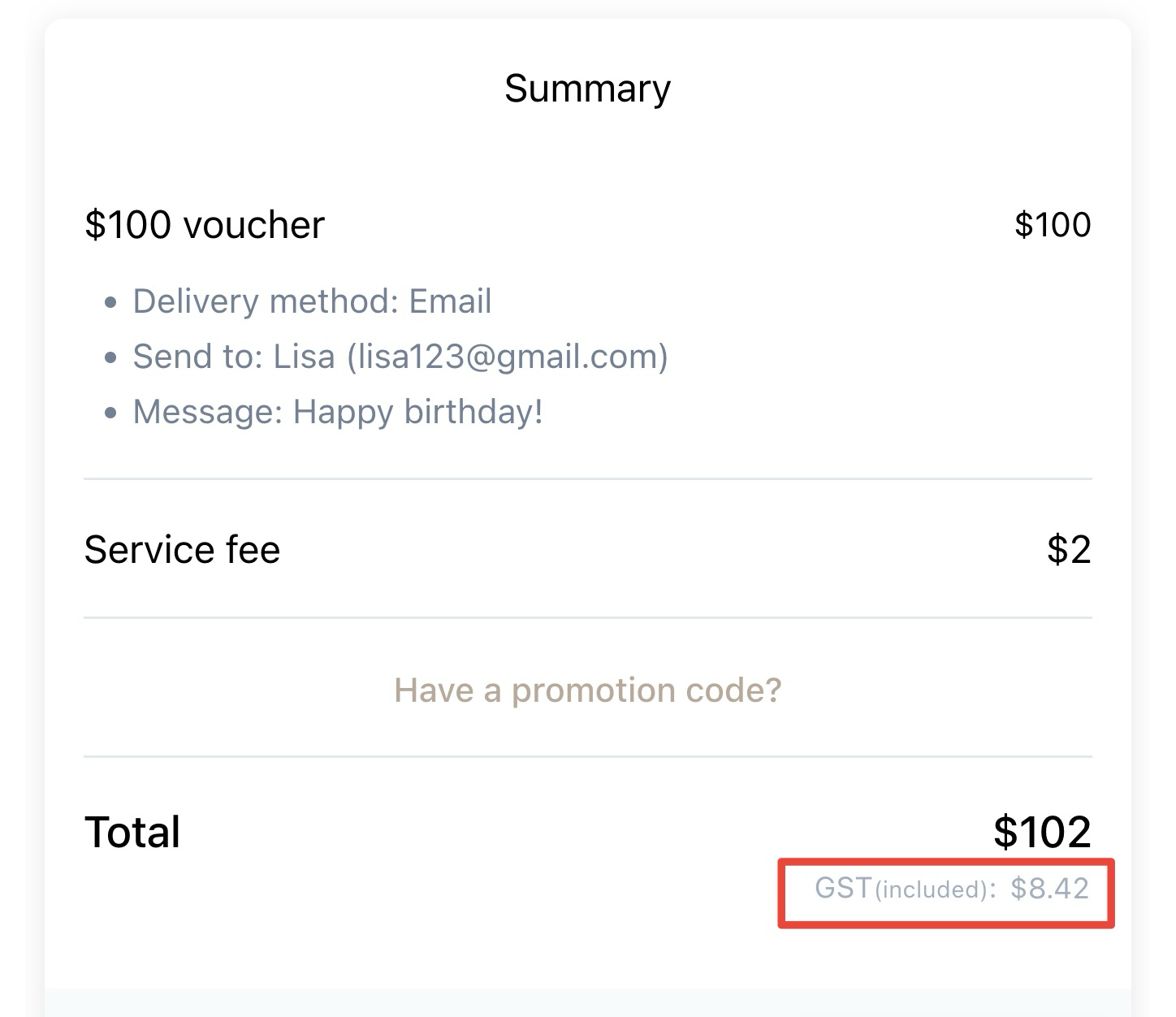
Example: Adding a 9% inclusive GST to the total order ensures that the tax is embedded in the displayed price during checkout and on the receipt.
Once set up, both the checkout page and the order receipt will display the total amount with the 9% GST included, offering a clear breakdown for your customers.
Managing Multiple Sales Taxes
VaocherApp allows you to apply several sales taxes to a single transaction simultaneously. Each tax will appear as a separate line item on receipts and during the checkout process, providing a comprehensive tax breakdown.
Example Configuration:
Suppose you need to apply both “GST” and “Sales Tax” to your transactions. You can set up each tax individually to ensure they are listed separately.
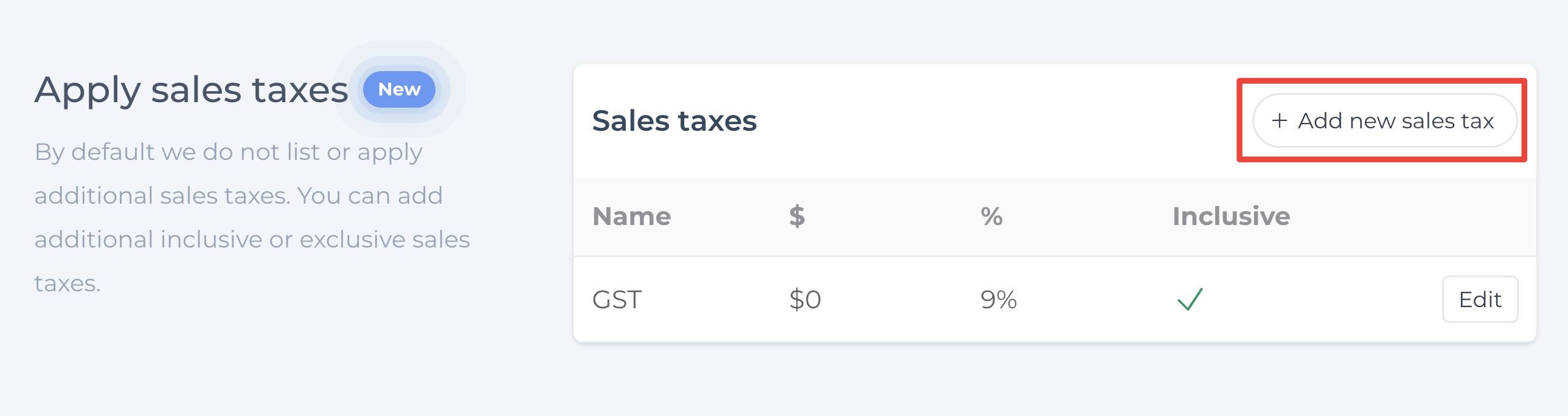
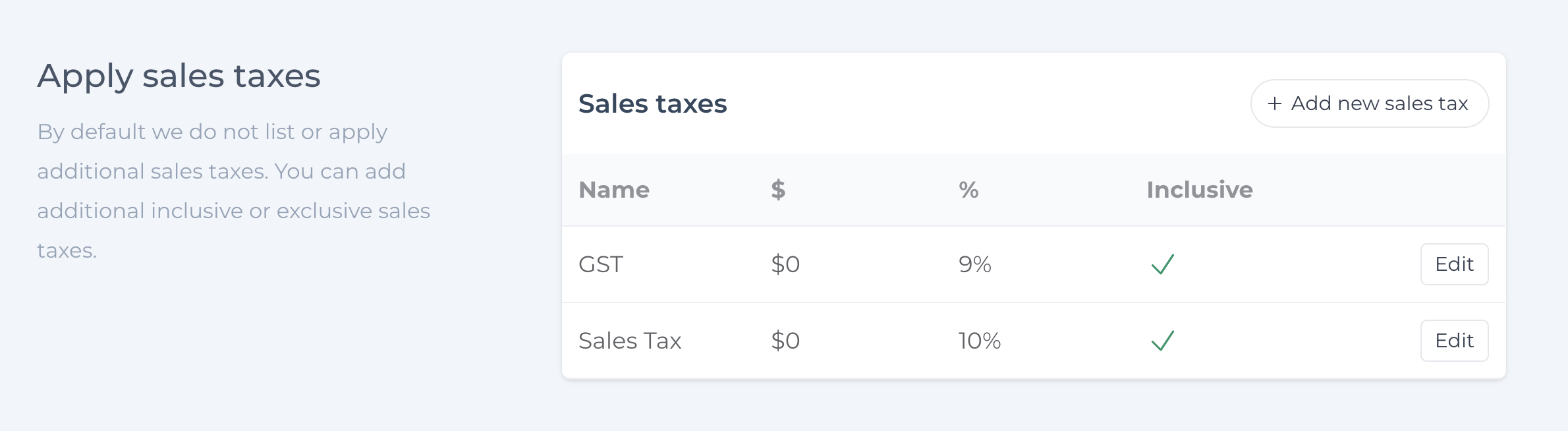
In the example above, during both the checkout process and on the final receipt, “GST” and “Sales Tax” will be displayed separately, ensuring full transparency for your customers.
Applying Sales Taxes to Specific Items
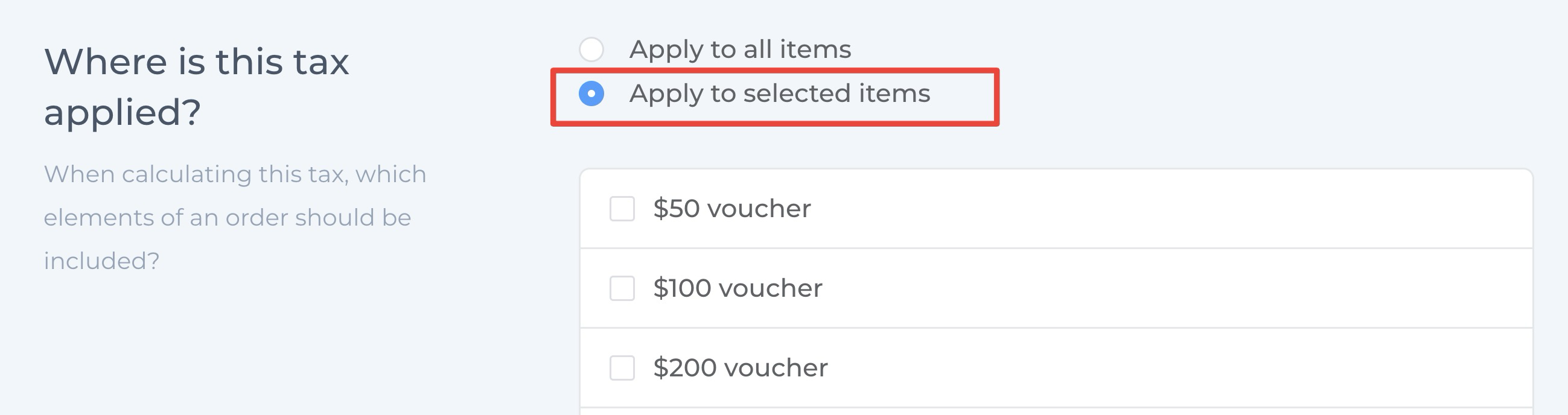
VaocherApp provides the flexibility to apply sales taxes to various parts of a transaction based on your business requirements. You have the option to:
- Tax All Items: Apply sales taxes to every product and service in the transaction.
- Selective Taxation: Define specific tax rules targeting individual items within your offerings.
This level of customization ensures that your tax calculations are aligned with your business model and comply with relevant regulations.
If you need further assistance or have questions about setting up sales taxes in VaocherApp, our support team is ready to help. Contact us to ensure your tax configurations meet your business needs and regulatory standards.