









Enable adding credit to existing vouchers
Adding credit allows staff to increase the balance of an existing gift voucher instead of creating a new one.
If the Add Credit option is not available when viewing a voucher, the feature may not be enabled in your account settings.
Before you start
Make sure you have:
- Administrator access to your VaocherApp account.
- Permission to manage account settings.
Enable the Add Credit feature
To enable adding credit to existing vouchers:
- Log in to your VaocherApp account.
- Go to Settings → System Preferences.
- Locate the Allow Adding Credit setting.
- Enable the setting.
- Click Save Changes.
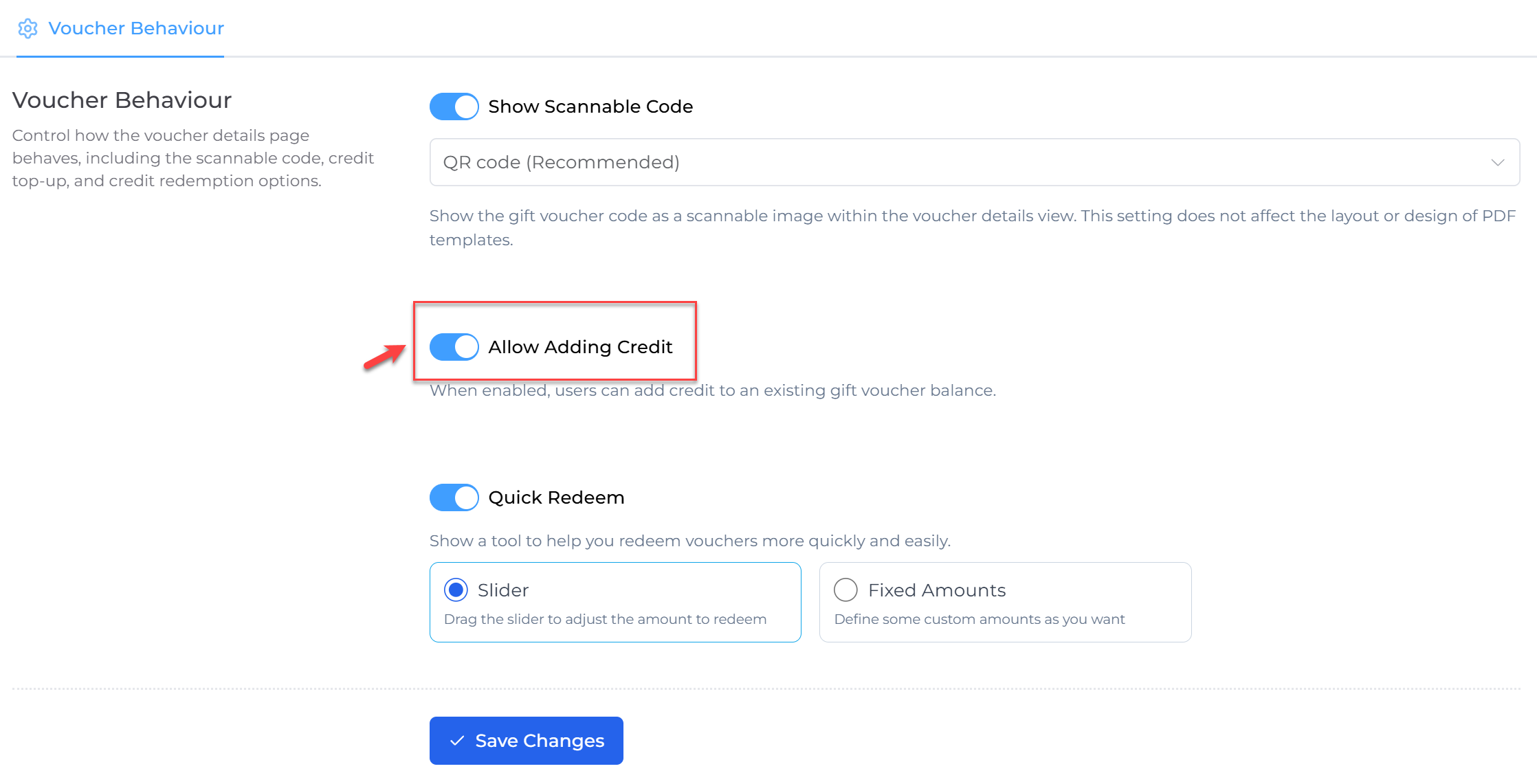
Once enabled, authorized users will be able to add credit to existing vouchers.
Add credit to an existing voucher
After enabling the feature:
- Open the voucher you want to update.
- Navigate to the voucher details page.
- Click Add Credit.
- Enter the amount to add.
- Confirm the transaction.
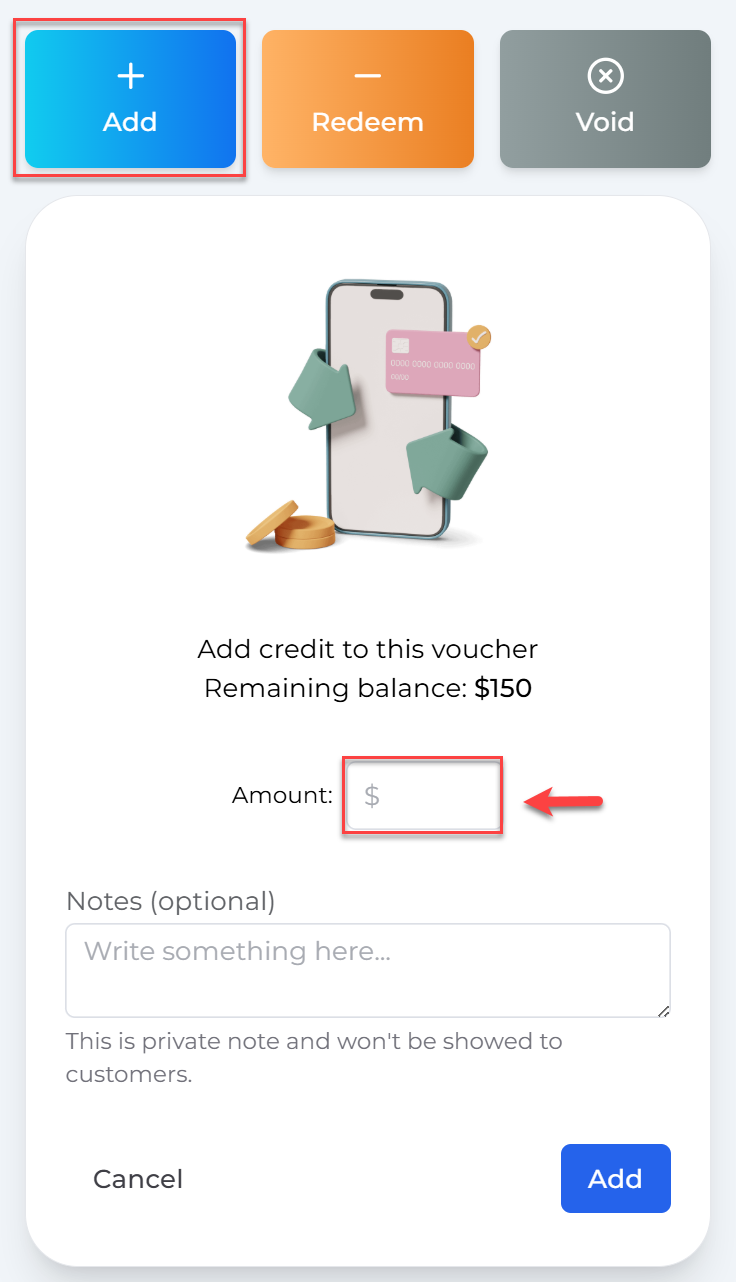
The voucher balance will be updated immediately.
If you can’t see the Add Credit option
If the Add Credit button is still unavailable, check the following:
- The Allow Adding Credit setting is enabled.
- You are signed in with an account that has the required permissions.
- Refresh the page or sign out and sign back in after enabling the setting.
If the issue continues, contact the VaocherApp Support team.
Things to know
- Adding credit increases the current voucher balance.
- Existing voucher details remain unchanged.
- The added credit is recorded as part of the voucher’s transaction history.