
Your look on every gift
Gift Voucher Branding & Personalisation
Your Brand, Throughout the Gift
From the checkout to the recipient email and PDF voucher, keep one consistent look that feels like your business — not a generic gift card.
Selling online? See online voucher sales
Branded checkout
Match colours and presentation so the buying page feels like your business.
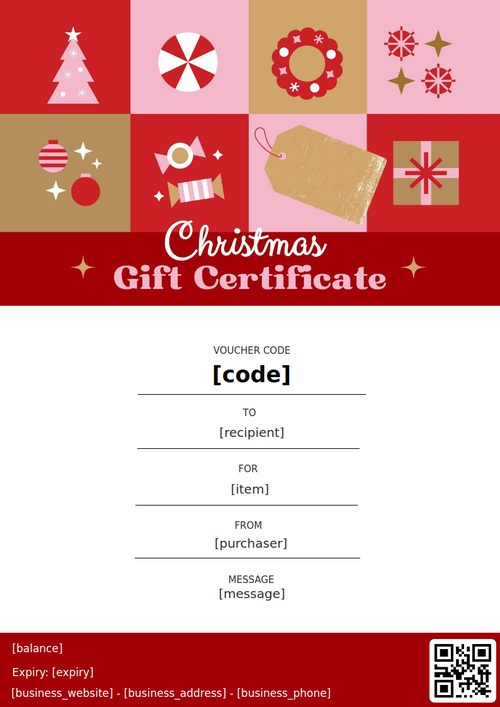
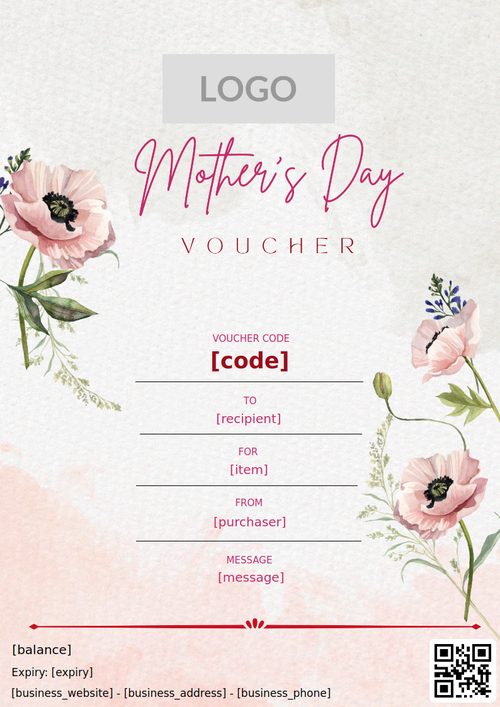
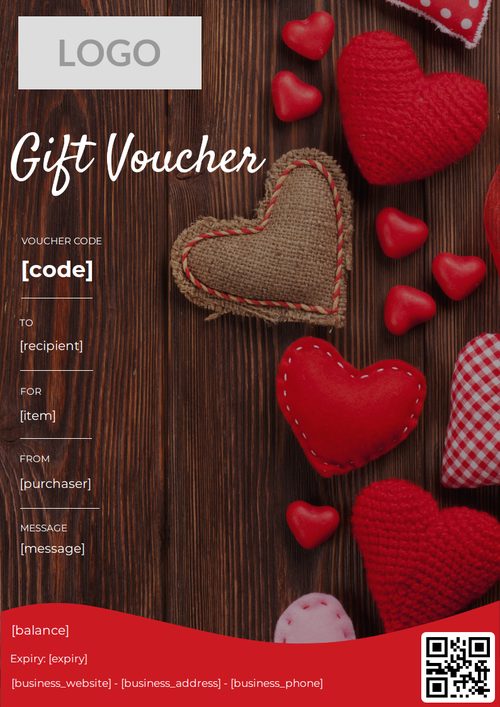
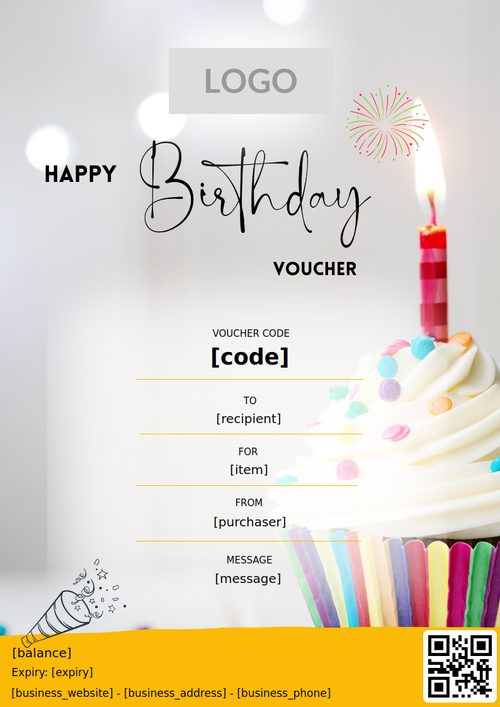
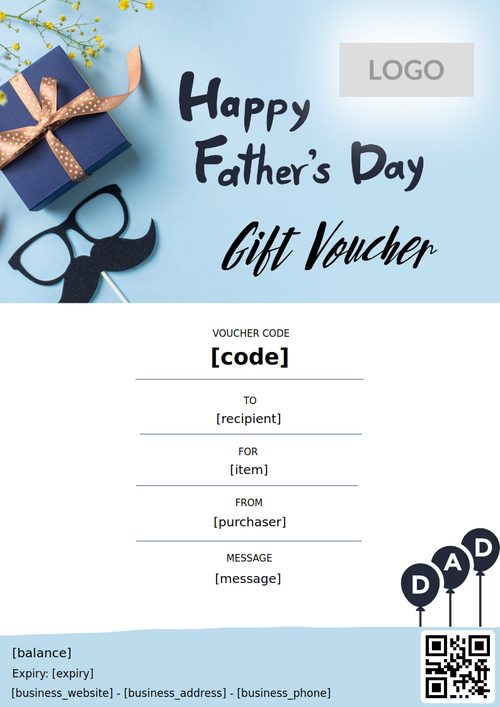
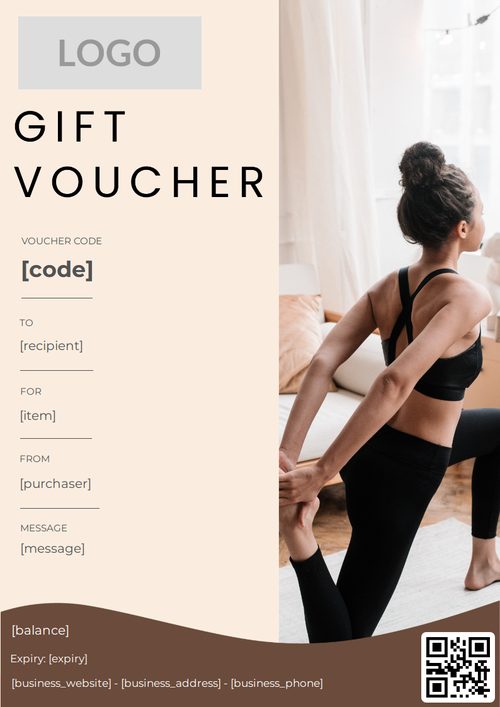
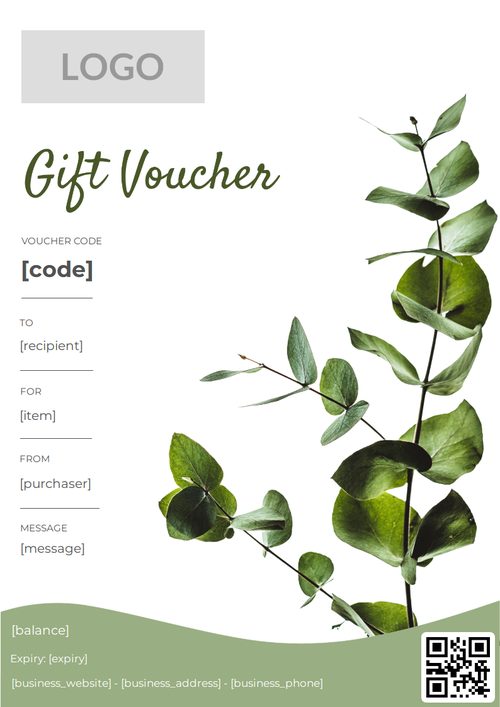
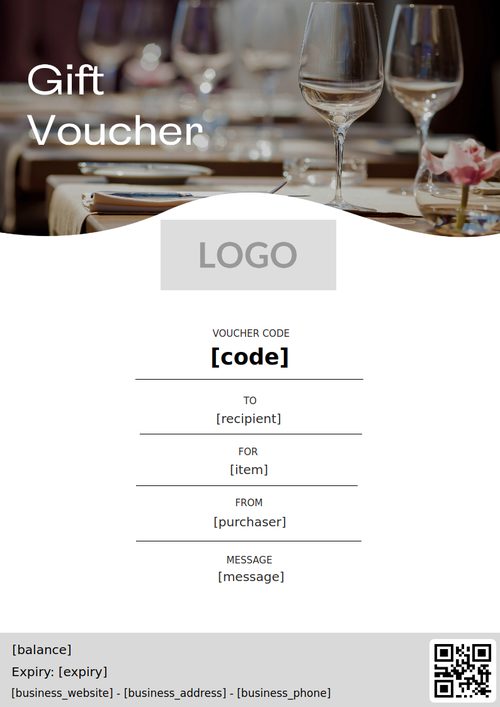
Designed vouchers
Build the PDF gift with your artwork, wording and terms.
Customer emails
Send purchaser and recipient messages that carry your brand.
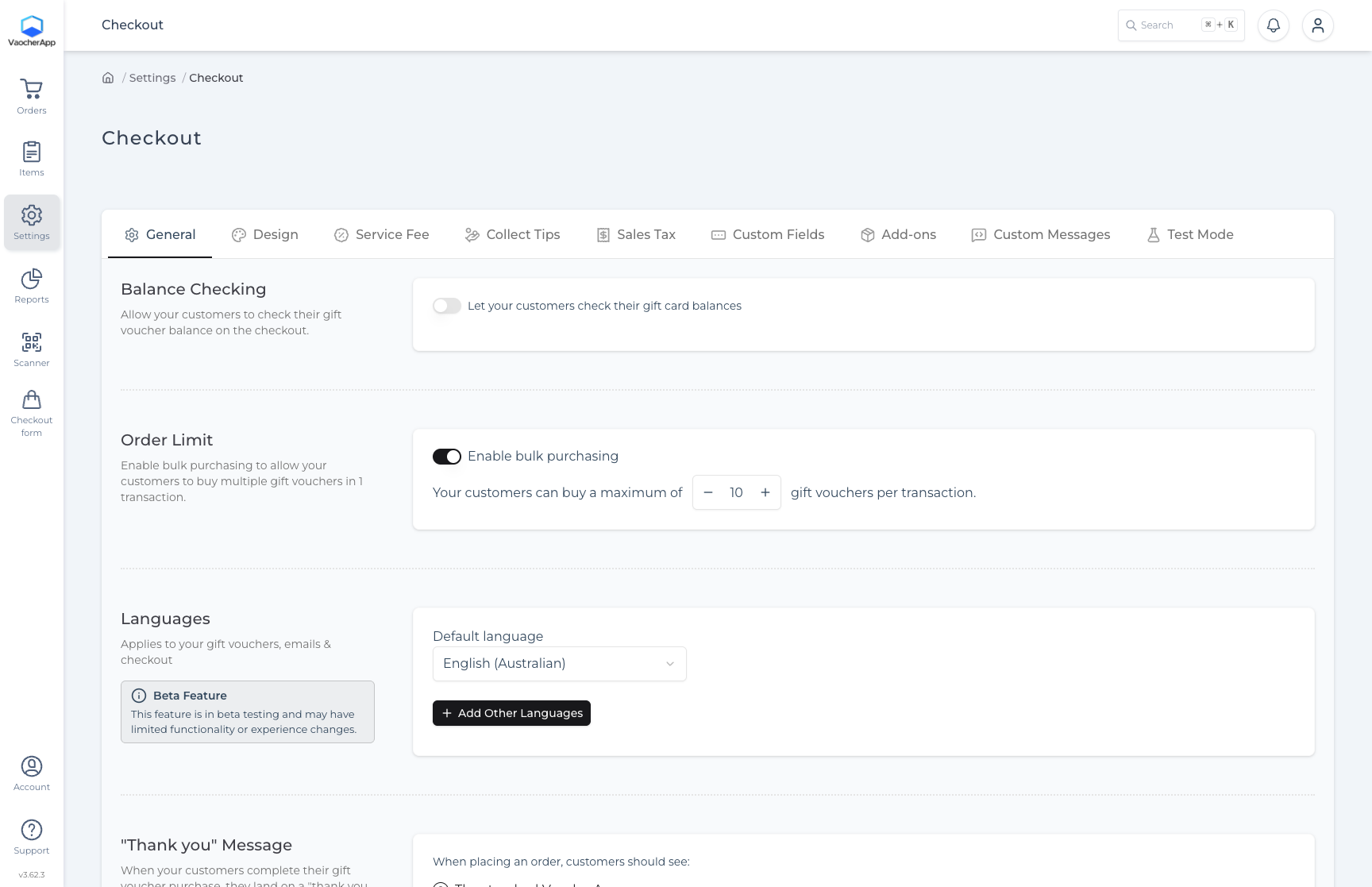
Checkout branding
Make the buying page feel like yours.
Adjust checkout presentation so customers stay in your brand while they choose and buy a gift.
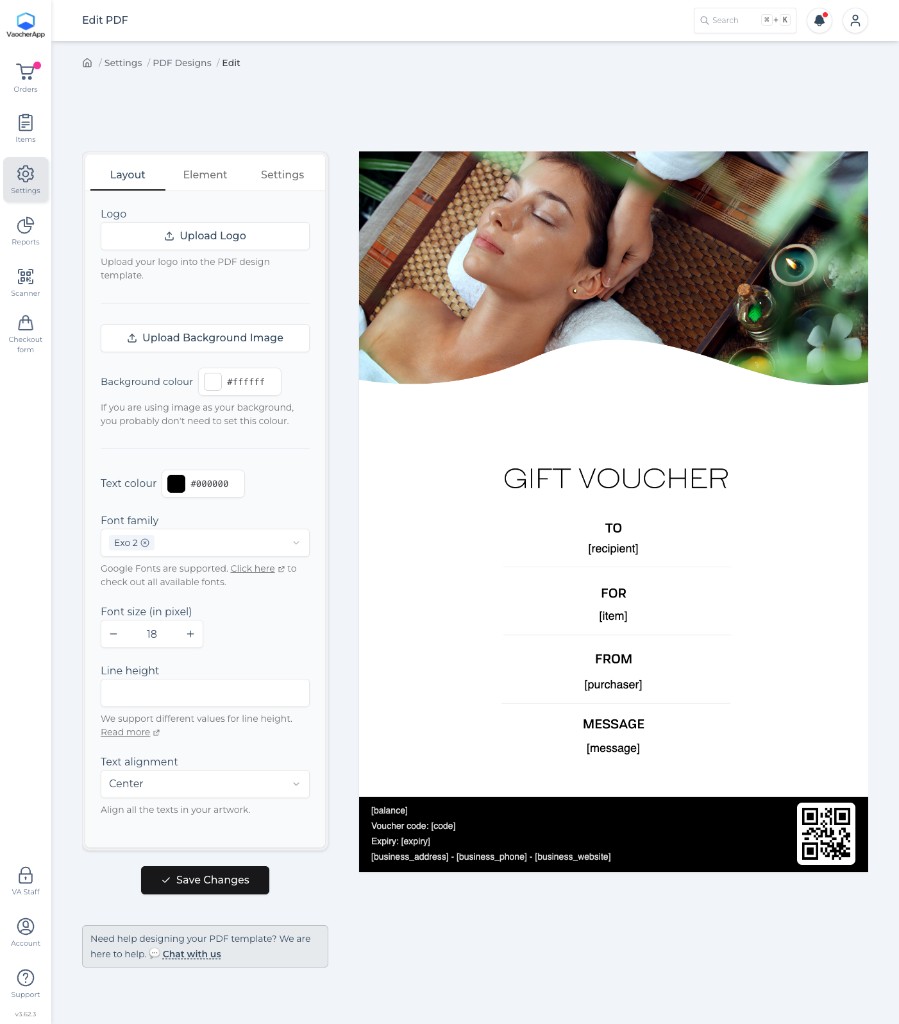
PDF voucher design
Design the gift they open.
Use the voucher editor to arrange artwork, wording and terms for the PDF recipients download and present.
- Place logo and artwork on the voucher
- Set wording and redemption terms
- Preview the result before you go live
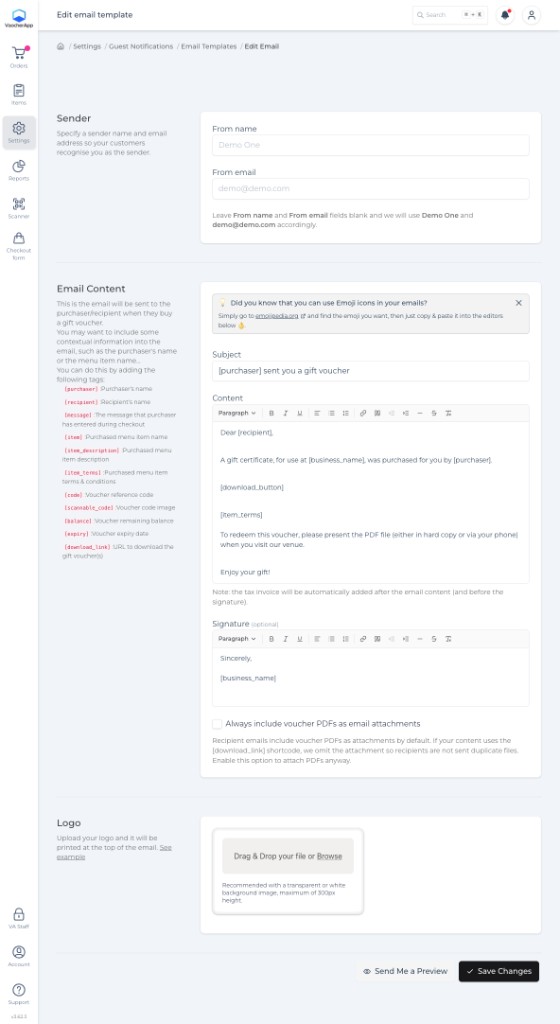
Customer emails
Brand the messages they receive.
Customise purchaser and recipient emails with your identity and wording. Use templates when you need different messages for different items or groups.
- Branded customer email content
- Template choices for different offerings
- Works with your voucher delivery flow
Purchaser personalisation
Their message.
Your design.
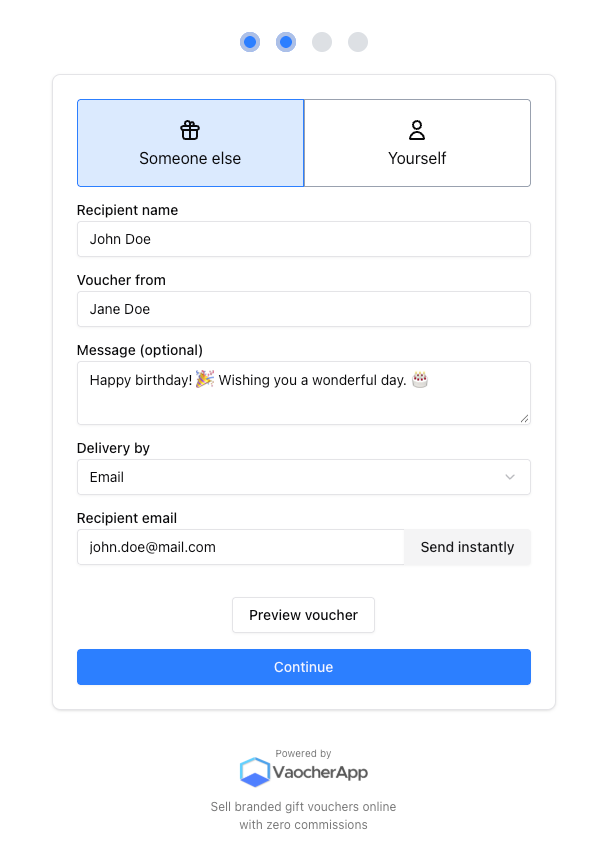
Purchasers can add a personal gift message at checkout. That note sits inside the branded voucher experience you control.
- Gift message captured during purchase
- Shown on the voucher the recipient opens
- Separate from merchant templates and artwork
Before you go live
Preview the full brand journey.
Place a test order and check checkout, emails and the PDF together before customers buy.
Follow the getting started checklist- 1
Add logo and colours
Set business branding, then apply it to checkout and emails.
- 2
Design the PDF voucher
Arrange artwork, wording and terms in the voucher editor.
- 3
Send yourself a test gift
Confirm the checkout, gift message, email and PDF look right together.
Common questions
Branding, explained.
Need help matching checkout, emails and vouchers?
Talk to our teamCan I upload my logo and artwork?
Yes. Add your logo and design assets in your account settings, then use them on the checkout, PDF voucher and customer emails.
See the getting started guideCan different vouchers use different designs?
Yes. You can prepare voucher designs and email templates, including targeting different items or groups where templates support it.
Read about multiple email templatesCan I customise buyer and recipient emails?
Yes. Customer emails can include your branding, messages and template choices for purchasers and recipients.
Can purchasers add a personal message?
Yes. During checkout, the purchaser can write a gift message. That message is separate from the merchant-controlled design and email templates.
Is coding required for these changes?
No. The checkout styling, PDF editor and email templates shown here are managed in the VaocherApp dashboard without writing code.
Ready for a recognisable gift
Put your brand on every step of the gift.
Set up checkout, PDF and email branding, then try a live store before you launch.