






How to Change Your Sign-in Email
Your sign-in email is the address you use to sign in to VaocherApp, and where we send your sign-in codes. You can change it from your profile.
This changes only how you sign in. To change the email address your business uses, see Update your business email address.
How to change your sign-in email
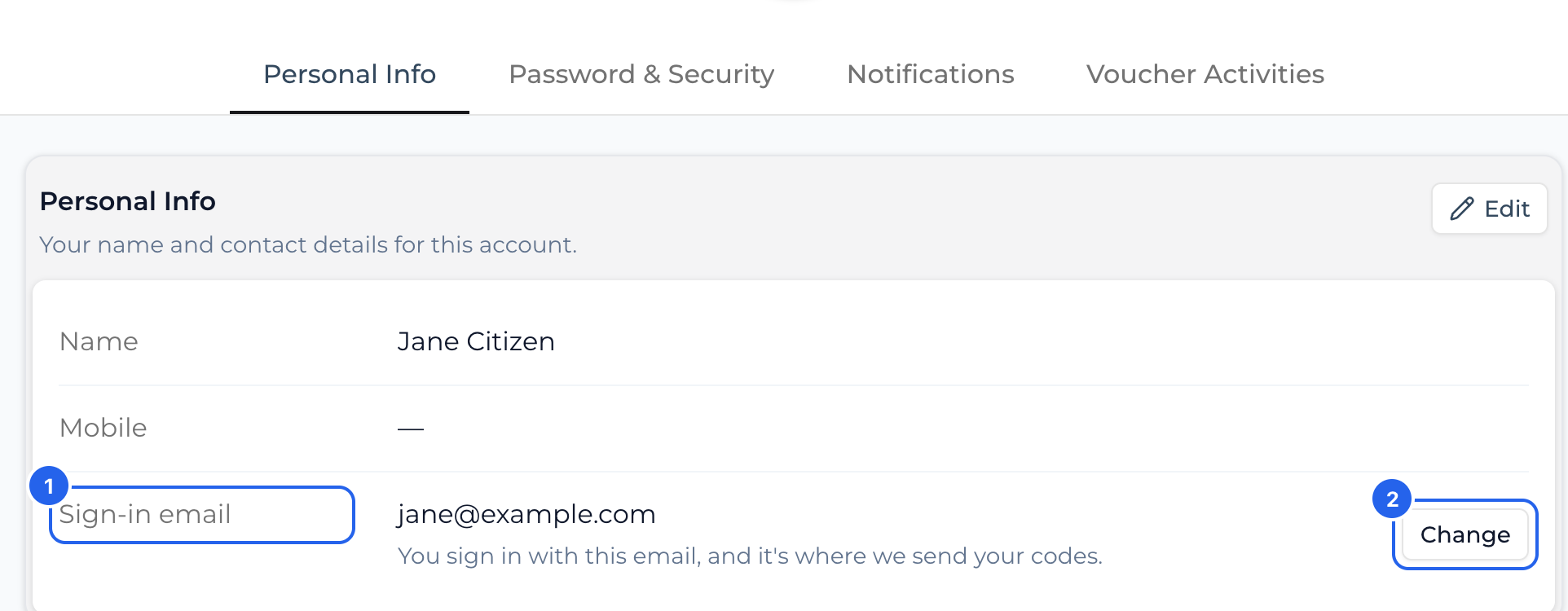
- Go to Settings, then Profile.
- On the Personal Info tab, next to Sign-in email, click Change.
- Confirm it’s you: enter your password and click Confirm & continue. Or click Email me a code instead and enter the code we email to your current address. If your account has no password, we email you a code straight away.
- Enter your New sign-in email and click Email me a code.
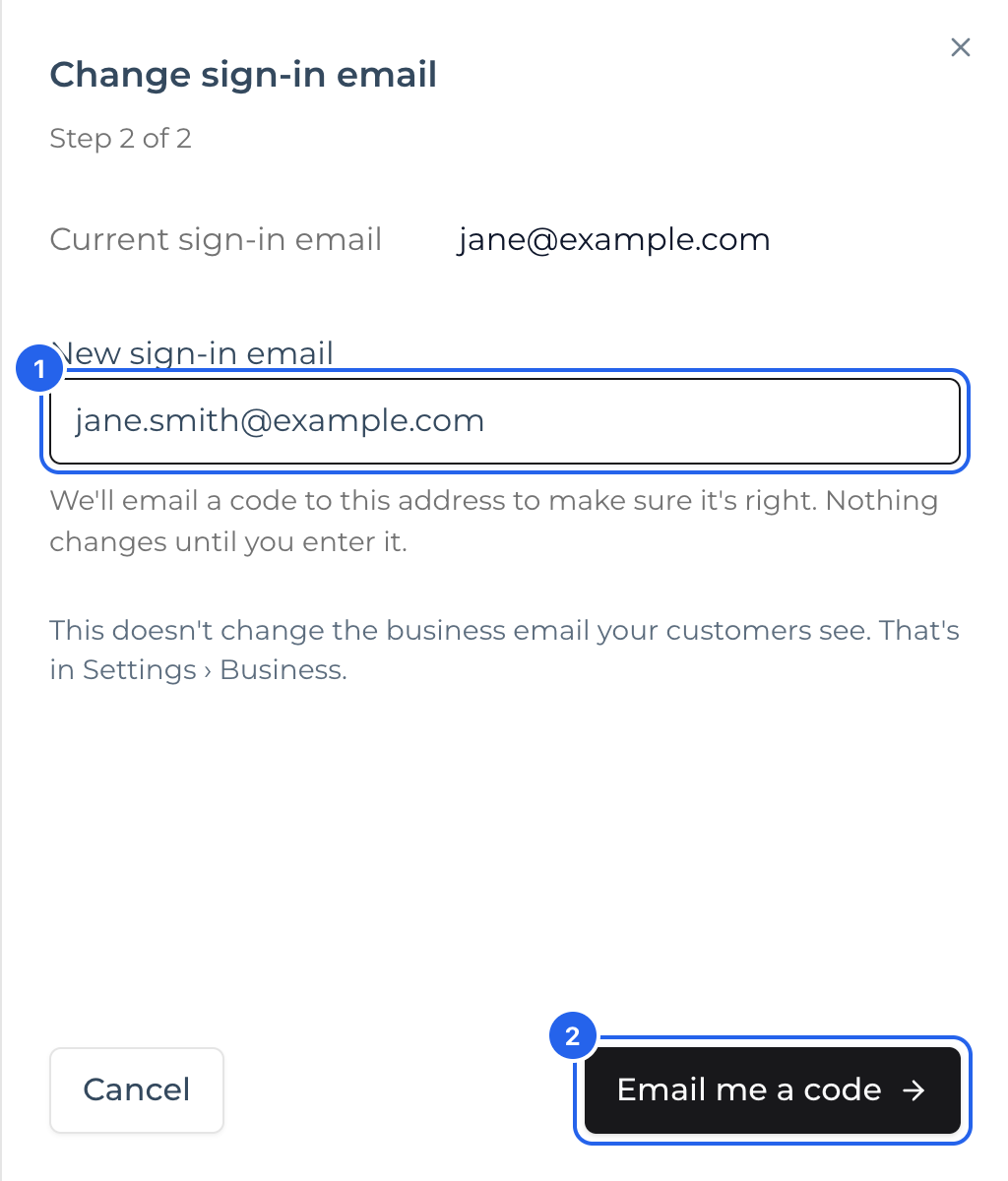
- Enter the 6-digit code we emailed to the new address, then click Change my email.
Your sign-in email changes straight away. Use the new address next time you sign in.
Typed the new address wrong? Before you enter the code, click Wrong address? to go back and fix it. Nothing changes until the code is entered.
What we send to your old address
We email your old address to say the sign-in email has changed, with an Undo this change link. The link works for 7 days.
If you made the change, you don’t need to do anything.
If you didn’t, open that email, click the link, then click Undo this change on the page that opens. This:
- puts the old address back as your sign-in email
- signs you out on every device
- removes the account’s password, so only someone with that inbox can sign in
- turns off 2-step authentication that was set up after the change
Then sign in with a code we email you. You can add a new password afterwards in Settings, then Profile.
Keep in mind that anyone who can read the old inbox can undo the change for those 7 days. For example, a shared inbox or a former manager’s. If that happens, contact our support team.
Can’t confirm it’s you?
If you can’t get into your current inbox and don’t know your password, click Ask support to help in the drawer, or contact our support team.