









Link VaocherApp Checkout to Your Facebook Page as a Website
Make it easy for your customers to find and buy your gift vouchers by adding your VaocherApp checkout link to the About section of your Facebook Page.
✅ Bonus: This method lets you keep your existing Facebook Action Button (such as Book Now or Contact Us) while adding your gift voucher store as an additional link.
Steps to Add Your Checkout Link
1. Get Your Checkout Form URL
Go to: https://vaocher.app/settings/installation/facebook Copy your unique VaocherApp checkout URL.
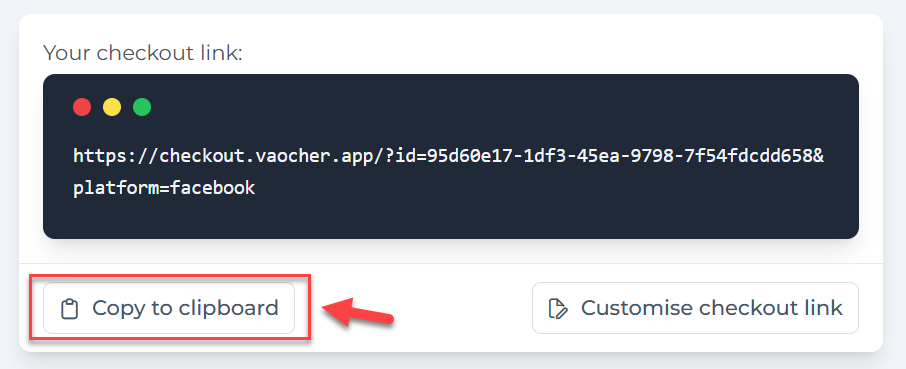 Copy your unique checkout URL
2. Go to Your Facebook Page
Log into your Facebook business page (not a personal profile).
3. Edit the About Section
Select the About section, scroll down slightly, and then select “Links”.
4. Add Your Checkout Link
- Click Add link
- Enter “Gift Voucher” in the Link description field
- Paste your checkout URL from VaocherApp into the Link field
You can leave the existing links and simply add an additional link for gift voucher purchases.
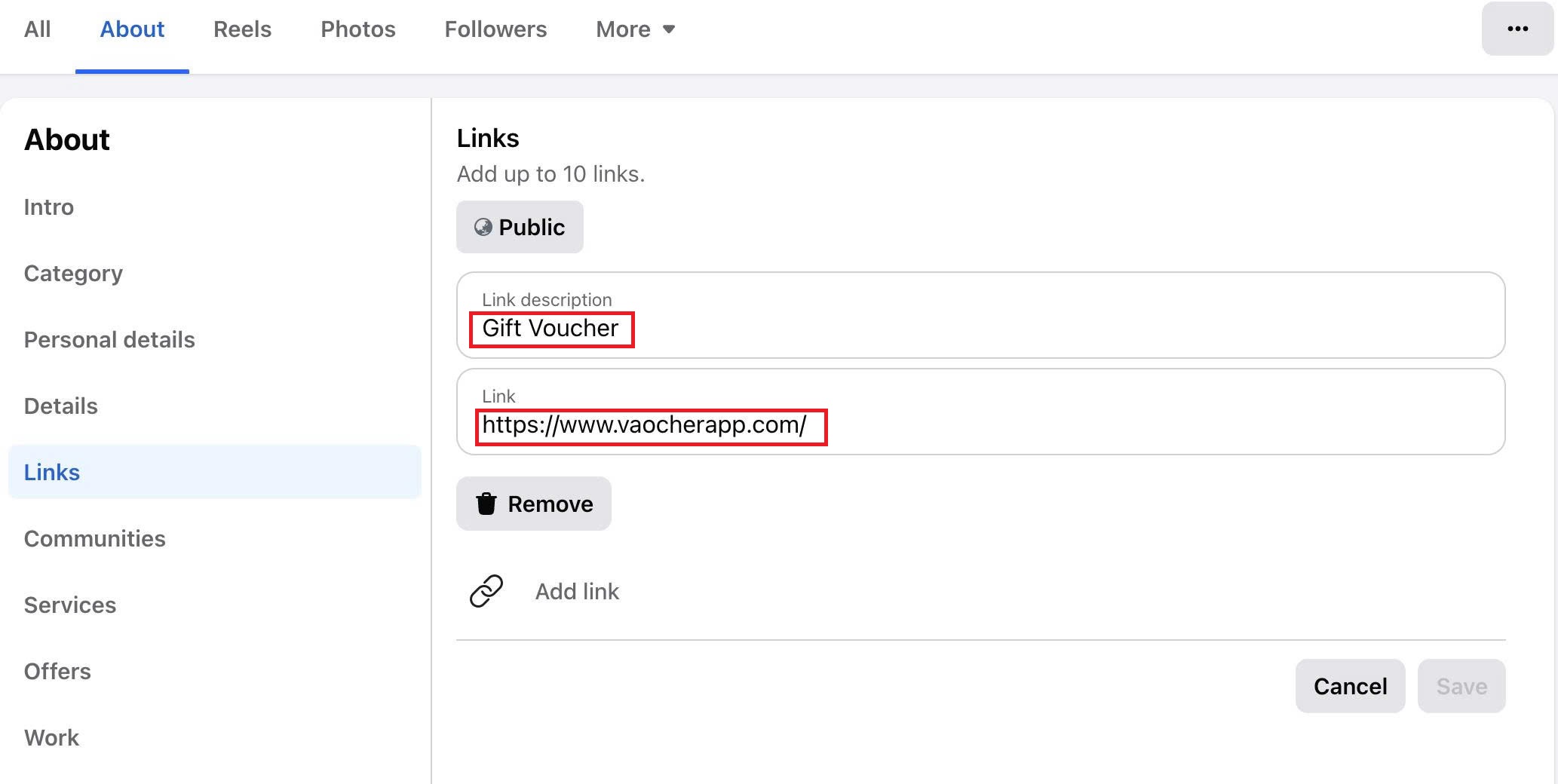
Add “Gift Voucher” as the link description and paste your checkout URL here.
🔗 Example:
- Link description: Gift Voucher
- Link: https://checkout.vaocher.app/your-unique-link
5. Click Save
Once the link is added, click Save to update your Page details.
Paste your checkout form URL here
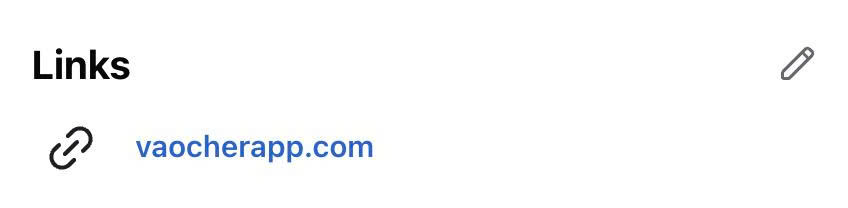
Your gift voucher link will appear in the About section of your Facebook Page.
That’s it!
Now, when someone visits your Facebook Page, they’ll see your gift voucher link right in the About section (displayed as a website link), giving them another easy way to buy from you.