









Link VaocherApp Checkout to Your Facebook Page as Action Button
On Facebook, you can integrate your VaocherApp checkout link into your profile, allowing people to discover and purchase your gift vouchers seamlessly.
⚠️ Note: Only one gift voucher button can be added to your profile.
Installation Steps for Facebook
1. Get Your Unique Checkout URL
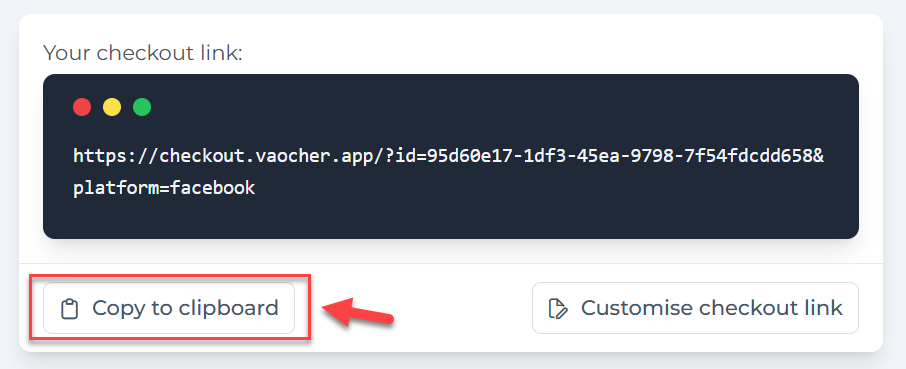
Visit: https://vaocher.app/settings/installation/facebook and copy your unique VaocherApp checkout link.
2. Log in to Your Facebook Page
Make sure you’re logged into your Facebook business page (not your personal profile).
3. Create a Call-to-Action Button
Add or Edit the Button
-
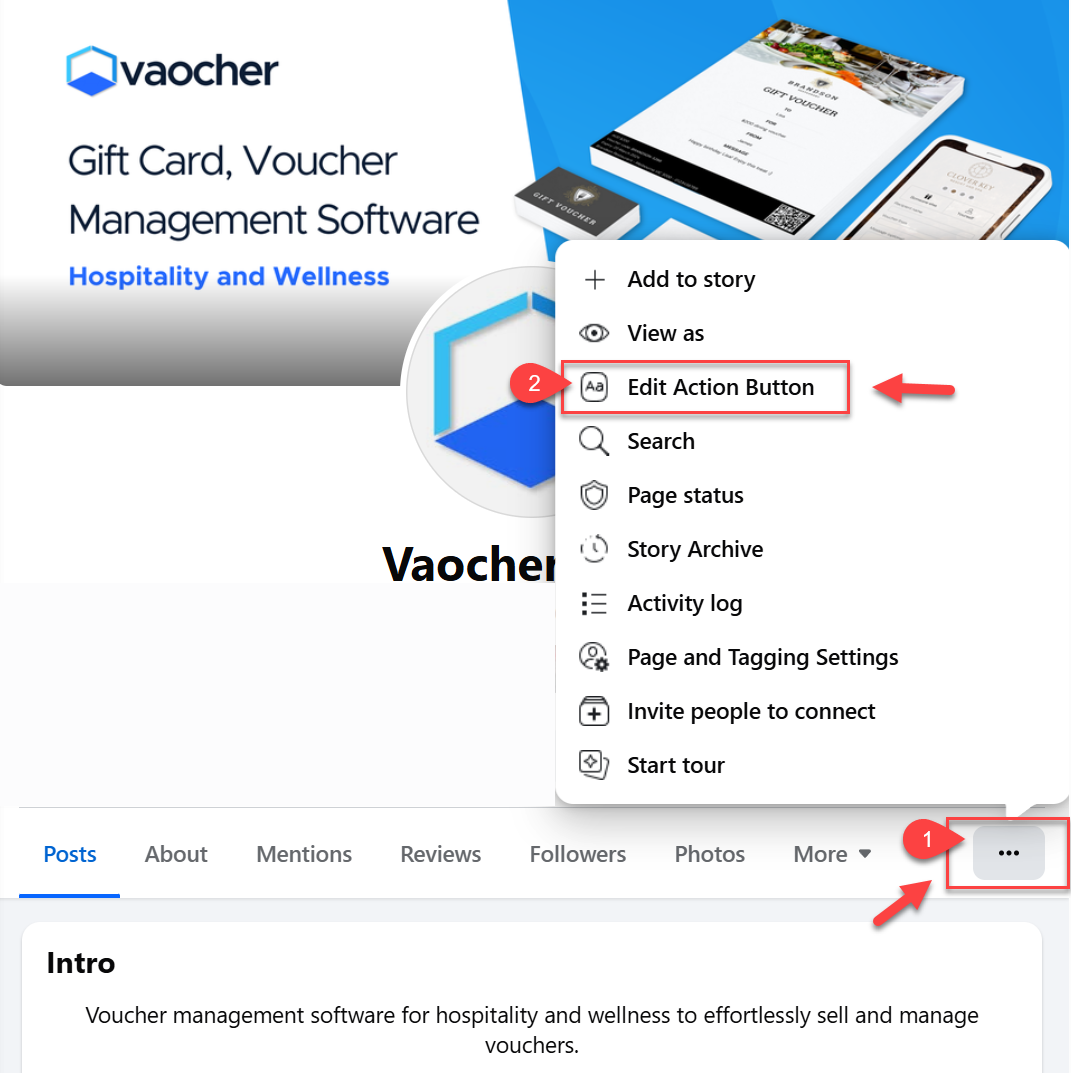
If you don’t have a button, click “+ Add a Button” located below your Page’s cover photo.
-
If you already have a button, hover over it and click “Edit Action Button”
4. Select Button Type
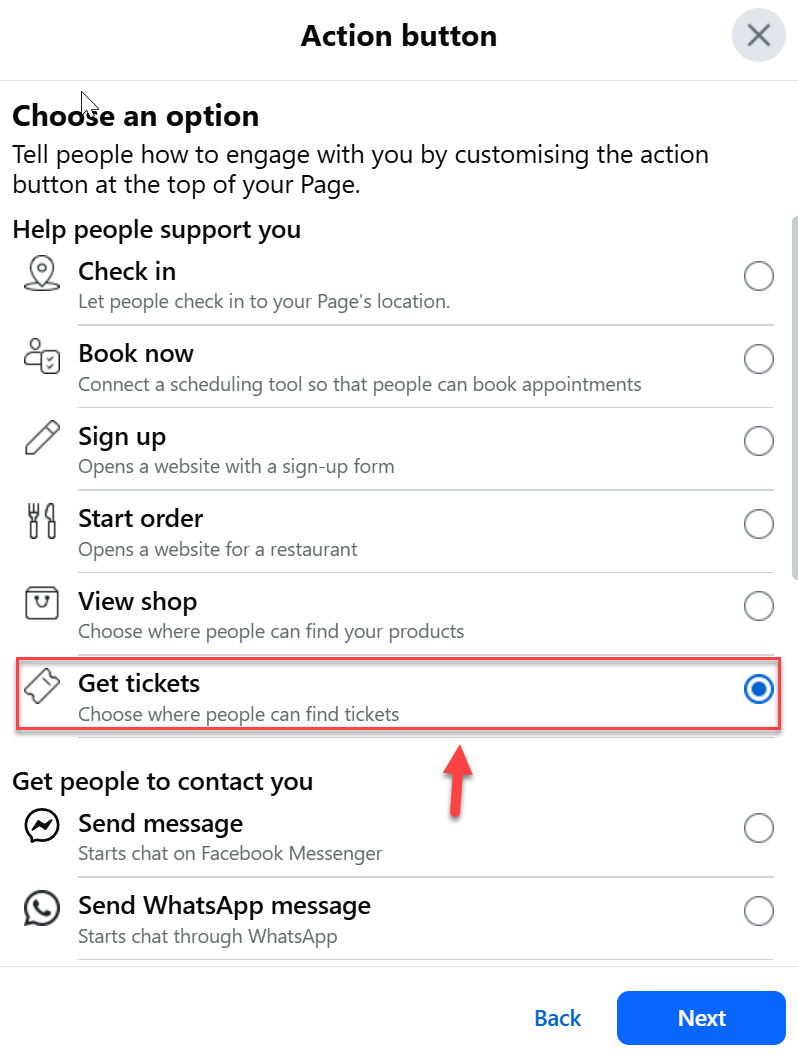
- Choose the “Get tickets” option
- Click “Next” to continue
5. Add Your Checkout Link
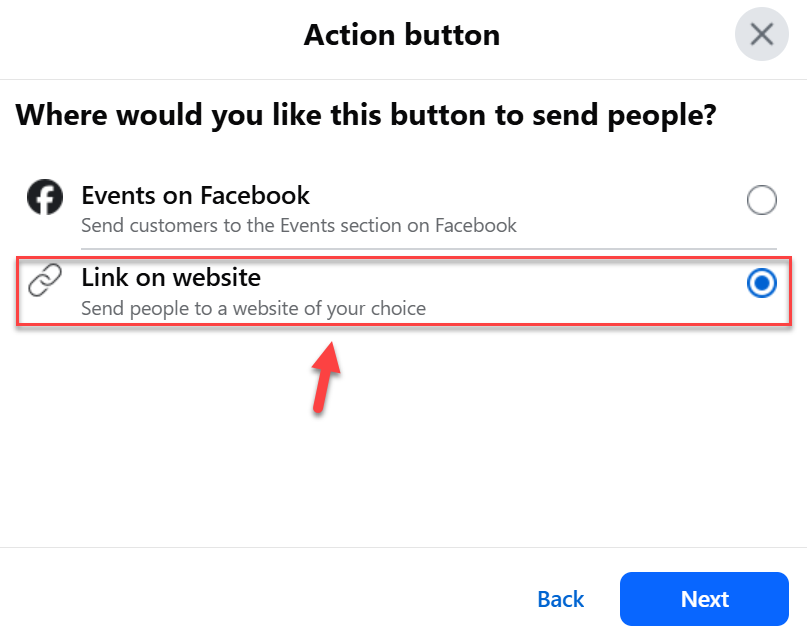
- Choose “Link on website” as the action type and click “Next”
- Paste your unique VaocherApp checkout URL
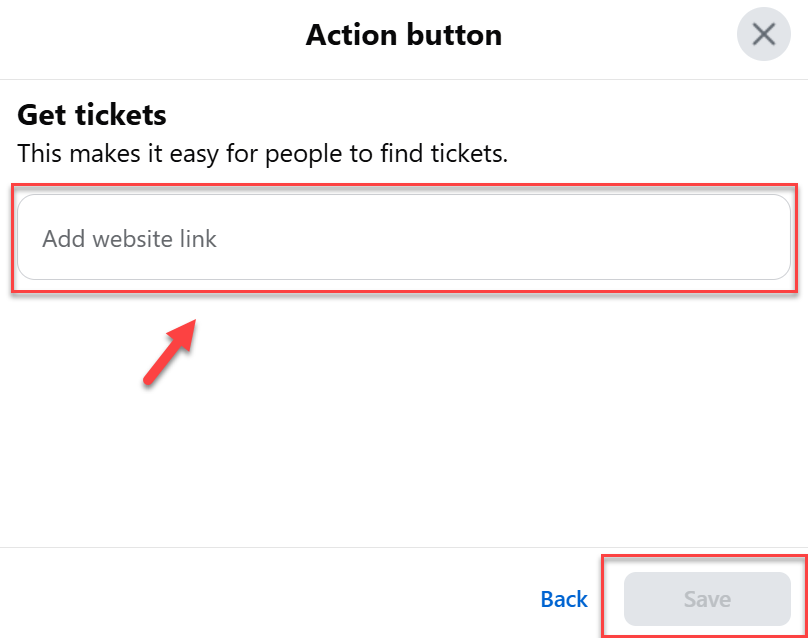
6. Save and Finish
Click “Save” to apply the changes.
All Done!
By following these steps, you can seamlessly integrate your VaocherApp checkout link into your Facebook profile, expanding your reach and enabling easy gift voucher purchases.