









How to Refund a Payment via Stripe
If a customer no longer plans to use their gift voucher, and you’ve already received their payment through Stripe, you can issue a refund quickly and easily.
❗ Note: Voiding a voucher in VaocherApp does not automatically refund the customer. You must log in to your Stripe dashboard to issue the refund manually.
Steps to Refund a Payment
-
Log in to Stripe
Go to: https://dashboard.stripe.com/payments -
Locate the transaction
- Open your VaocherApp dashboard and find the transaction details (e.g. purchase date, time, and amount).
- Go to the Payments tab in Stripe and scroll through the list to find the matching payment.
- Alternatively, try searching the customer’s name or email in the Stripe search bar if available.
-
Open the Payment Details
Click on the transaction to view more details. -
Click the “Refund” Button
In the top-right corner, you’ll see the Refund button. Click it.
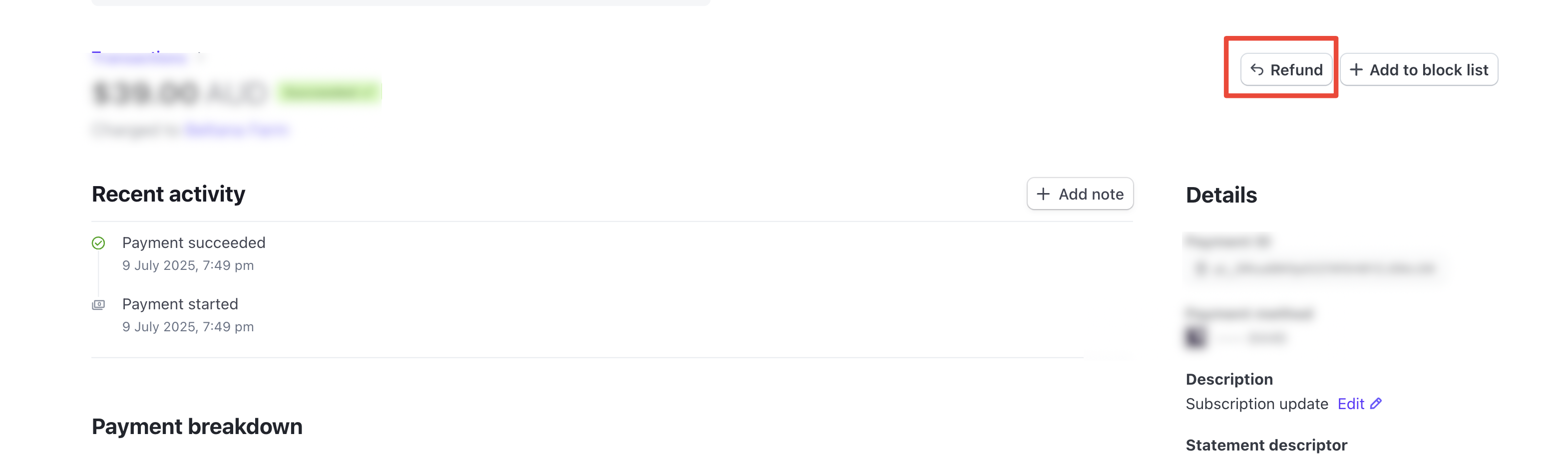
- Enter refund details
After clicking “Refund”, a pop-up window (like the screenshot below) will appear. You will need to:
- Enter the refund amount (either partial or full)
- Select a reason for the refund from the dropdown (e.g. “Requested by customer”)
- (Optional) Add a note with any additional context
- Click the Refund button to confirm
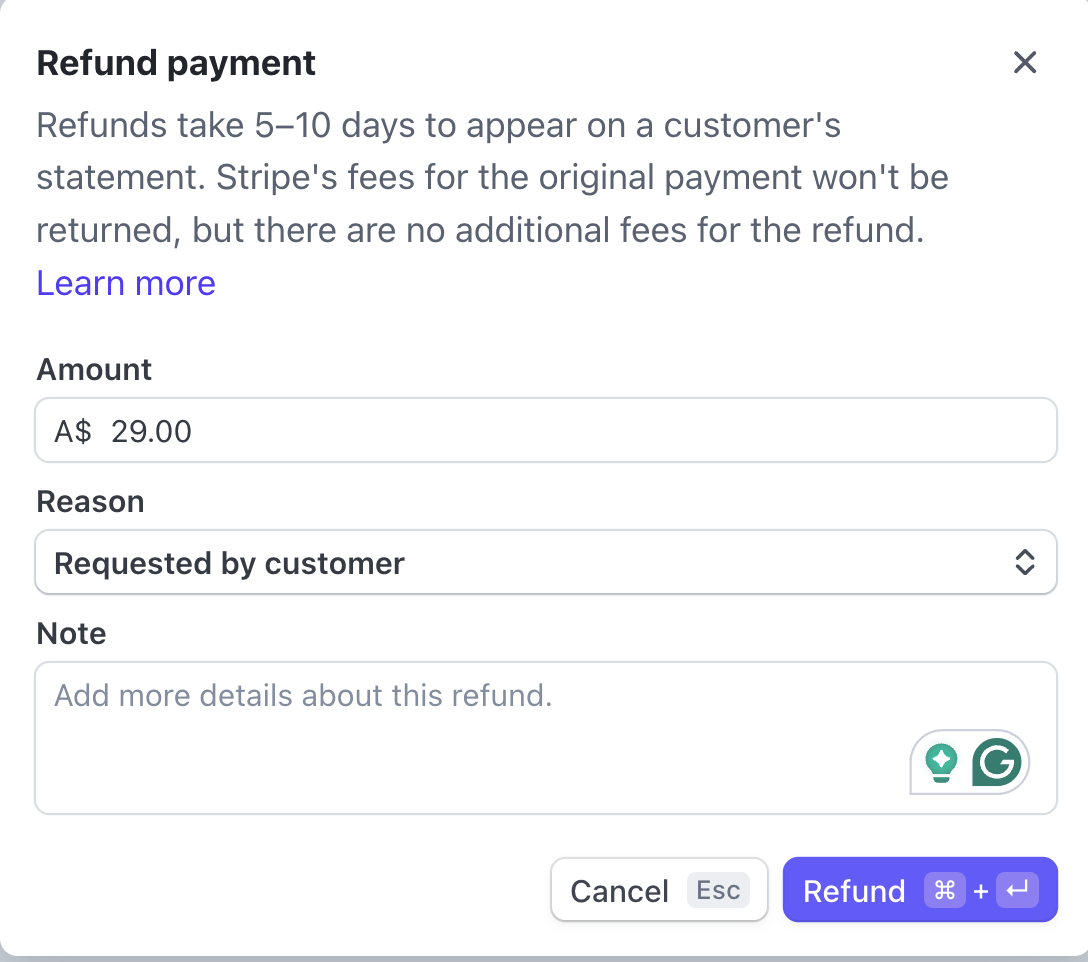
Stripe notes that refunds can take 5–10 business days to appear on the customer’s bank statement. Stripe’s processing fees from the original payment will not be returned, but there are no extra fees for issuing a refund.
What Happens in VaocherApp?
Voiding the voucher in VaocherApp marks it as inactive, so it won’t be accepted during redemption.
You don’t need to take any further steps in VaocherApp once the refund is processed through Stripe. The voucher remains voided, and the payment is handled entirely by Stripe.