









Create a Manual Subscription in VaocherApp
If your account does not yet have an active plan, you’ll need to manually subscribe to start using all features in VaocherApp.
This step-by-step guide walks you through how to create a subscription manually, from selecting a plan to completing payment.
Why you may need to create a subscription
You’ll need to subscribe manually if:
- You’ve just signed up for VaocherApp
- Your subscription has expired or been cancelled
- You downgraded your plan
- Your dashboard shows No Active Subscription
Step-by-step: Create a manual subscription
Step 1: Go to Subscription & Billing
From your dashboard:
- Click Settings
- Select Subscription & Billing
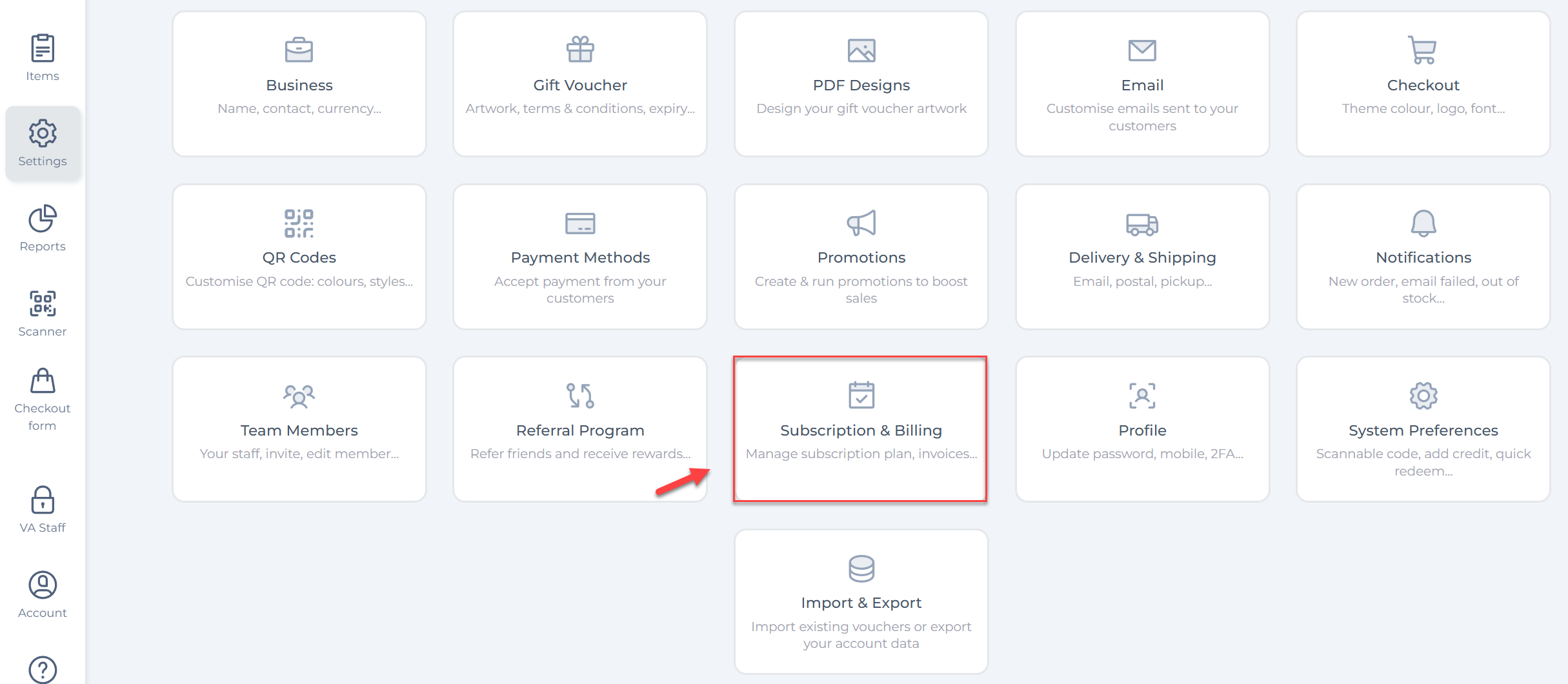
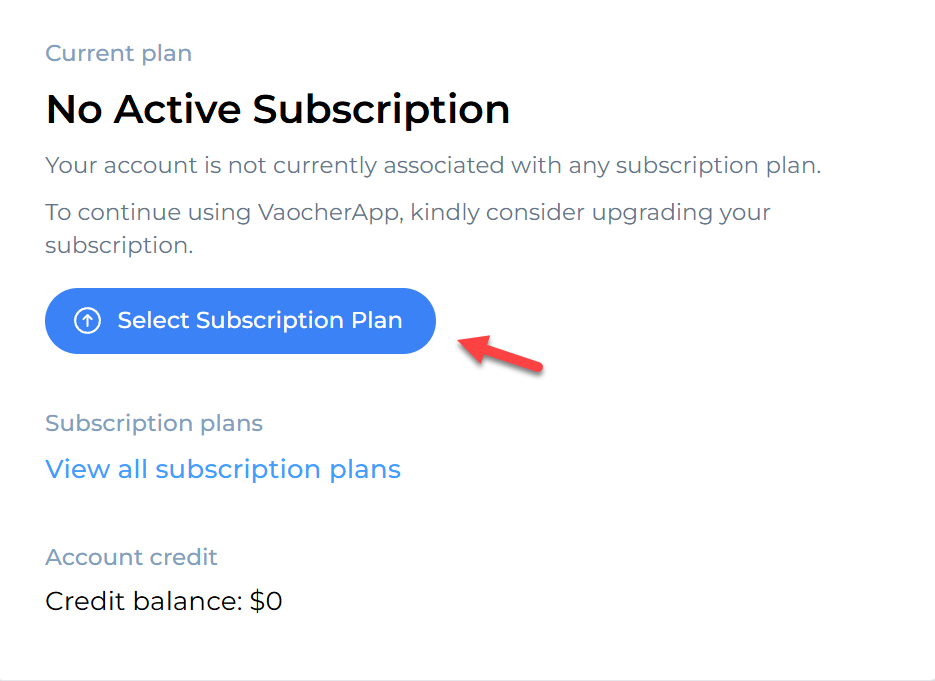
Step 2: Click “Select Subscription Plan”
If no plan is active:
- Click Select Subscription Plan to continue
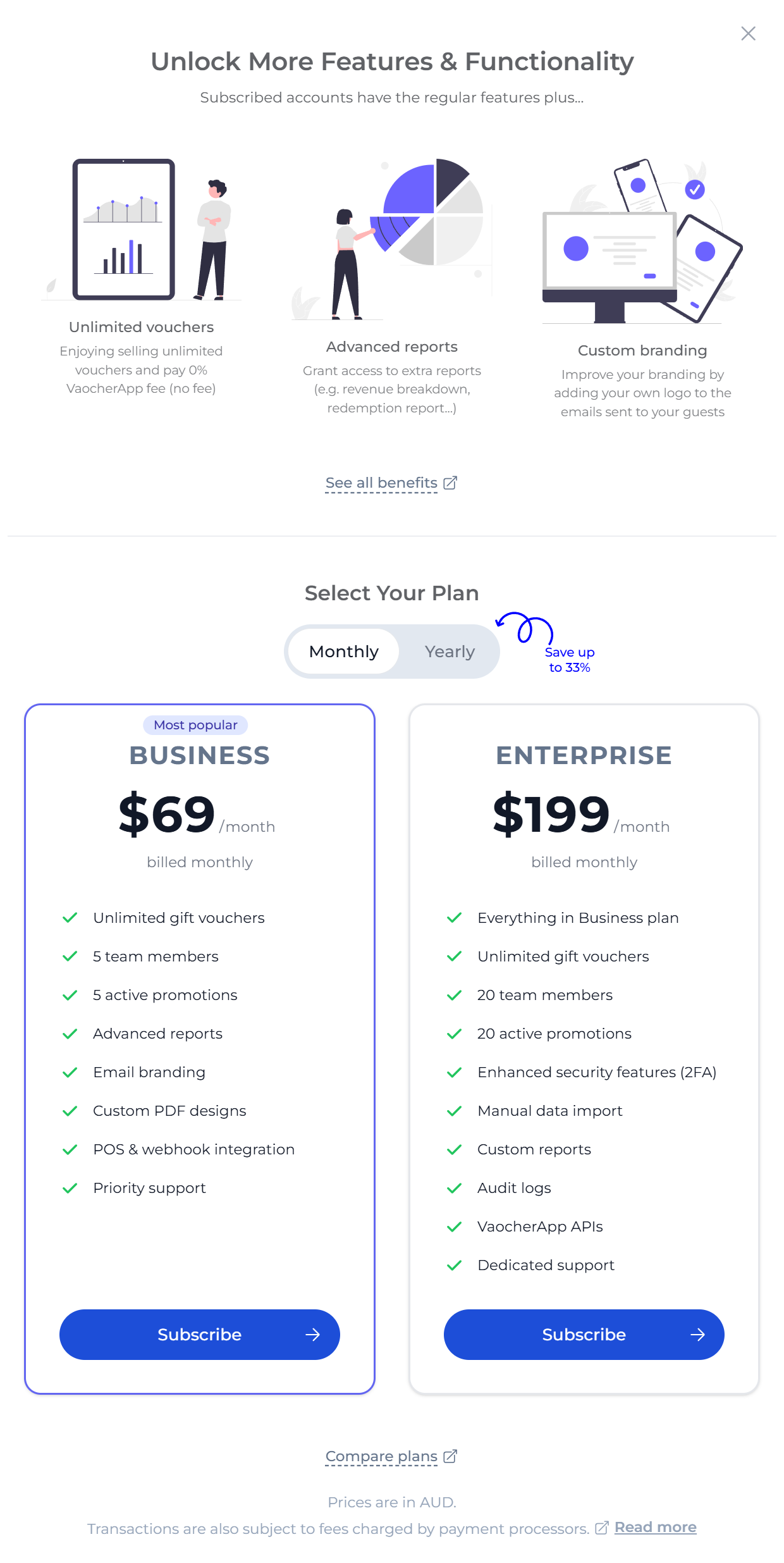
Step 3: Choose your plan (Monthly or Yearly)
You’ll see available plans such as:
- Business Plan – best for most small to medium businesses
- Enterprise Plan – for larger teams and advanced features
You can also switch between:
- Monthly billing
- Yearly billing (save up to 33%)
Click Subscribe on your chosen plan.
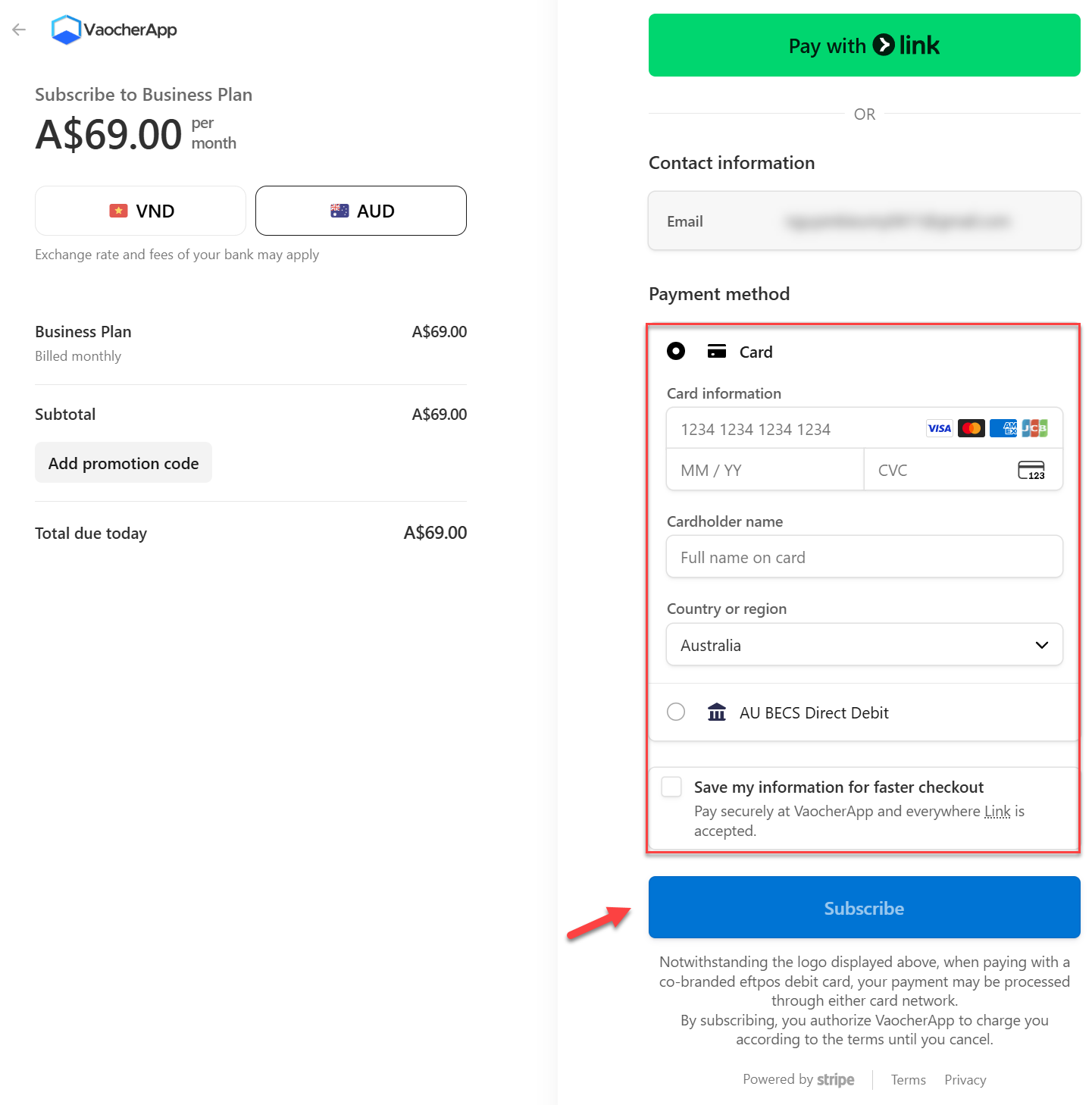
Step 4: Enter payment details and confirm
You’ll be redirected to a secure checkout (powered by Stripe):
- Enter your card number
- Input expiry date and CVC
- Add cardholder name
- Select country/region
- Click Subscribe
What happens after subscribing?
Once payment is successful:
- Your subscription is activated instantly
- You can access all premium features
- Billing will renew automatically based on your plan
Manage your subscription & billing
You can update or manage your subscription anytime:
- Update Your Credit Card for VaocherApp Subscriptions
- Change your subscription payment details
- Learn about subscription prorations
❗ Troubleshooting subscription issues
If your payment fails:
- Double-check your card details
- Ensure your card supports international payments
- Try a different payment method
- Contact your bank if the payment is blocked