









Update Your Credit Card for VaocherApp Subscriptions
If you need to update your existing credit card or add a new one to your subscription, follow the steps below. It’s quick and easy through your VaocherApp account.
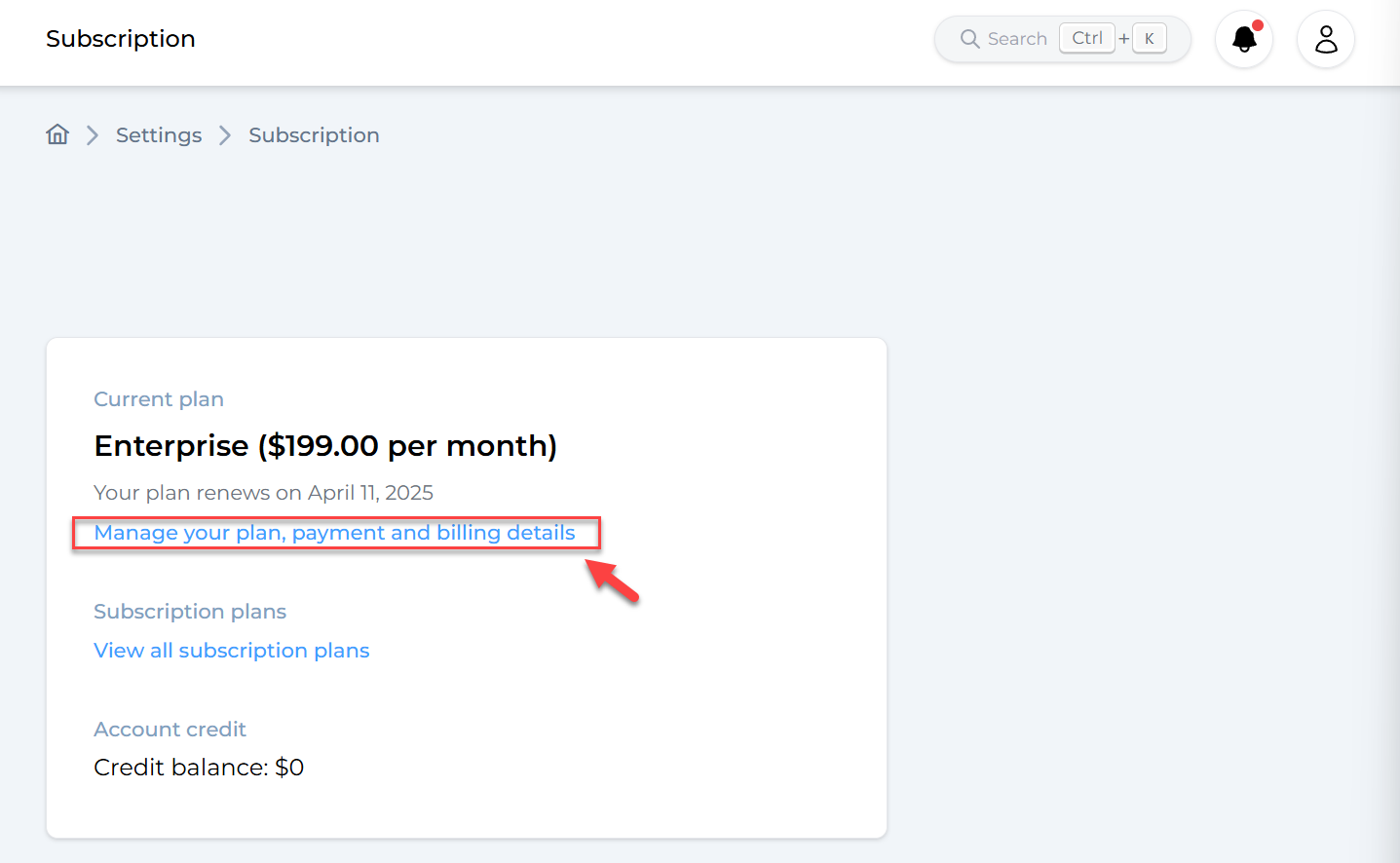
Step 1: Go to Your Subscription Settings
Log in and head over to:
👉 https://vaocher.app/settings/subscription
This is where you can manage your subscription, including your plan and billing details.
Step 2: Click “Manage your plan, payment and billing details”
Once you’re on the subscription settings page, click the link to open your Stripe billing portal.
Step 3: Add a New Payment Method
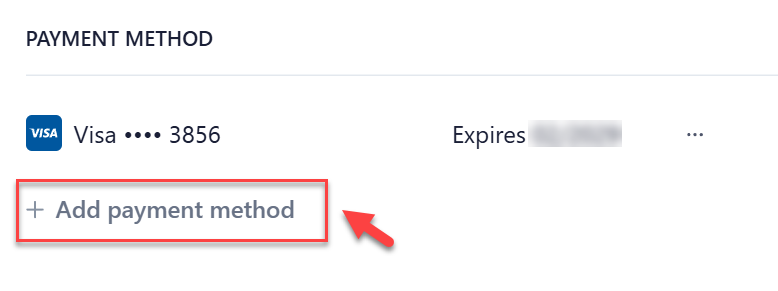
Inside the billing portal, scroll to the “Payment Methods” section. You can now:
- Click “+ Add payment method”
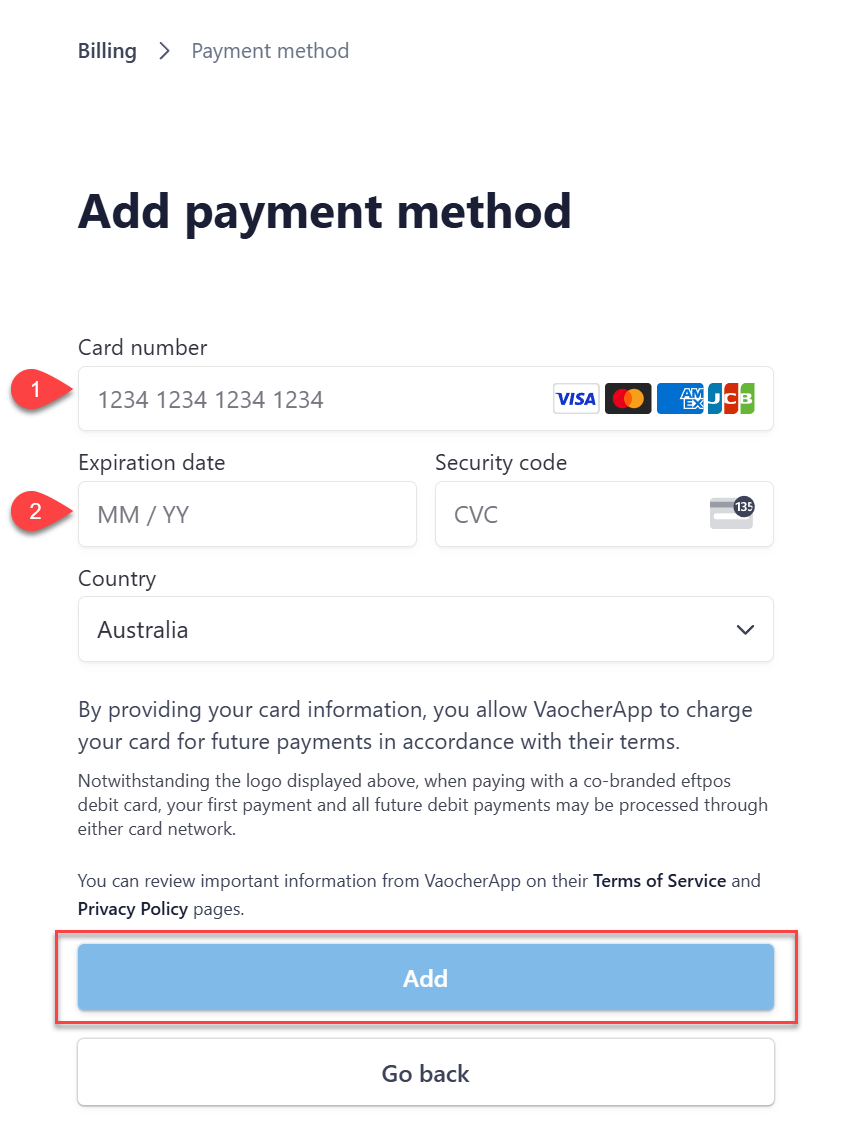
- Enter your new credit card details
- Save the new payment method
Step 4: Set It as Default (If Needed)
After adding the new card, make sure it’s selected as your default payment method so it’s used for upcoming renewals.
You’re All Set!
Once saved, your new payment method will be active for your next subscription charge. You can update or remove cards anytime from the same portal.