









Mailchimp Integration: Automatically Send Gift Vouchers to New Subscribers
Reward new newsletter subscribers with an automatic gift voucher using the VaocherApp Mailchimp integration.
This is perfect for campaigns such as:
Subscribe and receive a $50 bonus gift voucher
When a customer subscribes through your Mailchimp signup form, VaocherApp can automatically issue a voucher and email it directly to the subscriber.
How It Works
- A customer subscribes through your Mailchimp form.
- Mailchimp adds the customer to your selected audience and tag (for example:
bonus) - VaocherApp detects the new subscriber.
- A voucher is automatically issued and emailed to the customer.
Before You Start
You will need:
- A Mailchimp account
- A Mailchimp audience
- A Mailchimp signup form or landing page
- A voucher product created in VaocherApp
- Mailchimp connected to VaocherApp
Step 1: Create a Mailchimp Signup Campaign
Create a Mailchimp signup form or landing page to collect newsletter subscribers.
In Mailchimp
- Go to Campaigns
- Click Create Campaign
- Choose Landing Page (or another signup method)
- Connect the campaign to your desired audience
- Publish your signup form
Mailchimp Campaigns:
https://us1.admin.mailchimp.com/campaigns/#/create-campaign
Example Promotion
Subscribe to our newsletter and receive a $50 bonus gift voucher.
Step 2: Configure Your Audience and Tags
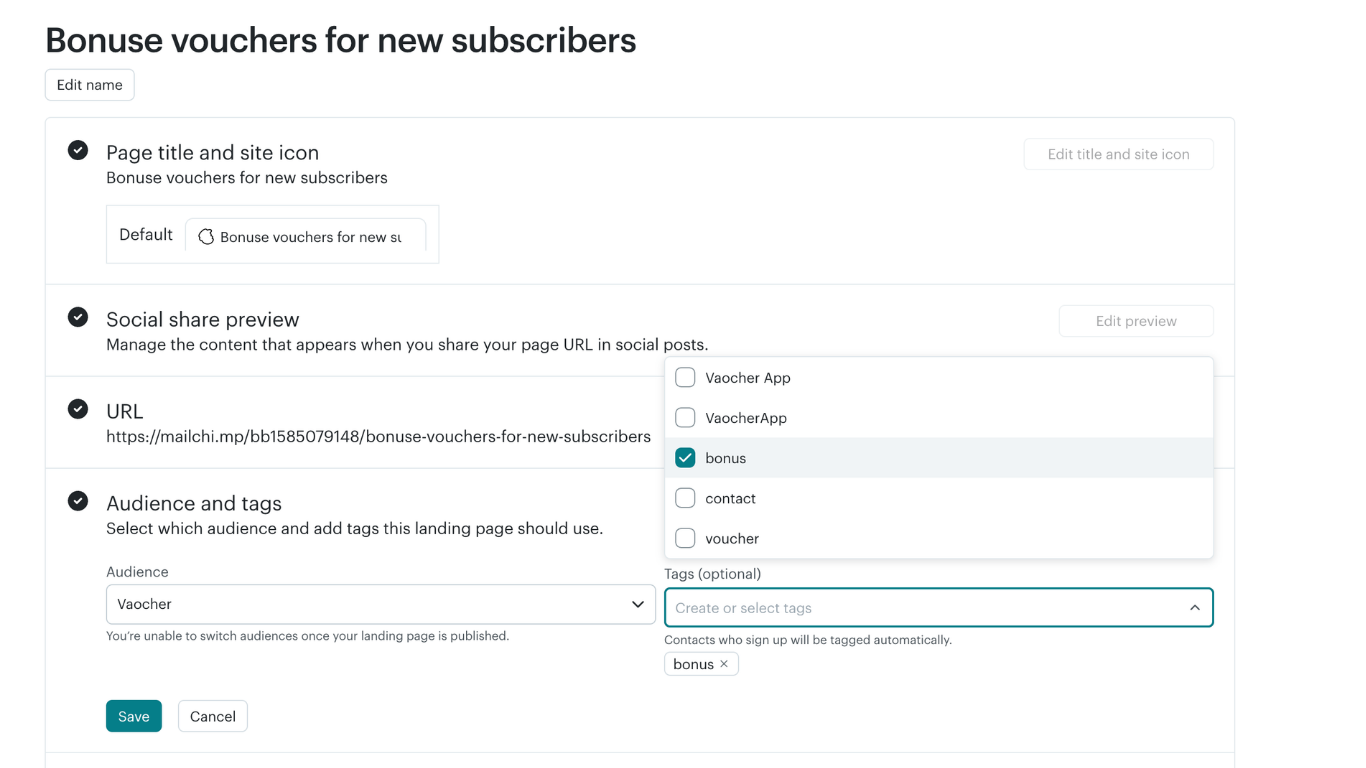
VaocherApp can use Mailchimp tags to determine which subscribers should receive a voucher.
Create a Tag
In Mailchimp:
- Open your Audience
- Create a tag called:
bonus
- Configure your signup campaign to automatically apply this tag to new subscribers.
Why Use Tags?
Tags allow you to run multiple reward campaigns from the same audience.
| Tag | Reward |
|---|---|
| bonus | $50 Bonus Voucher |
| vip | VIP Reward Voucher |
| christmas | Christmas Promotion Voucher |
Step 3: Connect Mailchimp to VaocherApp
In VaocherApp:
- Go to Settings
- Select Integrations
- Open Mailchimp
- Enter your Mailchimp API Key
- Click Connect
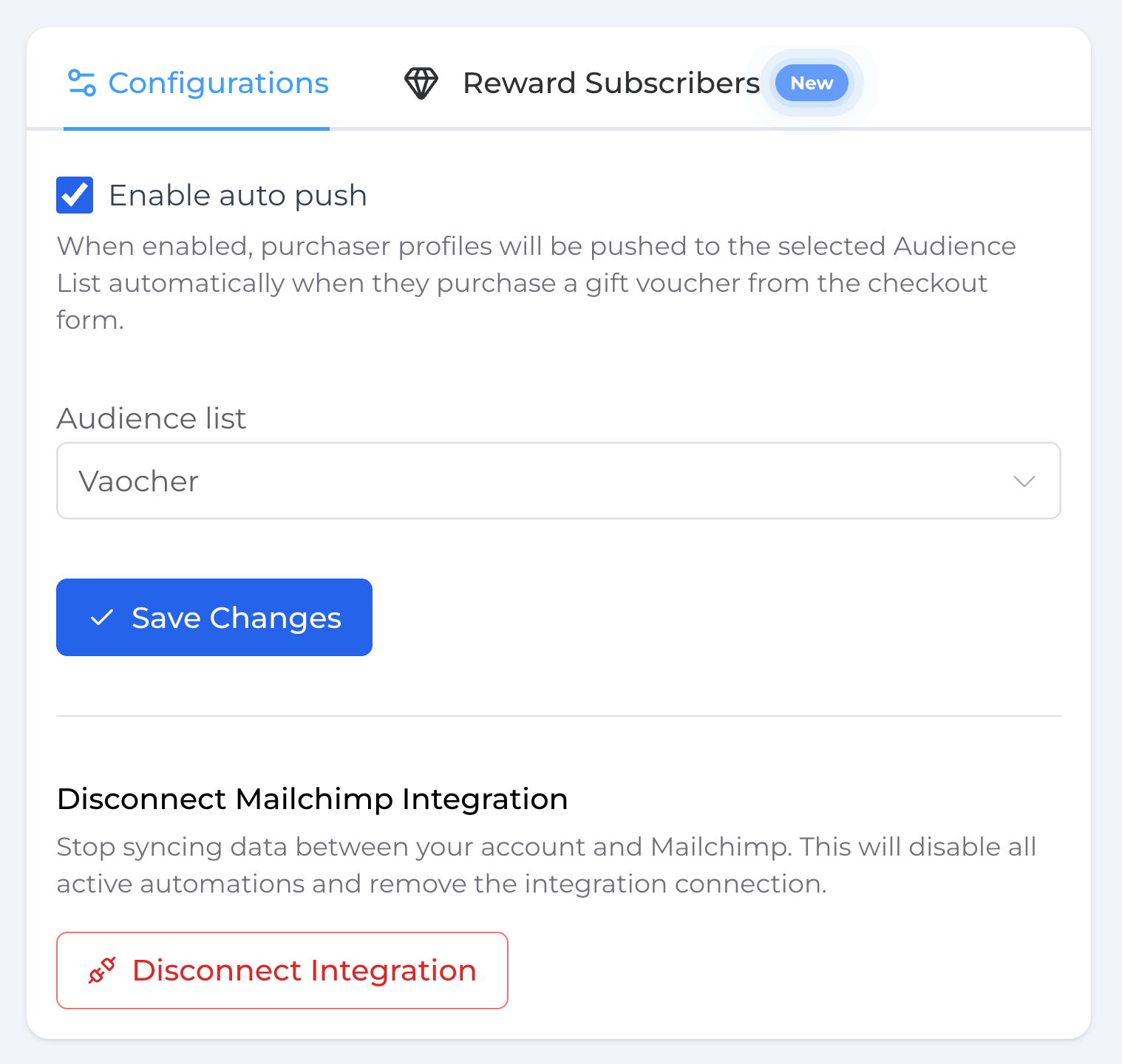
- Select the Mailchimp audience you want VaocherApp to monitor
Once connected, VaocherApp will begin listening for new subscribers.
Step 4: Create a Reward
In the Mailchimp integration settings:
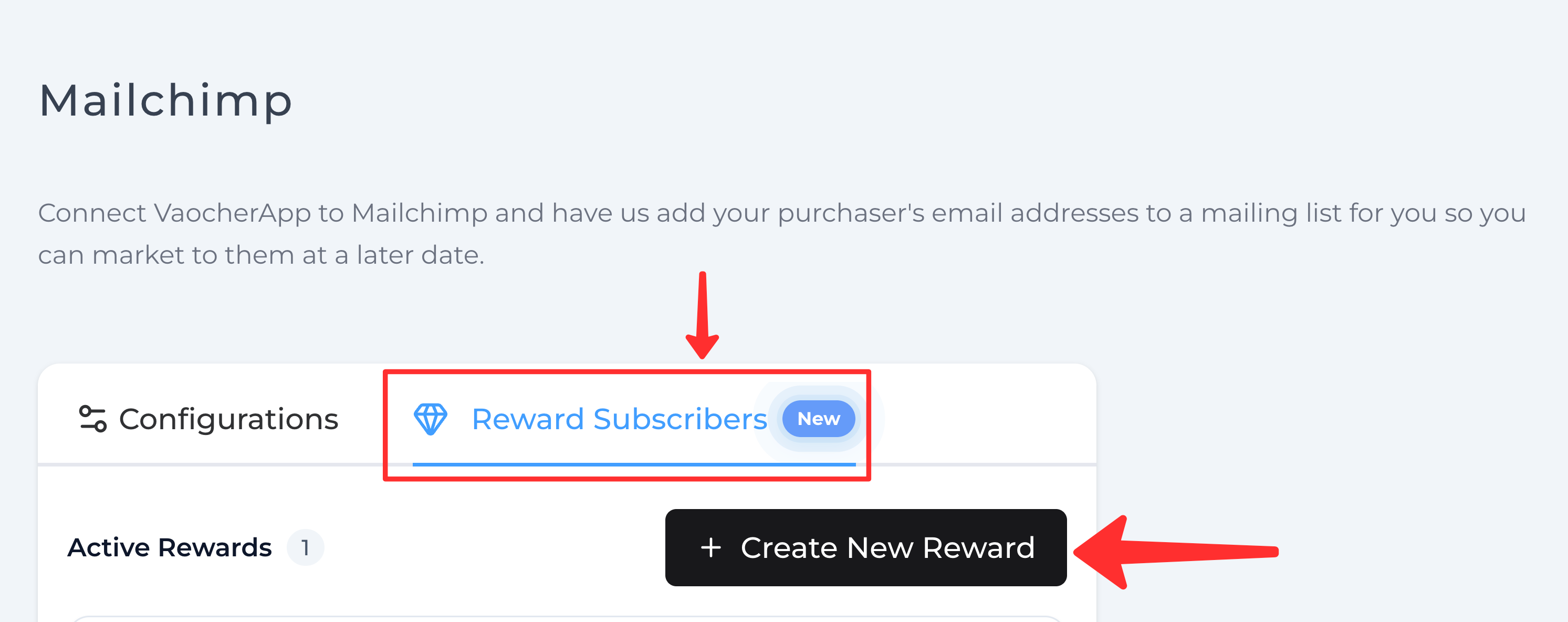
- Click Reward Subscribers tab
- Click + Create New Reward
Step 5: Configure Reward Conditions
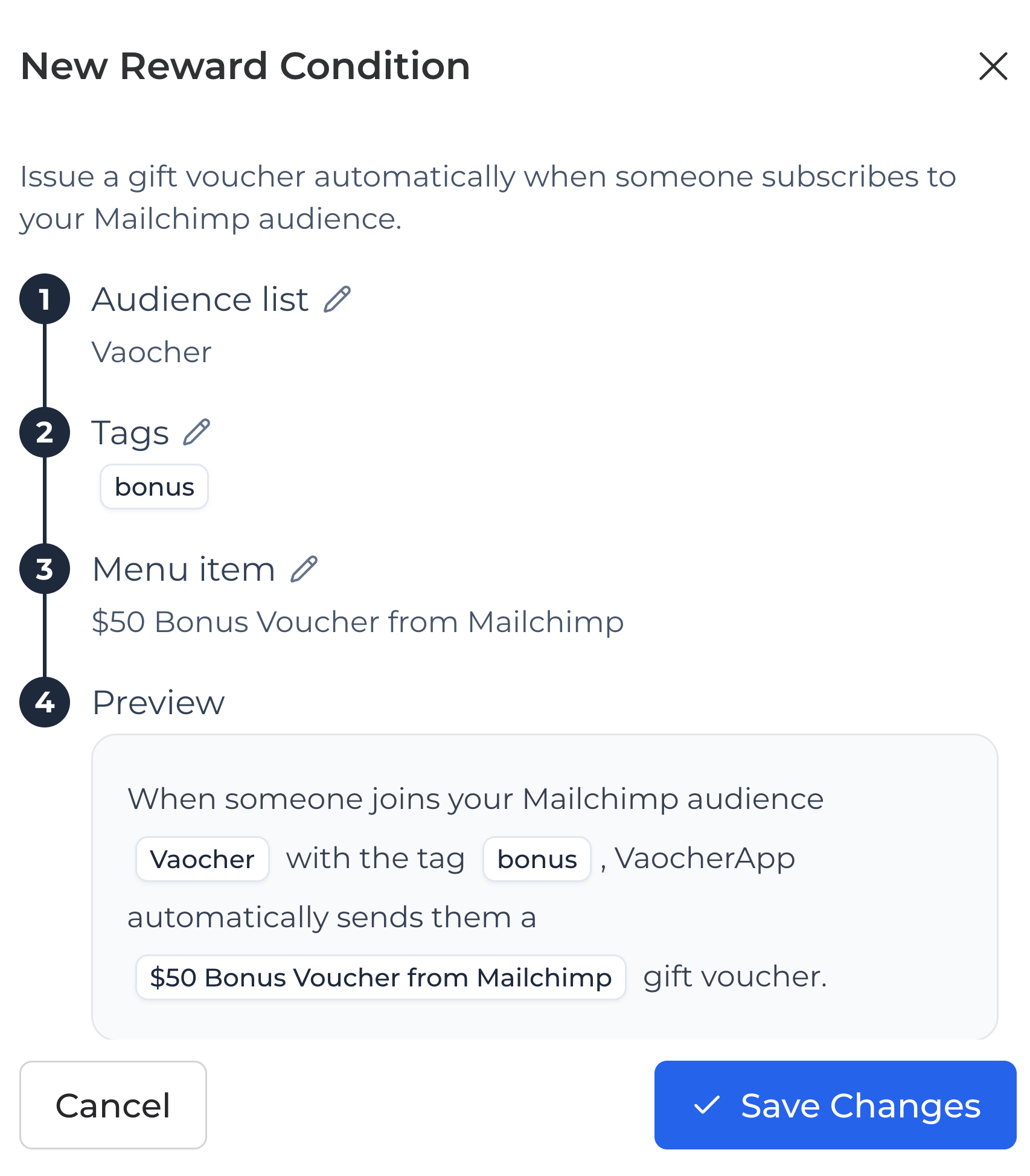
Configure when the reward should be triggered.
Example Condition
When:
- A new subscriber is added to the selected Mailchimp audience (
Vaocher) - AND the subscriber has the tag
bonus
Then:
- Issue a voucher from the selected voucher product
- Send the voucher directly to the subscriber’s email address
Example Setup
| Setting | Value |
|---|---|
| Audience | Vaocher |
| Tag | bonus |
| Reward | $50 Bonus Voucher from Mailchimp |
Whenever a subscriber matching these conditions is detected, VaocherApp will automatically issue and email the voucher.
Step 6: Test the Integration
Before launching your campaign, perform a test.
Test Checklist
- Submit a test signup using your Mailchimp form.
- Confirm the subscriber appears in the correct Mailchimp audience.
- Confirm the
bonustag has been applied. - Check that a voucher has been issued in VaocherApp.
- Confirm the voucher email is received by the subscriber.
If all checks pass, your automation is ready to go live.
Troubleshooting
Voucher Not Issued?
Check the following:
- Mailchimp API key is connected correctly.
- The correct Mailchimp audience is selected.
- The subscriber has the required tag.
- The reward condition matches the audience and tag.
- The selected voucher product is active.
- The subscriber’s email address is valid.
Voucher Email Not Received?
Check:
- Spam or Junk folder
- Subscriber email address
- Voucher activity in VaocherApp
- Mailchimp subscriber record
Need Help?
If everything appears configured correctly and vouchers are still not being issued, please contact the VaocherApp support team.