







How to Connect Campaign Monitor and Add Gift Voucher Purchasers to a Mailing List
Campaign Monitor is an email marketing tool. Connect it in VaocherApp so that when someone buys a gift voucher, we add the purchaser (the person who paid) to a mailing list you choose. You can then email those buyers from Campaign Monitor.
This does not send voucher emails, and it does not add the gift recipient. Signing up in Campaign Monitor also does not issue a VaocherApp voucher.
If you have not copied your Campaign Monitor API key and Client ID yet, follow Campaign Monitor - How to get account API key first.
What gets added
| Added | Not added |
|---|---|
| Purchaser name and email | Gift recipient |
| Once per purchase, even if they buy several vouchers | Voucher code, value, or product |
| After a checkout purchase (and when you issue a voucher from the dashboard with a purchaser name and email) | Imported vouchers, or a free bonus voucher from a promotion |
Both a purchaser name and email must be on the order. If either is missing, nobody is added.
Things to know
- Connecting is not enough. You must also choose a Subscriber list and click Save Changes. Until then, a Subscriber list required notice is shown and purchasers are not added.
- There is no on/off switch after you save a list. To stop adding people, disconnect the integration.
- If the purchaser is already on that list, Campaign Monitor will not add them again.
- Disconnecting stops future adds. People already in Campaign Monitor stay there.
- If your account is in test mode, the Campaign Monitor page shows that only live mode orders are pushed to your marketing list.
How to open it
- Open the VaocherApp dashboard and go to Settings.
- Under Connect Your Software, click View All Integrations, or go to Integrations.
- On Integrations & Connected Apps, click the Campaign Monitor card.
You can also open it directly: https://vaocher.app/settings/integrations/campaign-monitor.
You need permission to edit integrations. Account owners can do this.
Connect Campaign Monitor
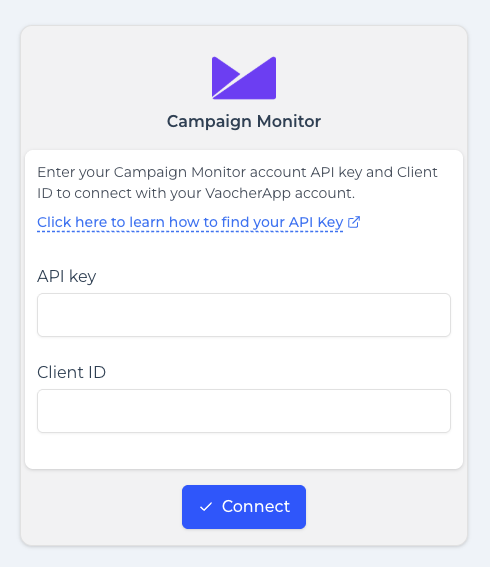
If you are not connected yet, you will see fields for API key and Client ID.
- Paste your Campaign Monitor API key and Client ID. See how to get your API key and Client ID.
- Click Connect.
VaocherApp checks the details with Campaign Monitor before saving. If they cannot be verified, you will see: Your API key or Client ID could not be verified. Please double-check your credentials and try again.
When it works, you will see Your Campaign Monitor integration has been connected successfully. The page then shows a Connected badge.
Choose a subscriber list
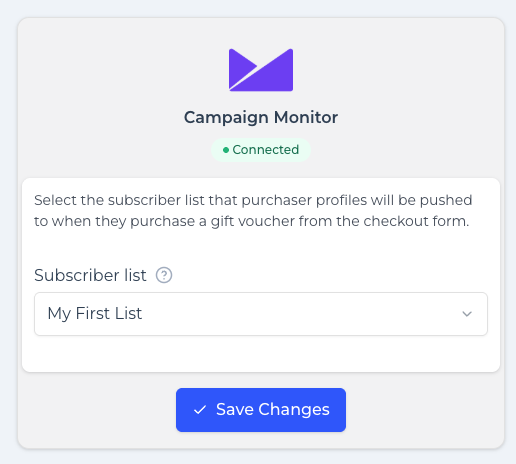
- Under Subscriber list, choose the Campaign Monitor list purchasers should be added to. The dropdown is labelled Select until you pick one.
- Click Save Changes.
You should see Your Campaign Monitor subscriber list has been saved.
The help text on this screen is: Select the subscriber list that purchaser profiles will be pushed to when they purchase a gift voucher from the checkout form.
How to check it
- Switch your account to live mode if it is in test mode.
- Place a checkout purchase using a real purchaser name and email (a staff test purchase is fine).
- Open that list in Campaign Monitor and confirm the purchaser appears.
If they do not appear, check that a Subscriber list is saved, that the order has both a purchaser name and email, and that they are not already on the list.
Disconnect
To stop adding purchasers:
- On the Campaign Monitor page, under Remove Campaign Monitor, click Disconnect Integration.
- Confirm with Disconnect.
You should see Your Campaign Monitor integration has been disconnected.