









Complete Guide to Managing Gift Voucher Visibility with VaocherApp
Gift vouchers are an excellent way to boost customer loyalty, increase sales, and promote your brand. But one important aspect often overlooked is controlling the visibility of your gift vouchers — deciding when and where they are shown to customers or your internal team. With VaocherApp, you get complete control over your gift voucher visibility settings, giving you the flexibility to manage vouchers perfectly according to your business needs.
This comprehensive article will explore the ins and outs of gift voucher visibility in VaocherApp, including what visibility means, how to configure visibility settings, scheduling vouchers for promotions, tips for managing visibility effectively, and answers to common questions.
What Is Gift Voucher Visibility?
Gift voucher visibility refers to the setting that controls who can see a voucher and where it appears. This is crucial for businesses that want to manage how and when vouchers are available for purchase or internal use. Properly managing visibility can help you:
- Launch promotional vouchers exactly when you want.
- Hide seasonal or expired vouchers without deleting them.
- Restrict access to certain vouchers for staff only.
- Keep draft vouchers private until ready to publish.
Types of Gift Voucher Visibility
VaocherApp offers several visibility modes for each voucher item:
- Public Visibility (Checkout Page): The voucher is visible on the checkout page and available for customers to buy.
- Internal Visibility (Dashboard Only): The voucher is hidden from customers but visible inside your VaocherApp dashboard for team use — for example, staff-issued vouchers or internal records.
- Hidden: The voucher is completely hidden, neither on the checkout page nor in the dashboard. This setting is useful when drafting vouchers or archiving them temporarily.
Understanding the Visibility Settings Options
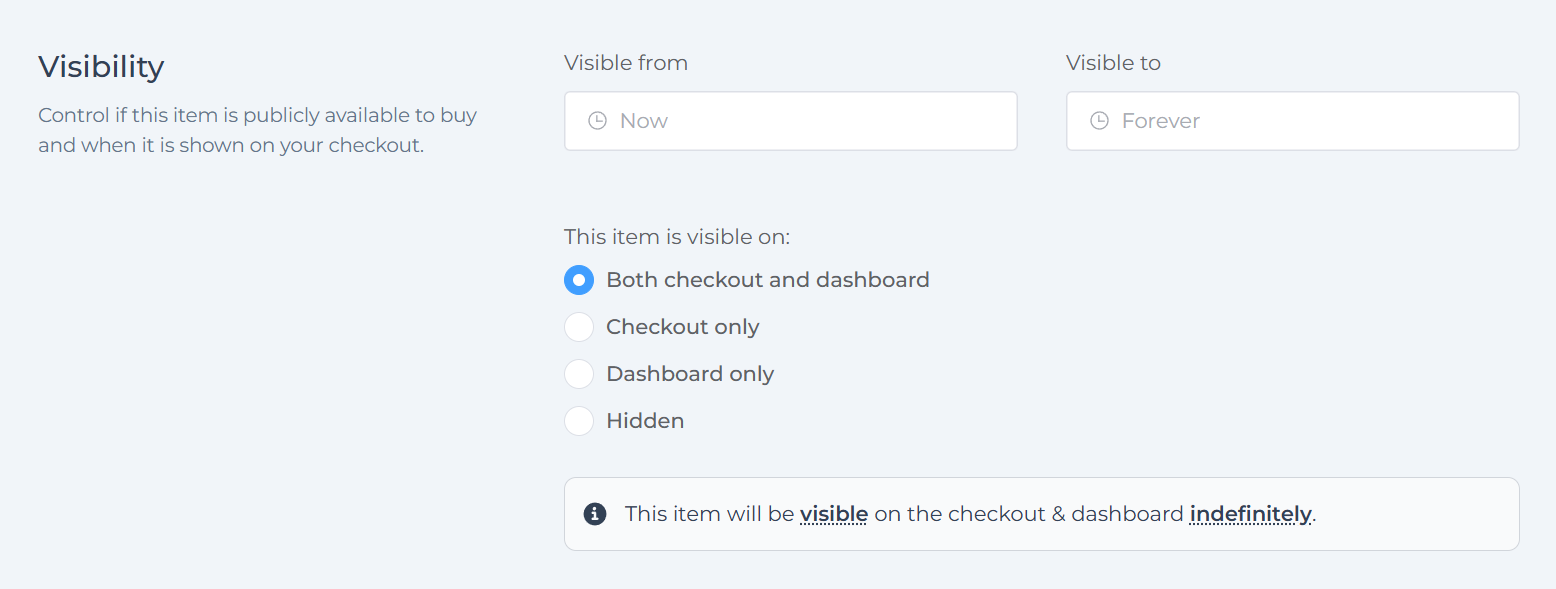
When editing a gift voucher in VaocherApp, you’ll find a dedicated Visibility section where you can configure exactly where the voucher is shown. Here are the options and what they mean:
| Visibility Option | Description |
|---|---|
| Both checkout and dashboard | Voucher is visible publicly on checkout and internally in the dashboard indefinitely. |
| Checkout only | Voucher is visible only on the checkout page for customers, indefinitely. |
| Dashboard only | Voucher is visible only internally in the dashboard, hidden from customers indefinitely. |
| Hidden | Voucher is hidden everywhere — no visibility on checkout or dashboard, essentially offline. |
These options give you flexibility to tailor voucher accessibility per your business or promotional strategy.
Scheduling Voucher Visibility for Promotions
Beyond static visibility settings, VaocherApp lets you schedule when a voucher becomes visible or hidden based on date and time. This feature is particularly beneficial for running time-limited promotions or seasonal offers.
- Visible From: The exact date and time when the voucher will start appearing on the checkout page or dashboard, depending on its visibility setting.
- Visible To: The date and time when the voucher will stop showing and be hidden automatically.
Leaving these fields blank means the voucher is visible immediately upon saving and remains visible indefinitely until you change the setting.
Practical Use Cases for Scheduling
- Launch a holiday or Black Friday voucher to appear exactly on the promotional start date.
- Hide expired vouchers automatically after the promotion ends to keep the checkout clean.
- Schedule new vouchers to go live after approval with no manual intervention.
Step-by-Step Guide: How to Set Voucher Visibility in VaocherApp
Step 1: Log in to Your VaocherApp Dashboard
Visit your VaocherApp Dashboard and sign in with your credentials.
Step 2: Navigate to the Items Section
From the main menu, select the Items tab to view your existing vouchers.
Step 3: Choose a Voucher to Edit
Click on the specific voucher whose visibility you want to configure.
Step 4: Access the Advanced Settings and Visibility Panel
Once inside the voucher details, you will see the Advanced settings section. This area includes various default configurations like artwork, expiry policy, terms, service fees, stock, and order limits.
Locate the line that says “Always available to buy (change)” and click the blue (change) link next to it. Clicking this link will lead you directly to the Visibility panel where you can manage when and where your voucher is visible.
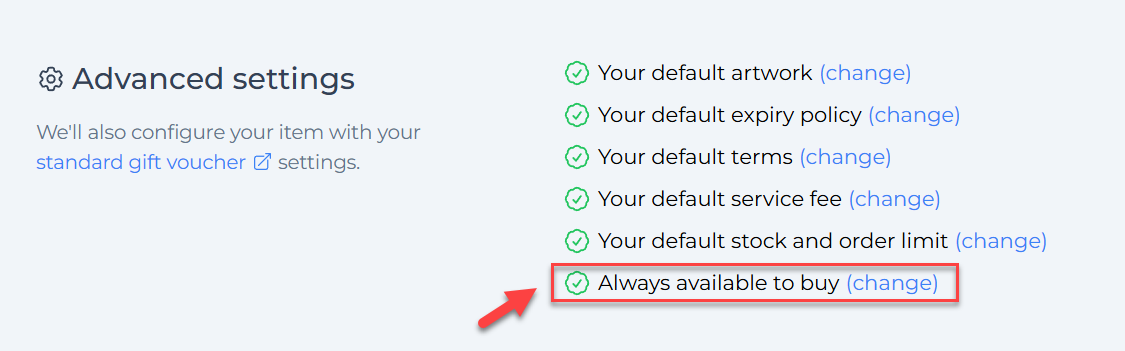
Clicking (change) here takes you to the Visibility settings.
Step 5: Locate the Visibility Panel
Scroll down within the voucher settings until you find the Visibility section.
Step 6: Set Visibility Dates (Optional)
If you want to schedule visibility, click the calendar icons next to Visible From and Visible To fields to select your desired dates.

Example: Set “Visible From” as next Monday and “Visible To” two weeks later to create a limited-time offer.
Step 7: Select the Visibility Option
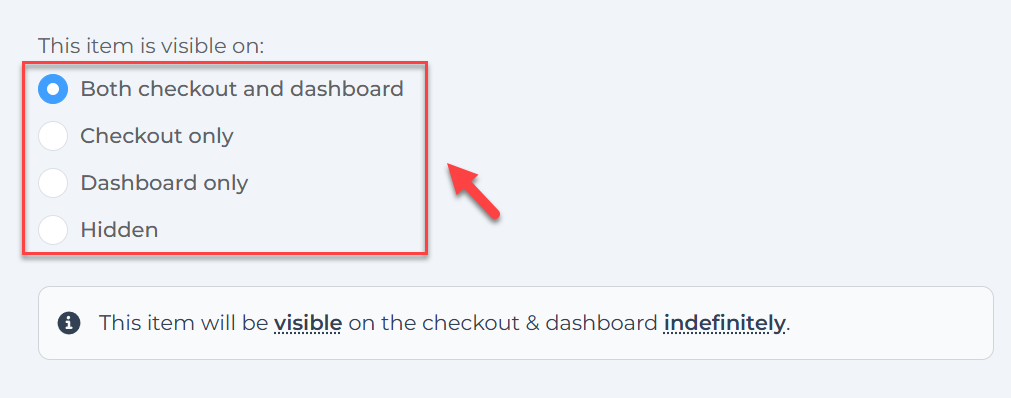
Choose one of these radio button options depending on how you want the voucher to appear:
- Both checkout and dashboard
- Checkout only
- Dashboard only
- Hidden
Step 8: Save Your Changes
Click Save or Update at the bottom of the page to apply your new visibility configuration.
Why Use Voucher Visibility Controls?
Managing voucher visibility provides several important benefits:
- Controlled Launches: Schedule vouchers to appear exactly when needed, avoiding premature exposure.
- Seasonal Management: Hide vouchers off-season yet keep them for quick reuse later.
- Testing and Drafting: Create vouchers privately and fine-tune before releasing them publicly.
- Access Restriction: Limit voucher visibility to your team for internal issuance or tracking purposes.
Tips for Effective Voucher Visibility Management
- Use Dashboard only visibility for staff-exclusive vouchers.
- Combine visibility dates with visibility options to fully automate promotional cycles.
- Regularly audit your voucher list to deactivate or hide outdated offers.
- When pausing a promotion, switch vouchers to Hidden or Dashboard only instead of deleting them, to avoid accidental sales and retain data.
- Communicate voucher availability clearly within your team to prevent confusion on which vouchers are active.
FAQs About Gift Voucher Visibility
Q1: Can I make a voucher visible only for a limited time?
Yes, use the Visible From and Visible To date fields to schedule when your voucher appears and disappears.
Q2: What happens if I hide a voucher?
Hidden vouchers won’t appear in the checkout or dashboard and cannot be used or issued until visibility is restored.
Q3: Can my customers see vouchers that are dashboard only?
No, vouchers set as Dashboard only are not visible to customers, only your internal team can see them.