









How to Update Your Payment Method to Direct Debit
Switching your payment method to Direct Debit in VaocherApp lets you pay your subscription fees automatically and securely from your bank account. This guide provides a detailed, step-by-step walkthrough with screenshots to help you update your payment method easily without interruptions.
What is Direct Debit?
Direct Debit is a convenient and reliable payment method where your subscription fees are automatically withdrawn from your linked bank account on each billing date. This eliminates the need for manual payments, reduces the chance of missed payments, and ensures your VaocherApp account remains active seamlessly.
Step-by-Step Guide to Update Payment Method to Direct Debit
Step 1: Log In to Your VaocherApp Account
- Open vaocher.app/login.
- Enter your registered email and password to access your dashboard.
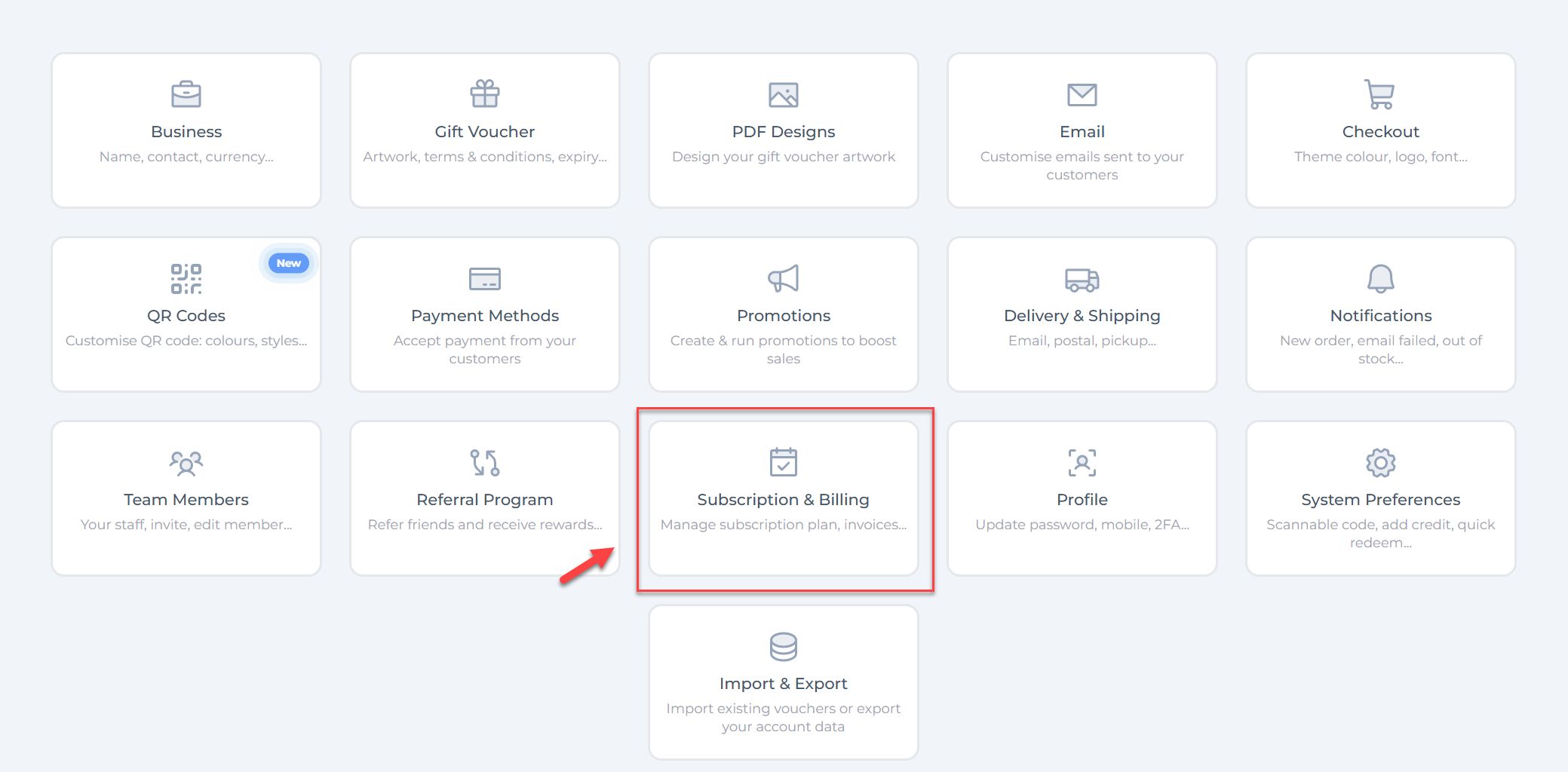
Step 2: Navigate to Subscription & Billing Settings
- In the main menu, click the Settings icon.
- Choose Subscription & Billing to view your plan and payment details.
Step 3: Manage Your Payment Methods
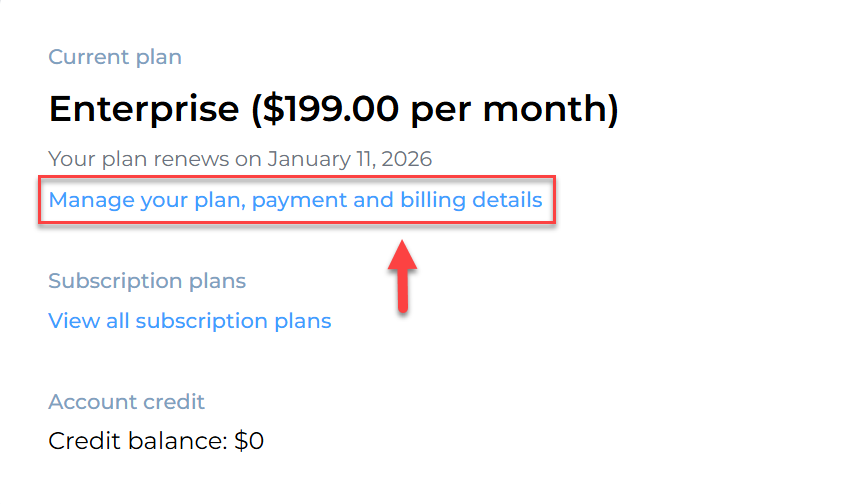
- On the Billing page, locate the section titled Manage your plan, payment and billing details. Here, you will see your current subscription details and payment method.
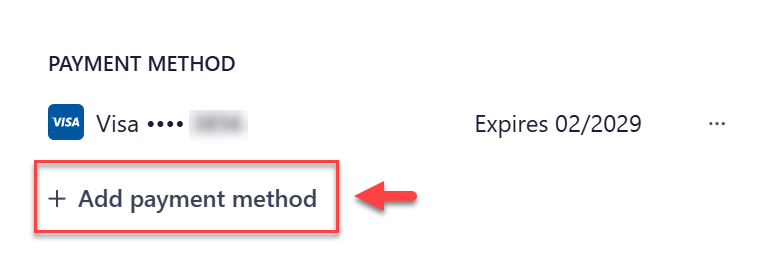
- Scroll down to the PAYMENT METHOD section where your current card or payment info is displayed. Click + Add payment method to add a new payment option.
Step 4: Choose Direct Debit
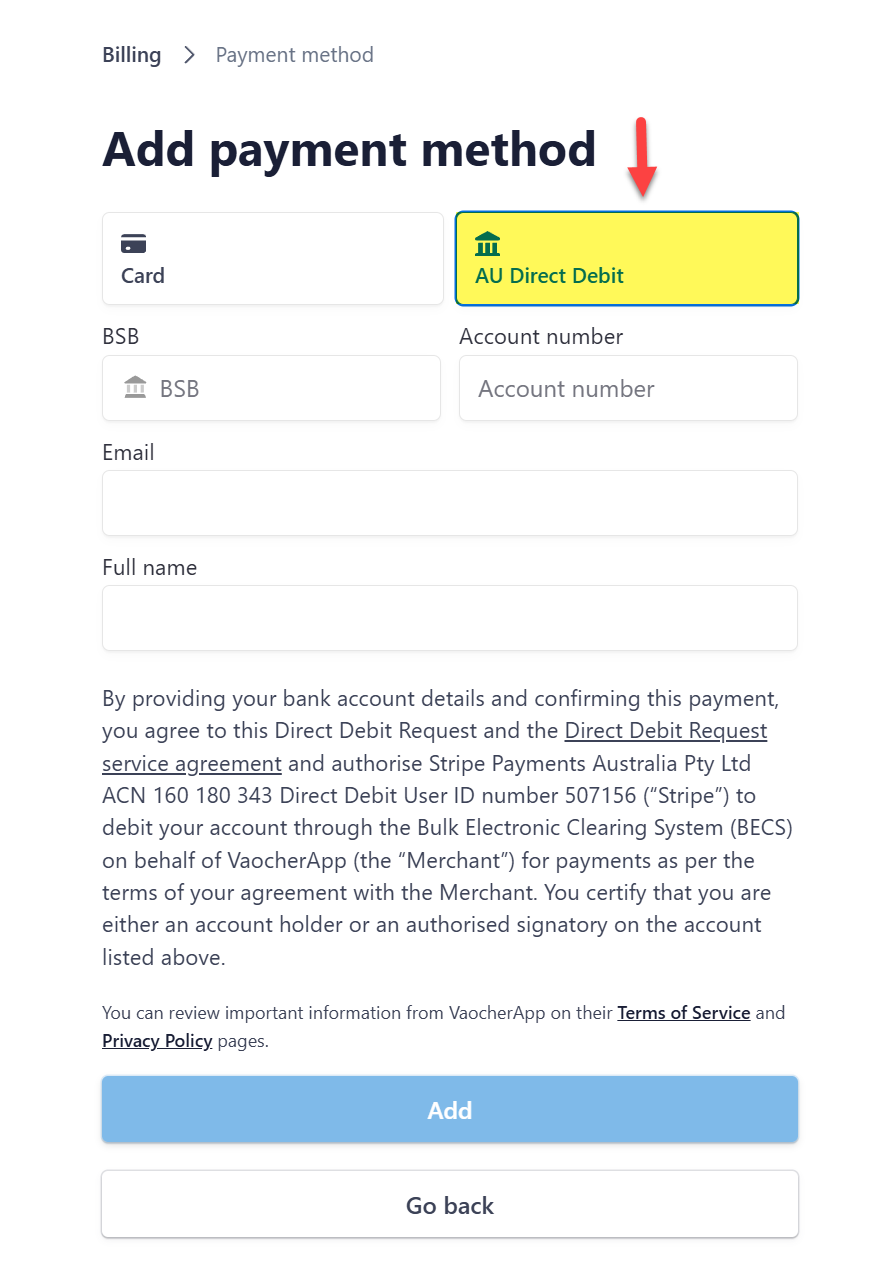
- When prompted to add a new payment method, you will see options for Card and AU Direct Debit.
- Select AU Direct Debit to pay via bank account transfer.
Step 5: Enter Your Bank Account Information
Fill out the form with accurate details for Direct Debit setup:
- BSB: Your 6-digit Australian Bank-State-Branch number.
- Account Number: Your bank account number.
- Email: Your contact email (auto-filled but editable).
- Full Name: Name as it appears on the bank account.
By providing this information and submitting, you agree to the Direct Debit terms and authorize Stripe Payments Australia Pty Ltd to debit your account via BECS on behalf of VaocherApp.
Step 6: Accept the Direct Debit Terms and Confirm
- Review the Direct Debit Request and service agreement linked in the form.
- Confirm that you are the account holder or an authorised signatory of this bank account.
- Click Add to save and enable Direct Debit as your payment method.
Step 7: Confirmation of Payment Method Update
- After submitting, you will see a confirmation message indicating that your payment method has been updated successfully.
- Your Direct Debit setup may take 2-3 business days to activate, after which payments will be automatically processed.
Important Information
- Processing Time: Direct Debit activation can take 2-3 business days.
- Sufficient Funds: Ensure your bank account has enough balance on billing dates to avoid payment declines.
- Invoice & Payment History: Access all your billing details anytime under Billing & Subscriptions in your account dashboard.
If You Have Outstanding Payments
- Update your payment method promptly if there are overdue invoices to prevent interruption of service.
- You may be required to manually settle any outstanding invoices before Direct Debit can be activated.