









How to Connect SENPOS to Push Gift Vouchers to Your POS
SENPOS connects VaocherApp to your venue so new gift vouchers are sent to SENPOS and can be redeemed at the POS. This integration is currently marked BETA.
Learn more about the SENPOS gift voucher integration.
Quick reference
| What | What happens |
|---|---|
| New gift voucher created | Sent to SENPOS when the integration is connected and Enabled |
| Redeem at the POS | Done in SENPOS |
| Pause with Disabled | Stops sending new vouchers. Your connection stays saved |
| Disconnect | Removes the connection. Connect again to resume |
Things to know
- Default Port is 20800.
- To change API host, Port, Username, or Password, Disconnect Integration, then connect again with the new details.
How to open SENPOS settings
- Open the VaocherApp dashboard and go to Settings.
- Open Connect Your Software, then choose View All Integrations.
- Find SENPOS and choose View instruction (if not connected) or Manage integration (if connected).
Direct link: https://vaocher.app/settings/integrations/senpos
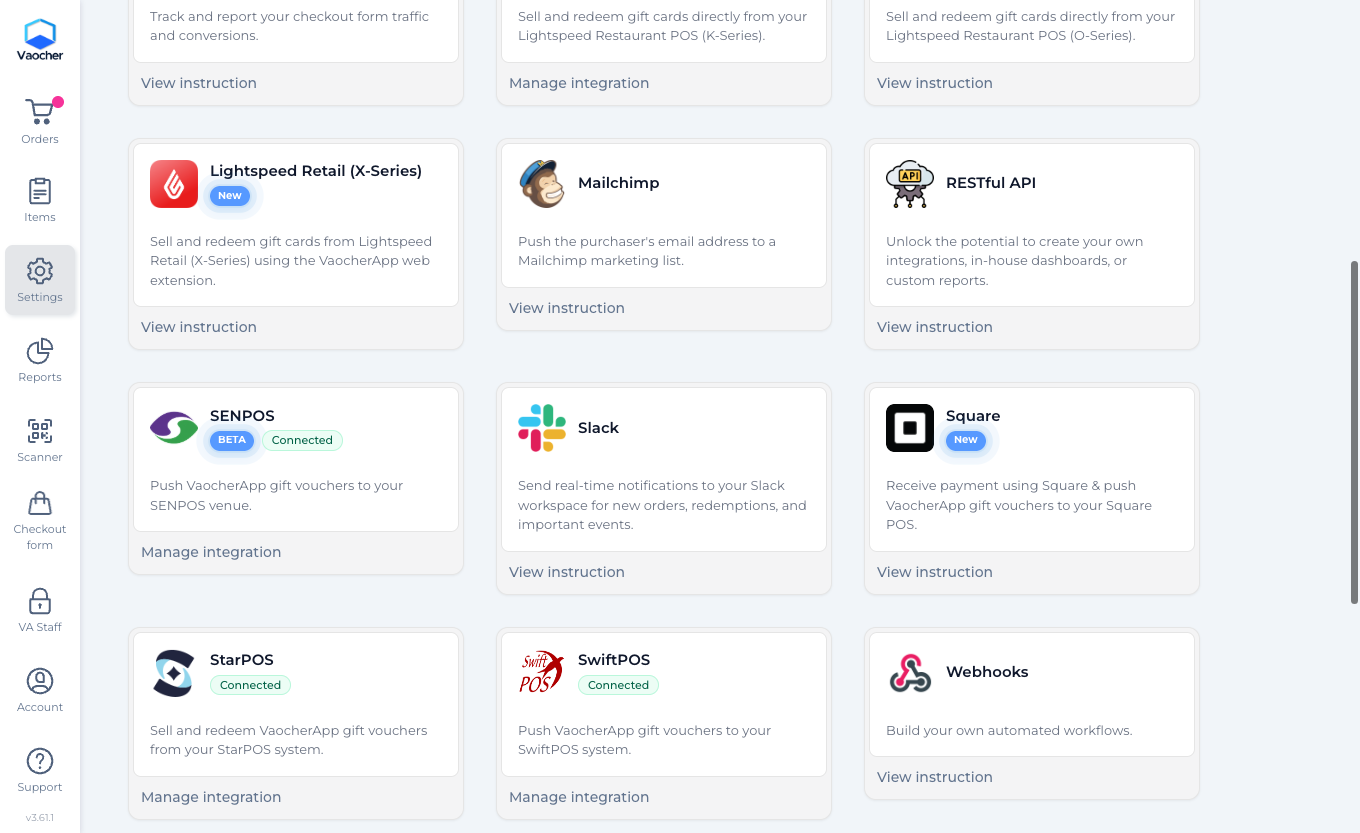
Connect SENPOS for the first time
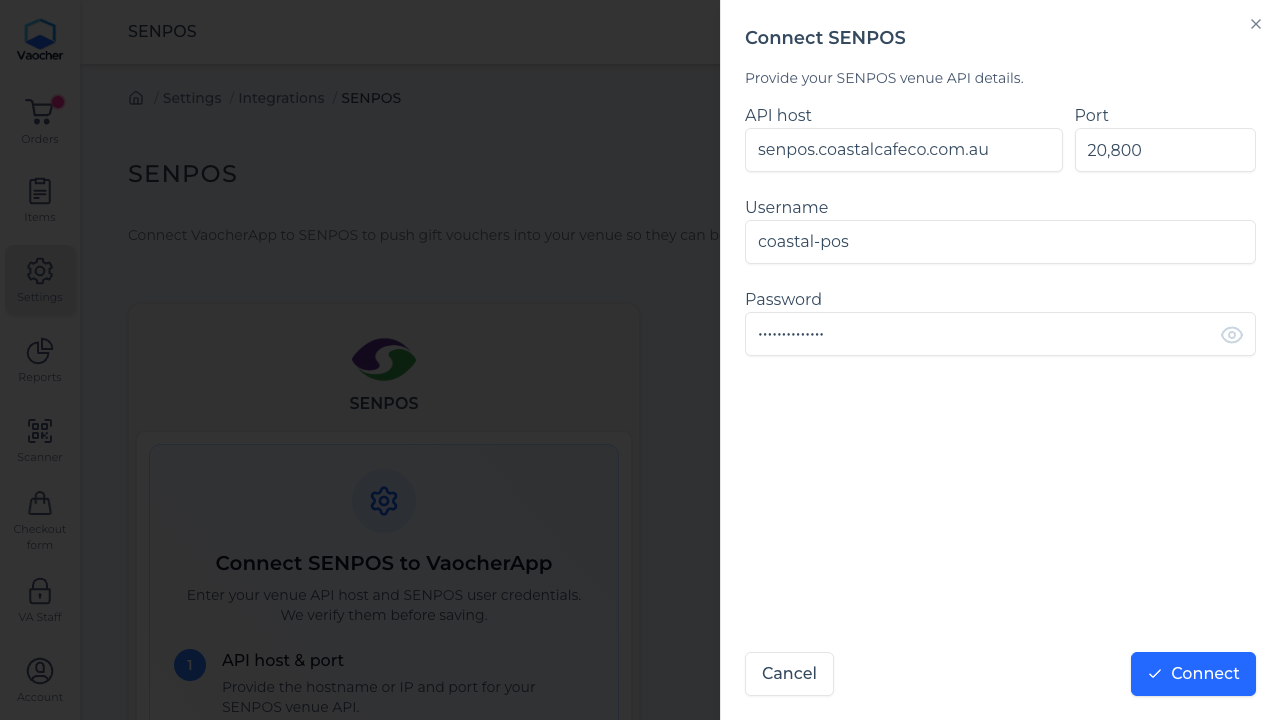
When SENPOS is not connected, the page shows Connect SENPOS to VaocherApp.
- Choose Configure Integration.
- In the Connect SENPOS drawer, enter:
- API host (hostname or IP for your SENPOS venue API)
- Port (defaults to 20800)
- Username
- Password
- Choose Connect.
VaocherApp checks your details before saving. When connect succeeds, new vouchers start sending to SENPOS automatically.
Manage a connected SENPOS integration
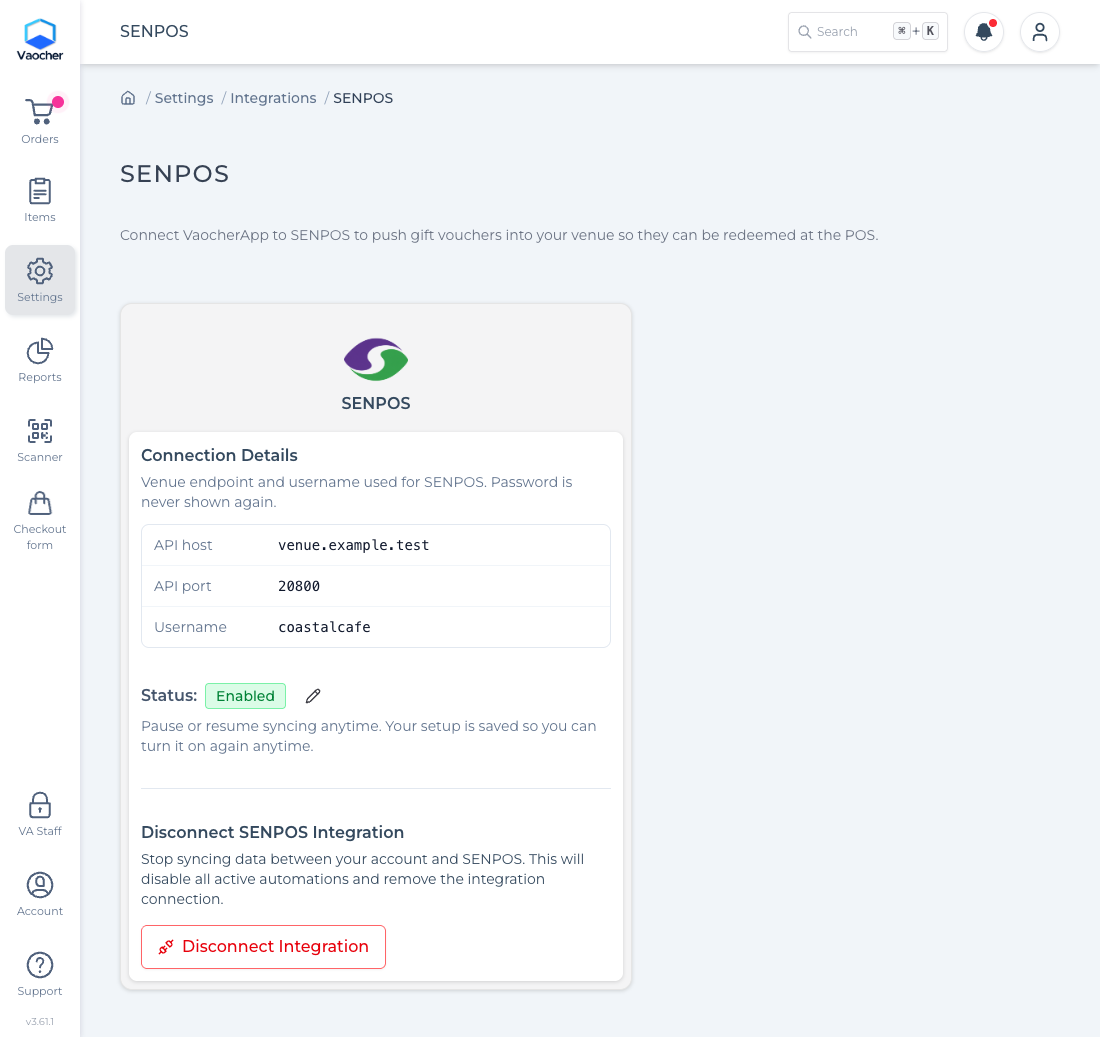
When connected, the SENPOS page shows your Connection Details, Status (Enabled or Disabled), and Disconnect SENPOS Integration.
Pause or resume syncing
Use Status when you want to stop or restart sending vouchers without disconnecting.
- Disable: choose the pencil next to Status, then confirm Disable.
- Enable: confirm Enable to resume.
Disconnect SENPOS
- Choose Disconnect Integration.
- Confirm Disconnect.
You are taken back to Integrations & Connected Apps.
How to check it live
- Confirm SENPOS is connected and Status is Enabled.
- Create a test gift voucher.
- Confirm the voucher appears in SENPOS and can be redeemed at the POS.