









Managing Menu Items & PDF Design Updates
VaocherApp has introduced improvements to make managing your menu items and voucher designs easier and more reliable.
This guide covers:
- How to use the new Menu Items page (Beta)
- How PDF design changes affect vouchers
- A new confirmation safeguard when editing designs
New Menu Items Page (Beta)
We’ve introduced a redesigned Menu Items page to help you find and update items faster.
How to try the new Menu Items design
Step 1: Open Menu Items
Go to your Menu Items page in the dashboard.
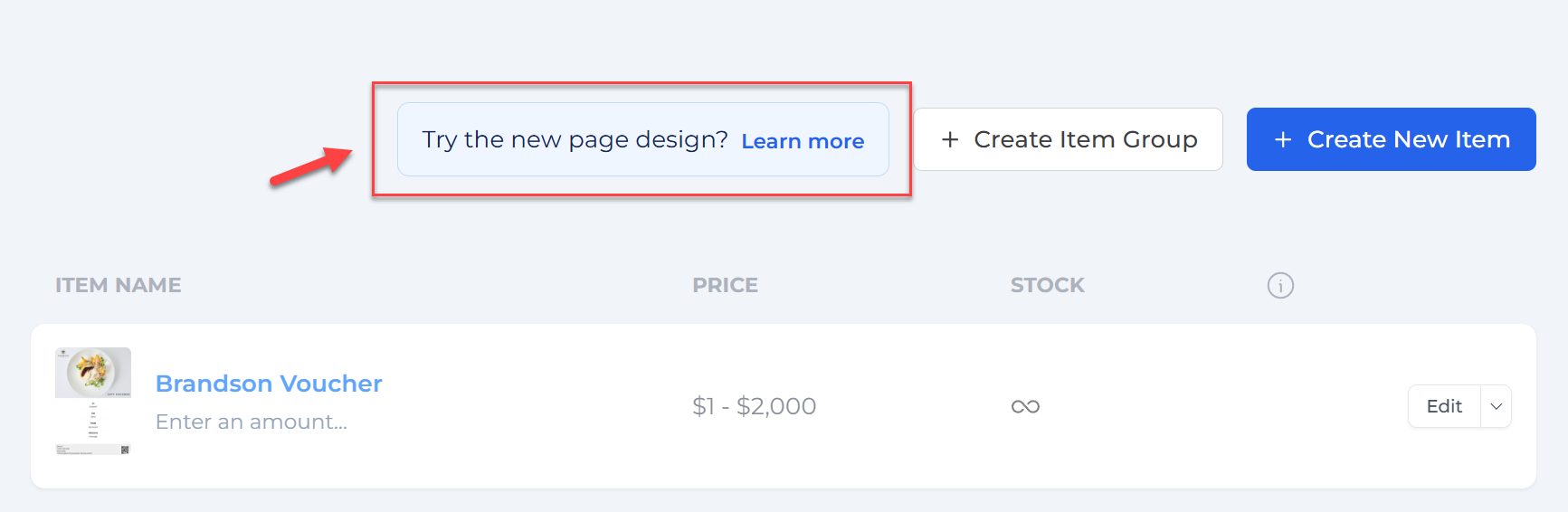
You may see a prompt like this:
Step 2: Enable the new design
Click Try New Design to switch to the updated layout.
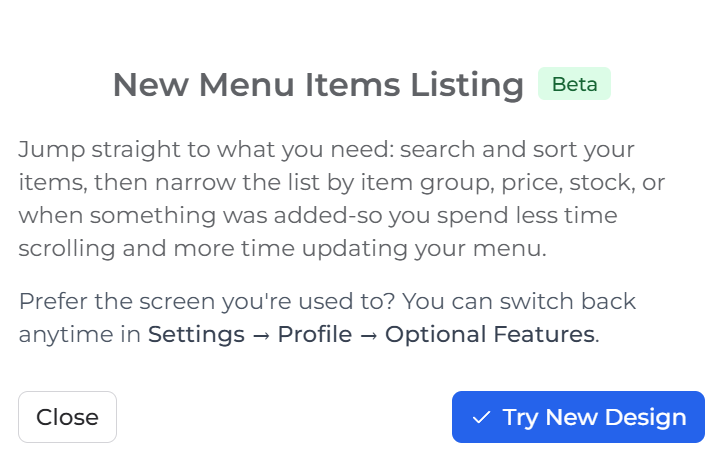
Step 3: Use search, filters, and sorting
Once enabled, you can:
- Search items instantly
- Sort by price, stock, or date added
- Filter by item groups
This helps you update items without scrolling through long lists.
Step 4: Switch back anytime
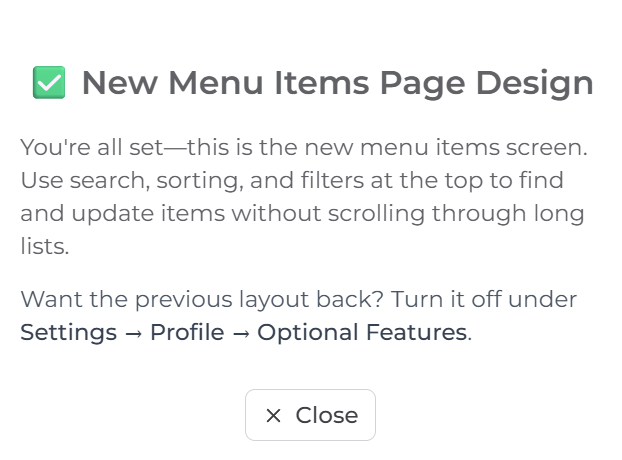
Prefer the old layout? Go to: Settings → Profile → Optional Features and turn off the new design.
⚠️ Why voucher wording may change
You may notice that previously issued vouchers show different wording when re-downloaded.
This is expected behaviour in VaocherApp.
Vouchers always use the latest version of their assigned PDF design at the time of download.
How PDF design updates affect vouchers
When you update a PDF design:
- All vouchers linked to that design will use the updated version
- This applies to both new and previously issued vouchers
- Customers re-downloading vouchers will see the latest design
New safeguard: Confirmation when updating PDF designs
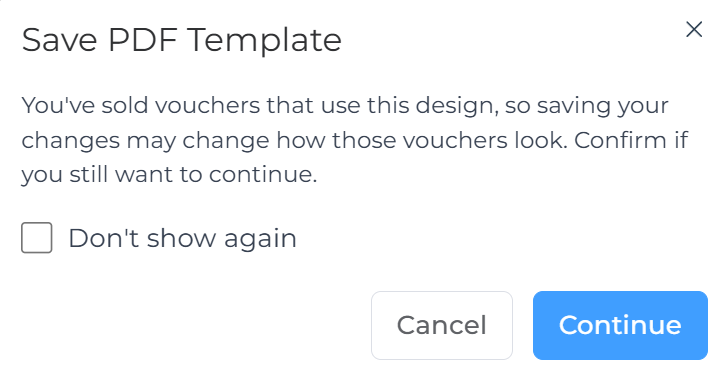
To prevent accidental changes, we’ve added a confirmation step when editing a PDF design that is already in use.
Step 1: Edit your PDF design
Make changes to your existing PDF template.
Step 2: Click Save
If the design is already used by vouchers, you’ll see this warning:
Step 3: Confirm your action
You’ll have two options:
- Cancel → Keep the current design unchanged
- Continue → Apply changes to all vouchers using this design
How voucher PDF designs work
In VaocherApp:
- Vouchers are linked to a live PDF design
- They are not stored as fixed files
- Each download generates the latest version
What this means
- Fixes apply instantly to all vouchers
- Changes can affect previously issued vouchers
Best practices
To avoid unexpected changes:
- Use separate PDF designs for different campaigns
- Avoid editing designs after vouchers are issued
- Duplicate a design instead of overwriting it
⚠️ Important notes
- PDF design changes affect both new and existing vouchers
- Customers who already downloaded vouchers keep the old version
- Re-downloading always uses the latest design
- The confirmation popup is a warning only