








How to Choose Which Menu Items Sync to Cliniko
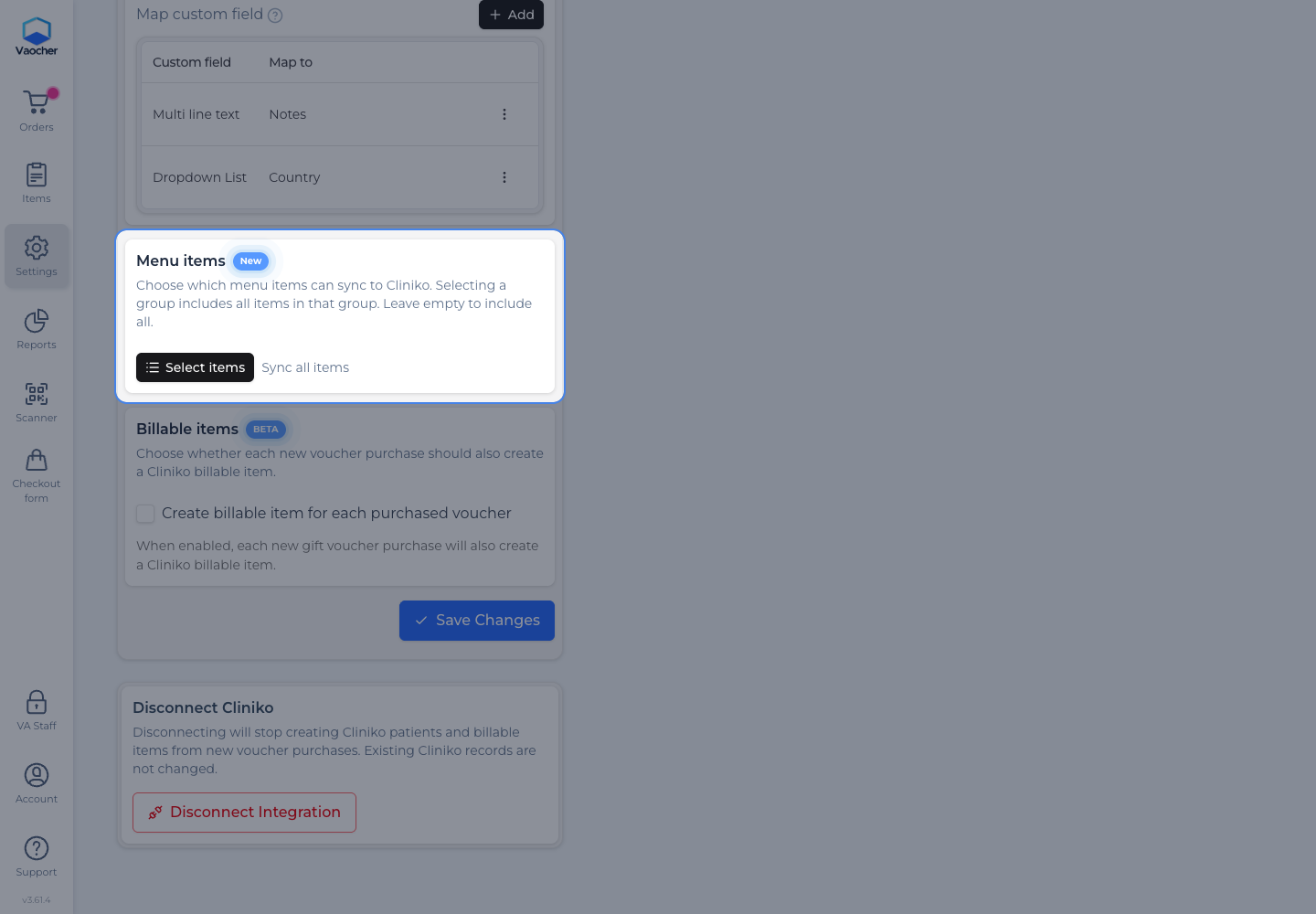
When Cliniko is connected, VaocherApp can sync guest details (and optional billable items) from voucher purchases. By default every menu item is included. Use Menu items if you only want certain items or groups to sync.
Cliniko must already be connected. If you still need to connect, see Cliniko - How to get account API key. For an overview of what the integration does, see the Cliniko integration page.
Things to know
- If you leave the selection empty, VaocherApp syncs all menu items. The page shows Sync all items.
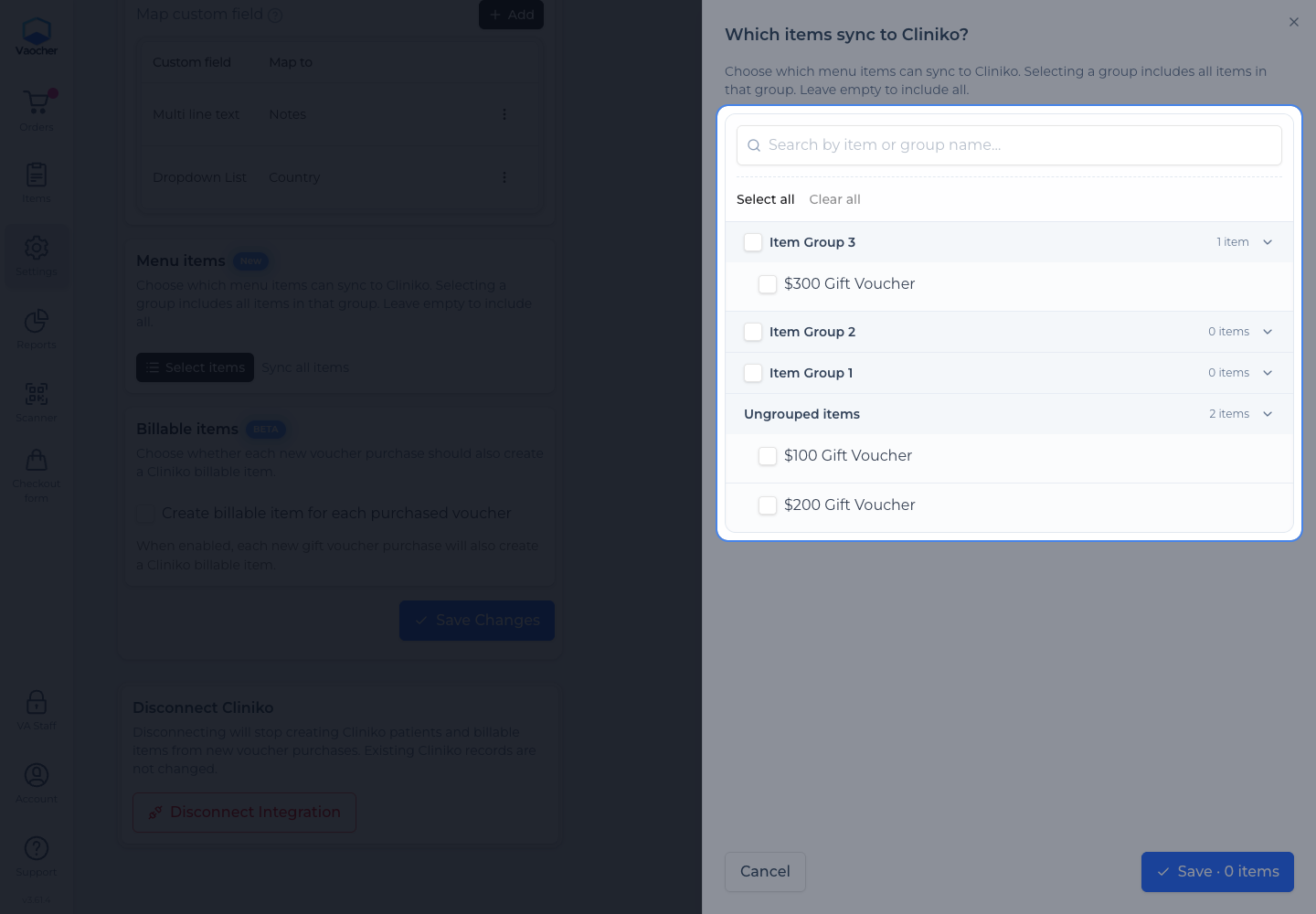
- Selecting a group includes every item in that group.
How to choose which items sync
- Open the VaocherApp dashboard and go to Settings.
- Open Integrations, then open Cliniko.
- Find the Menu items section.
- Choose Select items.
- In the Which items sync to Cliniko? drawer, tick the items and groups you want included. Use search if your list is long. Choose Clear all if you want to go back to syncing everything.
- Choose Save (the label also shows how many items or groups you selected, for example Save · 2 items).
The drawer closes and the Menu items summary updates (for example 2 items, 1 groups selected, or Sync all items when nothing is selected).