









Personalize gift vouchers with add-ons
Add-ons allow you to collect additional information or offer optional paid extras during checkout.
You can use add-ons to ask customers questions, provide selectable options, or offer complementary products and services alongside a voucher purchase.
Each add-on can contain one or more options, with each option having its own price.
How add-ons work
When purchasing a voucher, customers will see any applicable add-ons during checkout.
Depending on how an add-on is configured, customers can:
- Select one of several options.
- Choose optional paid extras.
- Complete required information before continuing.
For example, you could create add-ons for:
- Champagne selection
- Flower bouquets
- Gift wrapping
- Greeting cards
- Number of guests
- Room upgrades
- Spa treatments
- Late checkout
Any paid selections are automatically added to the order total during checkout.
Benefits of add-ons
Add-ons help you:
- Increase the average order value.
- Offer a more personalised checkout experience.
- Sell complementary products or services.
- Collect additional booking or voucher information.
- Reduce the need for manual follow-up after purchase.
Creating an add-on
To create an add-on:
- Go to Checkout.
- Open the Add-ons tab.
- Click New Add-on.
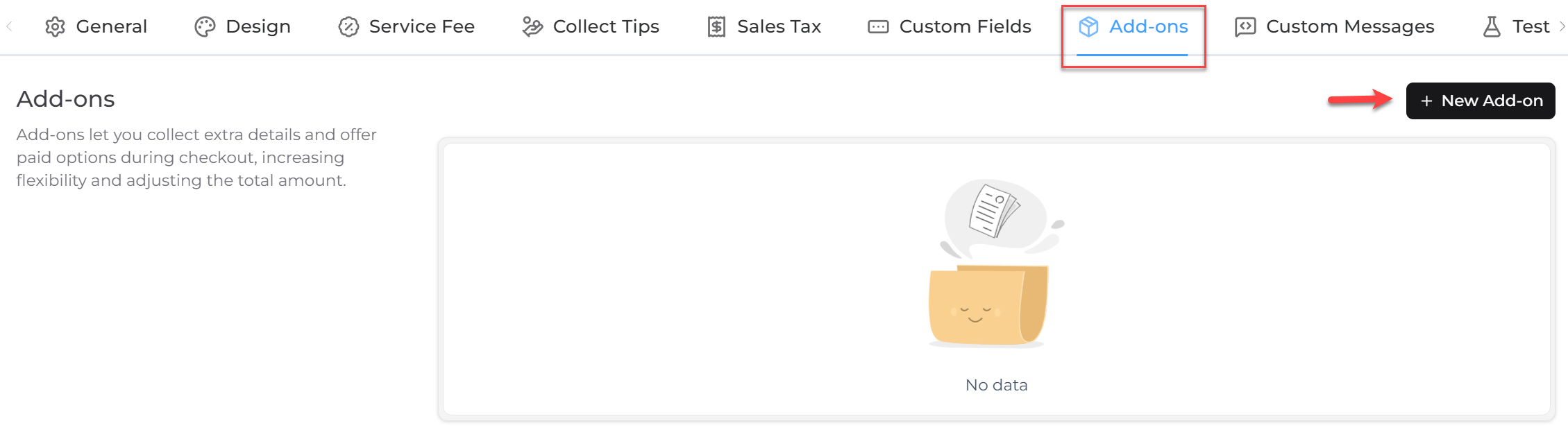
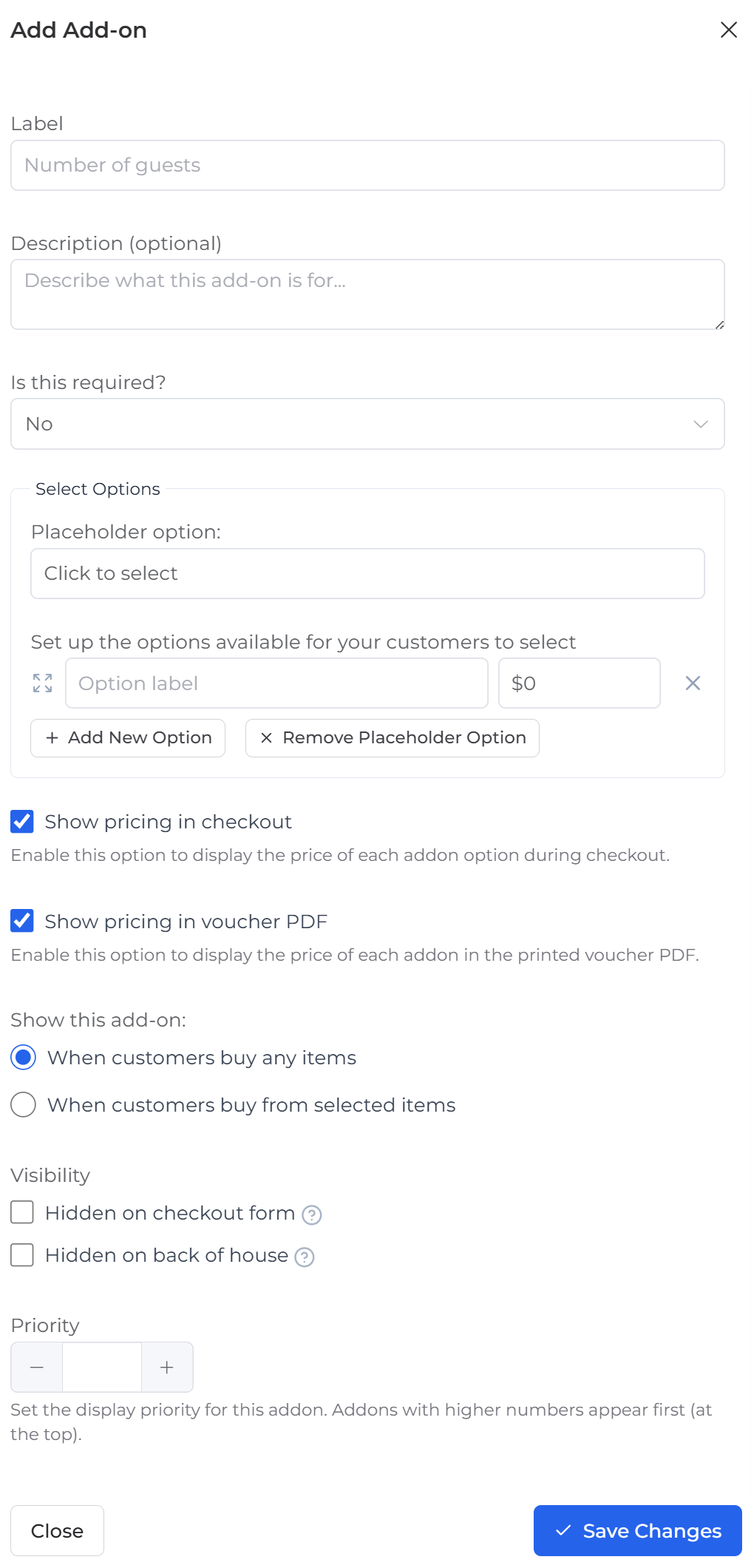
When creating an add-on, you can configure:
- Label
- Description
- Whether the add-on is required
- One or more selectable options
- Pricing for each option
- Placeholder option
- Whether pricing is displayed during checkout
- Whether pricing appears on the voucher PDF
- Which voucher products the add-on applies to
- Visibility settings
- Display priority
Choosing which products display an add-on
You can choose whether an add-on is shown:
- When customers purchase any item.
- Only when customers purchase selected items.
This allows you to display relevant add-ons only for specific voucher products.
Customer checkout experience
During checkout, customers will see any applicable add-ons before payment.
Depending on the add-on configuration, they can:
- Select an option.
- View any additional charges.
- See the updated order total before completing payment.
Add screenshot: Checkout page showing add-ons (I don’t have an Enterprise plan, so I can’t create an add-on or take a screenshot of the checkout page
Visibility options
Each add-on includes visibility settings that control where it appears.
You can choose to:
- Hide the add-on on the checkout form.
- Hide the add-on from the back office.
Things to know
- Add-ons can be optional or required.
- Each add-on can contain multiple selectable options.
- Each option can have its own price.
- Paid add-ons are automatically included in the order total.
- You can choose whether pricing is shown during checkout and on the voucher PDF.
- Add-ons can be displayed for all voucher products or only selected products.
- Display priority determines the order in which add-ons appear during checkout.