





How to Give Your Checkout a Custom Link
On the Enterprise plan, you can give your checkout a link with your business name in it, like checkout.vaocher.app/shop/yourbusiness.
You also choose the image, title and description people see when the link is shared in WhatsApp, Messages, Facebook, Slack or email.
Custom links are in beta.
How a custom link works
- It opens the same checkout as your normal checkout link.
- Your normal checkout link keeps working, and so do checkouts embedded on your website.
- Once your custom link is live, the checkout links in your dashboard use it, so it’s the link you copy and share.
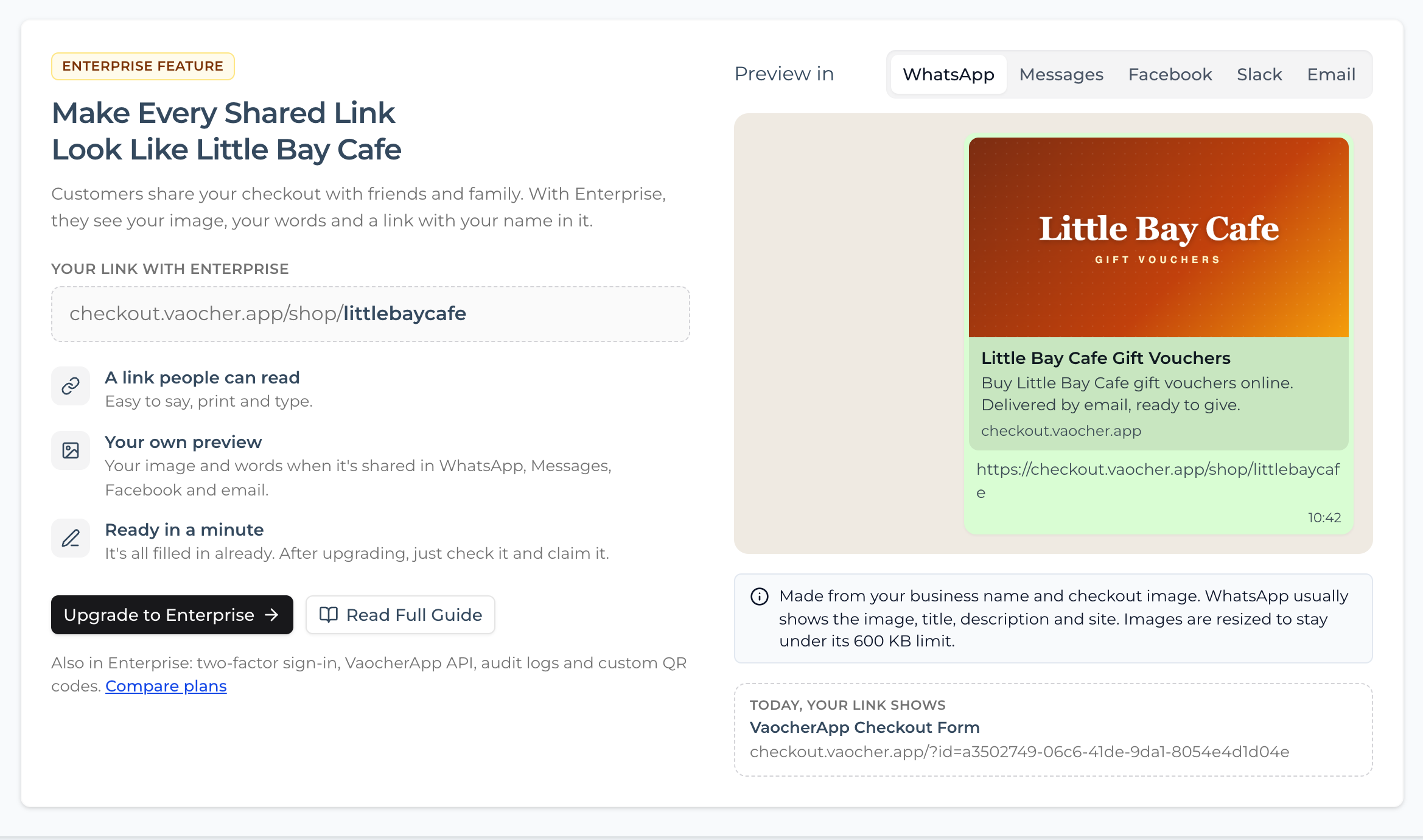
Not on Enterprise yet? The Custom Link tab shows what your link and its preview would look like, with an Upgrade to Enterprise button.
Claiming your custom link
- Go to Settings › Checkout.
- Open the Custom Link tab.
- Click Claim My Link.
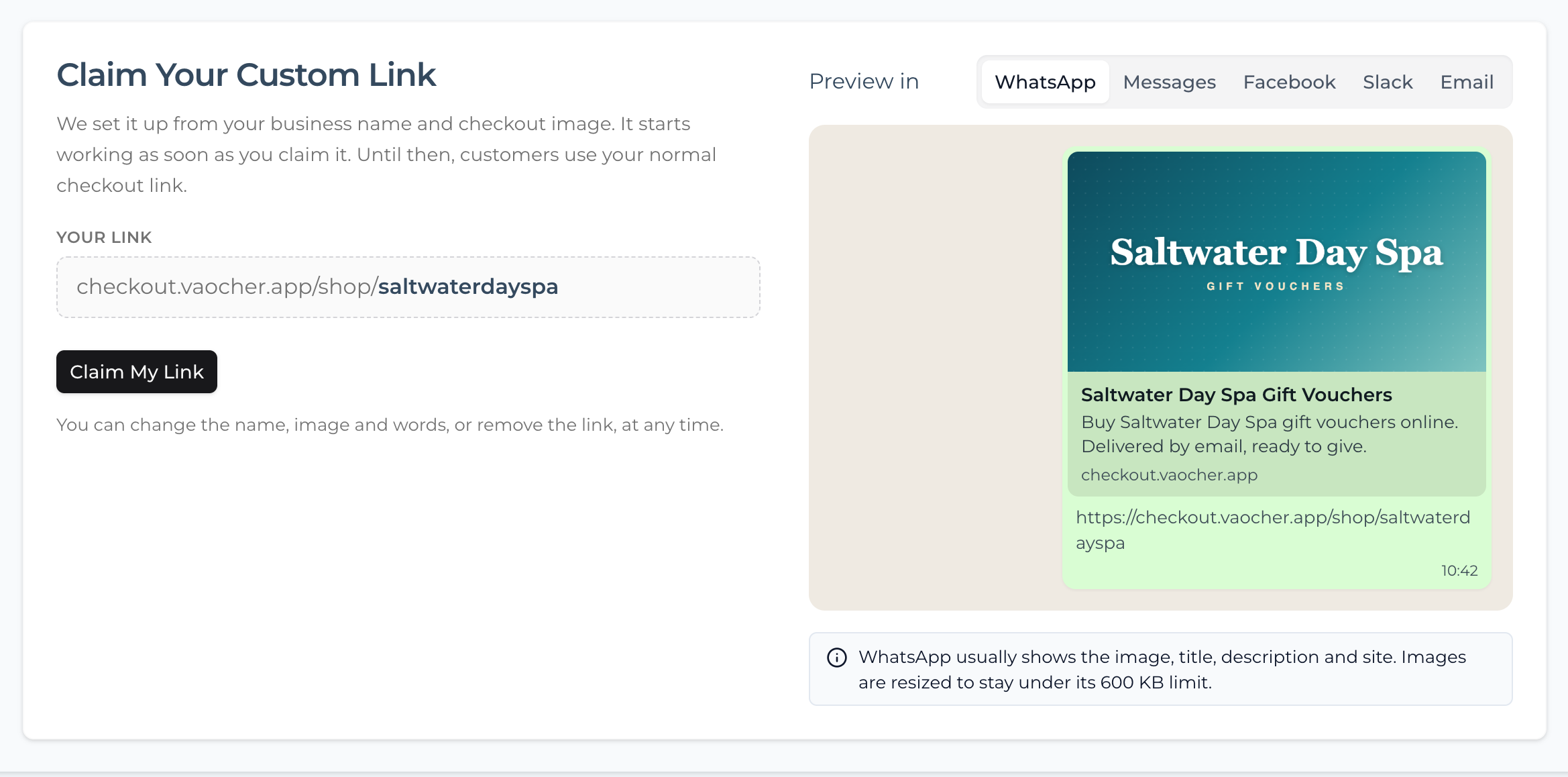
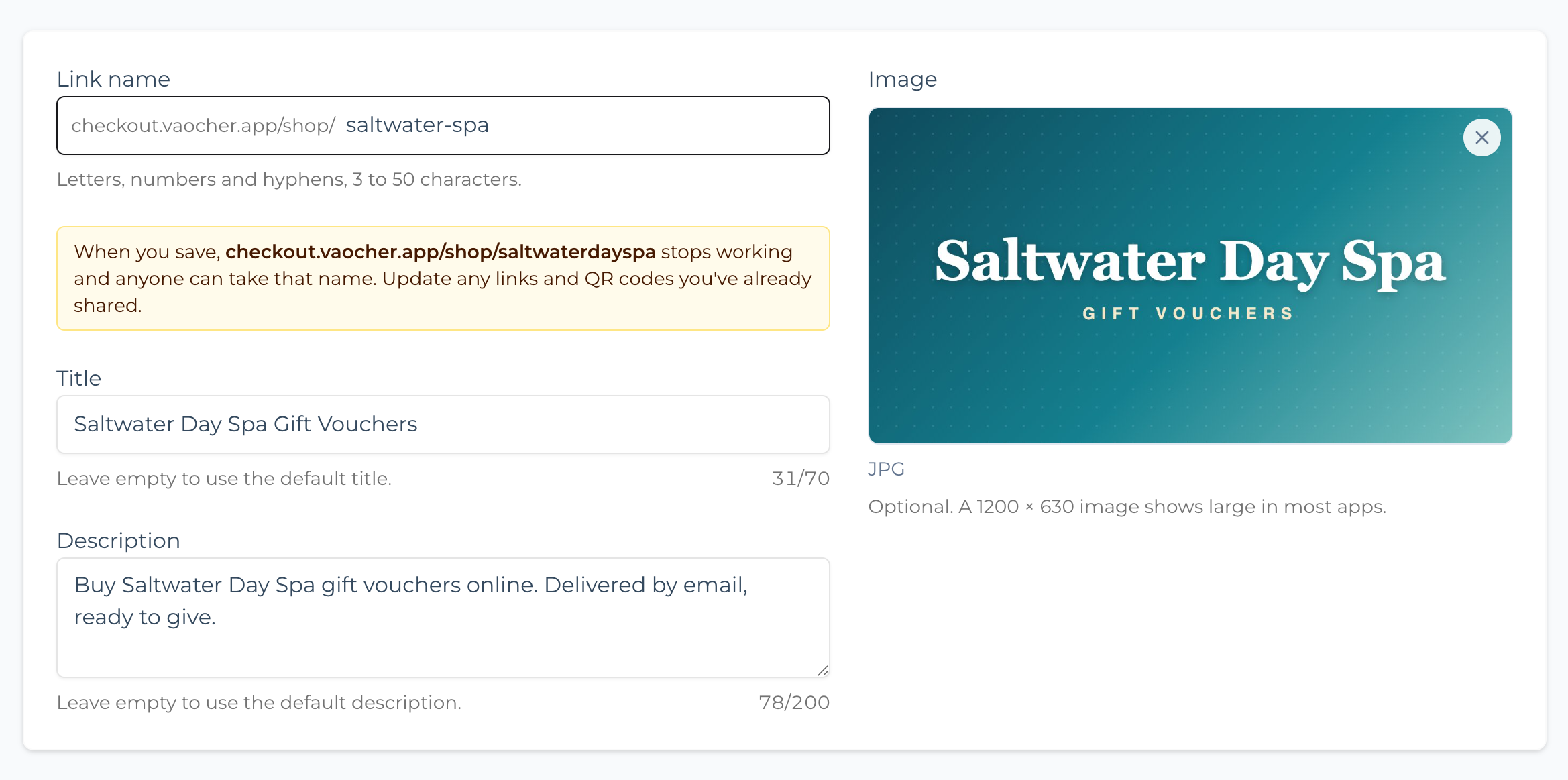
We fill in the details for you from your business name and checkout image. Check them, and change anything you like:
- Link name: the part after
/shop/. - Title: the bold line in the preview.
- Description: the text under the title.
- Image: the picture at the top of the preview.
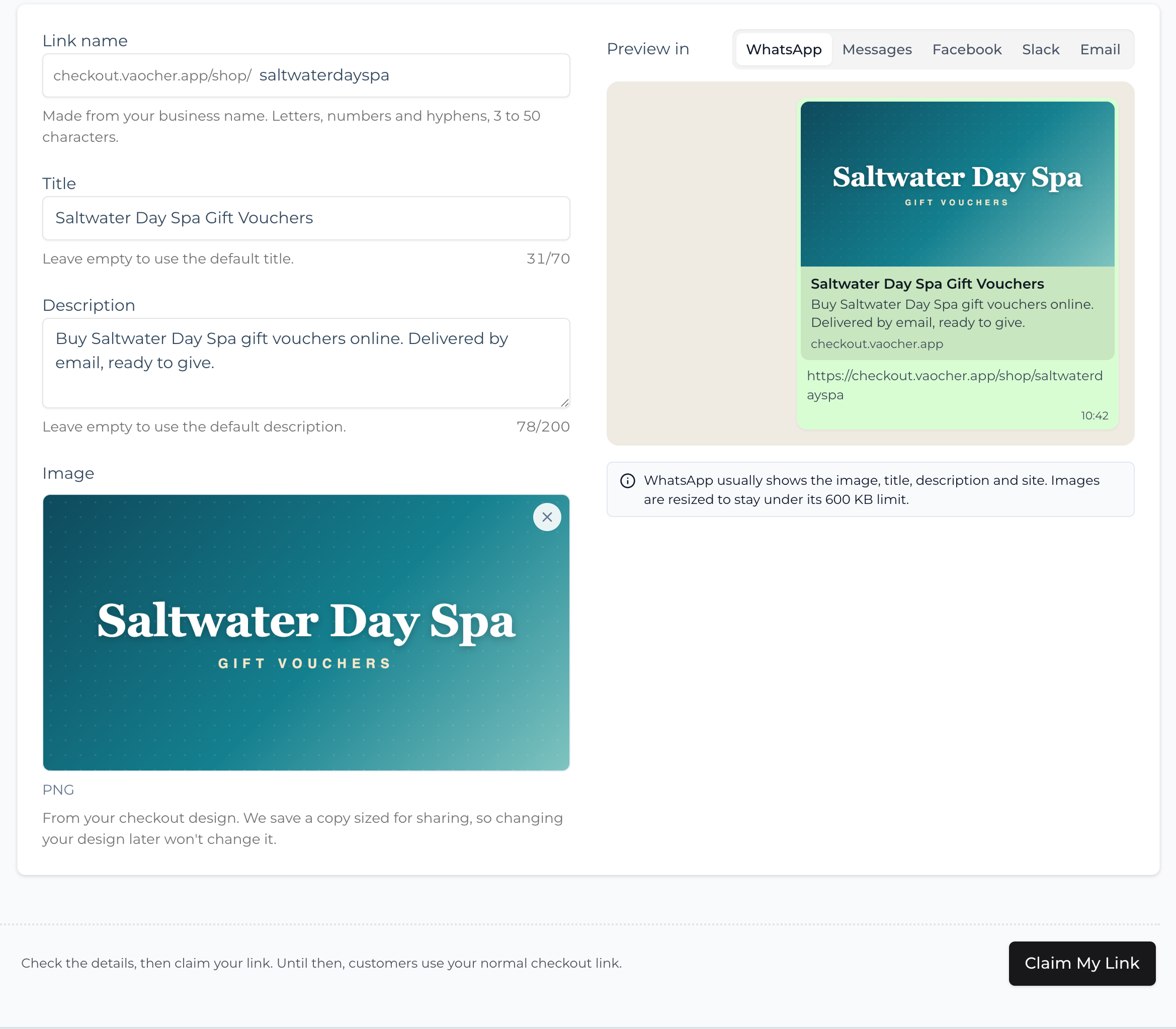
- Click Claim My Link at the bottom of the page.
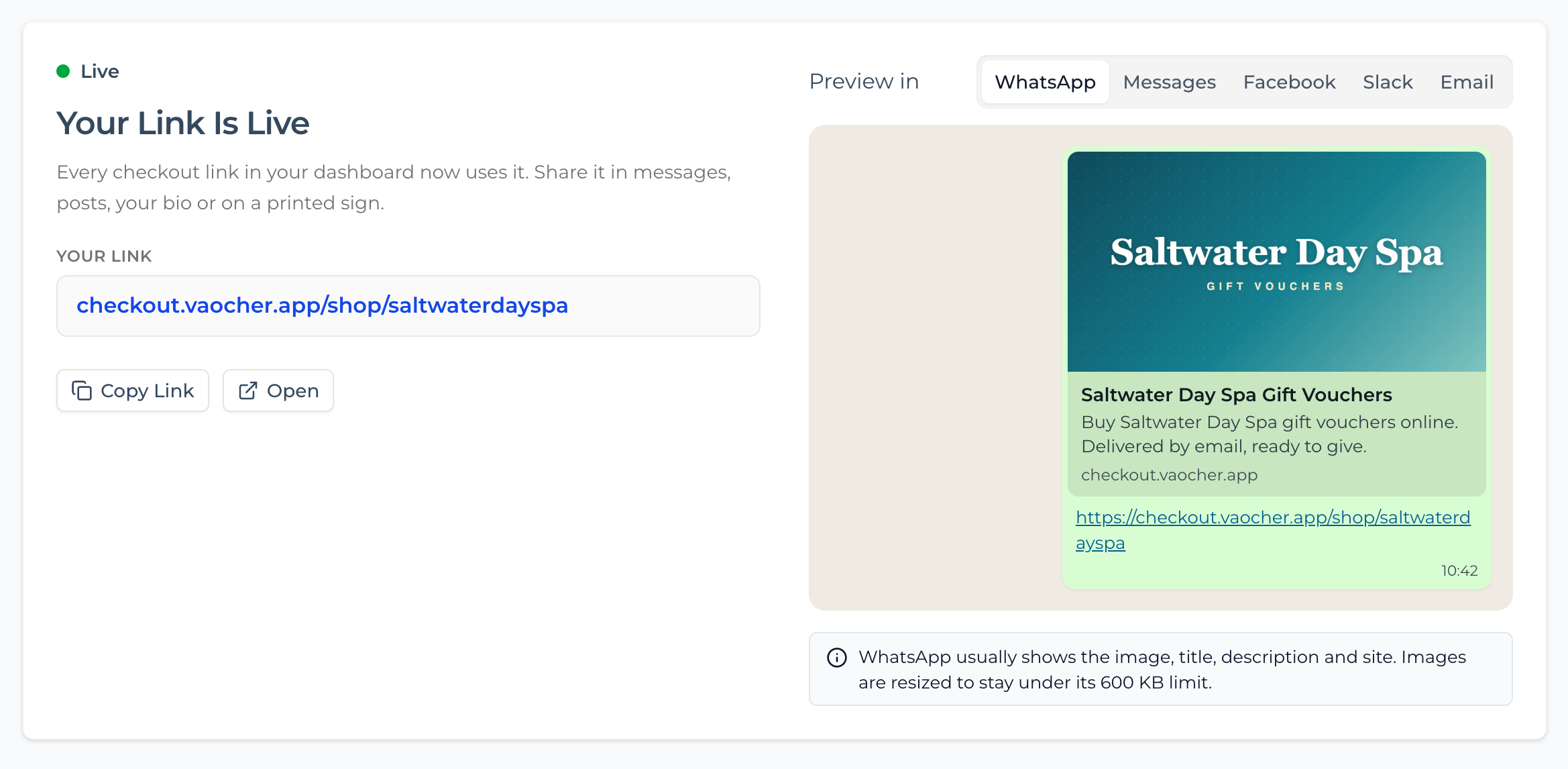
Your link works straight away. Until you claim it, customers keep using your normal checkout link.
Choosing a link name
- Use lowercase letters, numbers and hyphens, from 3 to 50 characters.
- Put a single hyphen between words, like
earth-markets. A name can’t start or end with a hyphen. - Capital letters turn into lowercase as you type.
- Each name belongs to one business. If the name you want is taken, try another.
Setting up the link preview
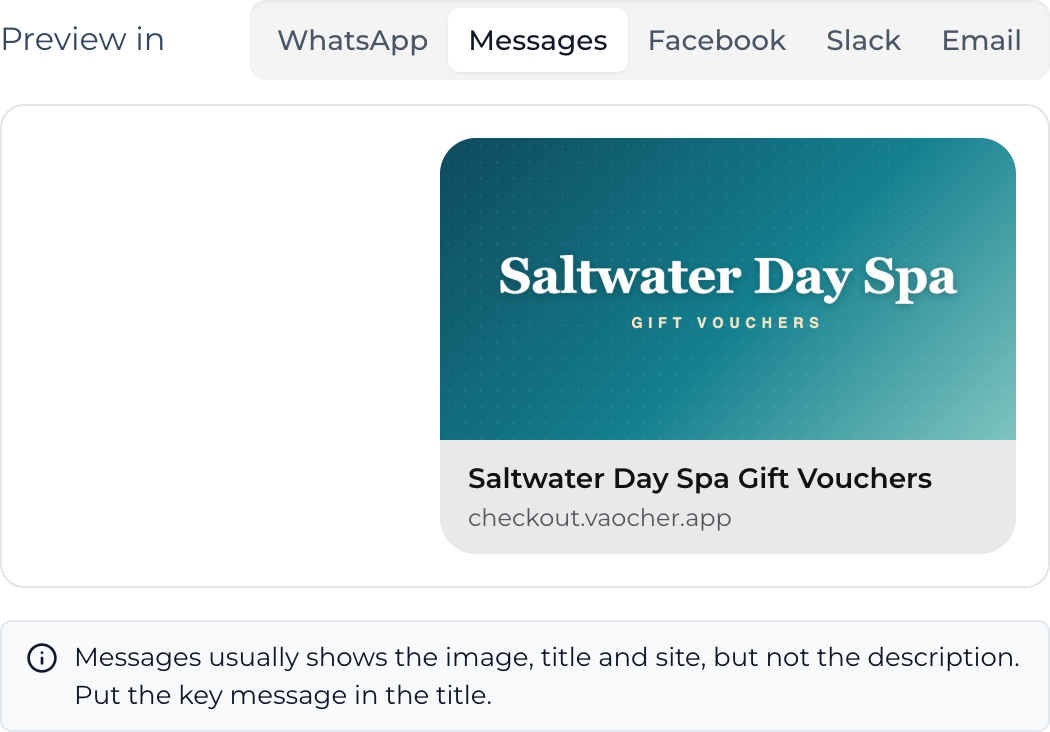
When someone shares your link, most apps show a preview with an image, a title and a short description. The preview beside the fields shows how your link looks in WhatsApp, Messages, Facebook, Slack and email, and it updates as you type.
- Title: up to 70 characters. Leave it empty to use “VaocherApp Checkout Form”.
- Description: up to 200 characters. Leave it empty to use the default description.
- Image: JPG, PNG, GIF or WebP. An image 1200 × 630 pixels shows large in most apps.
Each app shows the preview a little differently:
- Messages doesn’t show the description, so put your key message in the title.
- Outlook and Teams crop the image to a square, so keep your logo in the middle.
About the image
We save a copy of your image sized for sharing: at most 1200 pixels wide and under 600 KB. WhatsApp doesn’t show images larger than 600 KB.
If the image comes from your checkout design, it’s a copy. Changing your checkout design later doesn’t change the preview.
We can’t use an image that’s larger than 25 megapixels, or more than 4 times as wide as it is tall (or the other way round).
Changing your link later
Change the name, title, description or image under Link Details, then click Save Changes.
- Renaming the link: the old link stops working straight away, and anyone can take that name. Update any links and QR codes you’ve already shared.
- Changing the preview: apps keep their own copy of a preview, so a new image or text can take a while to show where the link was already shared.
Removing your link
Click Remove Link at the bottom of the Custom Link tab.

The link stops working straight away, and someone else can take the name. Your checkout links in the dashboard go back to your normal checkout link.
If you leave the Enterprise plan
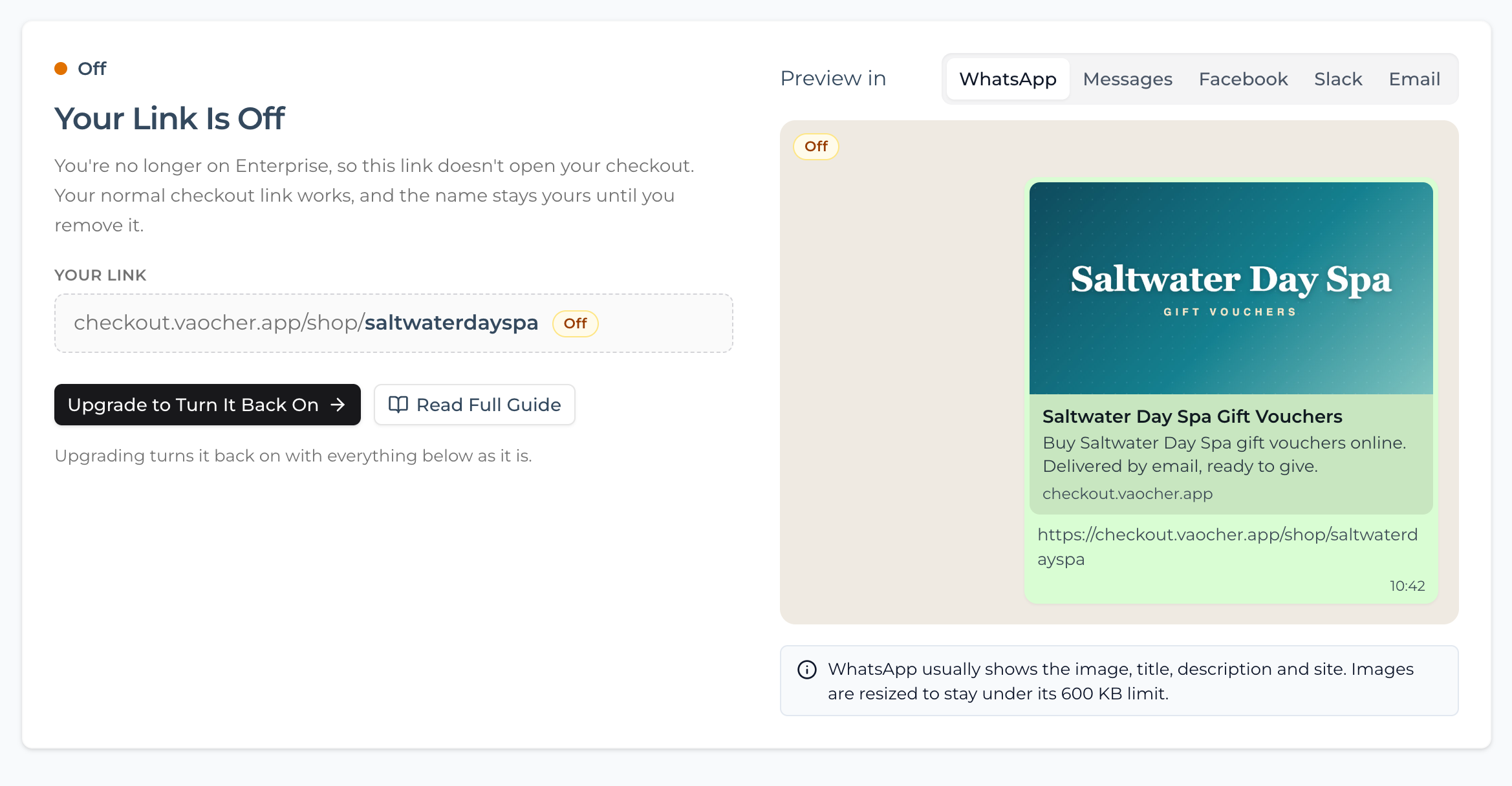
- Your custom link stops working, and your dashboard goes back to your normal checkout link.
- The name stays yours. When you upgrade again, the link turns back on with the same name and preview.
- To give up the name, remove the link.
When a custom link isn’t live
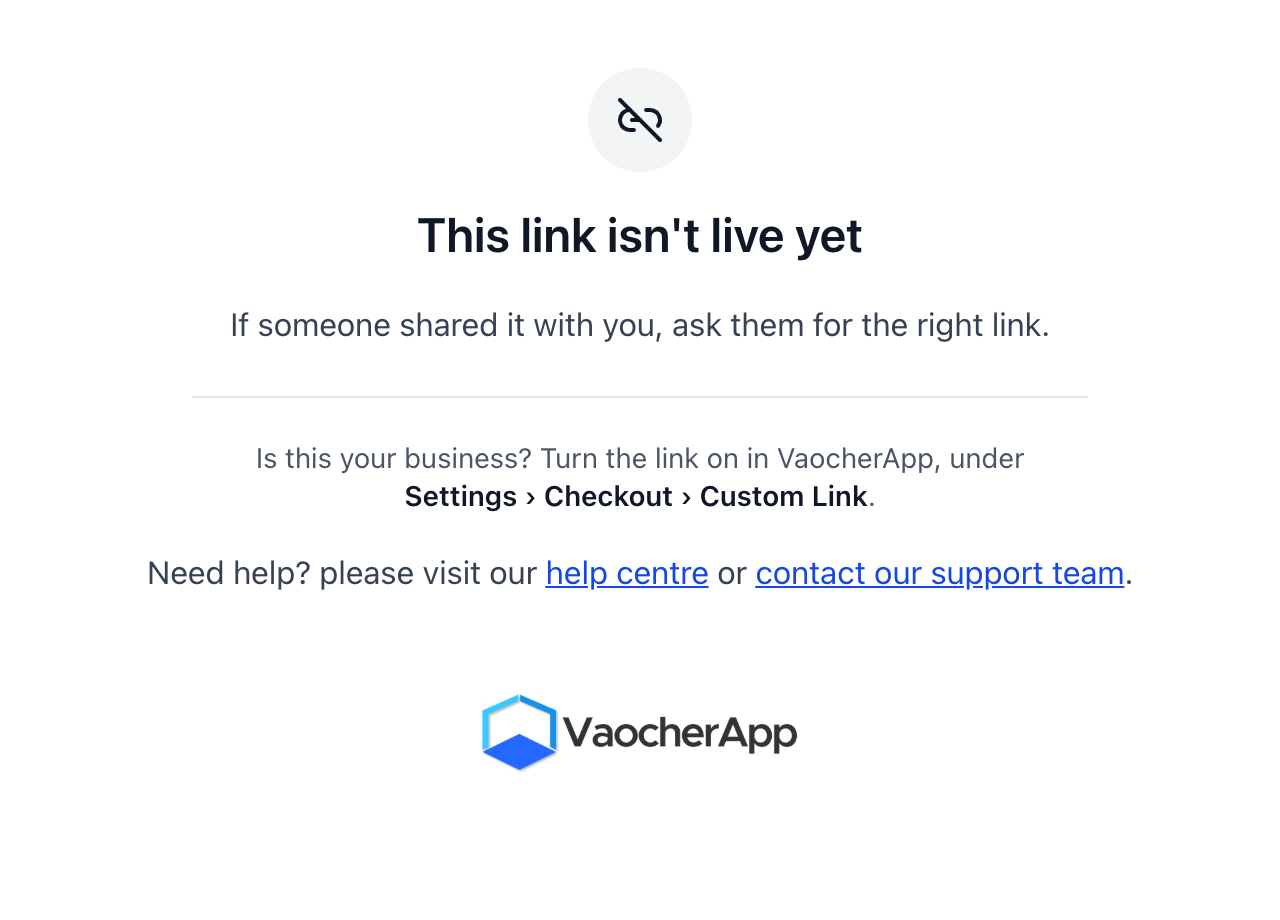
If someone opens a custom link that isn’t working, they see “This link isn’t live yet”. This happens when the name was never claimed, was renamed or removed, or the business left the Enterprise plan. The page also tells the business owner where to turn the link on.
Things to know
- Custom links are on the Enterprise plan only, and they’re in beta.
- Each business can have one custom link.
- Your normal checkout link and embedded checkouts keep working.
- Team members need permission to edit checkout settings to change the link.