









How to Create Custom QR Code for Your PDF Voucher
Customising the QR code on your PDF vouchers is a powerful way to reinforce your brand identity. By tailoring the look of the QR code to reflect your business style, including colors, shapes, and logos. You can create a cohesive, professional appearance that makes your gift vouchers visually appealing and engaging. VaocherApp’s Custom QR Codes feature, available on the Enterprise Plan, lets you fully customise your QR codes so that your vouchers stand out and improve customer experience.
Important: Custom QR Codes are available only on the Enterprise Plan. Contact VaocherApp sales if you want to upgrade your subscription and use this feature.
For those who need simple QR codes without custom branding, you can try our Free QR Code Generator anytime.
Example: What a Custom QR Code Looks Like on Your PDF Voucher
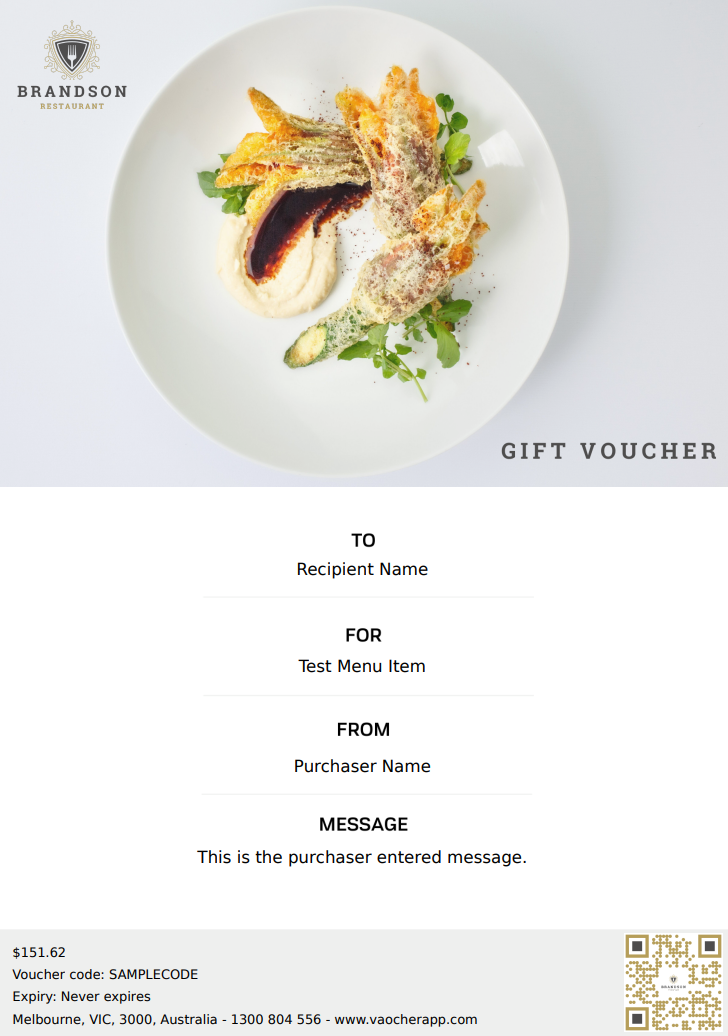
Here’s a real example of a professionally customised QR code embedded in a PDF voucher design. Notice how it includes the business logo at the center, matching the brand style and color palette to reinforce brand recognition.
Step 1: Access the Custom QR Codes Dashboard
Begin by logging into your VaocherApp admin dashboard:
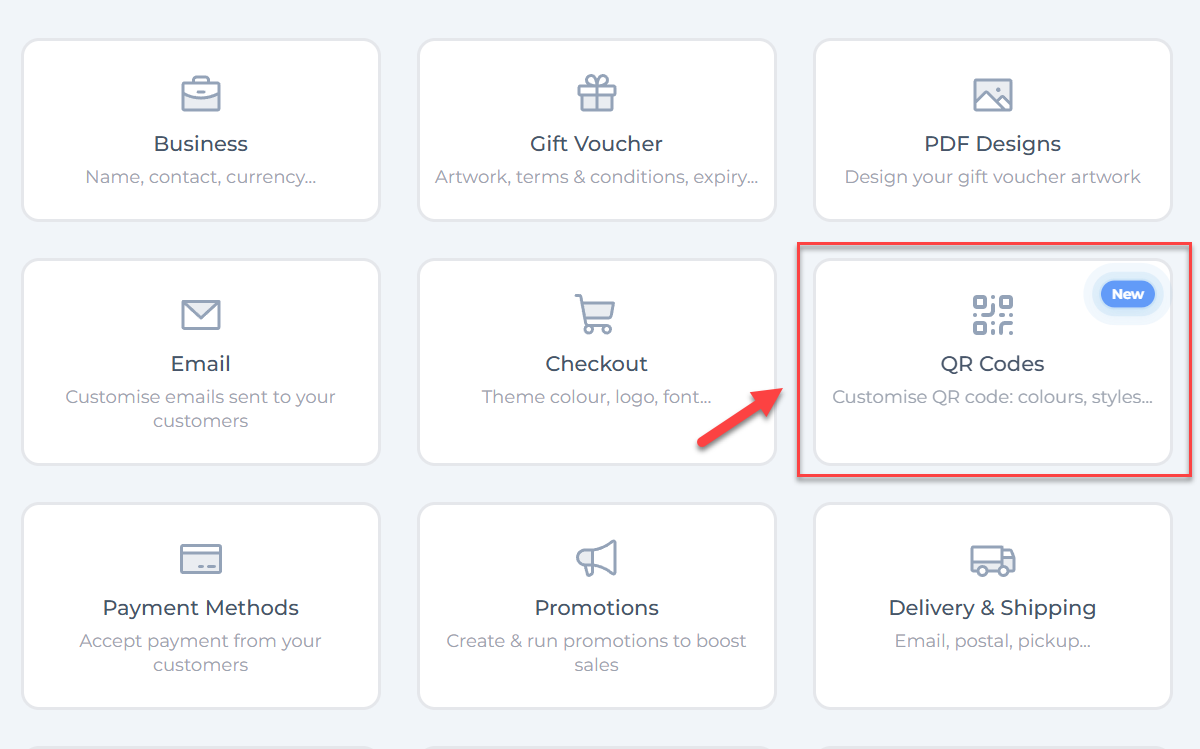
- Navigate to the Settings menu in the main navigation.
- Click the QR Codes tile to open the Custom QR Codes dashboard where all your customised QR codes will be managed.
Step 2: Create a New Custom QR Code
Once in the QR Codes dashboard:
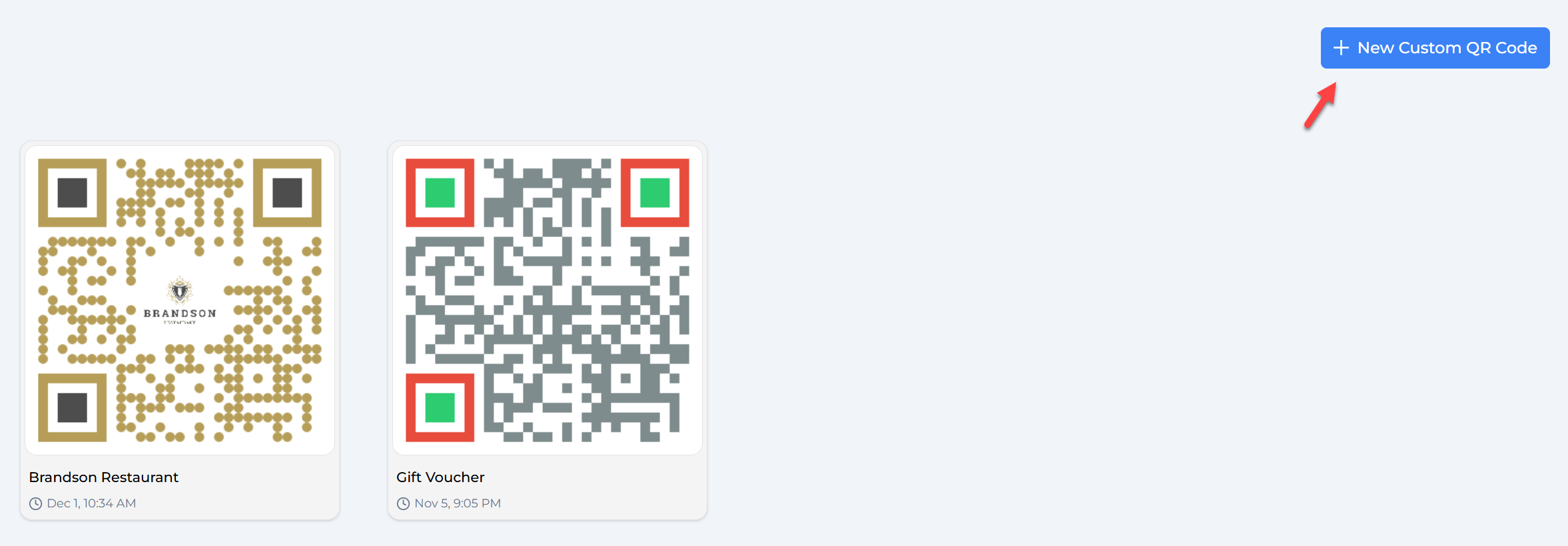
- Click the + New Custom QR Code blue button in the top-right corner to start creating a new design.
Step 3: Customise Your QR Code Design
You now enter a detailed editor where you can customise every aspect of your QR code.
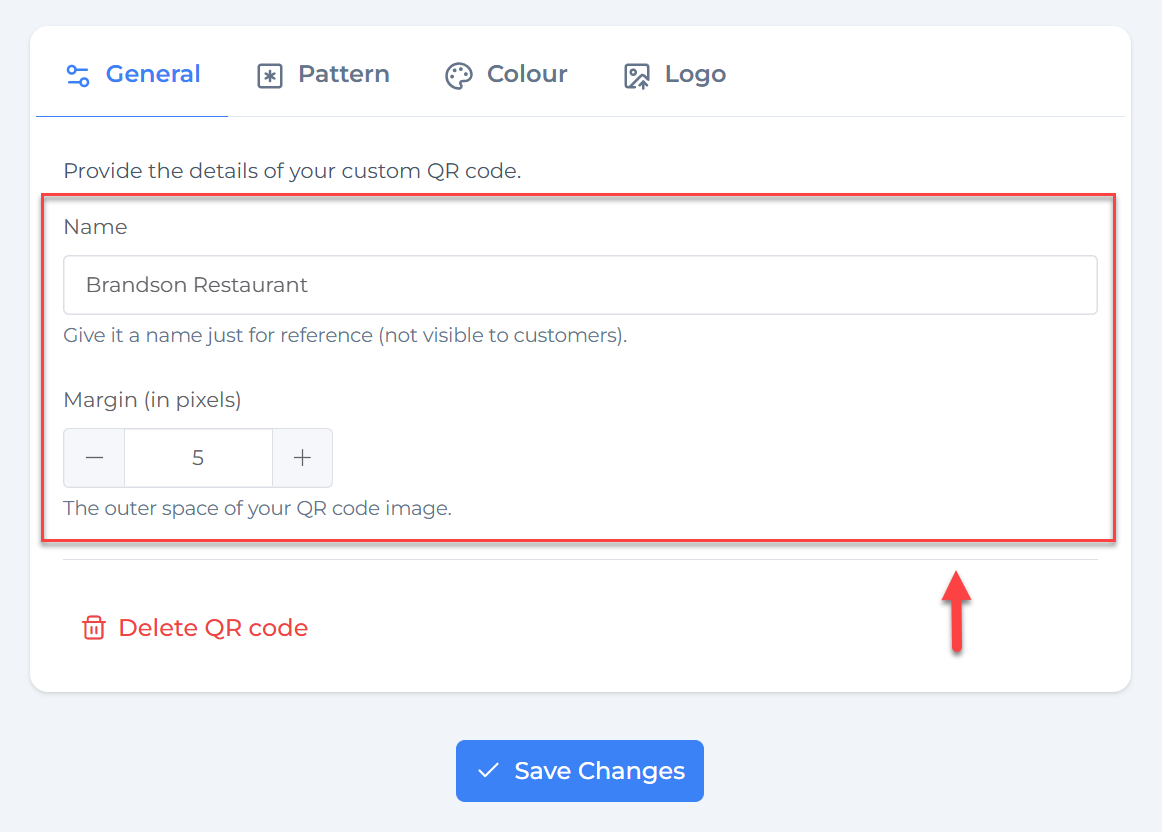
1. General Settings
-
Name:
Enter a descriptive name to identify this QR code internally. This name is for your reference only and won’t be visible to customers. -
Margin:
Use the margin setting to add outer space around your QR code image. This helps with clean printing and scanning.
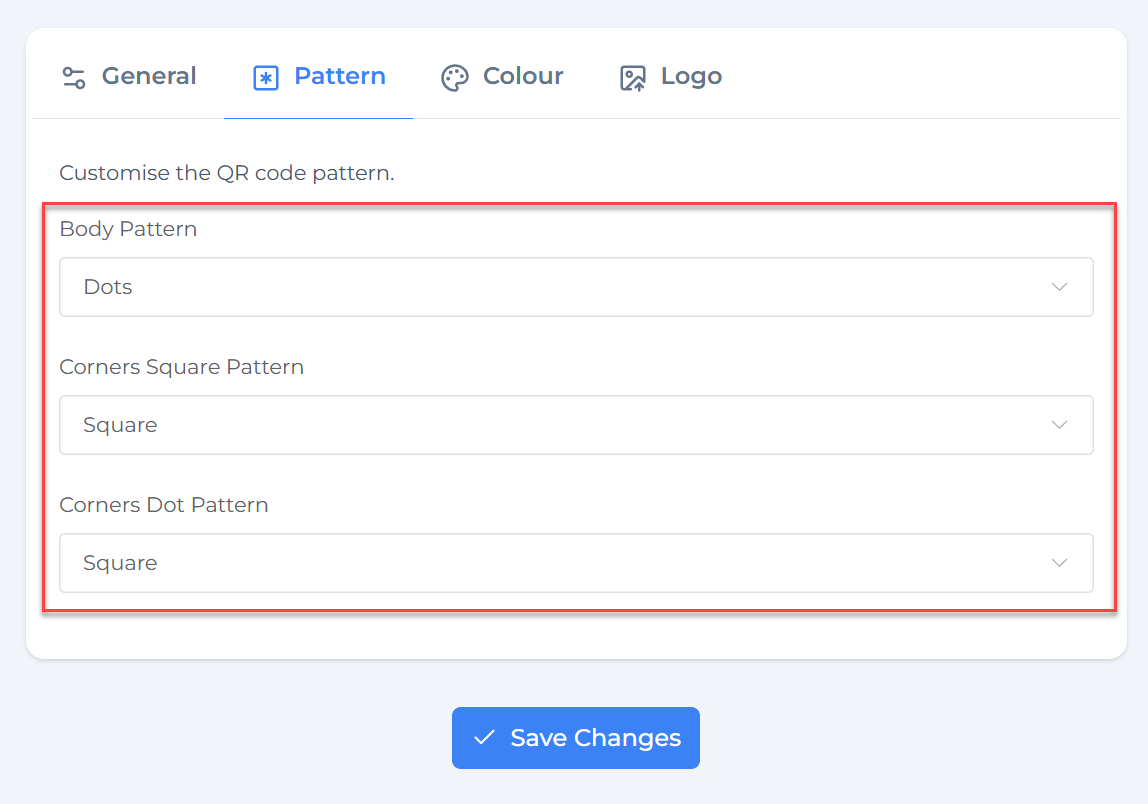
2. Pattern Customisation
-
Body Pattern:
Choose from dot shapes, squares, or other styles for the main QR code modules. Dots can make the code look softer and modern, while squares can look sharper and traditional. -
Corners Square Pattern:
Choose the style of the three larger square position markers in the corners, e.g., square or rounded. -
Corners Dot Pattern:
Define the shape of the inner dot inside each corner square.
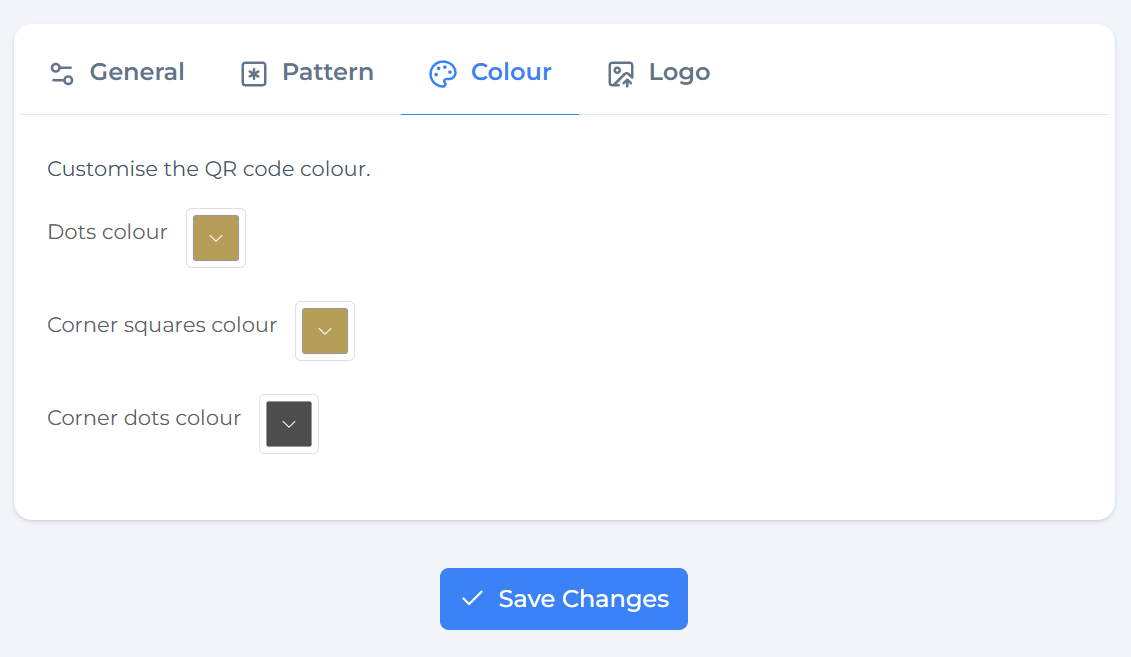
3. Colour Options
-
Dots Colour:
Select the primary color for the body dots to fit your brand palette. -
Corner Squares Colour:
Choose a contrasting or complementary color for the larger corner squares. -
Corner Dots Colour:
Set color for the dots inside corner squares, typically darker or black for contrast.
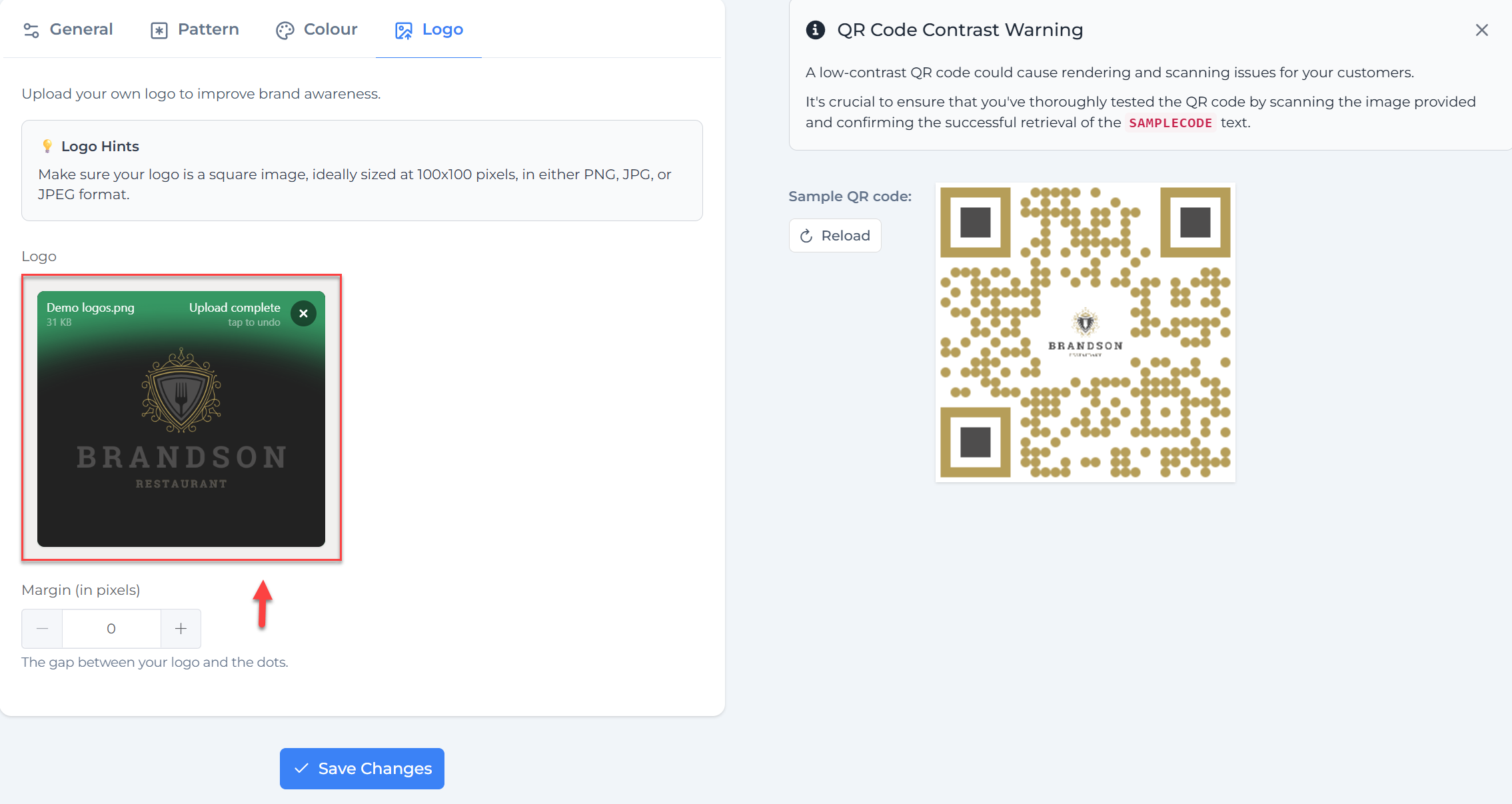
4. Logo Upload
- Upload a square logo image (recommended size: 100x100 pixels, PNG/JPG/JPEG).
- Adjust the margin between logo and QR dots to prevent overlap and ensure scanning works reliably.
- A logo centered in the QR code helps with brand recognition without compromising functionality.
Step 4: Preview and Test Your QR Code
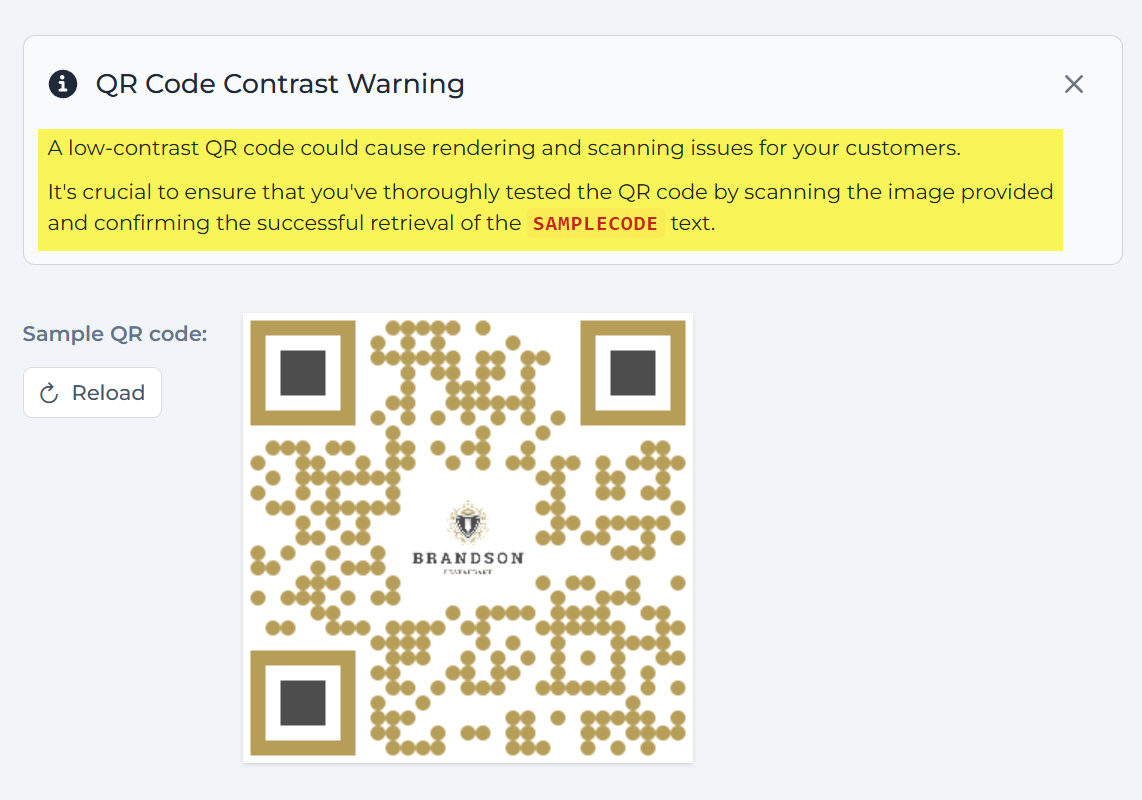
- The editor provides a live preview of your QR code, updating instantly as you make changes.
- Pay attention to the QR Code Contrast Warning message. If the contrast between colors is too low, scanning might fail on some devices.
- Test your QR code by scanning it with multiple smartphone cameras and QR scanning apps to ensure reliability.
Step 5: Save and Use Your Custom QR Code
- After you are happy with your design and have thoroughly tested the QR code, click Save Changes to save your customised QR code.
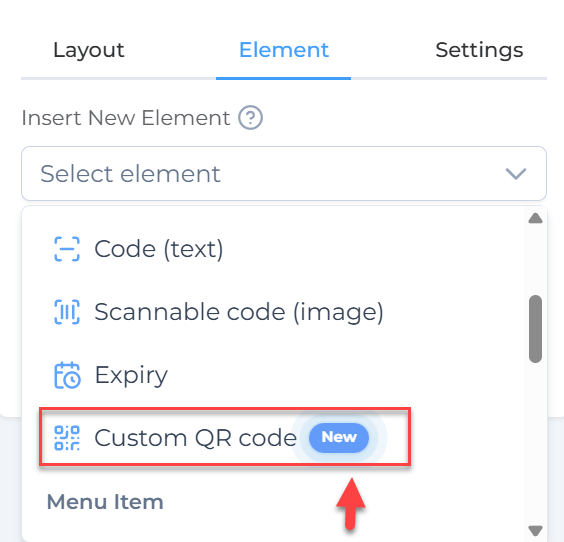
- Once saved, you can easily add your custom QR code to your PDF voucher designs, enabling customers to quickly access your checkout page, promotions, or other important information.
Tips for Creating Effective Custom QR Codes
- Always use high-contrast colors for readability and scan success.
- Keep logos clear, simple, and properly sized so they don’t interfere with the QR code’s data.
- Avoid overly complex patterns or low-contrast colors that reduce scanning accuracy.
- Regularly update your QR code if your checkout or target URL changes.
- Always test your QR codes on various devices after changes.
Additional Option: Free QR Code Generator
For quick and simple QR codes without advanced customisation, use VaocherApp’s Free QR Code Generator. This tool lets you generate standard QR codes for free and download them instantly.