









How to Add a Terms & Conditions Checkbox to Your Checkout
If you need customers to agree to your Terms & Conditions before completing a purchase, you can easily add a required checkbox in your VaocherApp checkout.
This guide shows you exactly how to add a Terms & Conditions checkbox, along with where to display your T&Cs for customers to read before agreeing.
✅ When should you add a Terms & Conditions checkbox?
You may want to require agreement if you:
- Sell gift vouchers or season passes
- Have expiry, refund, or cancellation policies
- Need to collect customer consent before purchase
- Want to clearly outline usage conditions
How to add a Terms & Conditions checkbox
Step 1: Go to Checkout Settings
Log in to your VaocherApp dashboard and go to:
Checkout Settings > Custom Fields
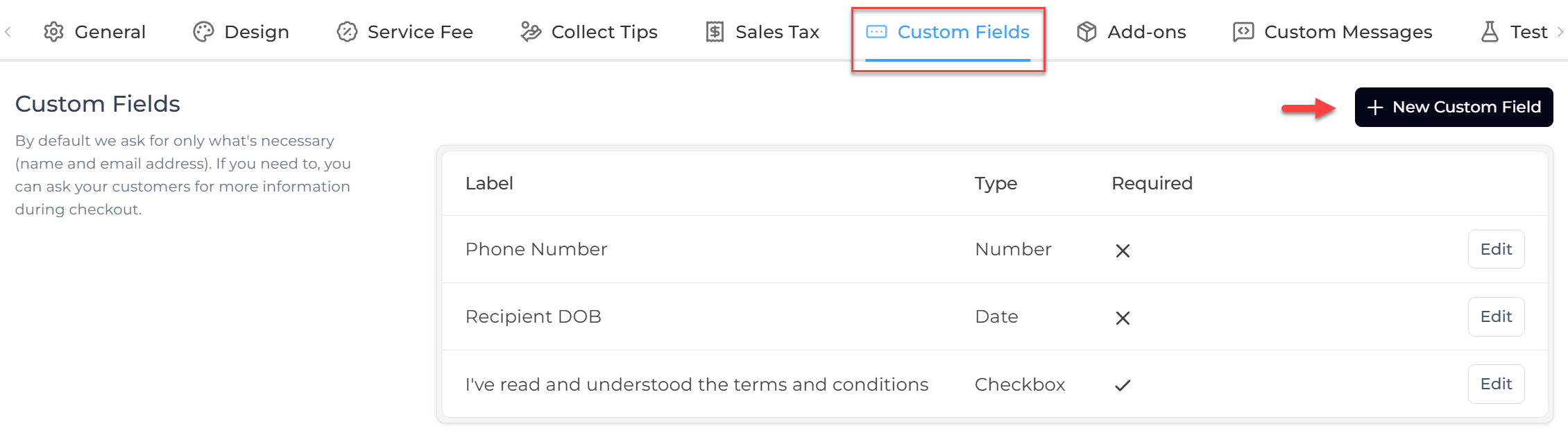
Step 2: Add a new checkbox field
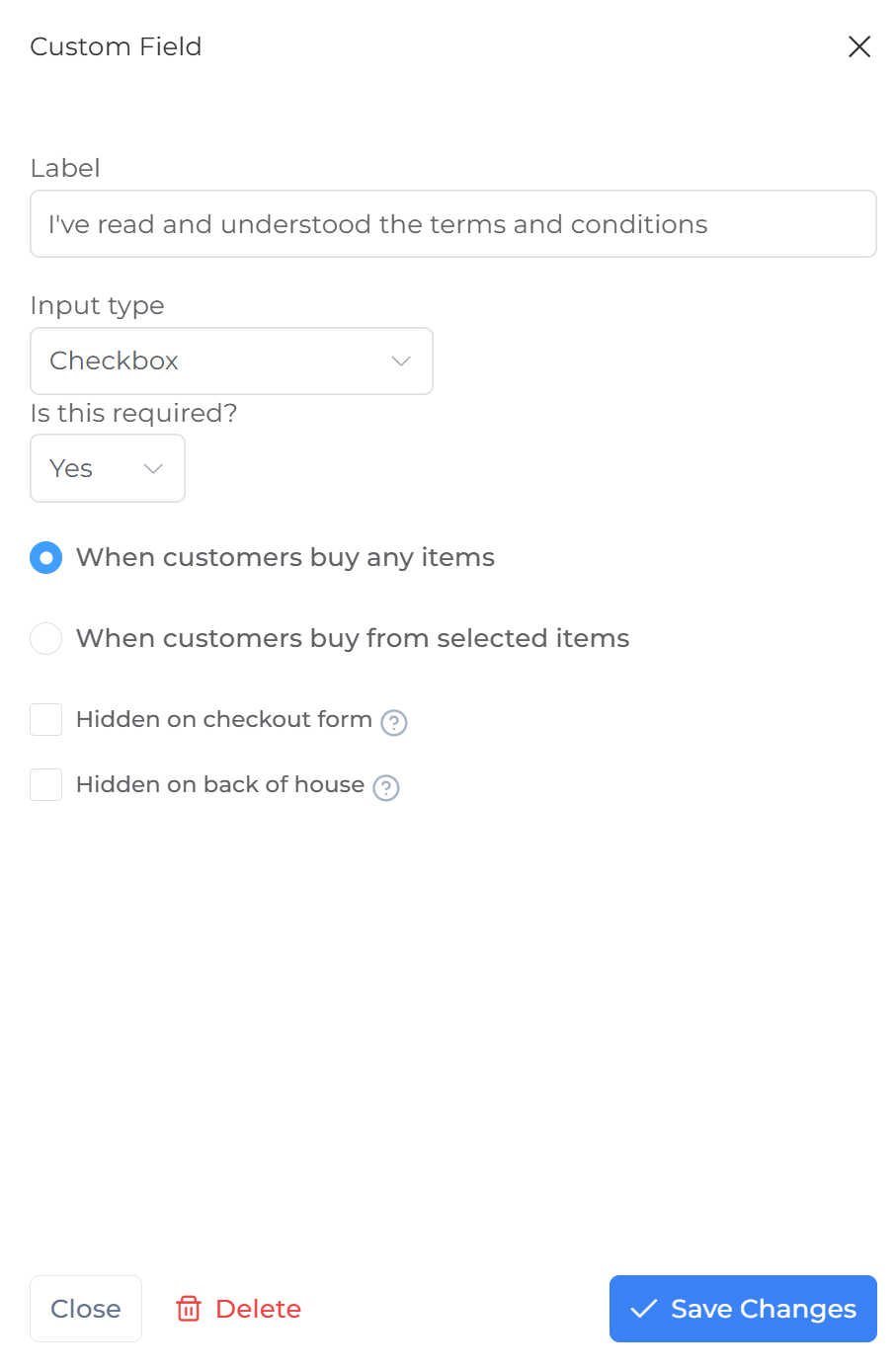
Click Add New Field, then configure:
- Field Name: I’ve read and understood the terms and conditions
- Input Style:
Select Checkbox - Required: Select Yes
Click Save once done.
Step 3: Add your Terms & Conditions content
Next, you’ll need to display your Terms & Conditions so customers can read them.
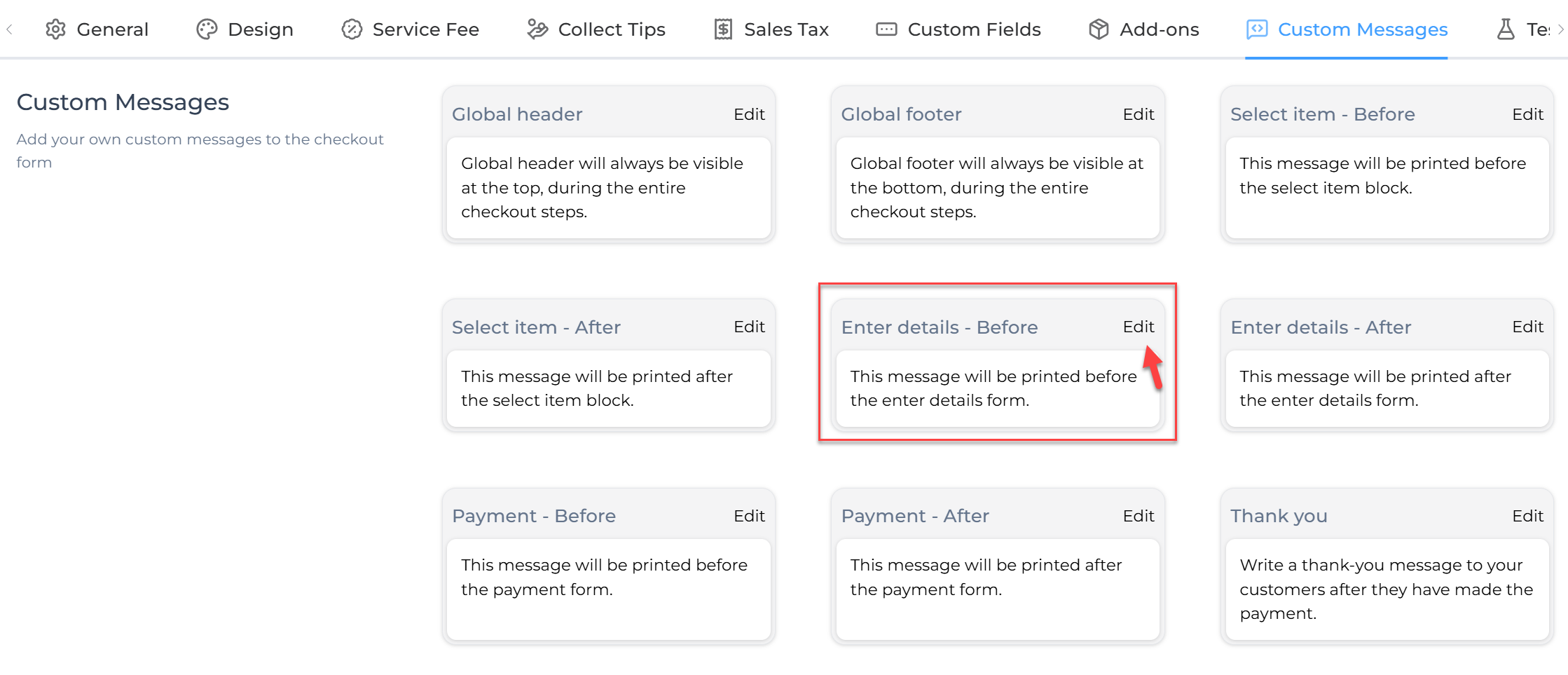
Go to: Custom Messages
Find “Enter details - Before”, then:
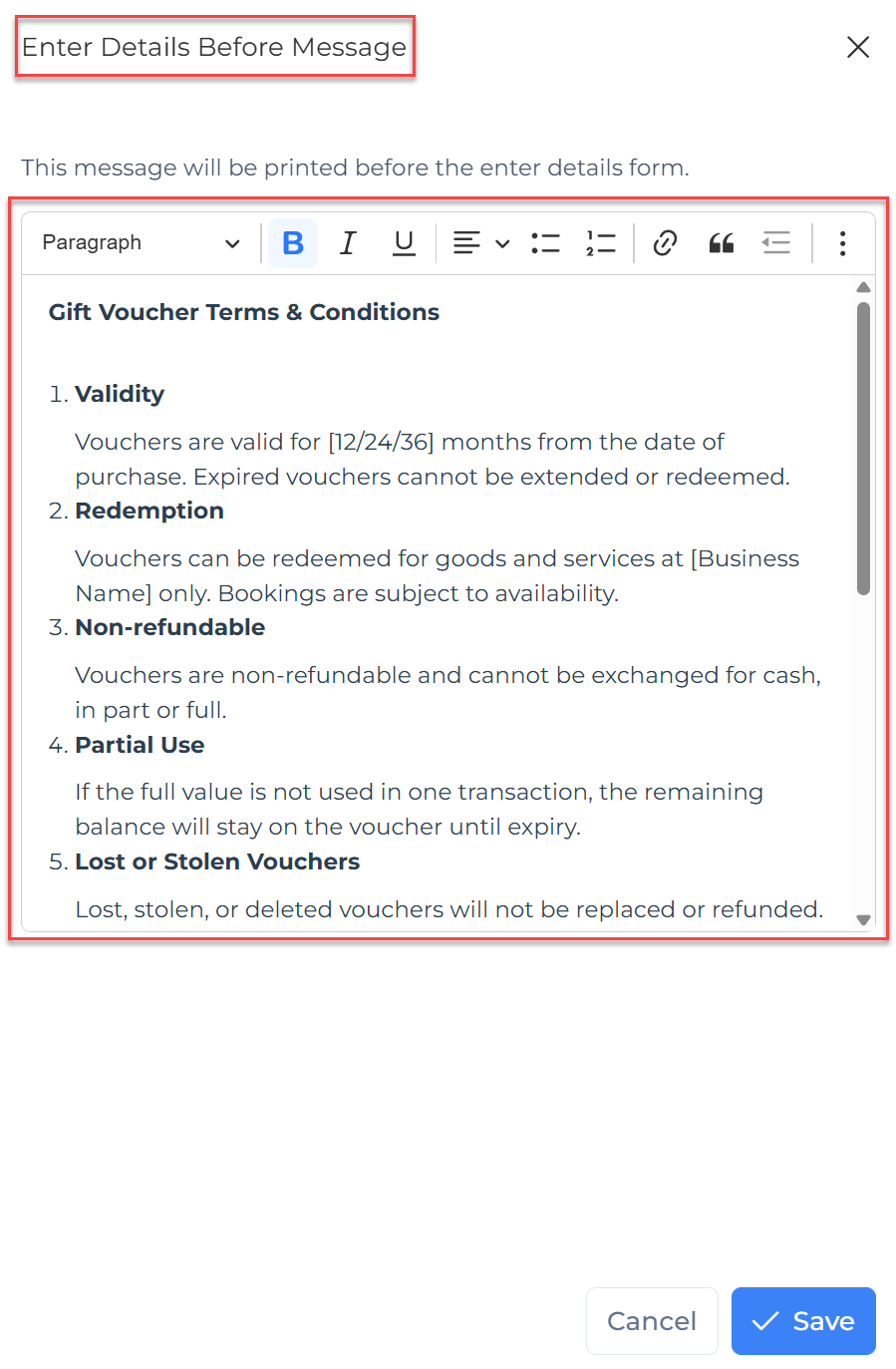
- Paste your Terms & Conditions
- Click Save
Step 4: Review how it appears on checkout
Once set up:
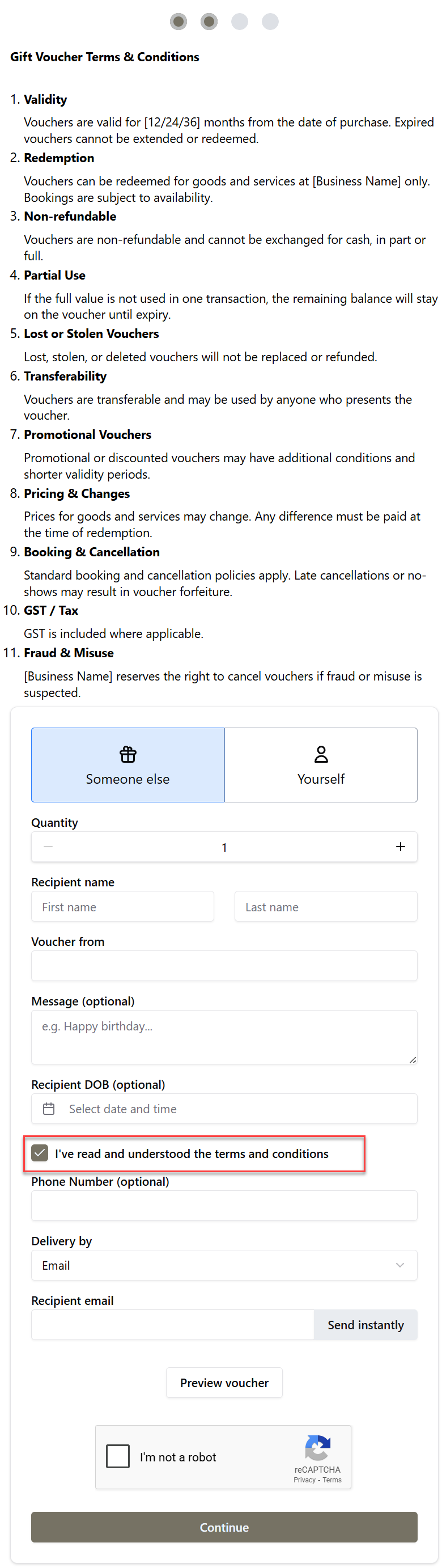
- Your Terms & Conditions will appear before the form
- Customers will see a checkbox to confirm agreement
- They must tick the box before completing checkout
Example checkout
You can view an example here:
✏️ Tips for writing effective Terms & Conditions
To make your T&Cs clear and easy to understand:
- Break content into sections like:
- Validity
- Redemption
- Refund policy
- Keep sentences short and simple
- Avoid overly complex legal language
- Highlight important rules (e.g. expiry dates)
⚠️ Important notes
- The checkbox should always be set to Required to ensure compliance
- Customers cannot complete checkout without ticking the box
- The T&Cs message appears before entering details, making it easy to review