








VaocherApp and Cliniko Integration
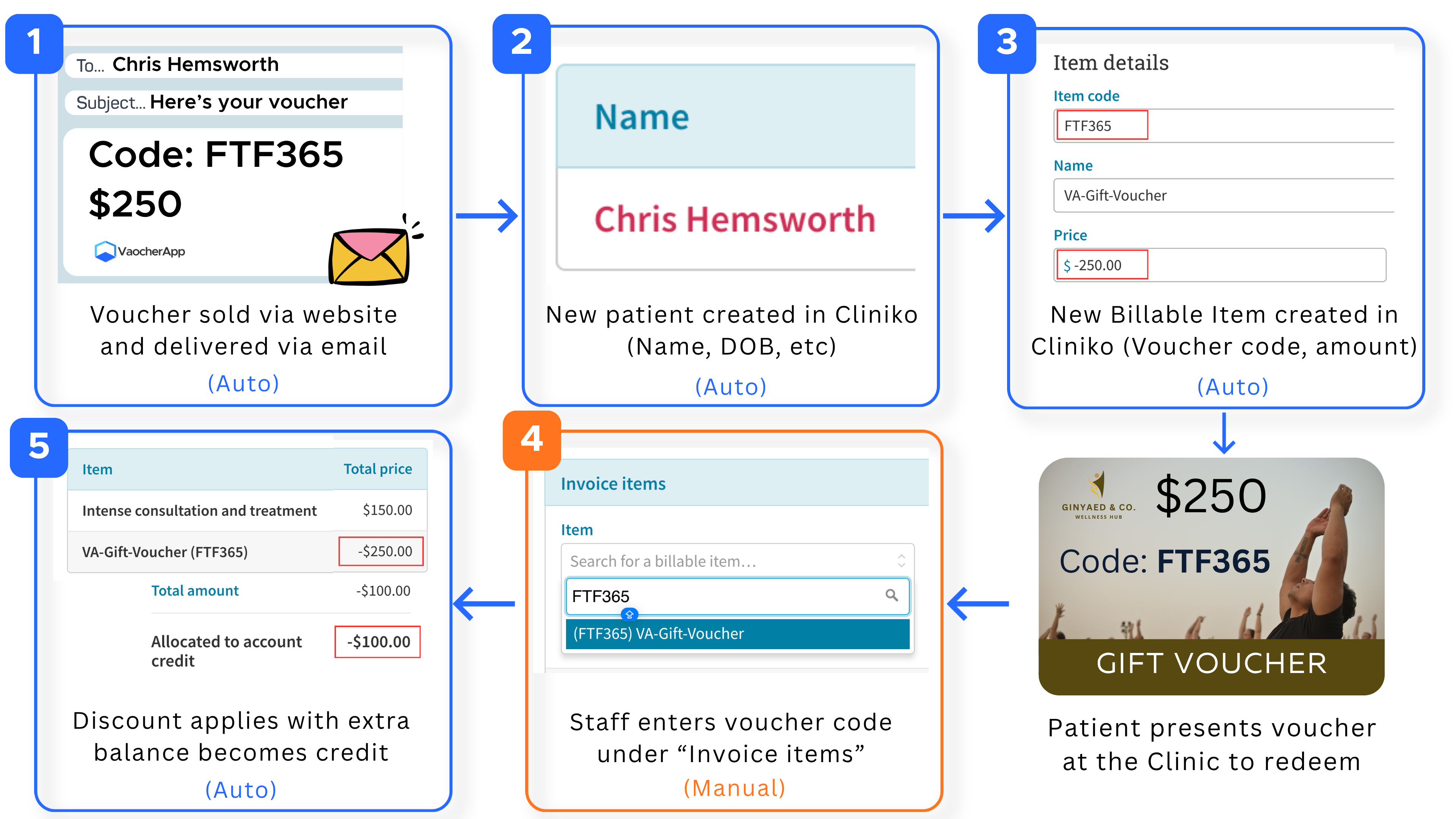
VaocherApp integrates with Cliniko to streamline how vouchers are created, applied, and redeemed during patient visits — reducing manual work and keeping everything in one place.
💡 For an overview of what the integration does, see the Cliniko integration page.
This guide covers:
- How vouchers flow between VaocherApp and Cliniko
- How to redeem vouchers during invoicing
- How to manage and reconcile vouchers efficiently
How it works
When a voucher is purchased, the integration creates a patient in Cliniko and, if you’ve turned on billable items, a billable item for the voucher. Your staff then only need to do one thing: search for the code and apply it at invoicing time.
Each order creates a new patient in Cliniko: the voucher’s recipient, or the buyer if there’s no recipient. This happens even if that person is already one of your patients.
Step 1: Voucher purchased
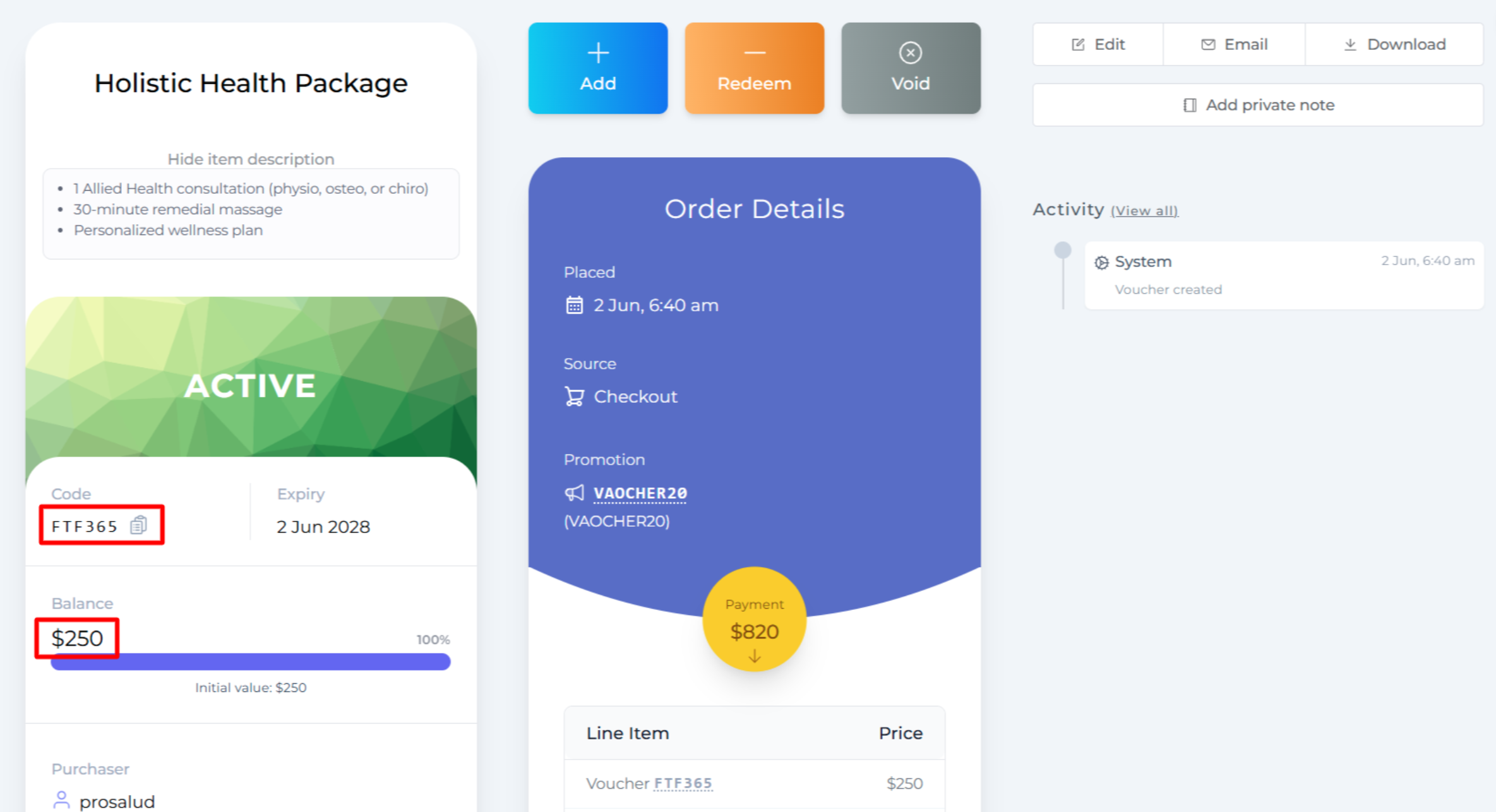
An order is created in VaocherApp, either through your online store or an in-person purchase. The buyer receives the voucher instantly by email.
Example:
- Code: FTF365
- Amount: $250
Step 2: Billable item automatically created in Cliniko
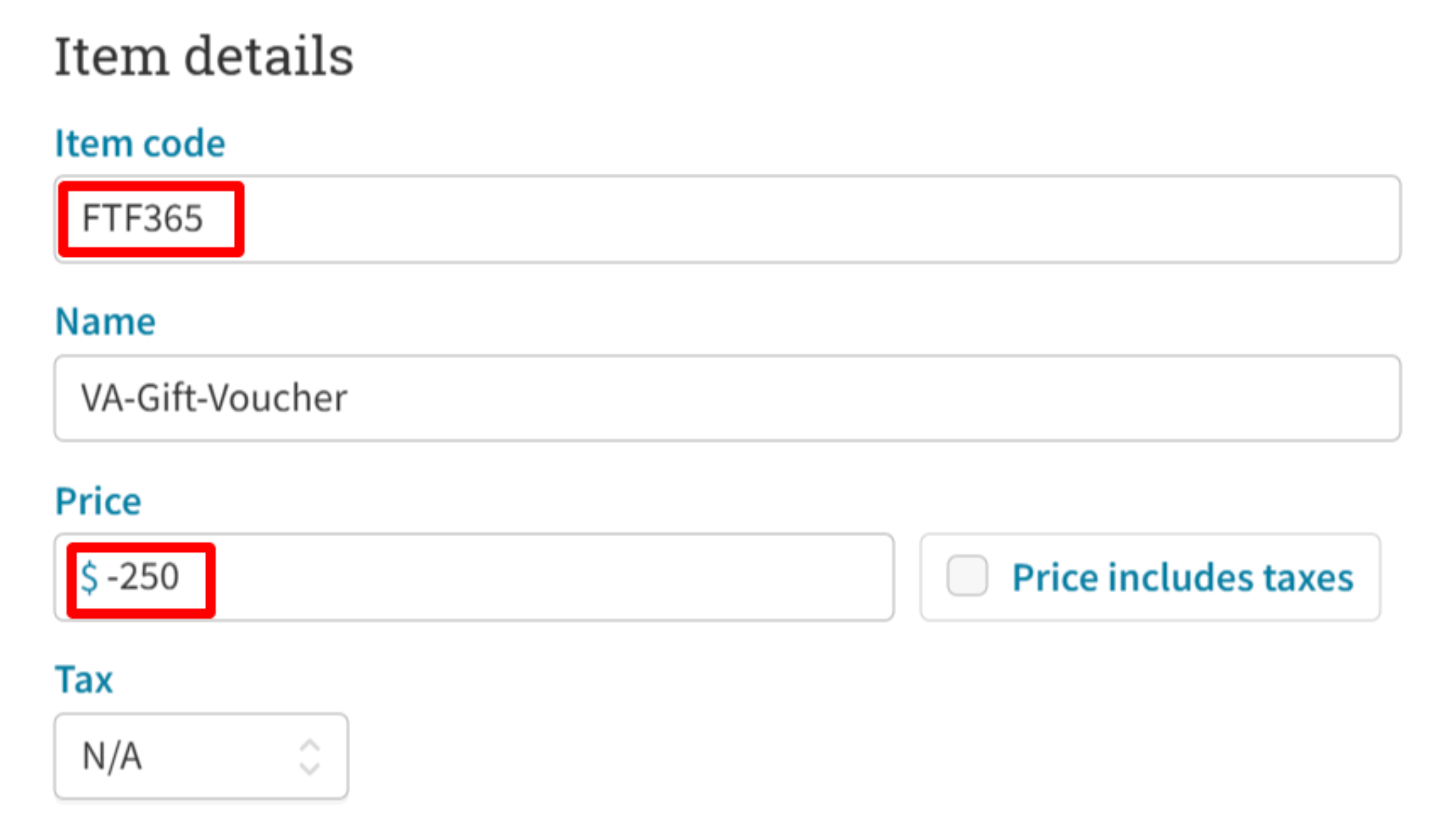
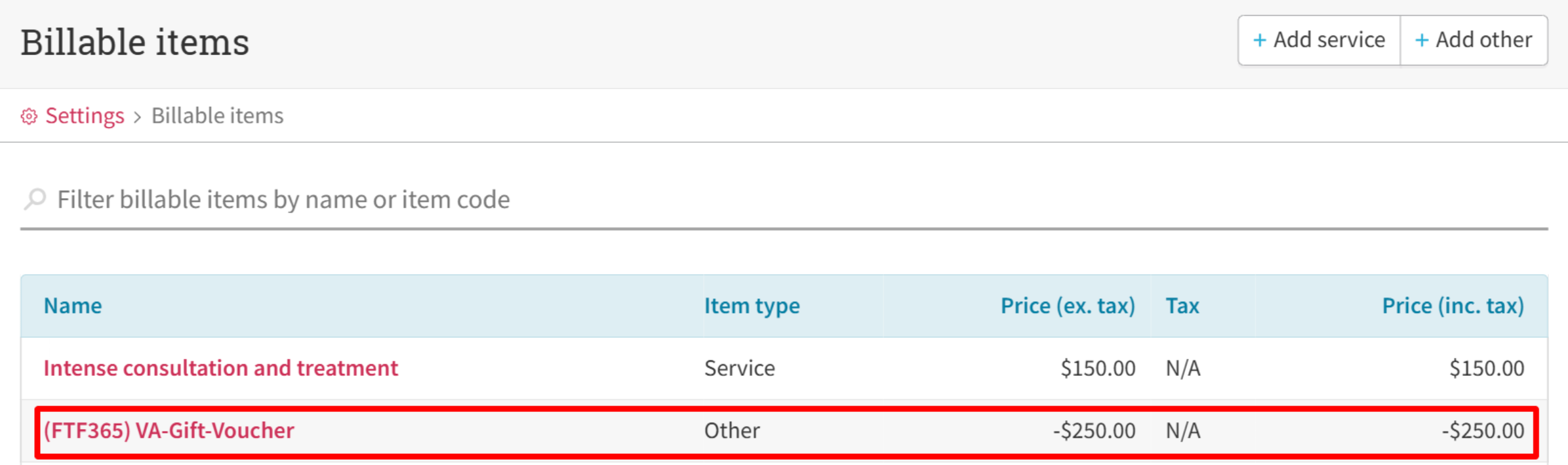
Once you turn on billable items, a matching billable item is created in your Cliniko account for each voucher sold. To turn them on, go to Settings → Integrations → Cliniko in VaocherApp and tick Create billable item for each purchased voucher. They’re off until you do, and only vouchers sold after that get one.
- The item includes the voucher code
- Its price is the voucher’s balance as a negative amount (for example, -$250.00), so it comes off the invoice total
Step 3: Redeem voucher in Cliniko
When the patient arrives and presents their voucher, simply search for the voucher code in the Item field when creating their invoice. The total updates automatically.

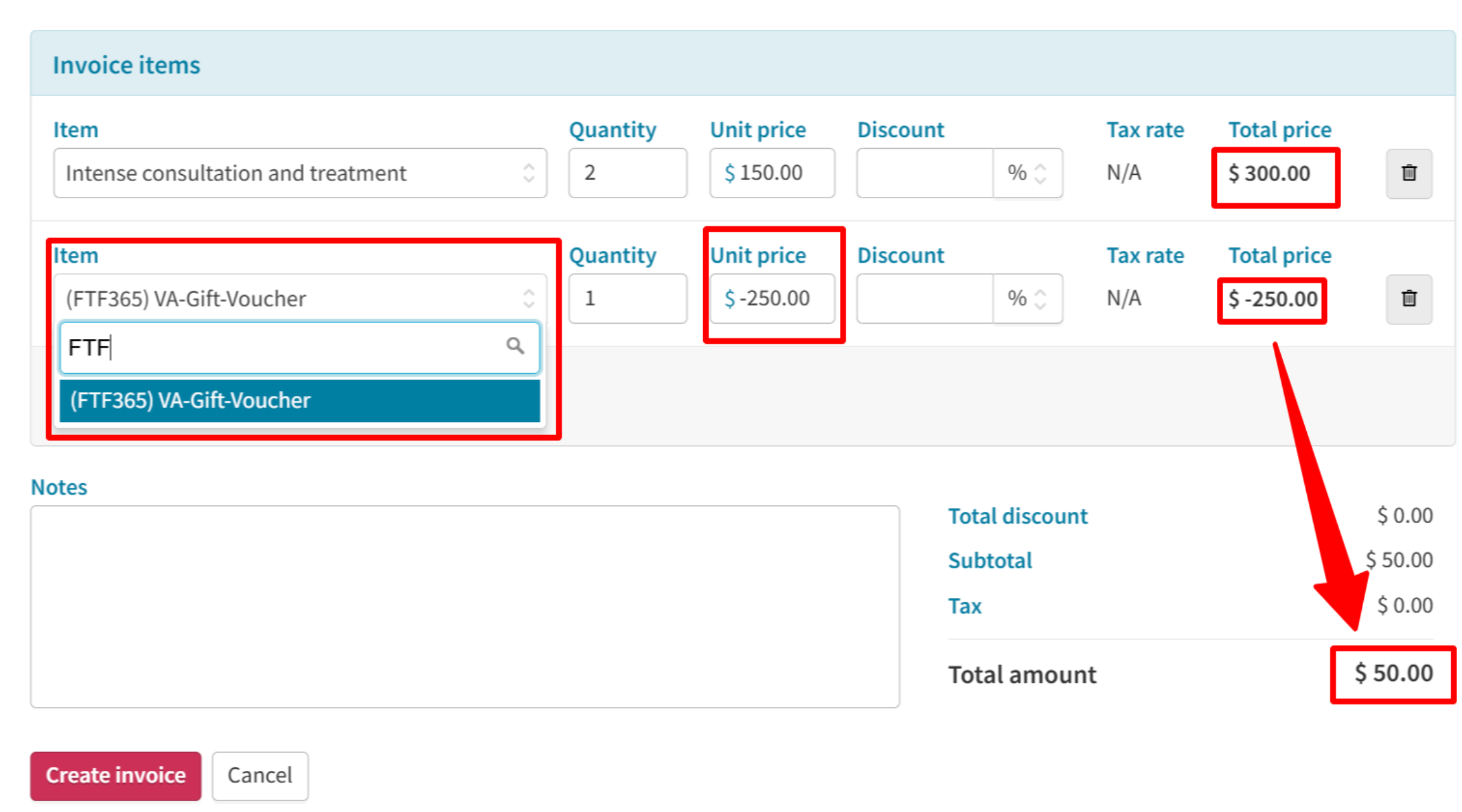
Three possible outcomes:
- Voucher amount is less than treatment cost → Patient pays the remaining balance
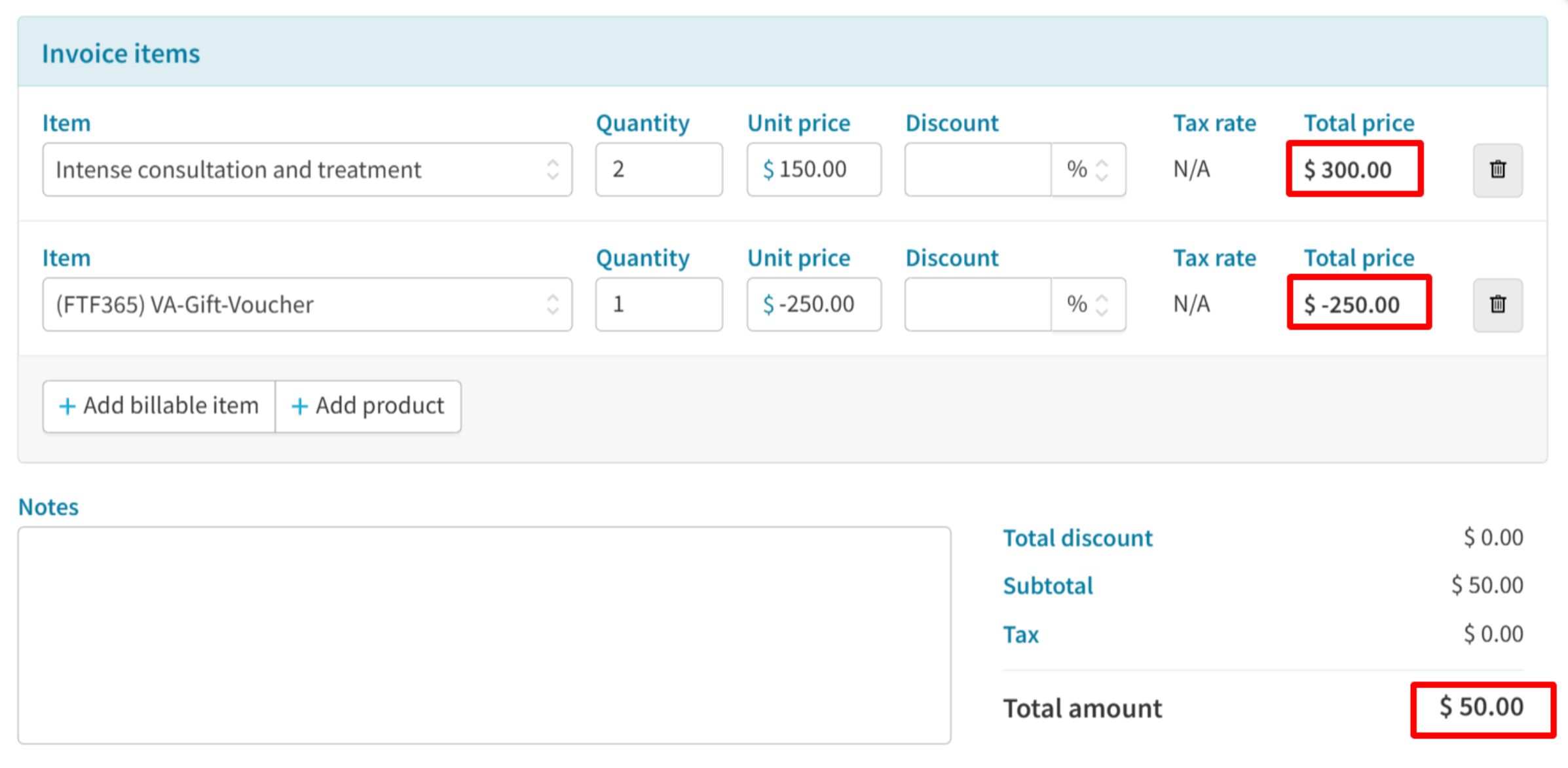
- Voucher amount equals treatment cost → No payment required
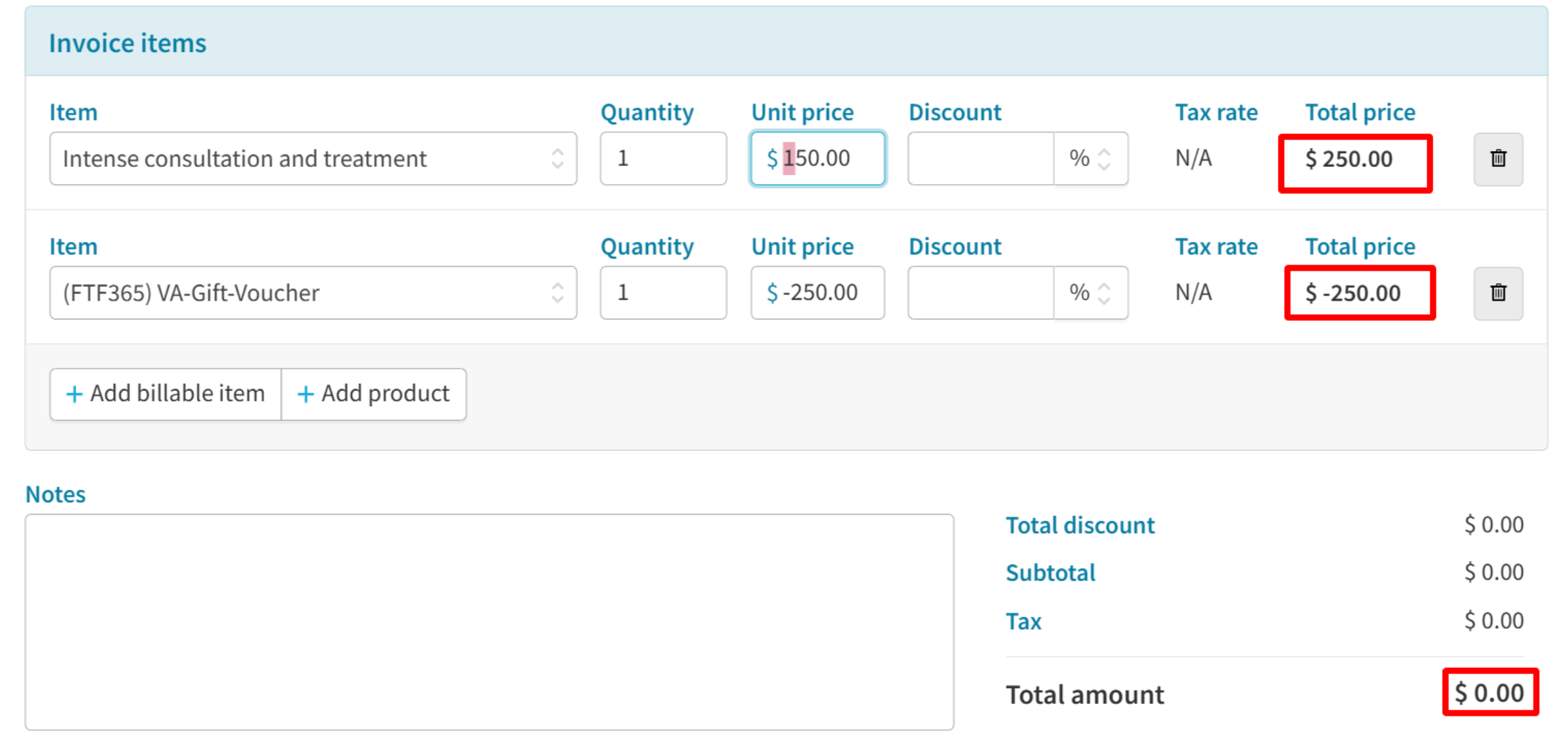
- Voucher amount is more than treatment cost → Remaining balance is stored as credit for future visits
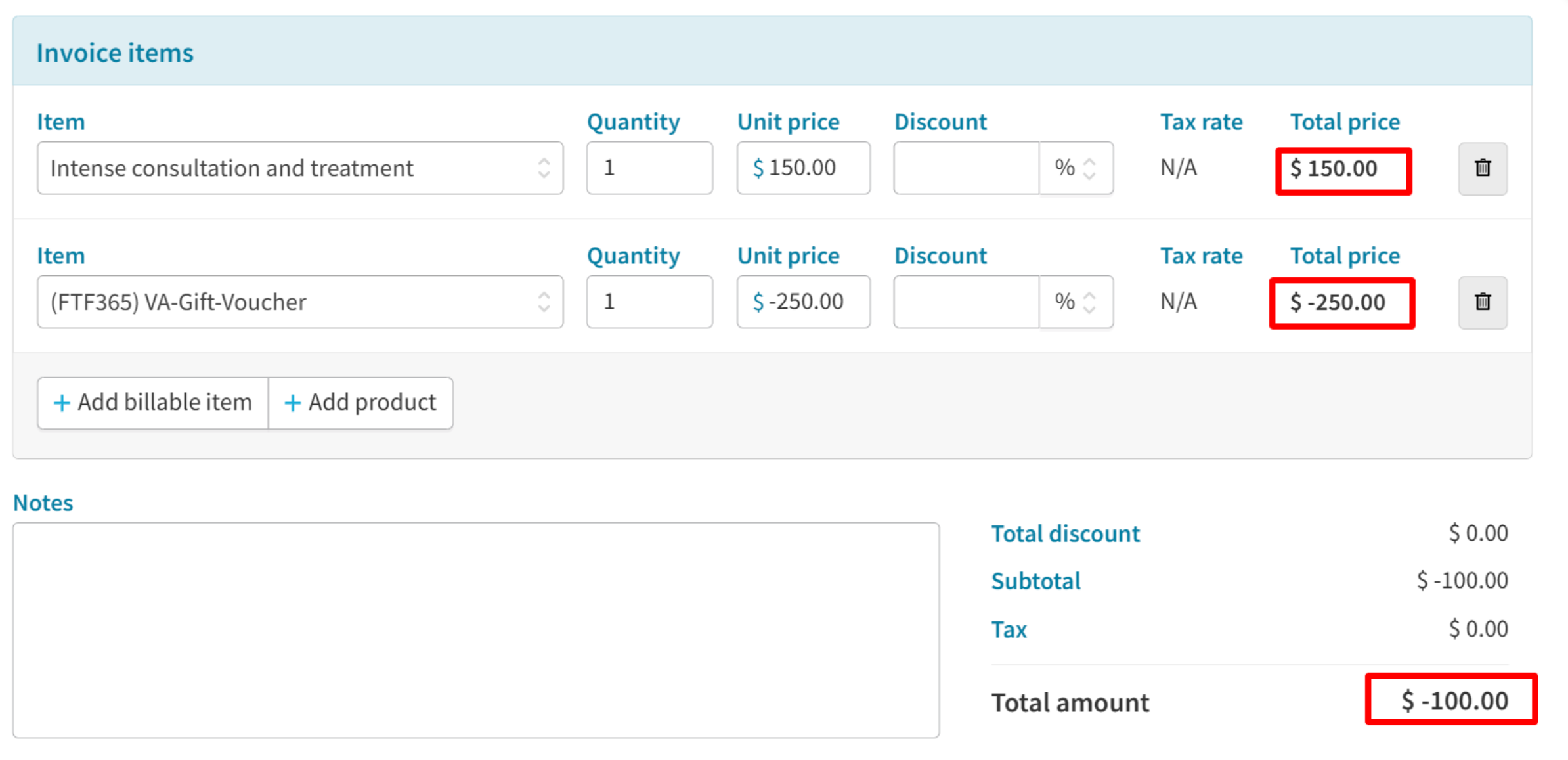
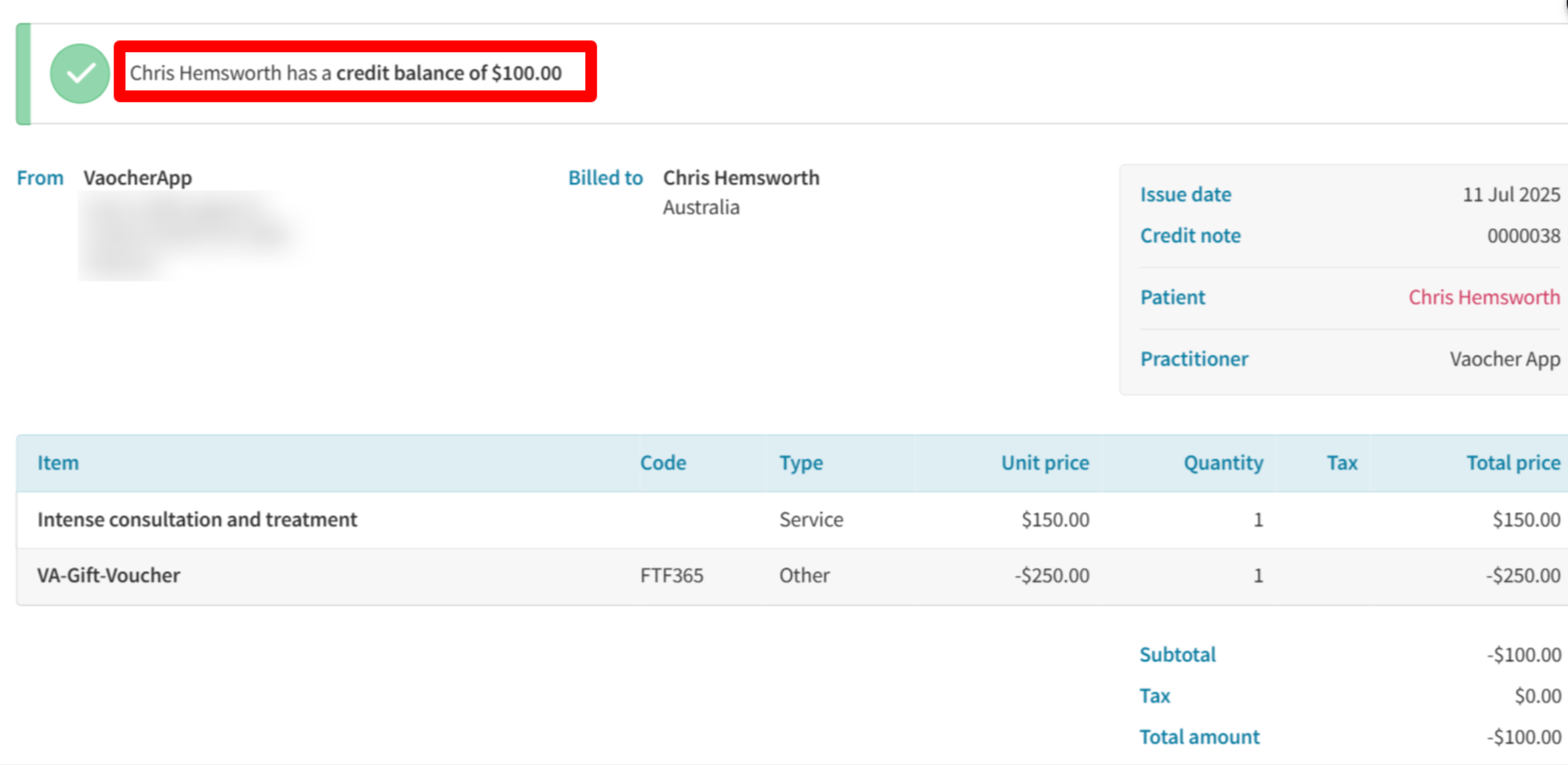
⚠️ Important: Redeeming a voucher in Cliniko does not automatically mark it as redeemed in VaocherApp. You’ll need to update this manually in your VaocherApp dashboard — see Step 4 below.
The billable item also stays in Cliniko after it’s used, so the same code could be applied to another invoice. To stop that, archive the billable item in Cliniko once the voucher has been applied.
Step 4: Mark voucher as redeemed in VaocherApp (recommended)
After the invoice is created in Cliniko, we recommend marking the voucher as redeemed in VaocherApp for accurate record keeping.
- Go to your VaocherApp dashboard
- Locate the voucher
- Mark it as Redeemed
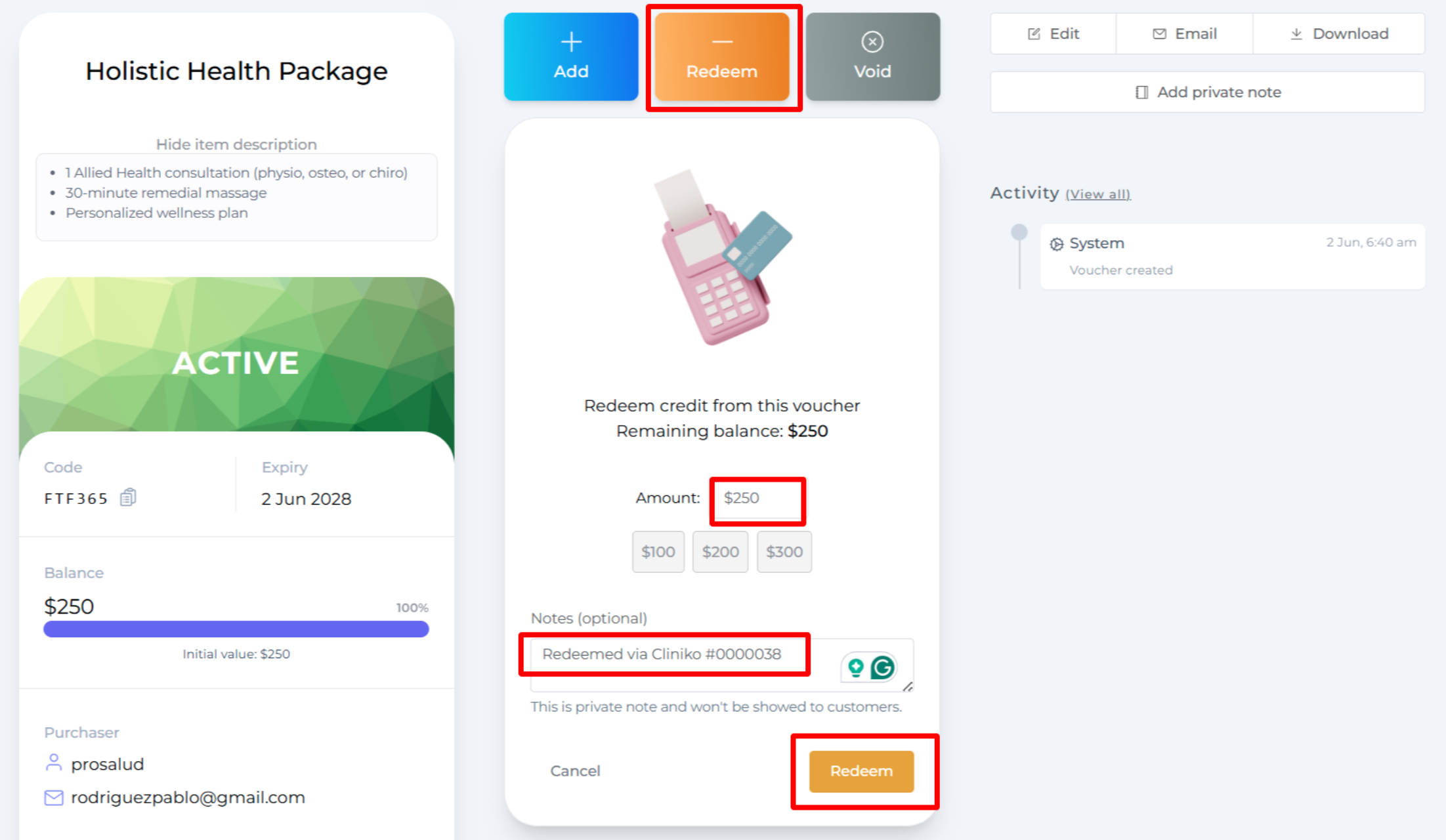
Tip: The patient’s profile in Cliniko includes a direct link to their voucher in VaocherApp, making it easy to find the right one quickly.
Prefer to reconcile in bulk?
If you’d rather reconcile vouchers at the end of the day, week, or month rather than one at a time, you can use Cliniko’s data export feature.
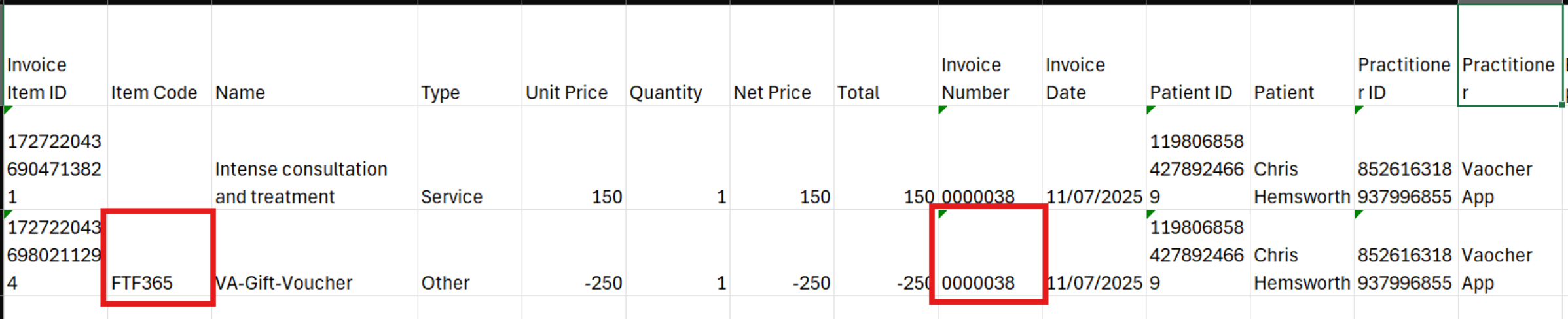
- Go to Data Exports in Cliniko settings
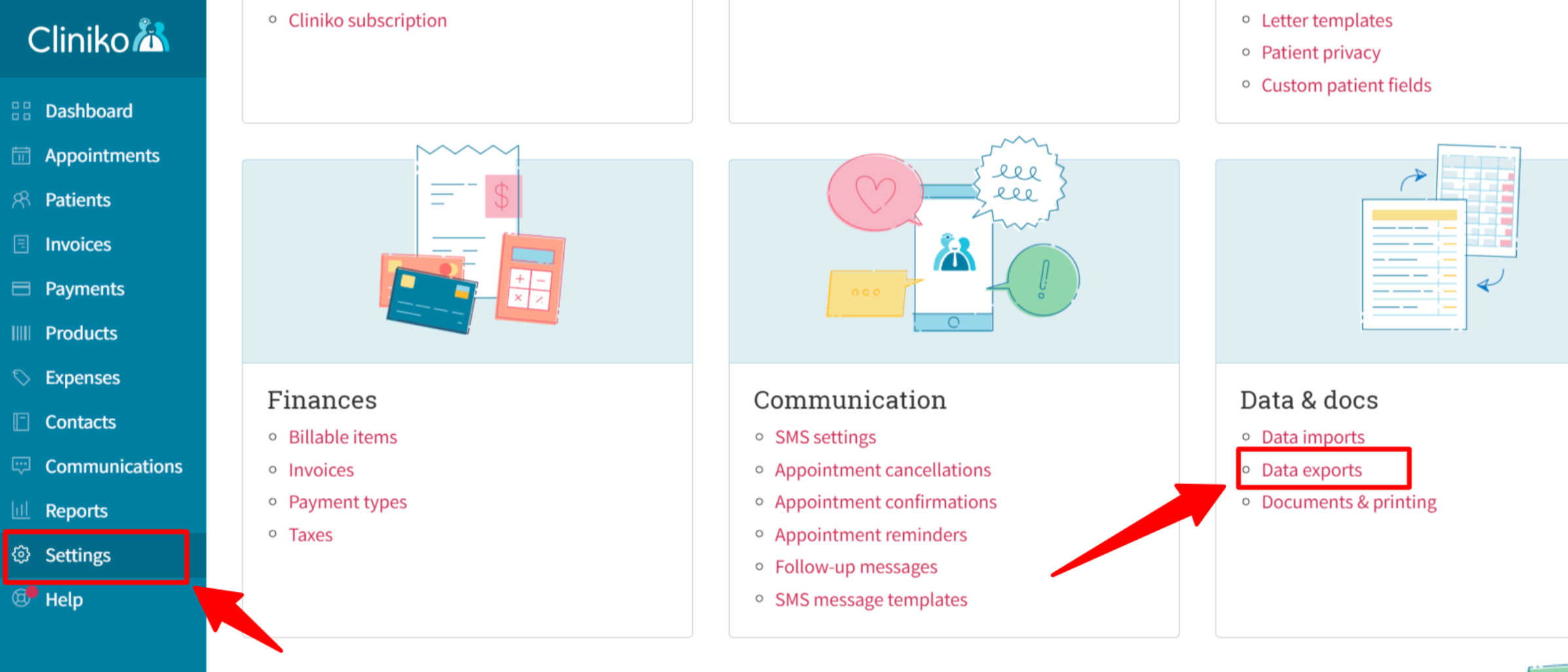
- Run an Invoice items export
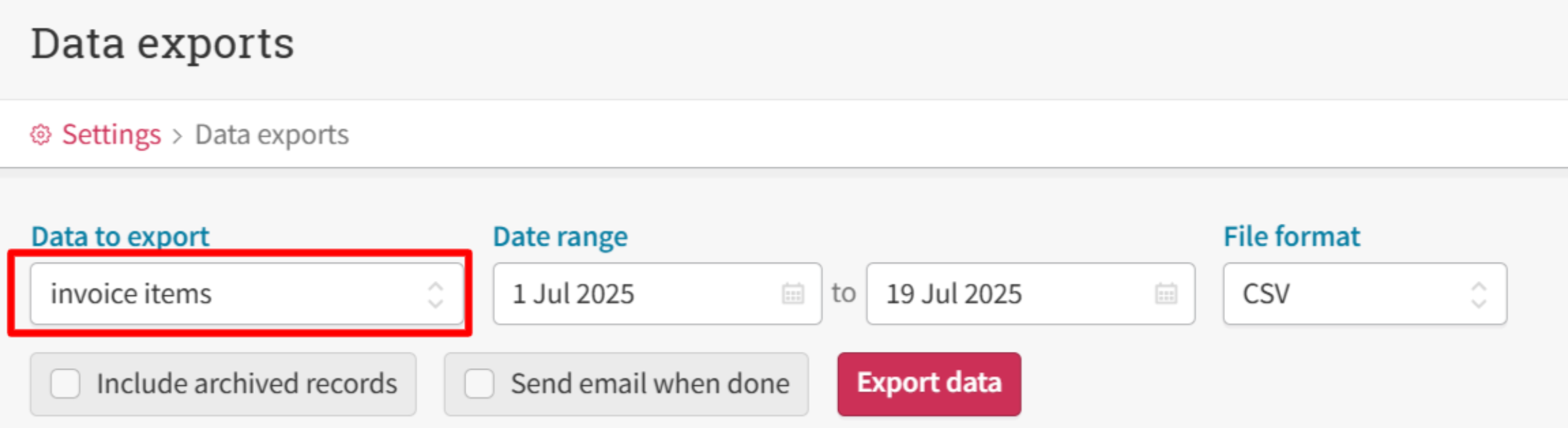
- Filter the CSV to the voucher codes used in your chosen time period, then mark each of those vouchers as redeemed in VaocherApp