









How to Customize the Download Button Text in Your VaocherApp Voucher Email Template
If you want to customize the download button text in your gift voucher emails using VaocherApp, you’ve come to the right place. This feature lets you change the default Download Gift Voucher button label to wording that better represents your brand’s style and message.
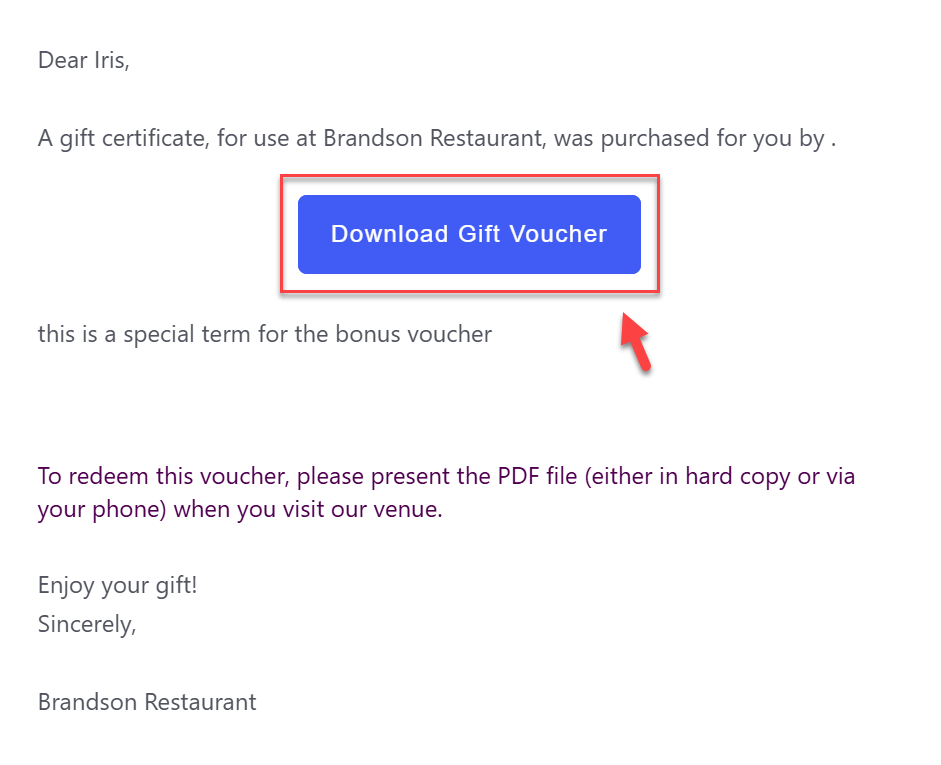
This guide will walk you through how to edit the download button text using the [download_button] shortcode. Personalizing this button makes your emails clearer and improves the experience for your customers.
Why Customize the Download Button Text?
Refreshing the button label helps make your voucher emails more engaging and on-brand. Instead of the standard Download Gift Voucher text, you can:
- Showcase your brand’s unique tone and personality
- Highlight special offers or promotions
- Use clear calls to action like Claim Your Gift or Get Your Voucher
This simple update helps reduce confusion and creates a smoother customer journey.
How to Change the Download Button Text
Follow these simple steps to update the button label:
-
Open the Email Template Editor
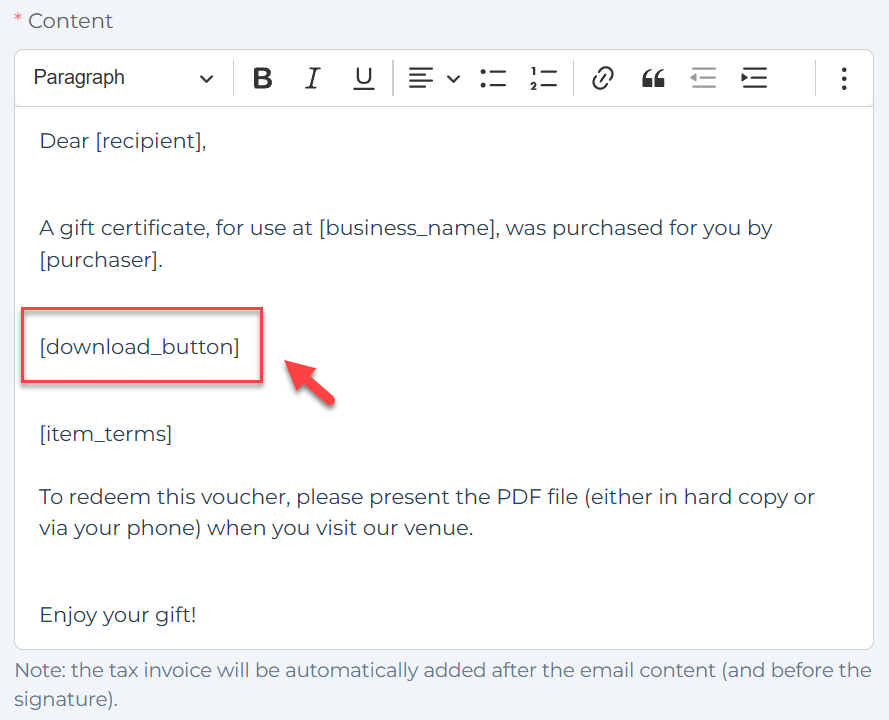
Log in to your VaocherApp dashboard, navigate to Email Settings, select the Recipient email template, and scroll to the “Content” section. -
Find the
[download_button]Shortcode
Locate this shortcode in your email content:[download_button]
-
Add the Label Attribute
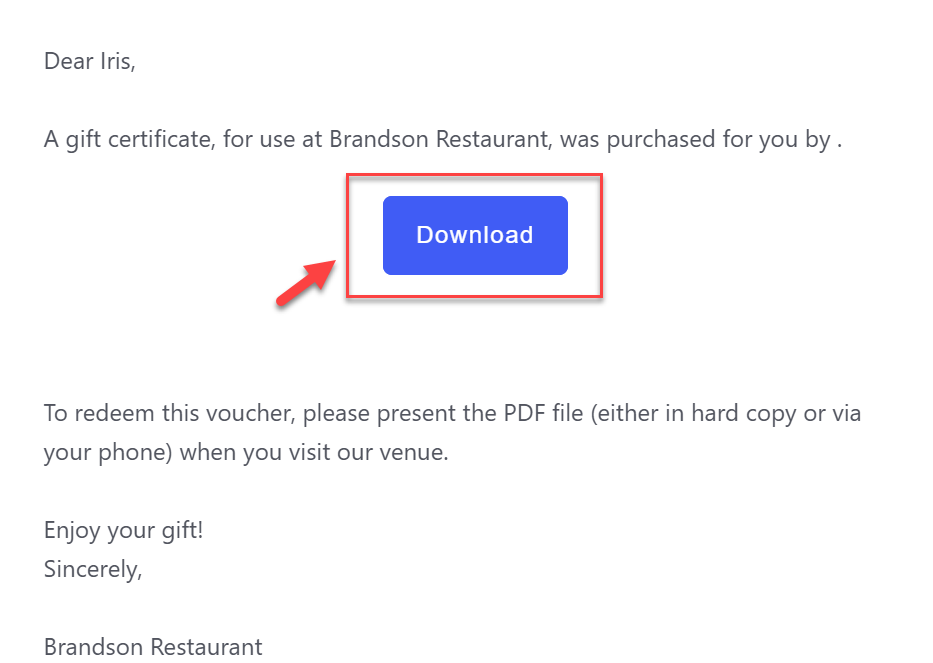
Edit the shortcode by adding the label attribute with your desired button text, for example:[download_button label="Download"] -
Customize the Label Text
Replace"Download Gift Voucher"with the text you prefer.Note: Avoid using double quotes within the label text to prevent errors.
Additional Shortcodes to Personalize Your Emails
Besides the [download_button label="Your Text"] shortcode, you can also use:
[purchaser]– Purchaser’s name[recipient]– Recipient’s name[message]– Personal message from purchaser[item]– Purchased item name[item_description]– Item description[item_terms]– Terms and conditions[code]– Voucher reference code[scannable_code]– Barcode or QR code image[balance]– Remaining voucher balance[expiry]– Voucher expiry date[download_link]– Direct PDF download link
Use these to make your emails more dynamic and personal.
Best Practices for Download Button Labels
- Always enclose your label text in quotes but never include quotes inside the label itself (e.g.,
[download_button label="Claim Your Gift"]) - Use concise, clear language that encourages action
- Combine with other shortcodes like
[item_terms]to provide additional info