









How to Add Download Link to Your Gift Voucher Emails Using Shortcodes
When sending gift voucher emails to your customers, it’s important to include a direct download link for the voucher PDFs rather than attaching the files directly. This avoids common issues with email clients like Gmail or Hotmail, which often limit attachments to 10 MB. If the attachment is too large, the email might bounce or never reach the recipient.
To improve delivery and provide a better user experience, VaocherApp supports special download shortcodes that insert a secure link or button in the voucher email. The recipient can then click that link or button to download their voucher(s) from a hosted location.
Why Use Download Shortcodes Instead of PDF Attachments?
- Avoid large attachment limits: Email clients usually restrict attachment sizes (commonly 10 MB).
- Improve email deliverability: Emails with large attachments are more likely to be flagged as spam or blocked.
- Better user experience: Recipients get a neat clickable link or button to access the voucher anytime.
- Reduce email clutter: Cleaner emails without large file attachments.
If you don’t include one of the download shortcodes, the system will try to attach the gift voucher PDFs directly to the email, which is not recommended.
Supported Download Shortcodes in VaocherApp
You can add either of the following shortcodes to your email template content:
| Shortcode | Description | Example Usage |
|---|---|---|
[download_link] |
Inserts a plain download URL link | Click here to get your voucher: [download_link] |
[download_button] |
Inserts a clickable download button with customizable label | [download_button label="Download"] to show a button with the text “Download” |
How to Add the Download Link or Button in Your Email Template
Step 1: Log in to Your VaocherApp Account
Go to vaocher.app/login and sign in with your credentials.
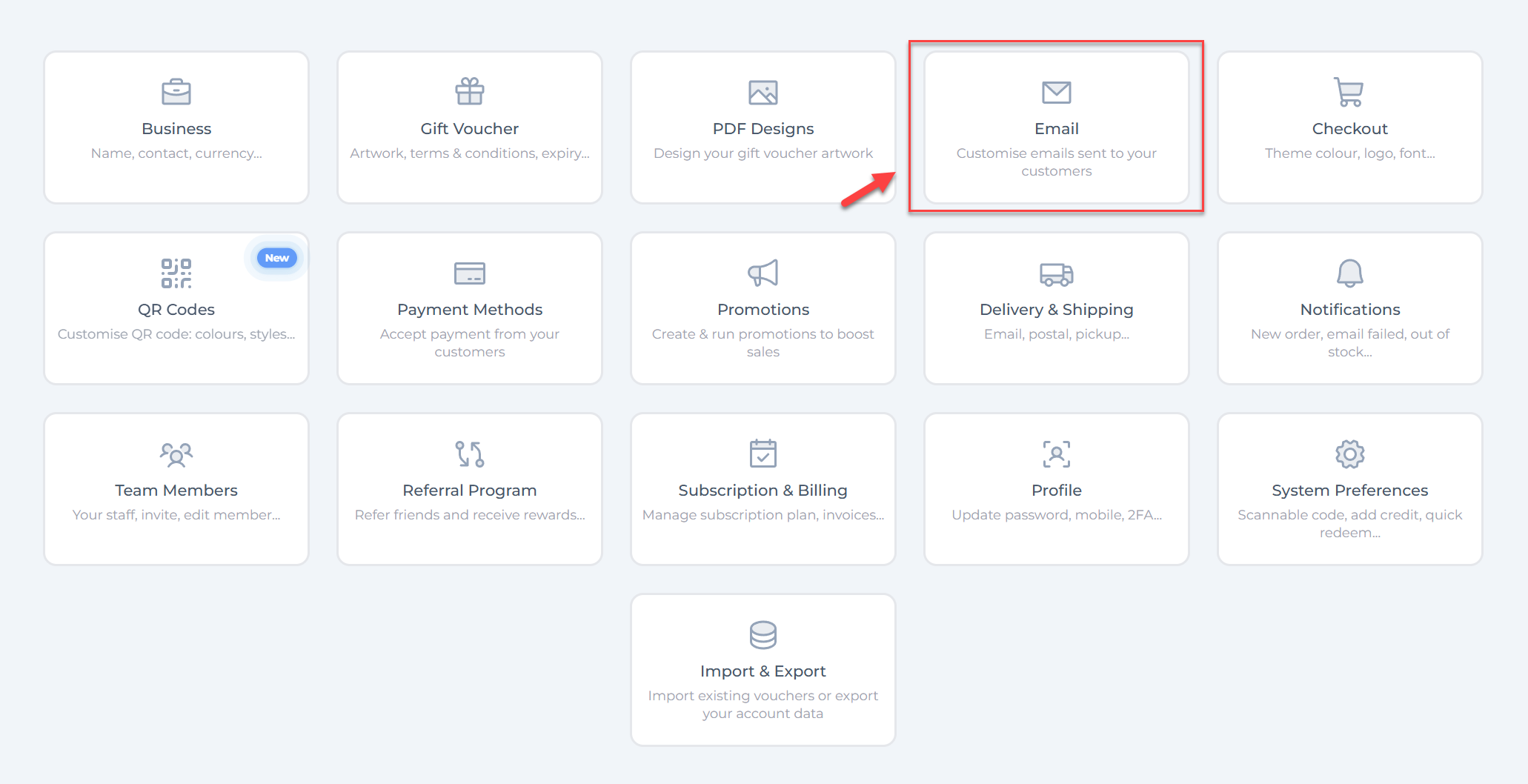
Step 2: Go to the Email Customization Section
- From the dashboard, select Email to customize your gift voucher email templates.
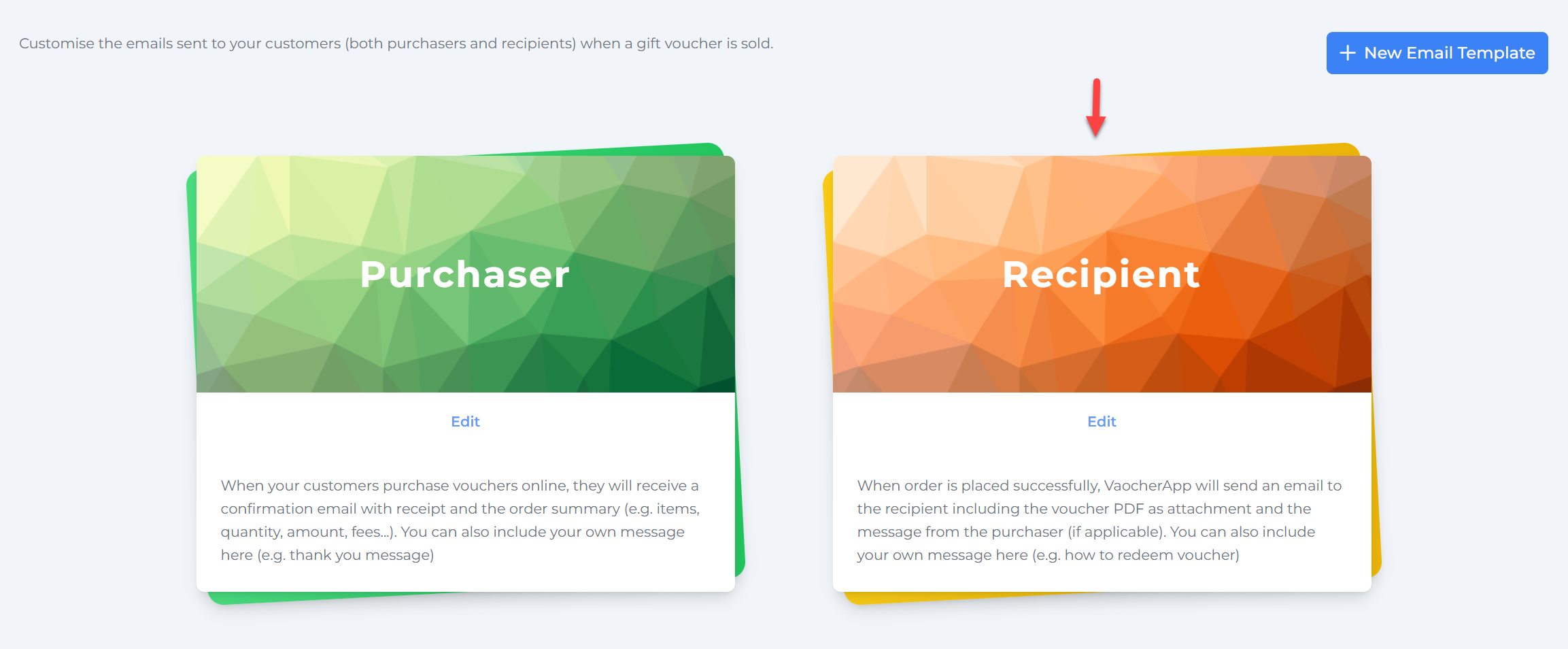
Step 3: Edit the Recipient Email Template
- Click Edit under the Recipient email template card to customize the email sent to voucher recipients.
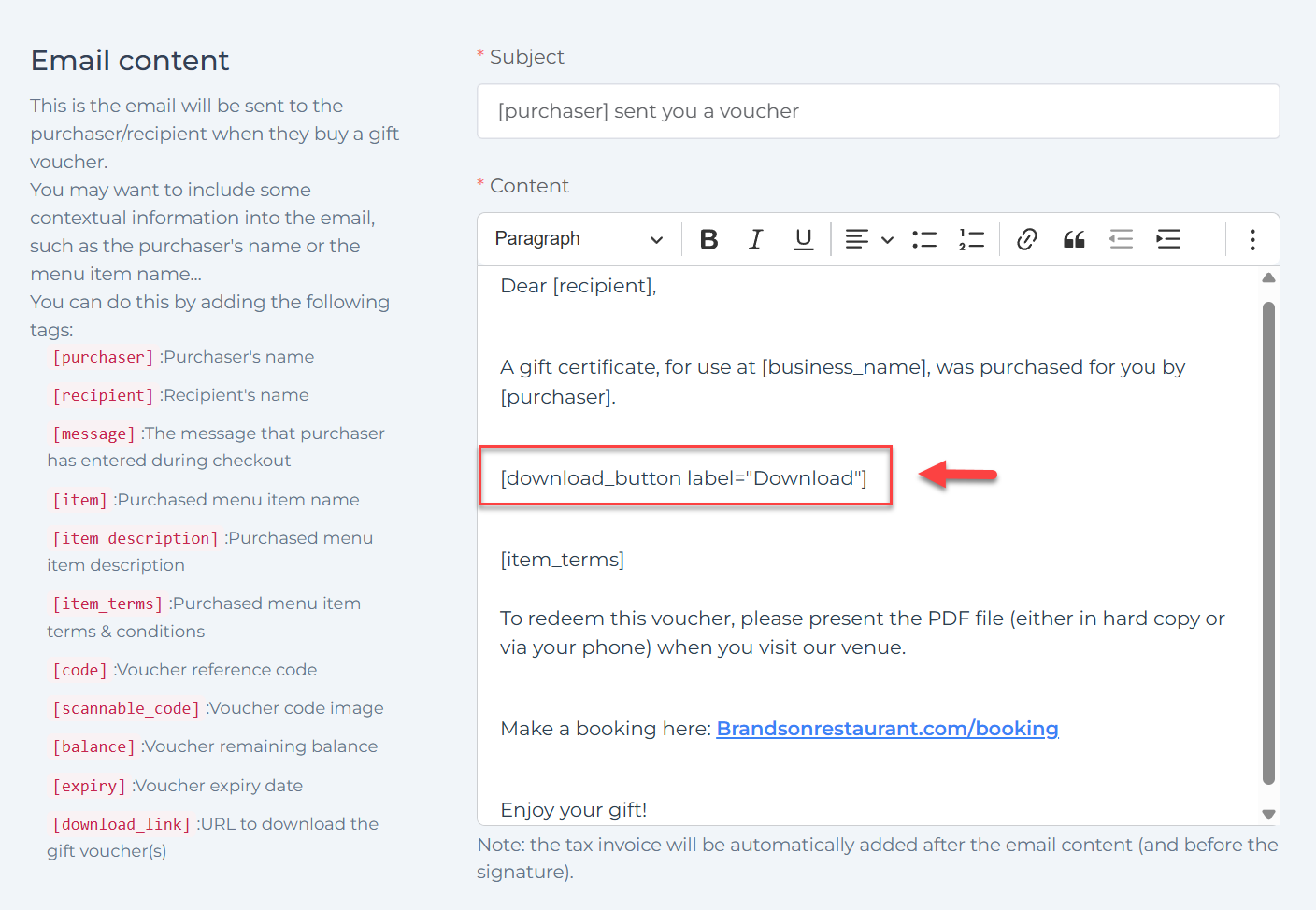
Step 4: Insert the Download Shortcode into Email Content
Add either [download_link] or [download_button label="Download"] within the email message where you want the download link/button to appear. For example:
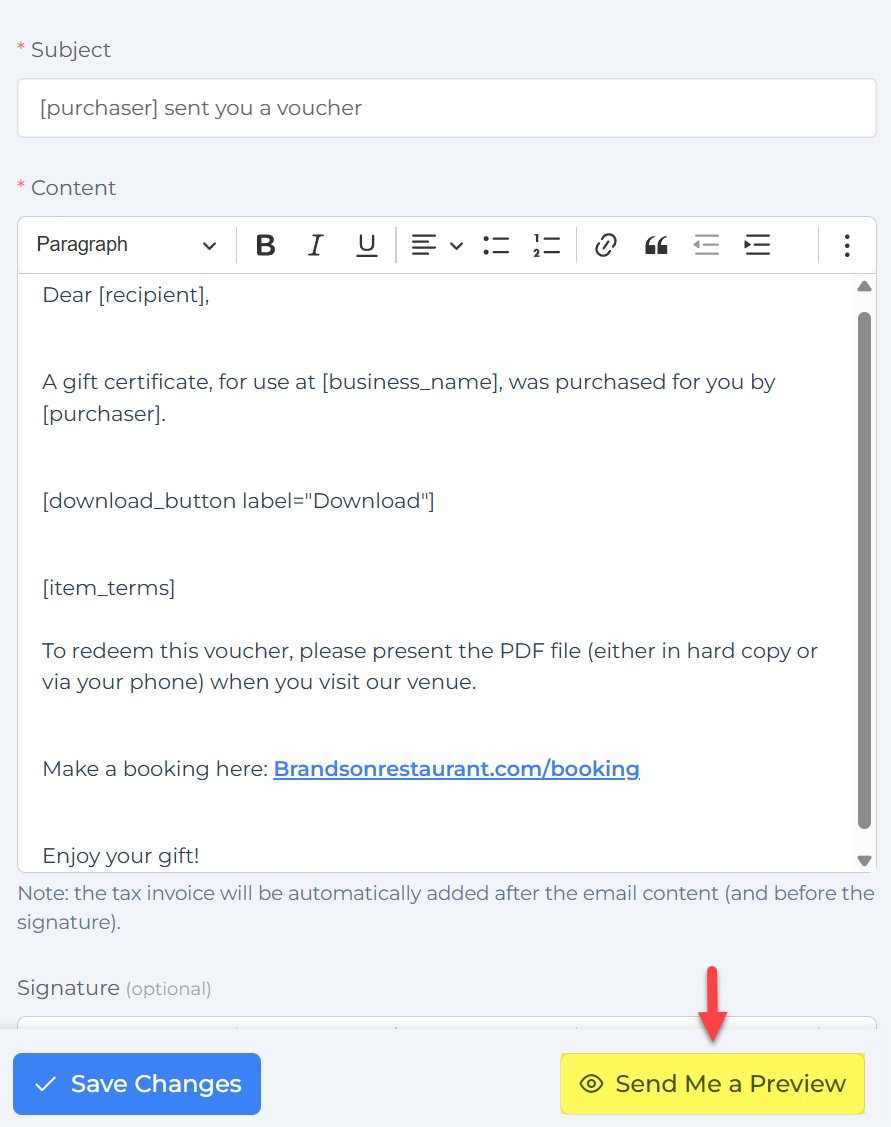
Step 5: Save and Send a Preview
- Click Save Changes.
- Use Send Me a Preview to send a test email with the download button or link included, to verify how it looks.
What the Recipient Sees
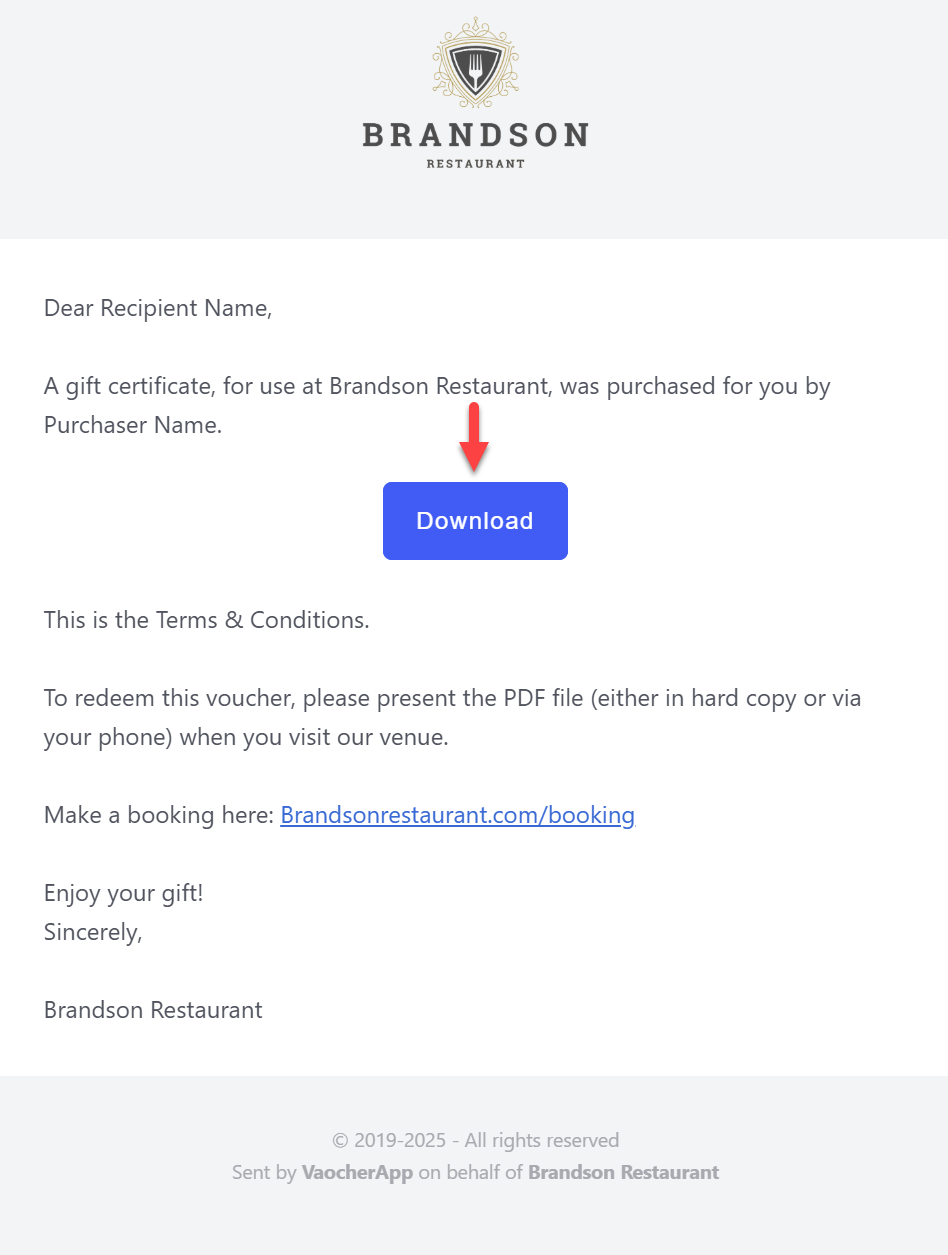
The email will include a clear and easy to click download button (or link), like this example:
Summary
- Always include
[download_link]or[download_button]shortcode in your voucher recipient email to avoid bulky PDF attachments. - This ensures the voucher PDFs are hosted securely and emailed recipients get a neat clickable download link or button.
- Increases email deliverability and improves customer experience.