









How to Change QR Code to Barcode in VaocherApp
VaocherApp allows you to customize how voucher codes appear on your PDF gift vouchers. You can choose between QR codes or traditional barcodes based on what works best with your scanning hardware and workflow. This guide will show you how to change your voucher code display from QR code to barcode within your PDF voucher templates.
Step 1: Open PDF Design Editor
- Log in to your VaocherApp account.
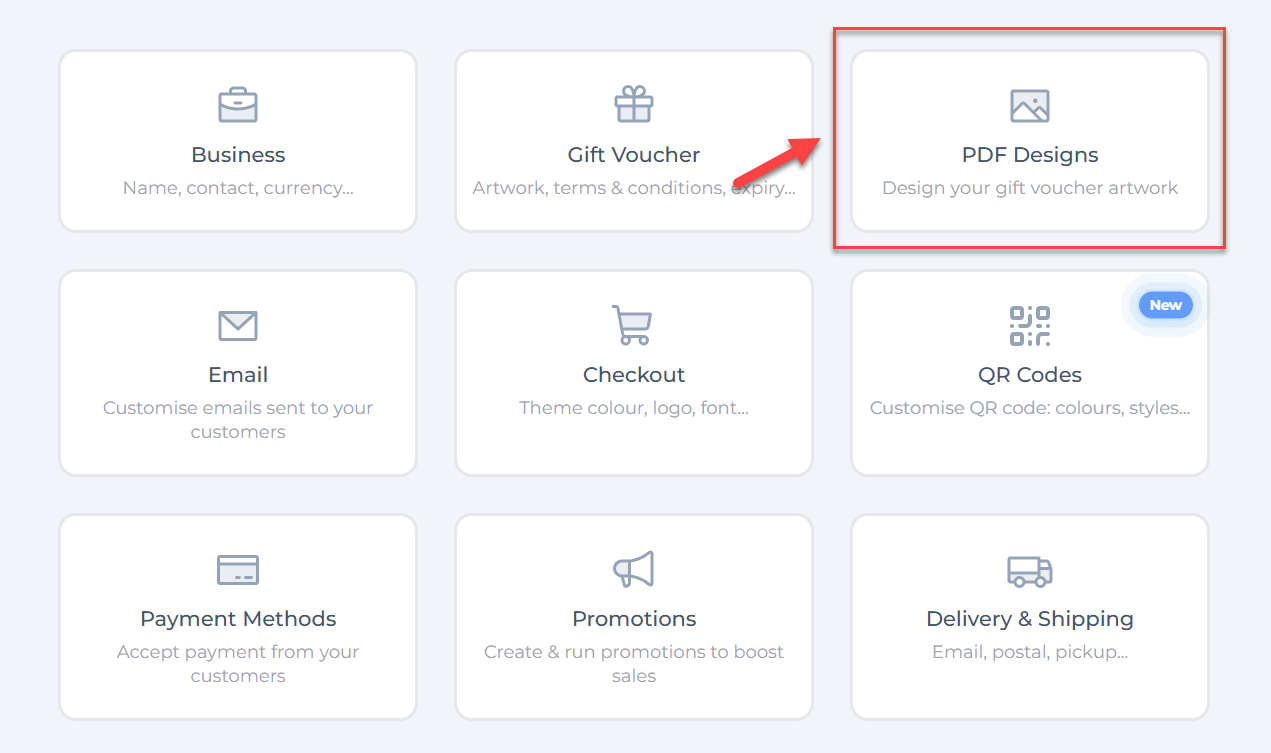
- Go to Settings > PDF Designs.
- Select and open the PDF template currently containing the QR code that you want to replace.
Step 2: Find the QR Code Element
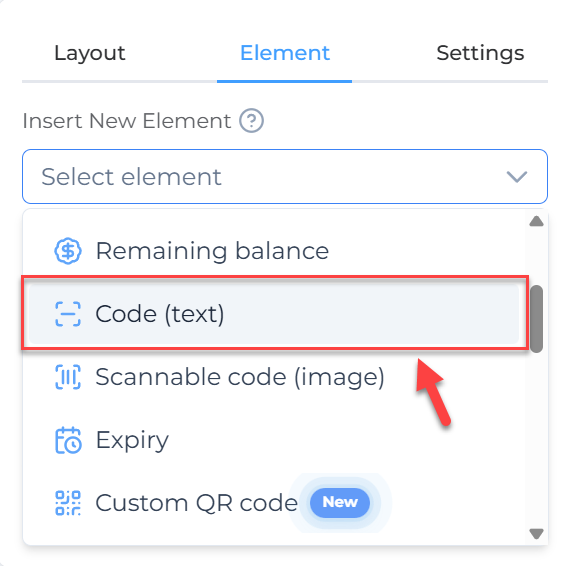
- Within the template editor, locate the element where the voucher code QR code shortcode is placed.
- This is typically shown as:
[scannable_code]
Step 3: Replace QR Code with Barcode Shortcode
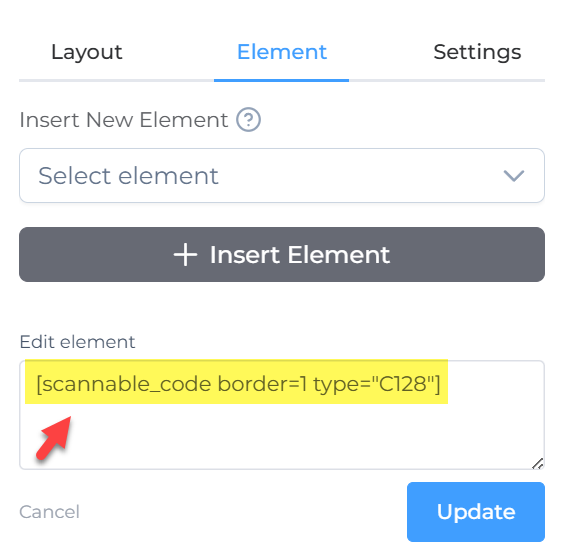
- Edit that element and replace the QR code shortcode with this barcode shortcode:
[scannable_code border=1 type="C128"]
- This will generate a dynamic, scannable Code 128 barcode with a border, linked to the voucher code.
Step 4: Save Your Changes and Preview
- Click Update to save the changes to the element.
- Save the voucher design template overall.
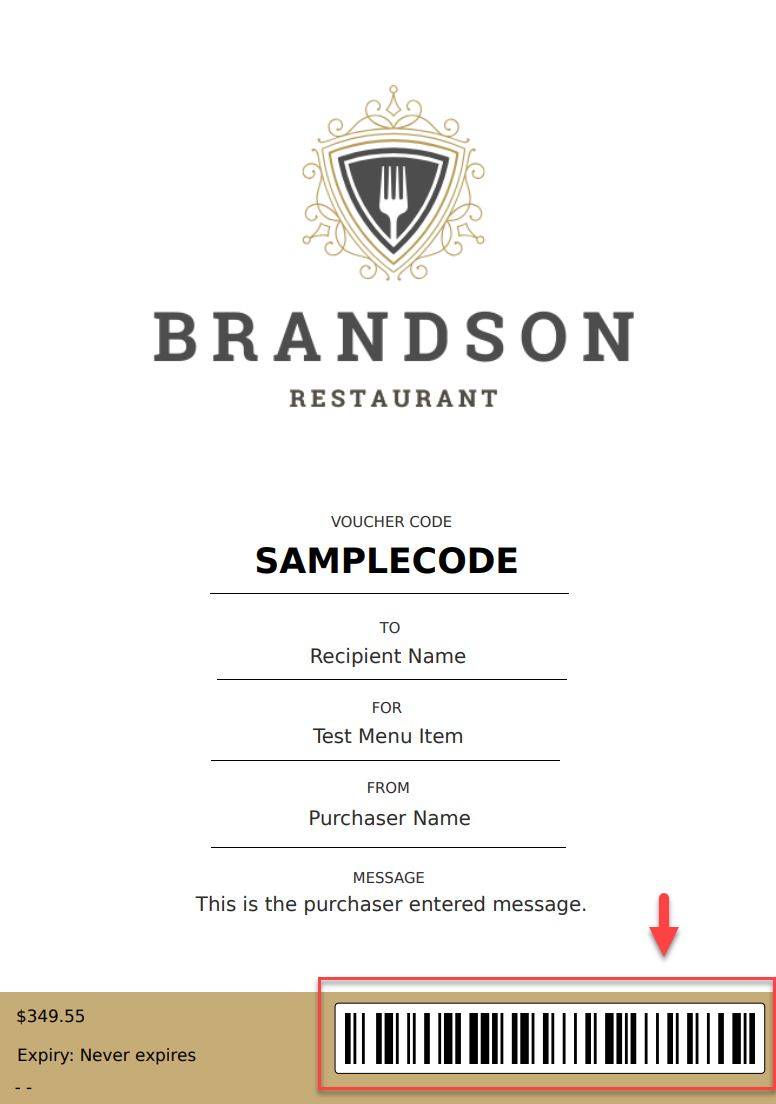
- Preview the PDF voucher to confirm the barcode appears properly and can be scanned.
Tips for PDF Voucher Barcode Display
- Compatibility: Ensure your scanning devices support Code 128 barcodes.
- Design: Adjust your layout so the barcode is clearly visible and free from distortion for reliable scanning.
- Switching: You can switch between QR code and barcode easily by updating the shortcode in your PDF template.
- Test Print: Print and scan samples before issuing vouchers to customers.