







How to make a promotion apply automatically at checkout
An automatic promotion applies at checkout by itself. Your customers don’t need to type a code, so everyone who qualifies gets the discount, extra voucher value or bonus voucher straight away. It suits a sale you want every customer to get, such as 15% off for a weekend.
Set up an automatic promotion
- Log in to your VaocherApp account and go to Settings → Promotions.
- Click + New Promotion, or Edit on a promotion you already have.
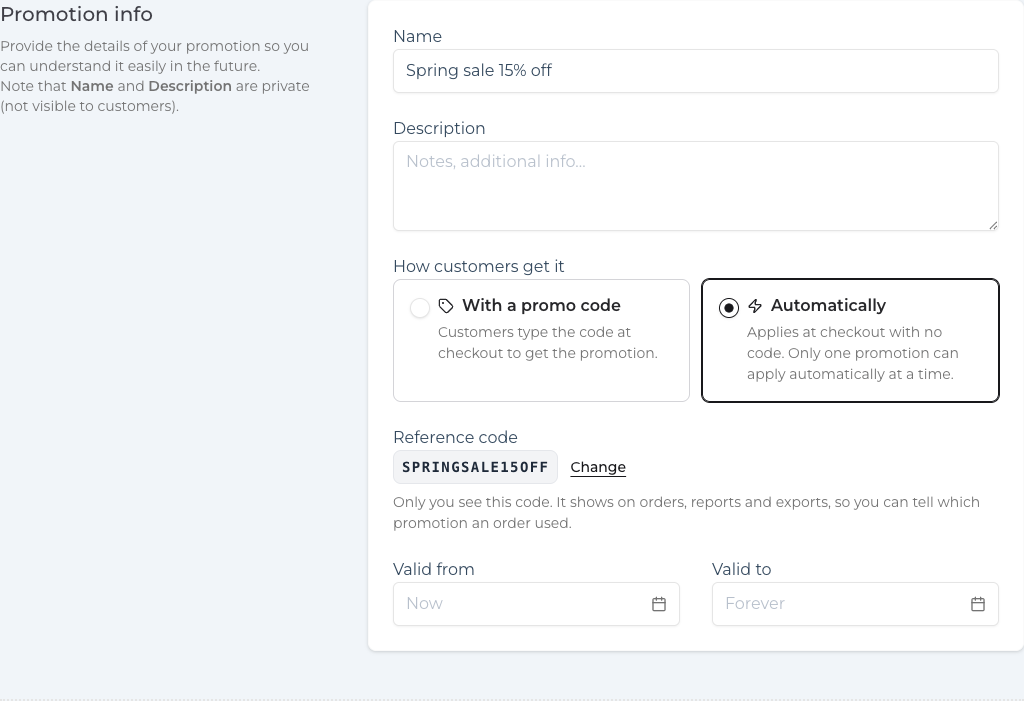
- Give it a Name, for example “Spring sale 15% off”.
- Under How customers get it, choose Automatically.
- Set the Valid from and Valid to dates, any Triggering conditions and the Reward, the same way as for any promotion. See How to Create and Run a Promotion in VaocherApp.
- Click Save Changes.
The reference code
An automatic promotion doesn’t need a code, because your customers never type one. VaocherApp makes a reference code from the promotion’s name instead, for example SPRINGSALE15OFF. Only you see it. It shows on orders, reports and exports, so you can tell which promotion an order used. To use your own code, click Change next to it.
What your customers see
At checkout, the promotion shows in the order summary straight away, with your Matched message if you’ve set one. There’s nothing to type and nothing to remove.
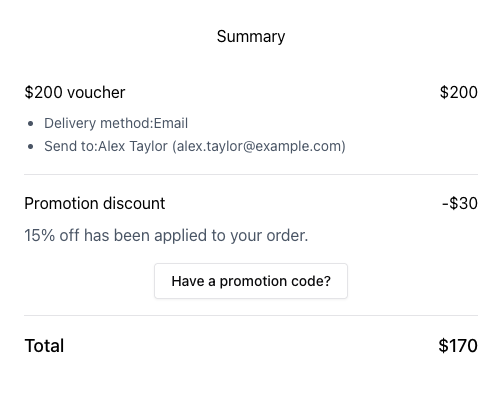
- Buying for themselves: the promotion applies as soon as they’ve entered their details.
- Buying a gift, with a “One per customer” promotion: the discount appears once they’ve typed their email for the receipt. That’s when VaocherApp can check they haven’t used the promotion before. With PayPal, they type that email before the PayPal window opens.
Good to know
- One automatic promotion at a time. If another promotion already applies automatically, VaocherApp tells you which one, so you can turn it off first. Promotions that have ended don’t count. A scheduled one does.
- A promo code replaces it. If you also run promotions with a code, customers still see Have a promotion code?. A valid code applies instead of the automatic promotion, and promotions never add together. If the customer removes the code, the automatic promotion comes back.
- No error messages for customers. If a customer doesn’t meet the conditions, or the promotion has reached its usage limit, it simply doesn’t apply. That’s why there’s no Limit reached message for automatic promotions.
- If the total changes while a customer pays, for example because the promotion reached its usage limit, the checkout shows the new total and tells them they haven’t been charged. They can then pay the new total.
- It counts toward your plan’s promotion limit, like any active promotion.
See which orders used it
- On the order page, under Promotion, it says Applied automatically.
- In Settings → Promotions and in the Promotions report, automatic promotions have an Automatic tag.