









How to Reset Your VaocherApp Password
How to Reset Your VaocherApp Password
If you’ve forgotten your password or can’t log in to your VaocherApp account, you can easily reset it using your email address.
This step-by-step guide shows you exactly how to reset your VaocherApp password, with screenshots to help you along the way.
🔐 When should you reset your password?
You may need to reset your password if:
- You forgot your password.
- Your login details are not working.
- You haven’t logged in for a while.
- You want to update your password for security reasons.
If you’re having trouble logging in, you can also check:
How to reset your password
Step 1: Go to the VaocherApp login page
Open the VaocherApp login page and click Sign in with email.
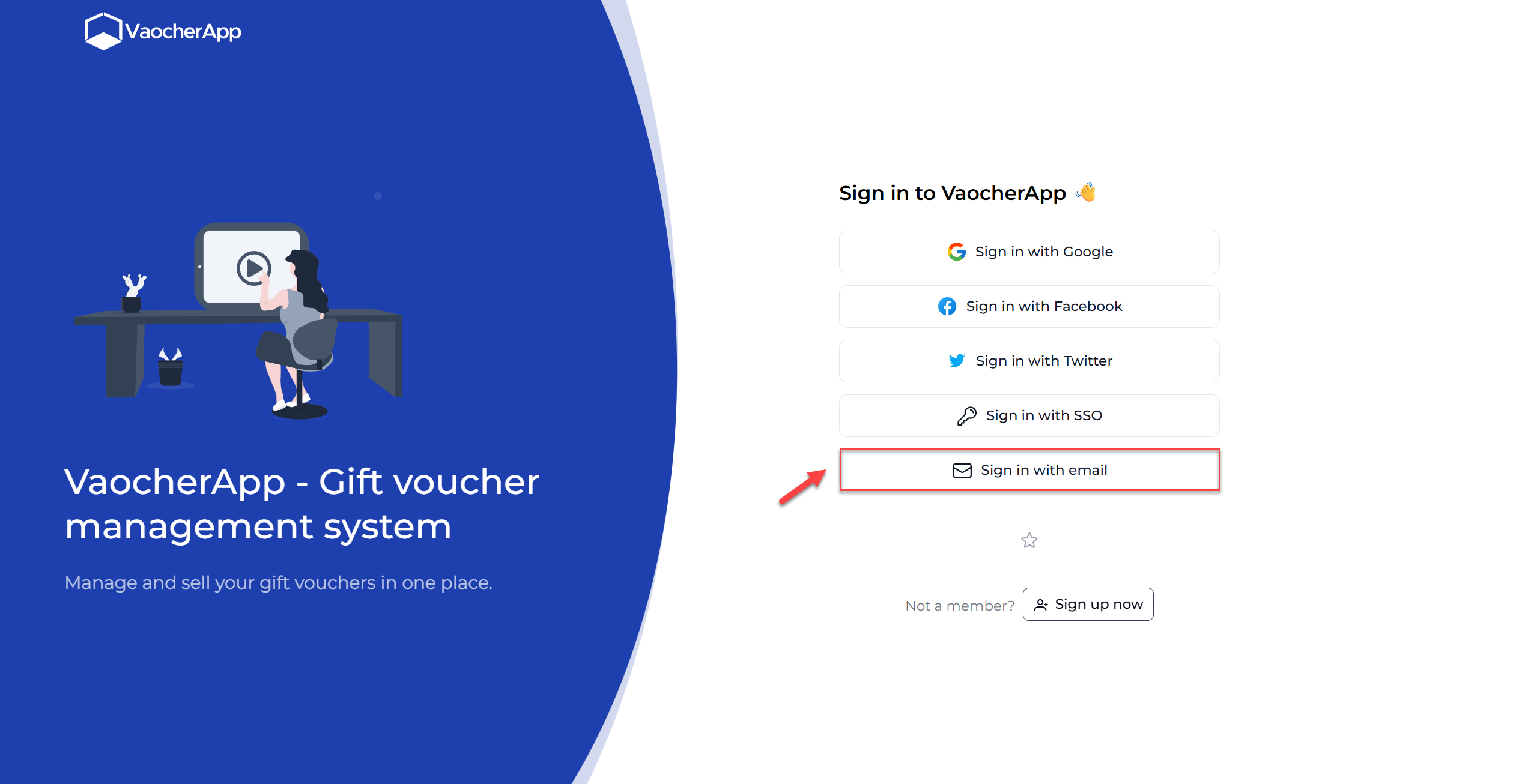 Click “Sign in with email to continue”
Step 2: Click “Forgot your password?”
On the login screen:
- Click Forgot your password?
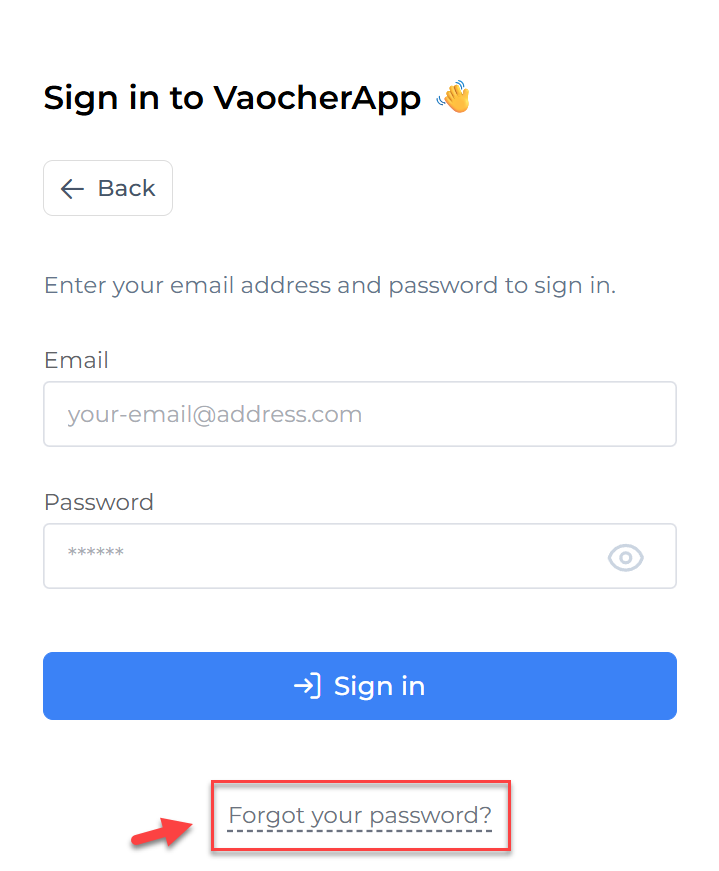 Click “Forgot your password?”
Or go directly to the reset page:
👉 https://vaocher.app/password/forgot
Step 3: Enter your email address
Enter the email address linked to your VaocherApp account, then click Reset Password.
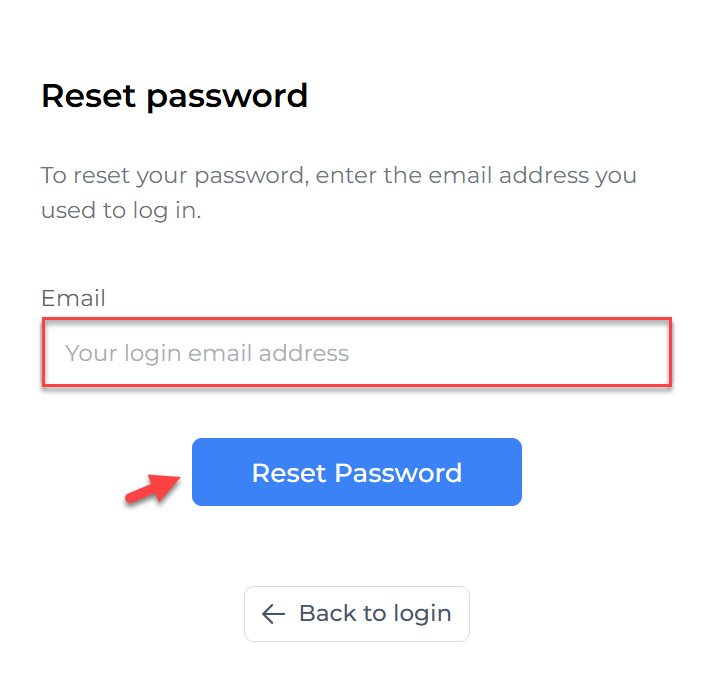 Enter your registered email address
Step 4: Check your email inbox
You will see a confirmation message that your reset email has been sent.
Step 5: Click the reset link in your email
Open the email from VaocherApp and click Reset your password.
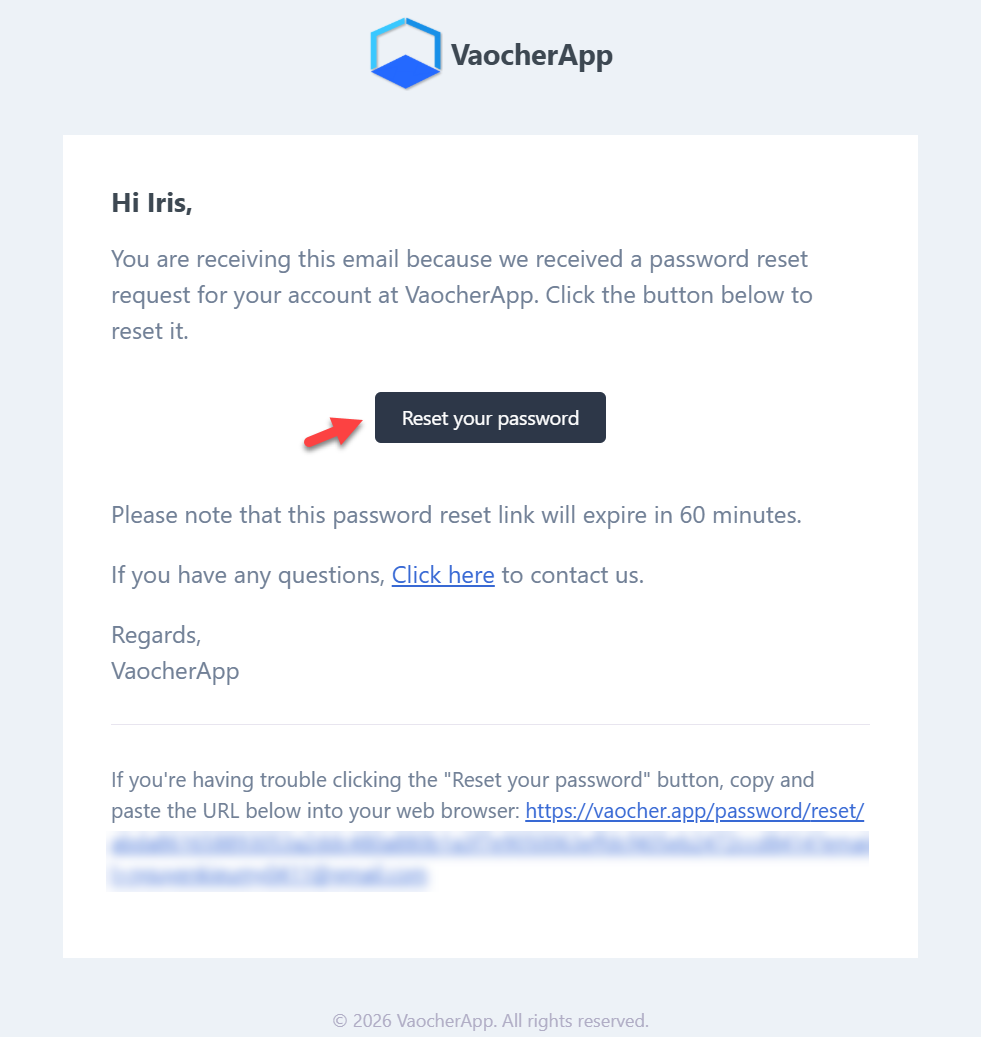 Click the reset button in the email
⏱️ Important: The password reset link will expire in 60 minutes.
Step 6: Create a new password
On the reset screen:
- Enter your new password
- Confirm your password
- Click Reset Password
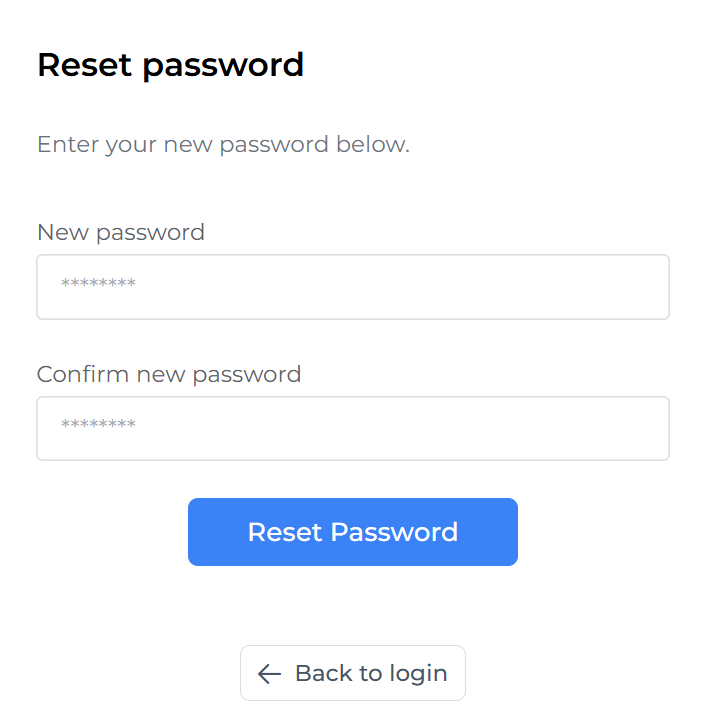 Enter your new password and click “Reset Password”
Once completed, your password will be updated and you can log in immediately.
What happens after I reset my password?
Resetting your password will automatically sign you out of all browser sessions, including web browsers on your computer and mobile devices (such as Chrome or Safari).
However, if you’re signed in to the VaocherApp native mobile app (downloaded from the App Store or Google Play), resetting your password will not sign you out of the app.
If you need to sign out of the native mobile app, please contact the VaocherApp support team. We can manually sign you out if required.
Didn’t receive the password reset email?
If you didn’t receive the email:
- Check your Spam or Junk folder
- Make sure you entered the correct email address
- Wait a few minutes and try again
🔒 Tips for creating a secure password
To keep your VaocherApp account safe:
- Use at least 8 characters
- Include uppercase and lowercase letters
- Add numbers and symbols (e.g. ! @ #)
- Avoid using old or common passwords