









What to Do When a Gift Voucher Failed to Send to SwiftPOS
If SwiftPOS is connected and a new gift voucher does not reach your venue, VaocherApp keeps the voucher and shows that the send failed so you can try again or ignore it.
SwiftPOS must already be connected and Enabled. This article covers failed sends only.
Learn more about the SwiftPOS gift voucher integration.
On the Orders page
- Open the VaocherApp dashboard and go to Orders.
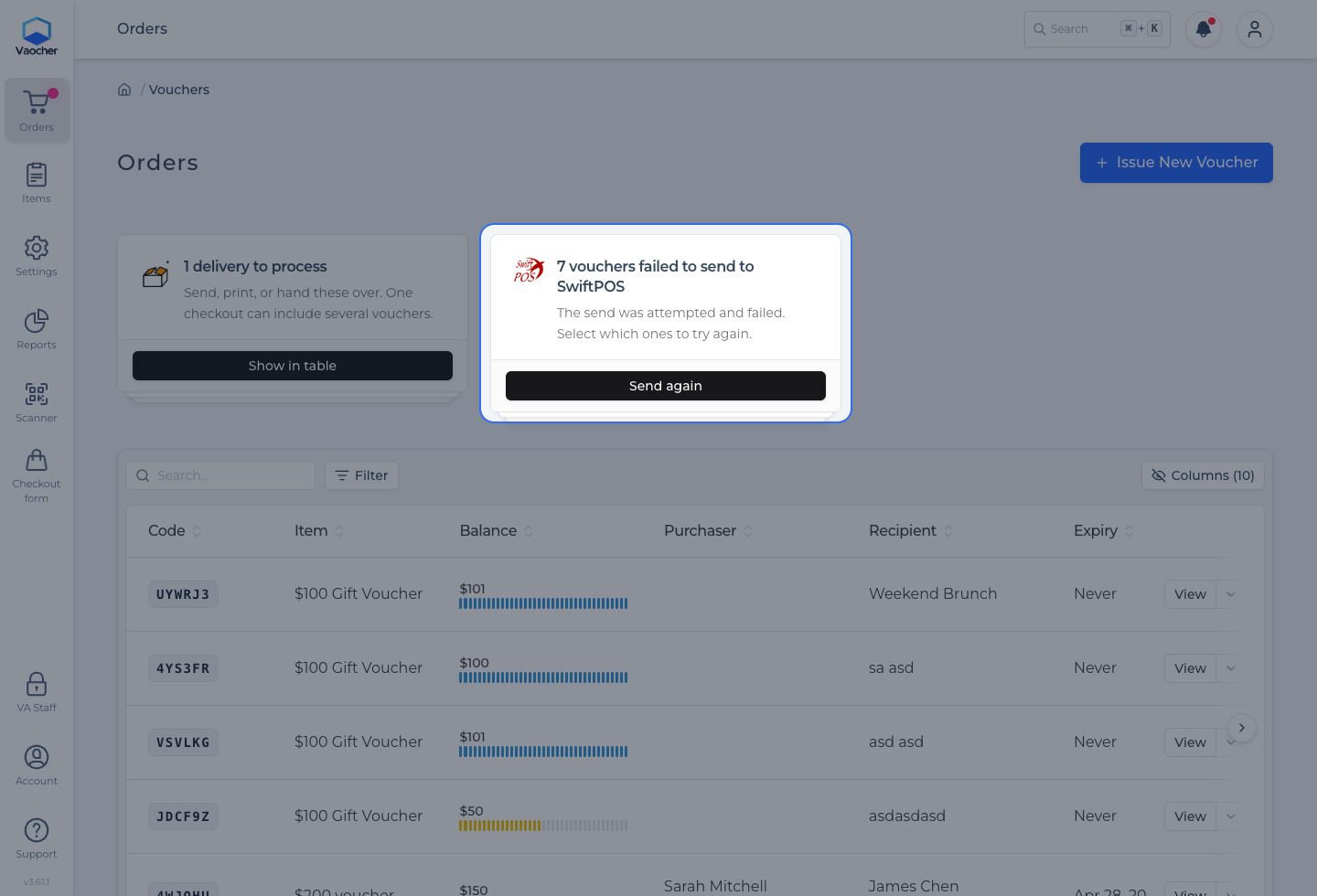
- If any vouchers failed to send, you will see an alert such as 1 voucher failed to send to SwiftPOS (or a count when there are several).
- Choose Send again.
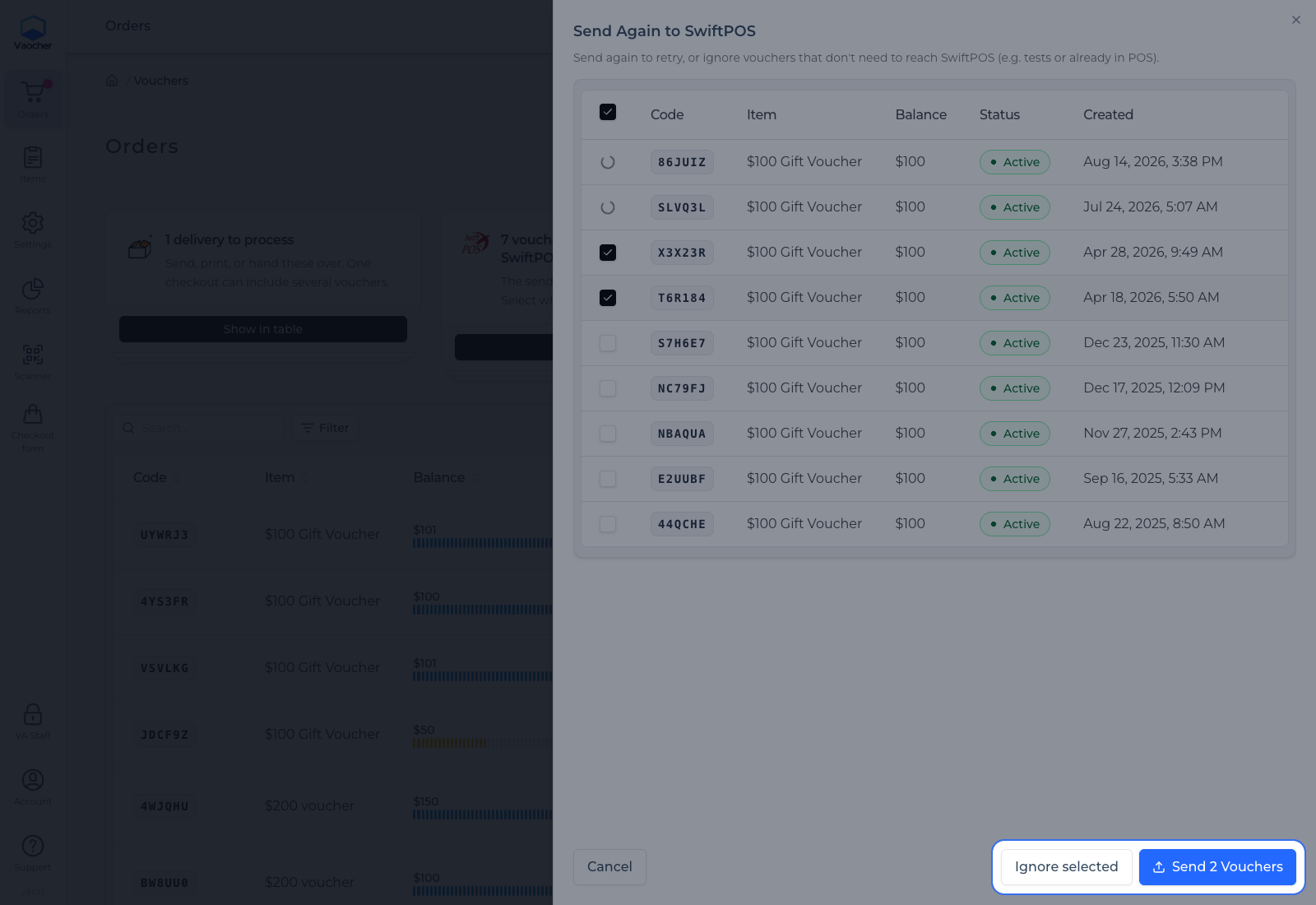
- In the Send Again to SwiftPOS drawer, select the vouchers to retry or ignore.
- Choose Send (or Send 1 Voucher / Send X Vouchers when one or more are selected) to try again.
- Or choose Ignore selected when a voucher does not need to reach SwiftPOS (for example a test voucher, or one that is already in your POS). Confirm Ignore.
Ignored vouchers stay available in VaocherApp. They are not sent to SwiftPOS and no longer appear in the Orders warning.
Sending can take a few minutes. You can close the drawer while a retry continues in the background.
On an order details page
- Open the order that failed to send.
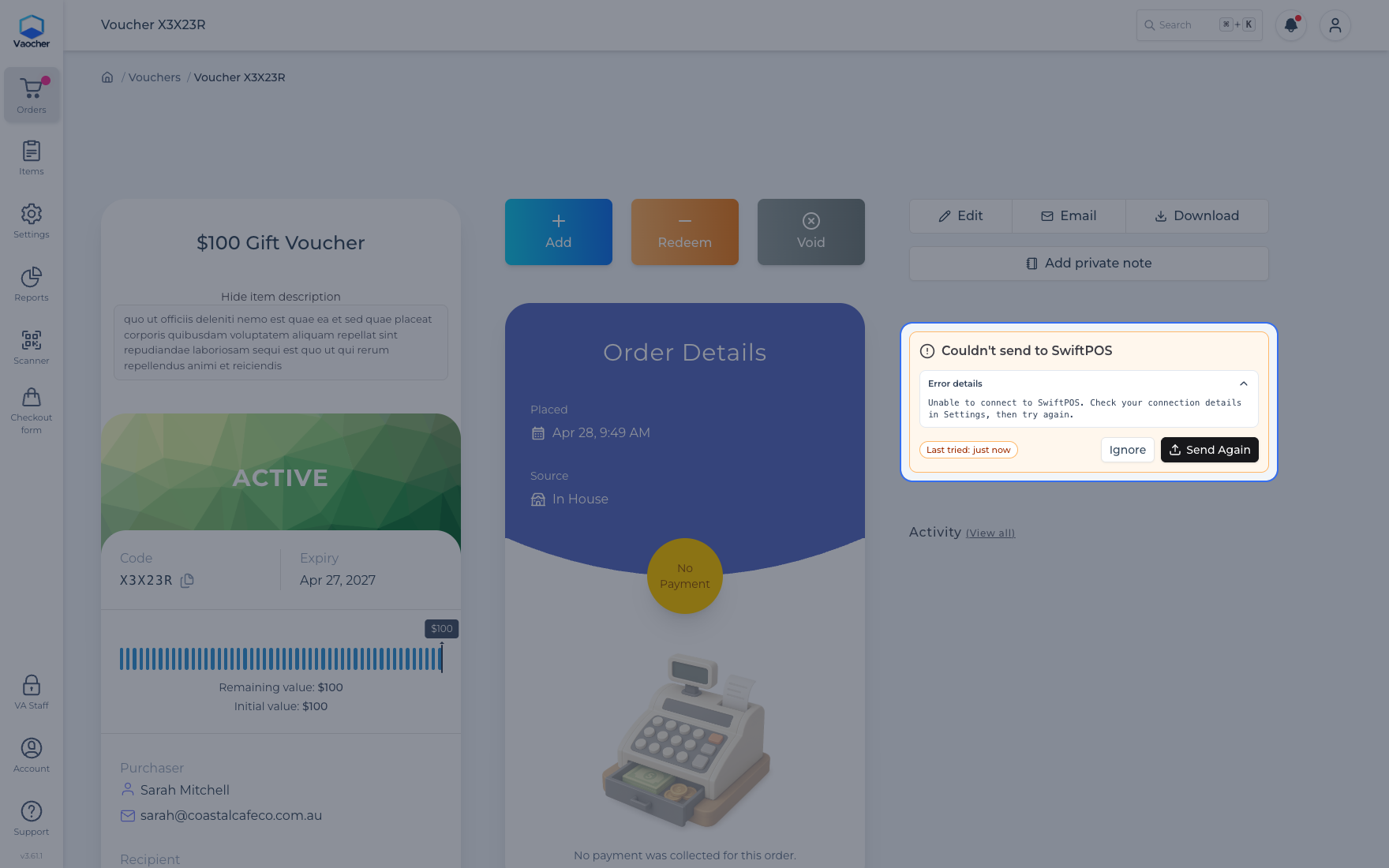
- If the send failed, you will see Couldn’t send to SwiftPOS.
- Choose Send Again, then confirm Send Again.
- Or choose Ignore, then confirm Ignore, if this voucher does not need to reach SwiftPOS.
You can expand Error details on that alert if you need the last error message from SwiftPOS.
Find failed sends with filters
On Orders, open Filter, then choose SwiftPOS → failed to push to list orders that still need a successful send (or an ignore).