









How to Set Up and Manage Offline Payment Methods in VaocherApp
Offering offline payment options gives your customers more flexibility when buying your gift cards. With VaocherApp, you can easily enable offline payments such as Bank Transfer, Phone Payment, and In-Store Payment — no technical skills required. This step-by-step guide will help you set them up and manage offline payment orders smoothly.
You can access offline payment settings here: Payment methods

Tip: For a seamless customer experience, keep at least one online payment method active (such as credit/debit card payments) for instant payment.
Step 1: Adding Offline Payment Methods
-
Sign in to your VaocherApp account.
-
Navigate to the offline payment settings by clicking this link or entering it into your browser:
https://vaocher.app/settings/payments -
Here, you can enable and configure the following offline payment options:
- Bank Transfer: Customers transfer payment directly to your bank account.
- Pay In-Store: Customers pay in person at your business location.
- Phone Payment: Customers pay over the phone (for example, with a credit card).
-
Select the offline payment options you want to activate, complete the required details (e.g., your bank account number), and save your changes.
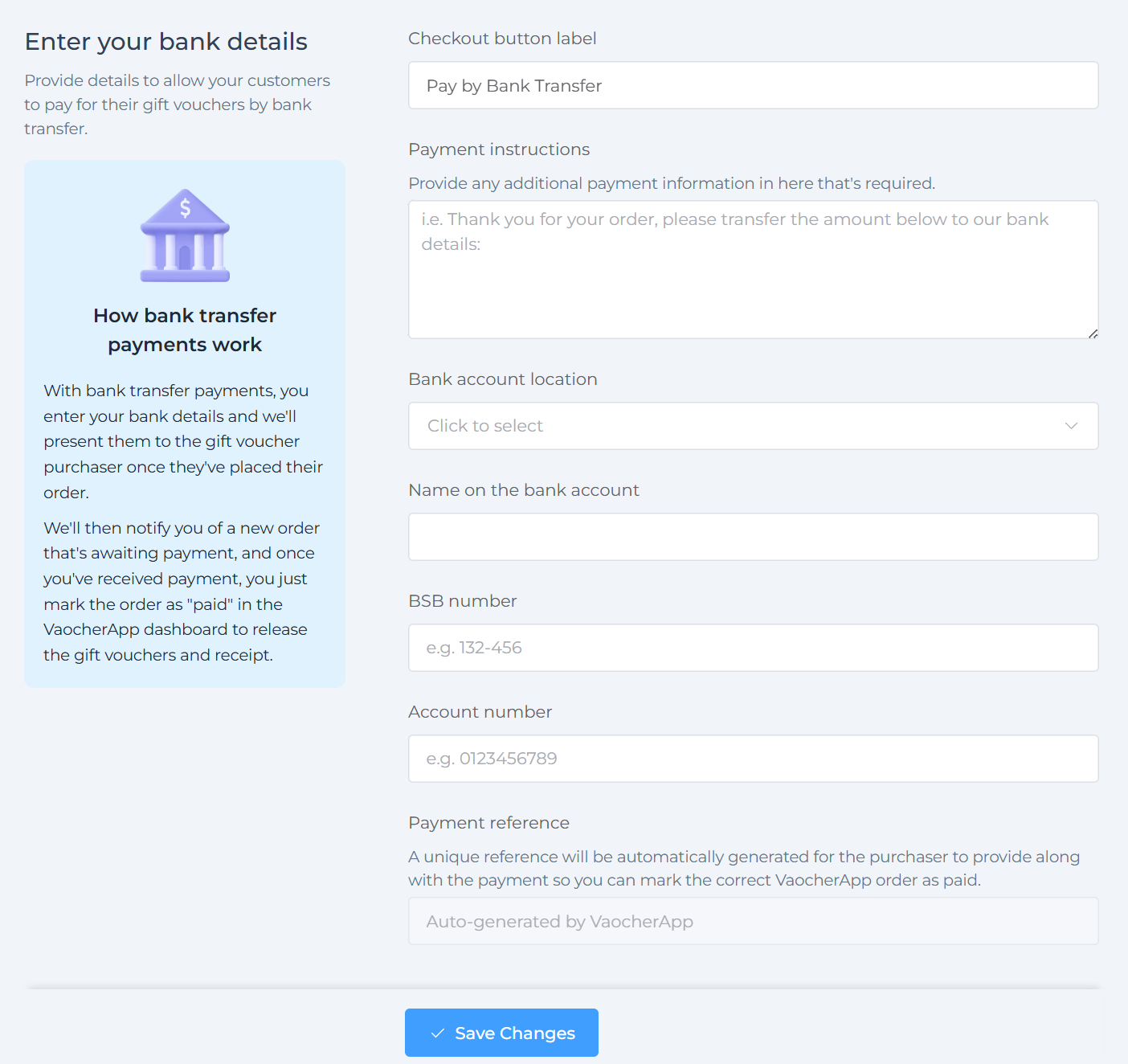
Note: You can enable one, two, or all offline methods based on your business preferences.
Step 2: How Offline Payments Work for Customers
When customers choose an offline payment method at checkout, the process follows these steps:
1. Customer Places an Order
- They select the gift cards they want to buy.
- At checkout, they pick an offline payment method like Bank Transfer, Pay In-Store, or Phone Payment.
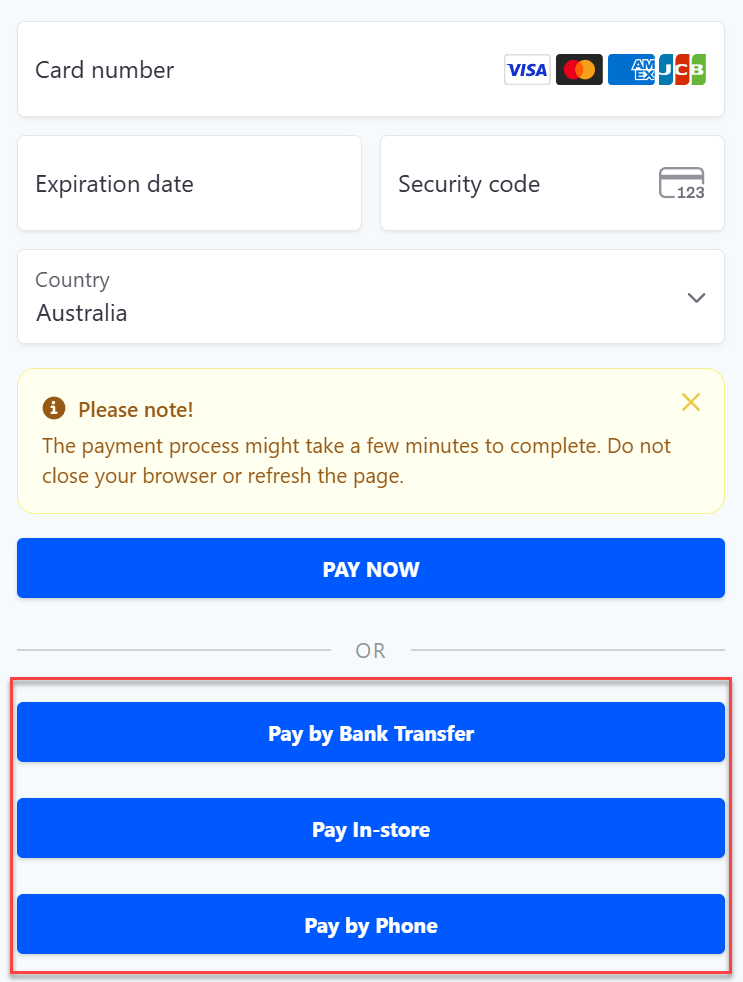
2. Payment Instructions Provided
- Your custom offline payment instructions appear immediately on-screen.
- These details (such as bank account info for Bank Transfer) are also sent automatically by email to the customer.
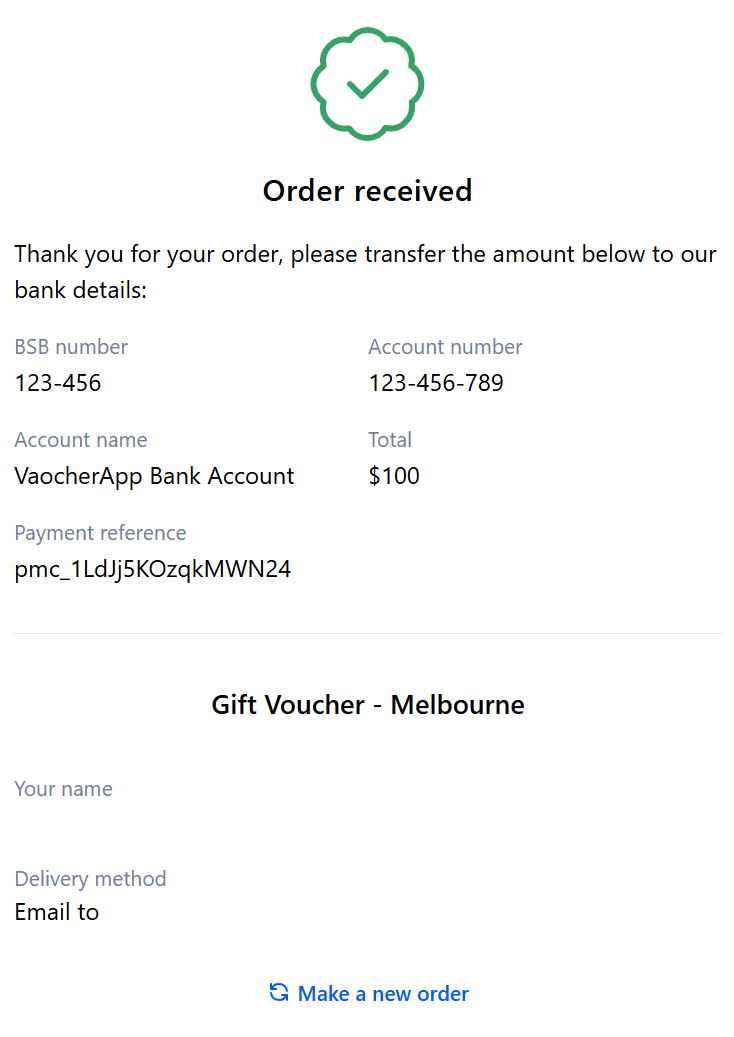
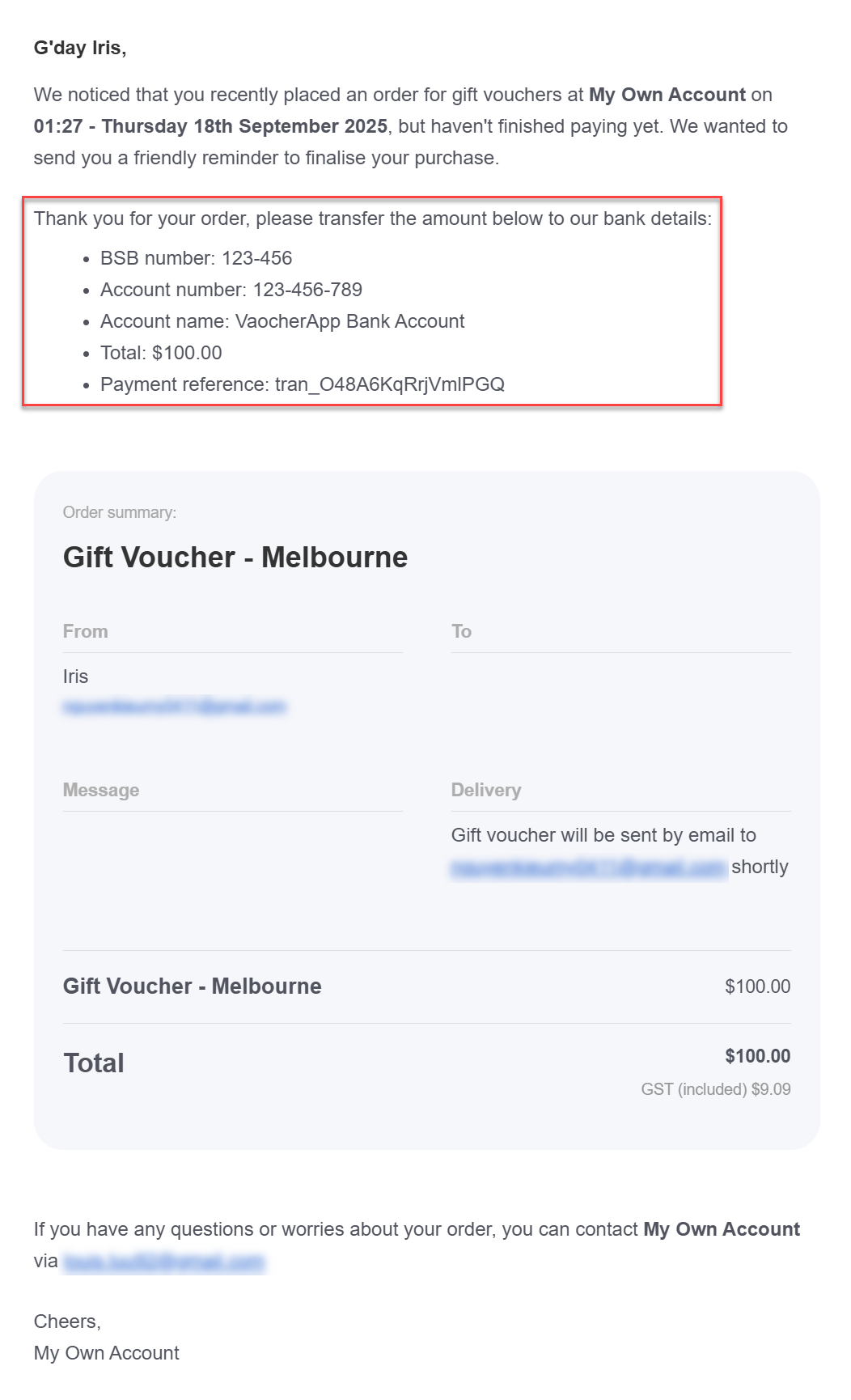
3. Order Status Shows as “Pending Payment”
- The order is listed as Pending payment in your VaocherApp dashboard.
- This means payment is awaited and has not yet been confirmed.
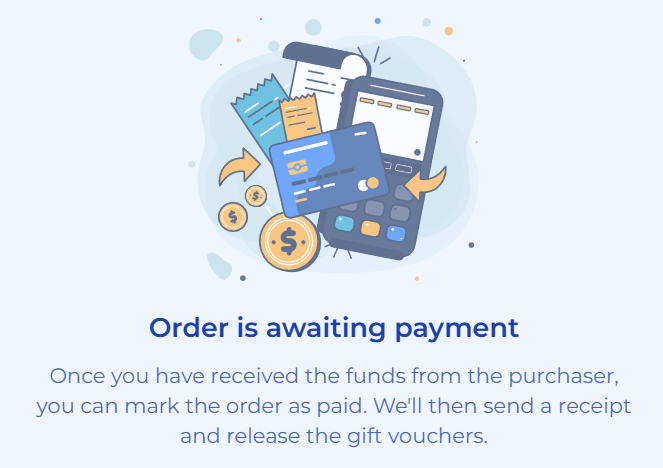
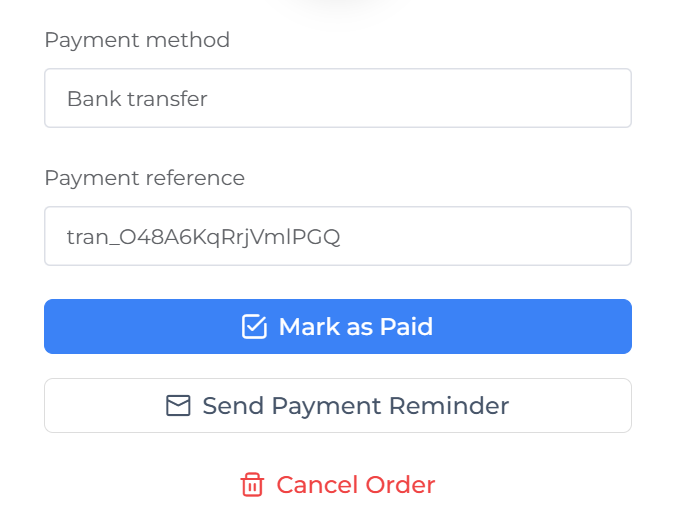
4. Mark Order as Paid After Receiving Payment
- After verifying payment (e.g., confirming bank deposit or in-store payment), go to your dashboard.
- Locate the order and update its status to Paid.
- This action will:
- Automatically send a receipt email to the purchaser.
- Trigger delivery of the gift cards to the recipient.
Step 3: Managing Offline Payment Orders
If customers delay payment after selecting an offline option, you can:
-
Send a Payment Reminder: From your dashboard, email a polite payment reminder.
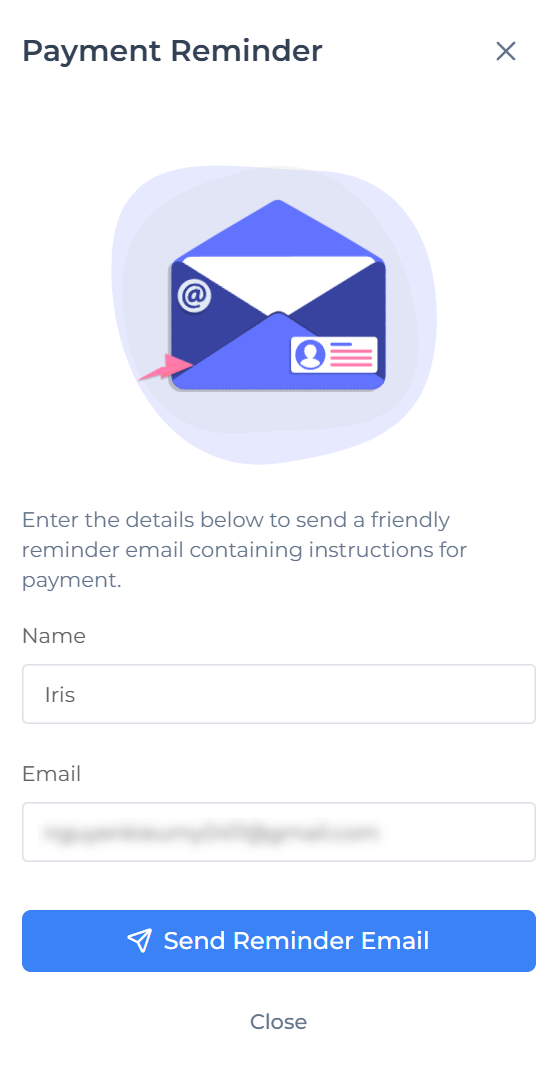
Send payment reminder emails to customers -
Cancel the Order: If payment remains outstanding for too long, cancel the order to keep your system organized.
Why Offer Offline Payments Alongside Online Methods?
Providing offline payments helps you serve customers who:
- Prefer direct bank transfers over online payments.
- Want to pay in person at your location.
- Don’t have access to immediate online payment options.
By combining offline with online payments like credit and debit cards, you cover all preferences — maximizing gift card sales.