









How to Enable Bulk Purchasing for Gift Vouchers in VaocherApp
If you want to let your customers buy multiple gift vouchers in one transaction, this guide will show you how to set it up in minutes. Bulk purchasing makes the checkout process smoother, boosts sales, and is perfect for customers buying for groups or events.
Step 1: Go to Settings
Log in to your VaocherApp dashboard and head to the Settings section.
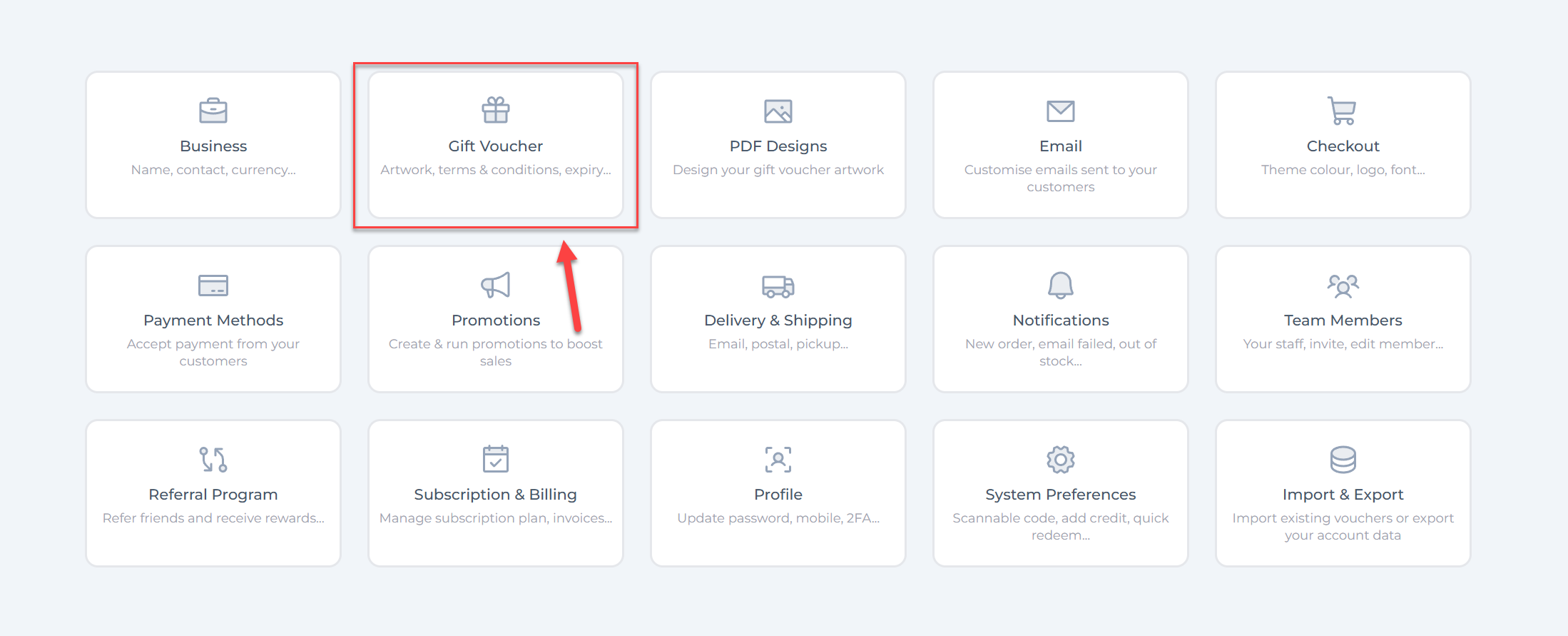
Step 2: Select Gift Voucher Settings
Click on Gift Voucher Settings to open the configuration options.
Step 3: Activate Bulk Purchasing
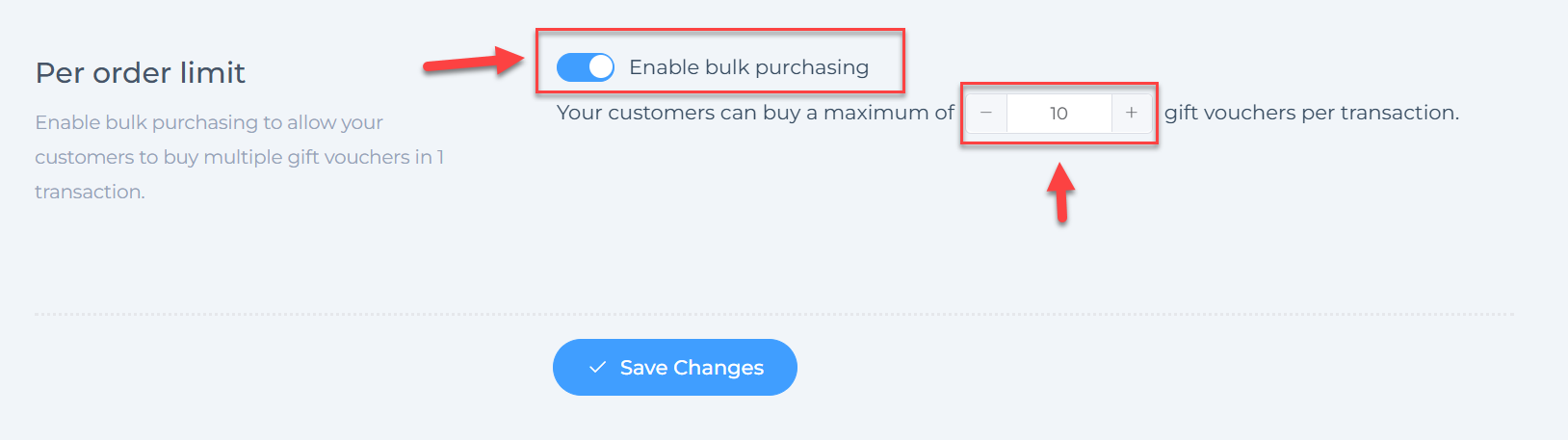
Scroll to the Per order limit section, switch on the Bulk purchasing toggle, and set the maximum quantity customers can buy in one order.
Example: Buying 3 Gift Vouchers in One Checkout
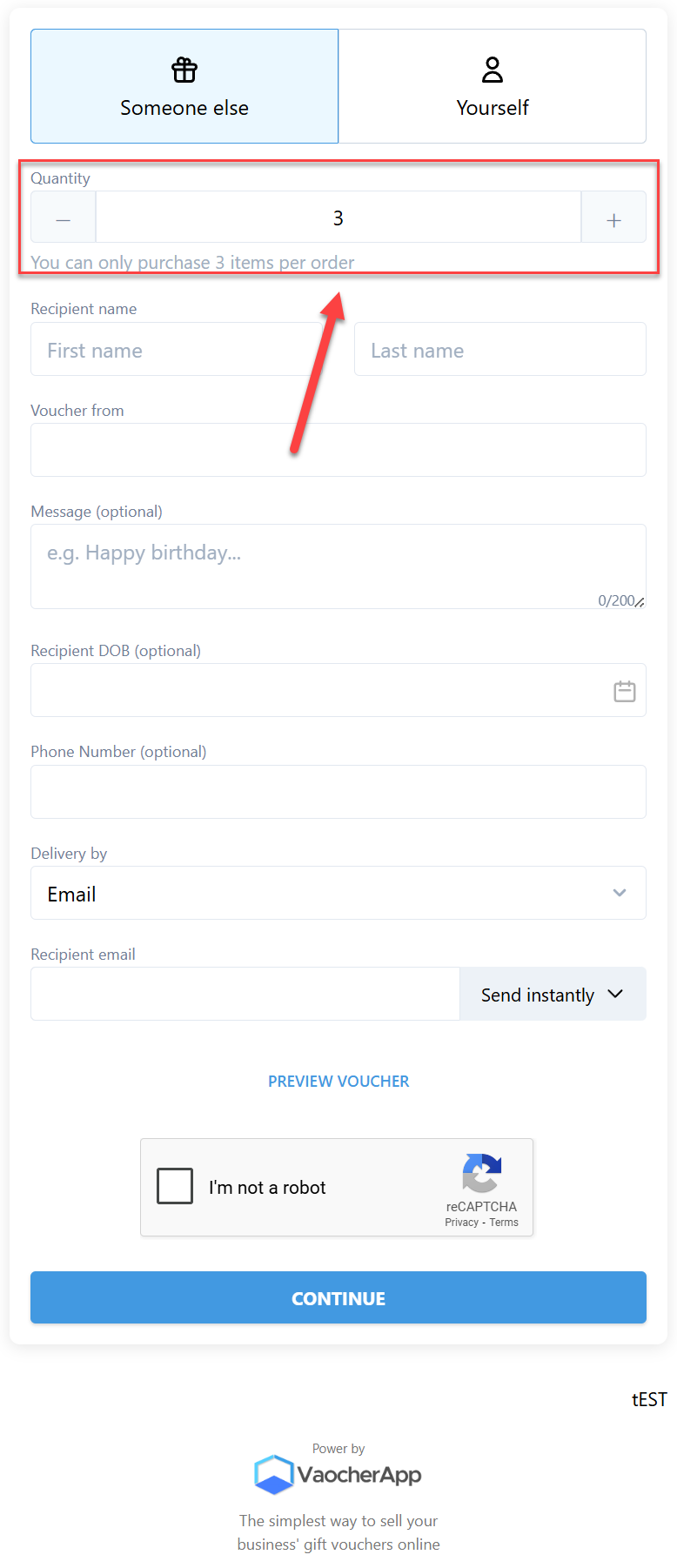
Once bulk purchasing is enabled, customers can select a quantity when buying a voucher.
Checkout form example (quantity set to 3):
What Happens After Purchase
When a customer buys multiple vouchers (e.g. 3), here’s what happens:
-
Email confirmation with download link – The customer receives an email containing a ZIP file attachment.
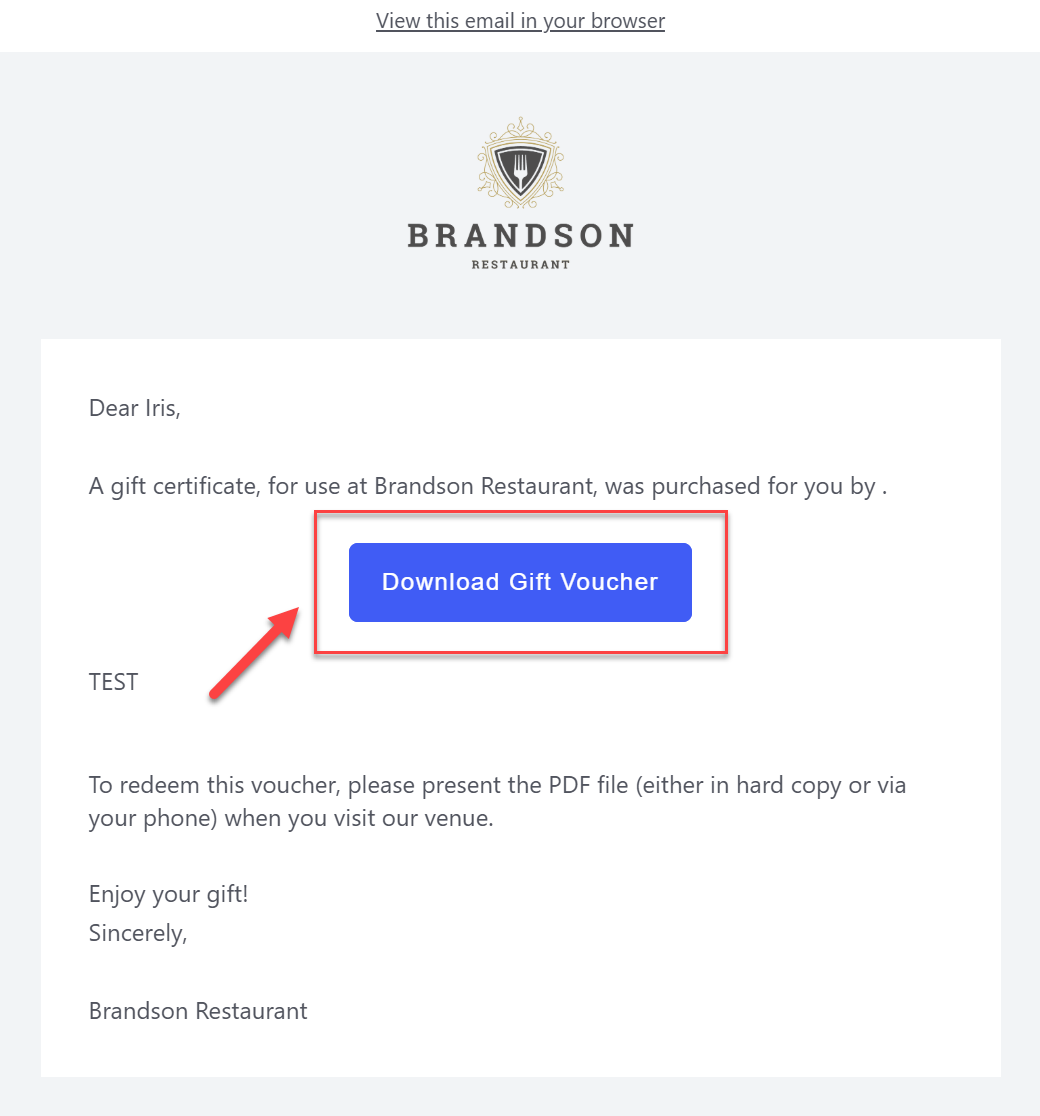
The email contains a ZIP file download with all purchased vouchers -
ZIP file contents – The ZIP file will contain separate PDF vouchers, one for each purchased quantity.
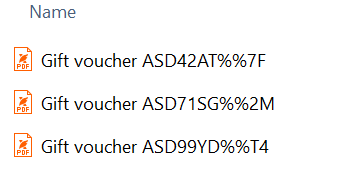
ZIP file example with 3 separate vouchers -
Orders page in your dashboard – Each voucher is created as an individual order but linked together under the same purchase.
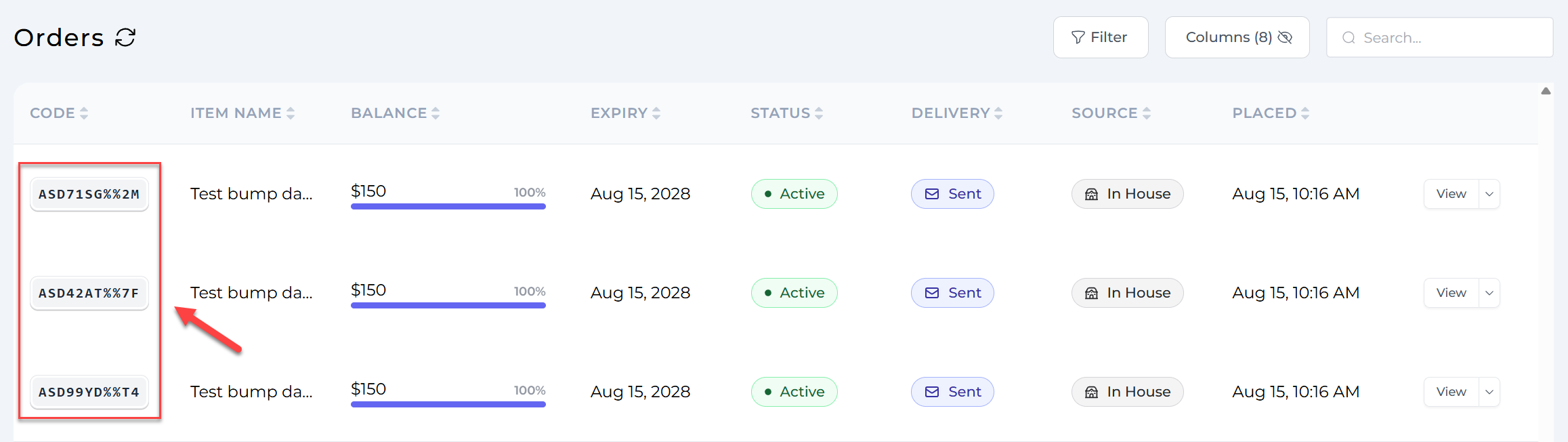
Three separate orders created and linked for tracking
Benefits of Bulk Purchasing
- Boost sales volume – Customers can buy multiple vouchers in one go.
- Better customer experience – Faster and simpler checkout for gift-giving.
- Easy order management – Each voucher has its own order record, making fulfilment and tracking simple.