









How to Change the PDF Template for a Voucher Item
If you are running a seasonal promotion, for example a Mother’s Day campaign, you may want your promotional vouchers to feature a themed design. With VaocherApp, you can link a voucher item to a different PDF template, ensuring customers receive a design that reflects the occasion or matches the product being sold.
Step 1: Access the Items Page
Log in to your VaocherApp dashboard and navigate to the Items section.
Locate the voucher item you wish to update and select it.
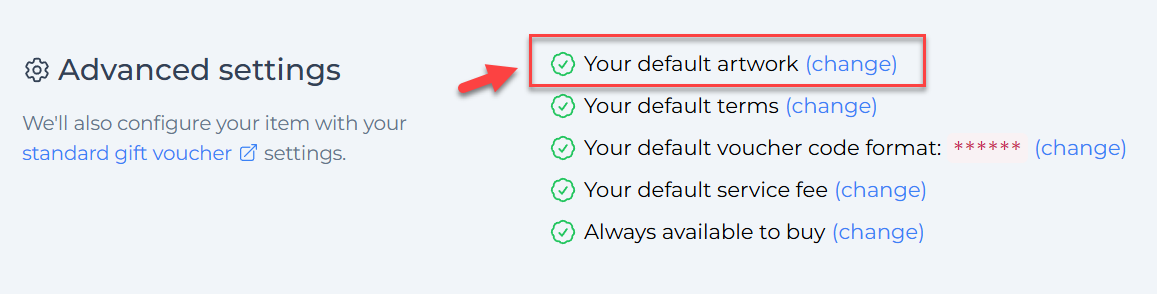
Step 2: Click “Your default artwork”
In the selected item, scroll to Advanced settings, then click Your default artwork.
This will reveal the option to change the PDF template.
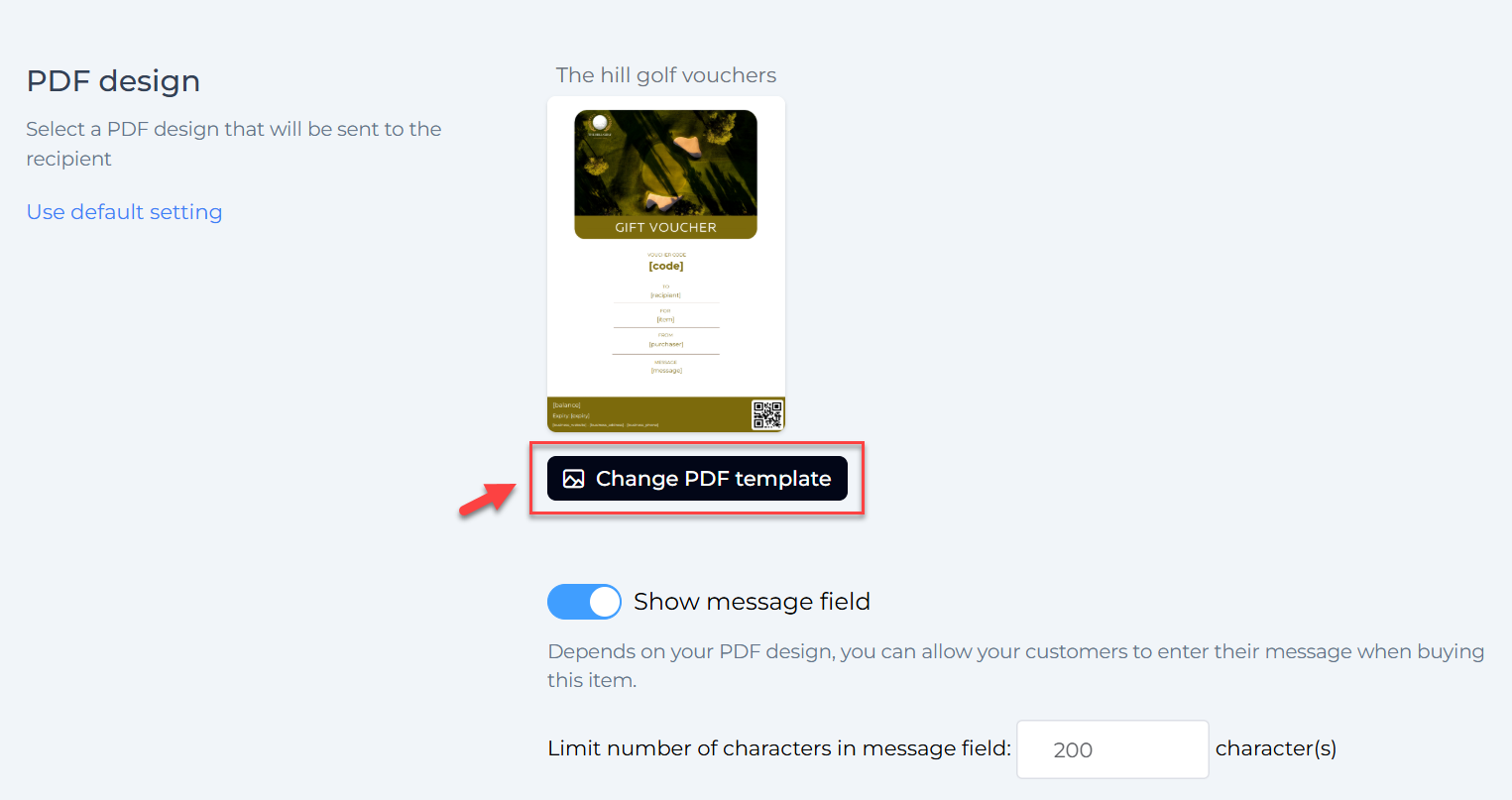
Step 3: Select “Change PDF template”
Click the Change PDF Template button to open the template selection panel.
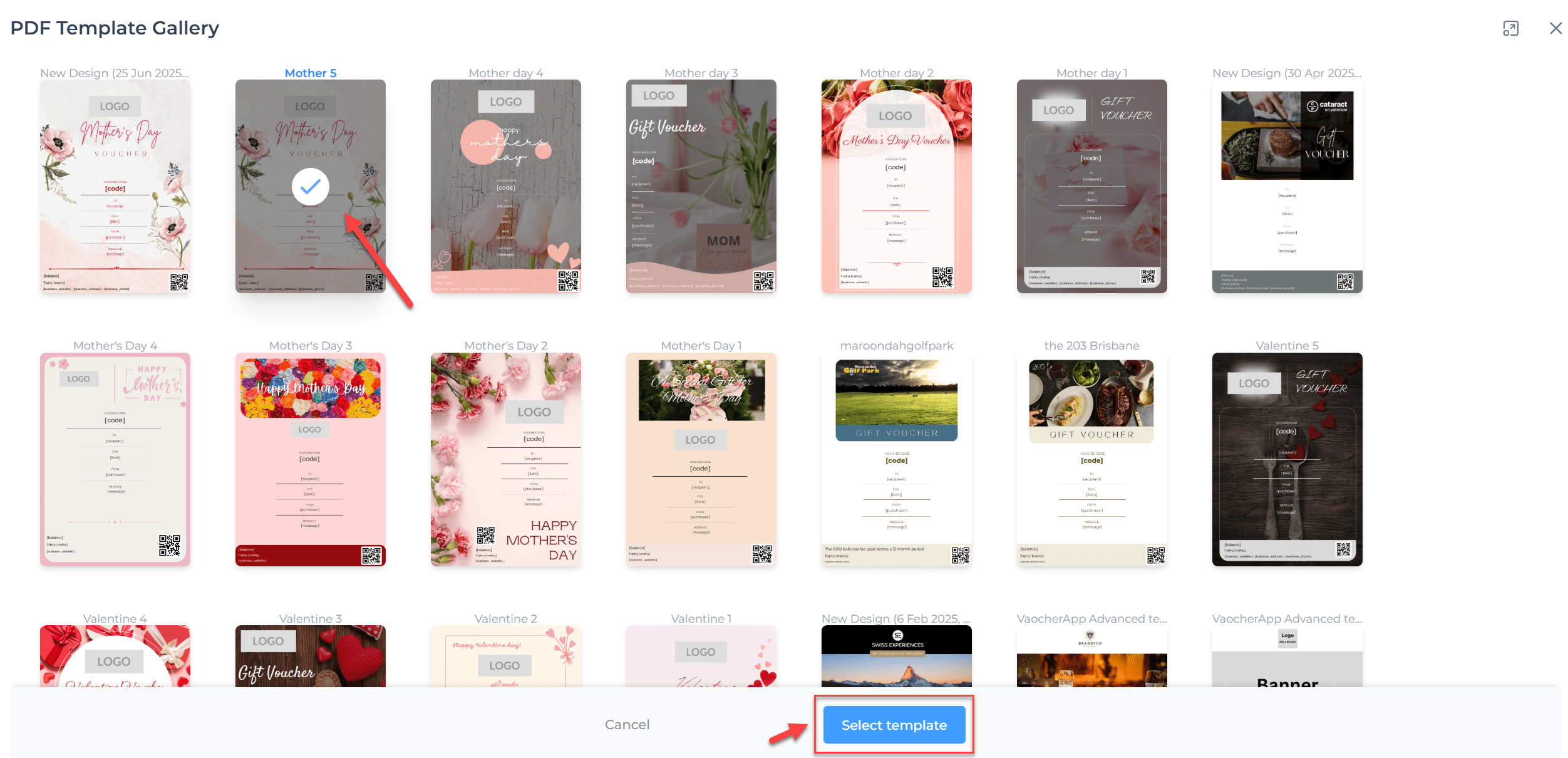
Step 4: Choose Your Template
- Browse the available PDF templates.
- Select a design that best suits your promotion, product, or theme.
(For example, a floral design for Mother’s Day or a minimalist style for luxury items.) - Click Select Template to confirm your choice.
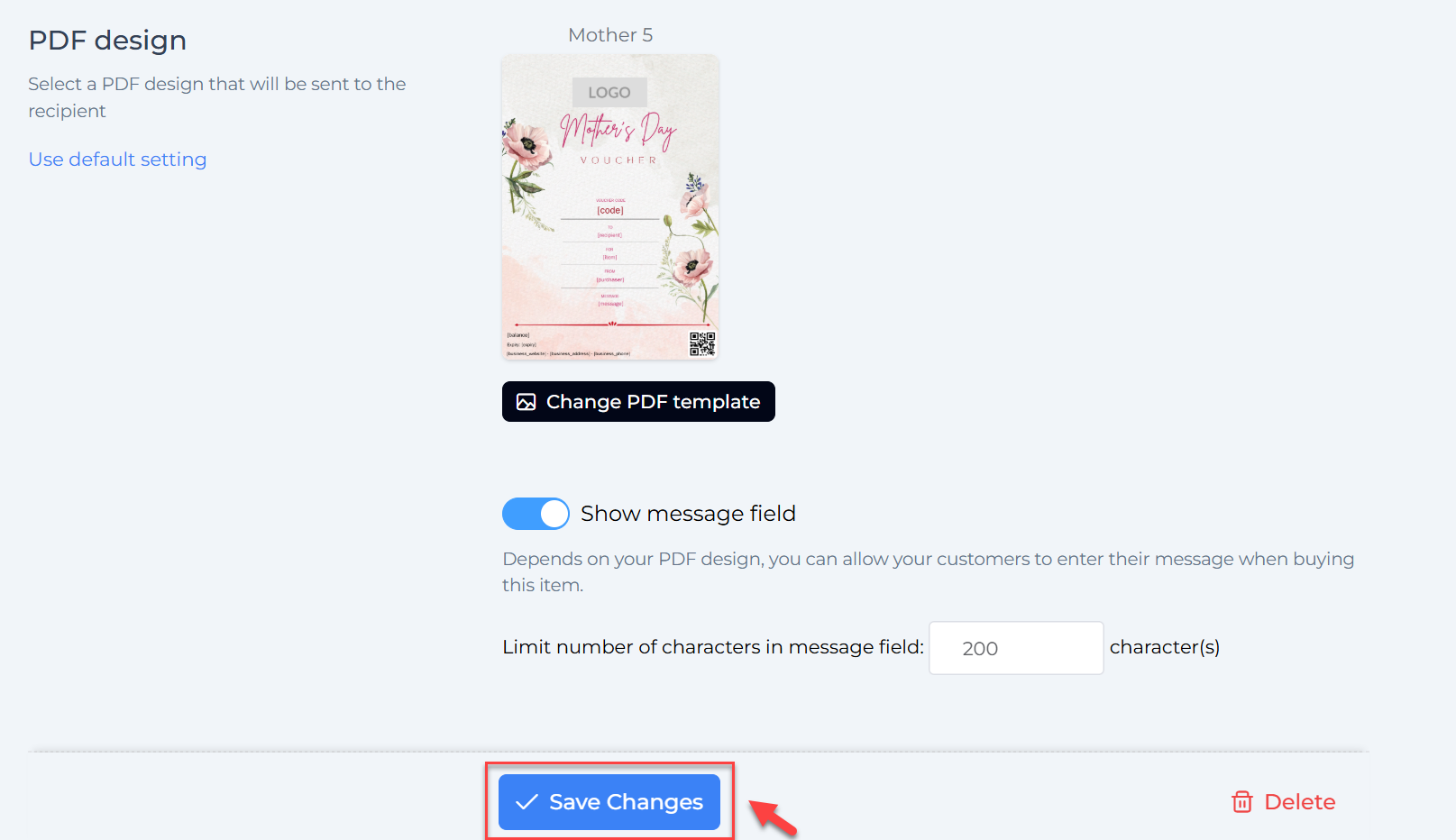
Step 5: Save Your Changes
Click Save Change to apply the selected template to your voucher item.
Completion
Your voucher item is now linked to a customised PDF template, ensuring the design is relevant and visually consistent with your campaign or product.