









How to Sell Voucher In-Store Using the VaocherApp Mobile App
You can now issue a gift voucher right from your phone in just a few steps using the VaocherApp mobile app — available on both iPhone and Android.
👉 Download the app here:
Step-by-step guide:
1. Open the App & Tap “New Voucher”
At the bottom of the screen, tap the New Voucher button to begin.
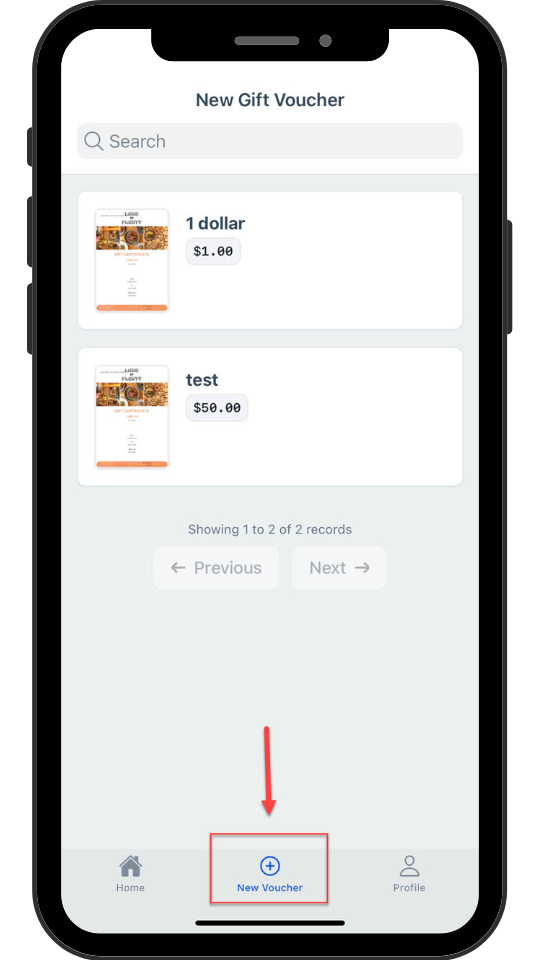
New Voucher
2. Choose a Voucher Item
Select the voucher item you want to issue from your available templates (e.g. $100, etc.).
3. Fill Out Voucher Details
You’ll see a form that looks like this:
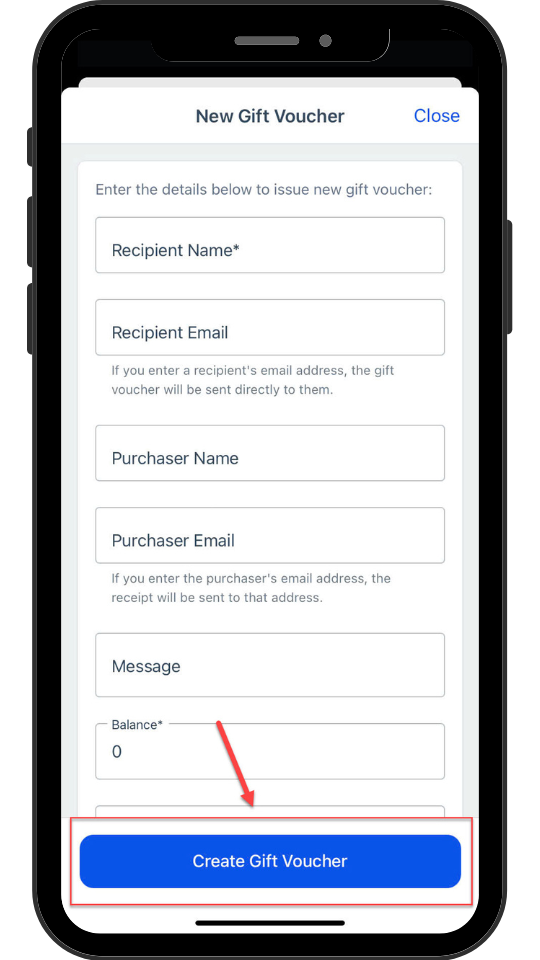
Fill out voucher details
Fill in the following fields:
- Recipient Name (required)
- Recipient Email – The voucher will be sent to this email.
- Purchaser Name – The person buying the voucher.
- Purchaser Email – The receipt will be sent here.
- Message – Optional personalised message.
- Balance – The dollar amount of the voucher (e.g. 100).
- Expiry – Optional. Leave blank for no expiry.
- Quantity – Use the slider to select how many vouchers to issue.
- Custom Fields – Additional fields such as Recipient DOB or Phone Number (if set up in your account).
4. Tap “Create Gift Voucher”
When you’re ready, tap the big blue Create Gift Voucher button.
The voucher will be created and sent (if an email was entered).
Redeeming a Voucher
After the voucher is issued, you’ll see options to redeem it:
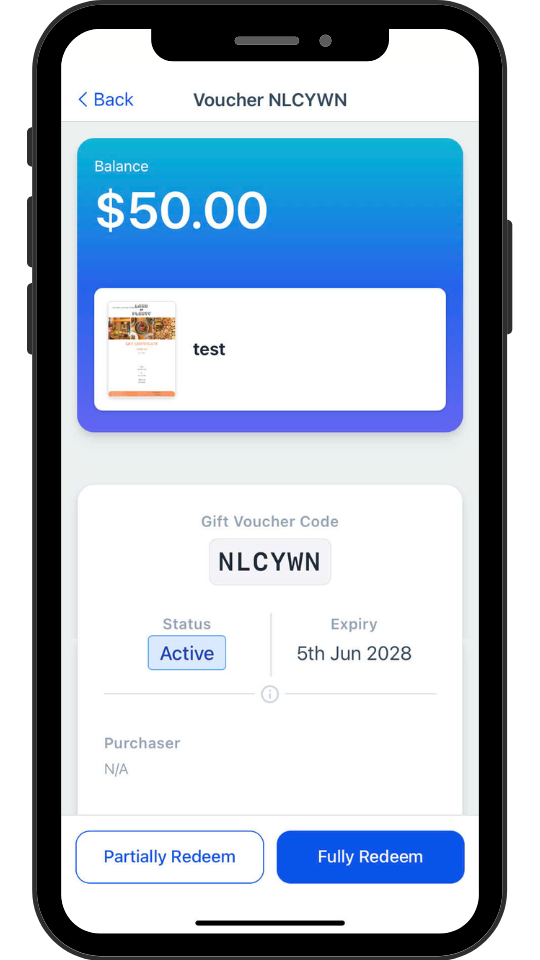 Redeeming a Voucher
- Partially Redeem – Use only part of the value.
- Fully Redeem – Use the full amount at once.