









In-Store Gift Card Redemption Using VaocherApp Mobile App
When customers choose to settle their bills with a VaocherApp gift card at your venue, you can effortlessly authenticate and redeem their vouchers through multiple streamlined methods:
VaocherApp Mobile Application
Our mobile app is compatible with iPhones, iPads, Android smartphones, and tablets, offering a flexible solution to handle gift card redemptions directly from your mobile device.
VaocherApp Online Redemption Portal
Access our web-based portal via VaocherApp on any standard web browser. This option allows you to redeem gift cards without installing additional software.
Learn more about voucher redemption via online web portal>
POS System Integration
Integrate VaocherApp’s redemption functionalities seamlessly into your existing Point of Sale (POS) systems, such as LightSpeed or SwiftPOS. This integration enables smooth and efficient transactions, allowing you to process gift card redemptions directly through your current POS infrastructure.
For details, see our Lightspeed POS integration and SwiftPOS integration articles.
For the most efficient and straightforward setup, we suggest starting with our mobile application:
Step-by-Step Guide to Using the VaocherApp Mobile App
Once you have installed the VaocherApp mobile application, follow these steps to redeem gift cards (the process is identical for the web redemption portal):
-
Launch the VaocherApp: Open the application on your phone or tablet.
-
Log In to Your Account: Sign in using your VaocherApp account email and password. If you’ve forgotten your password, you can reset it here. Alternatively, if Single Sign-On (SSO) is enabled for your account, you can use that method to log in.
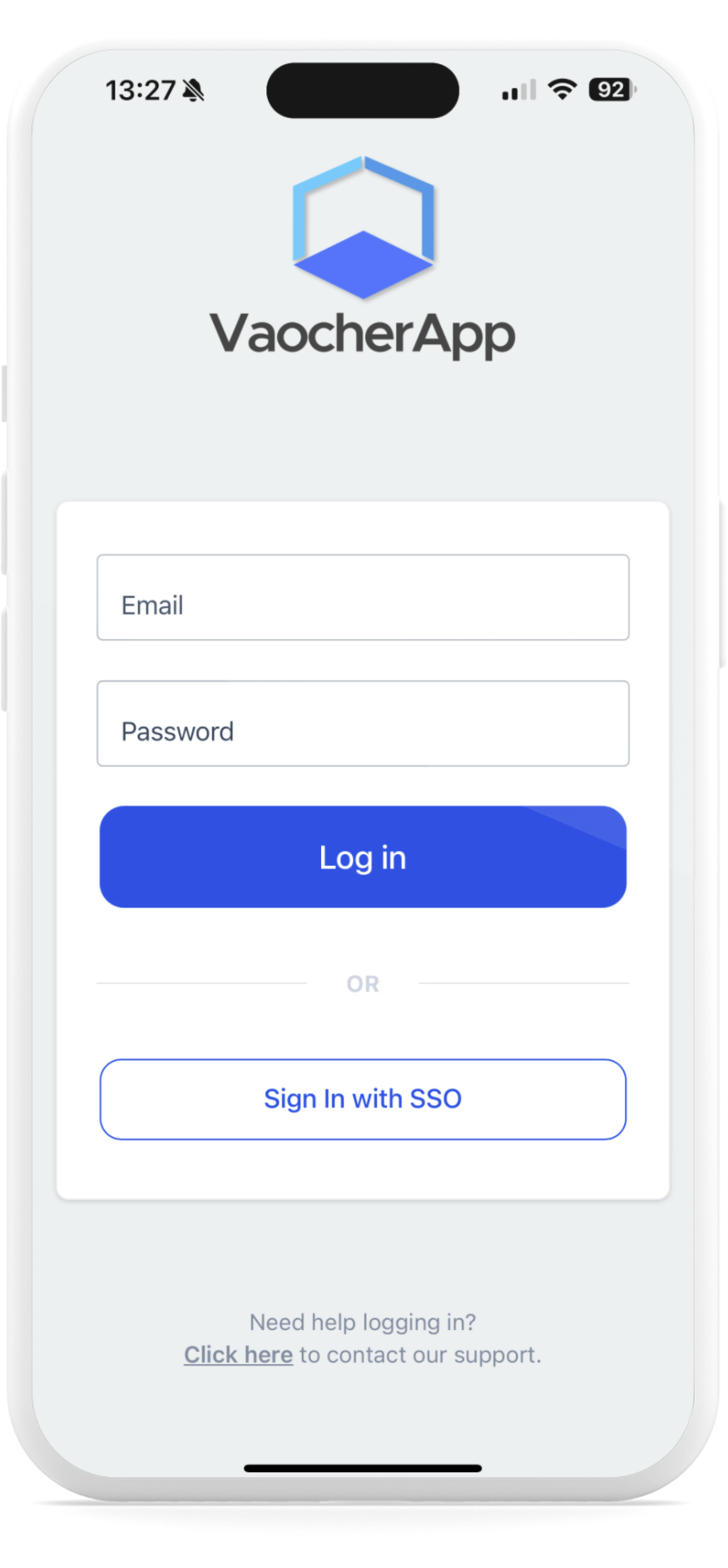
Log in to your account -
Select the Voucher to Redeem: After logging in, you can search for the voucher by entering the 6-digit code found on the PDF voucher or by scanning the associated QR code.
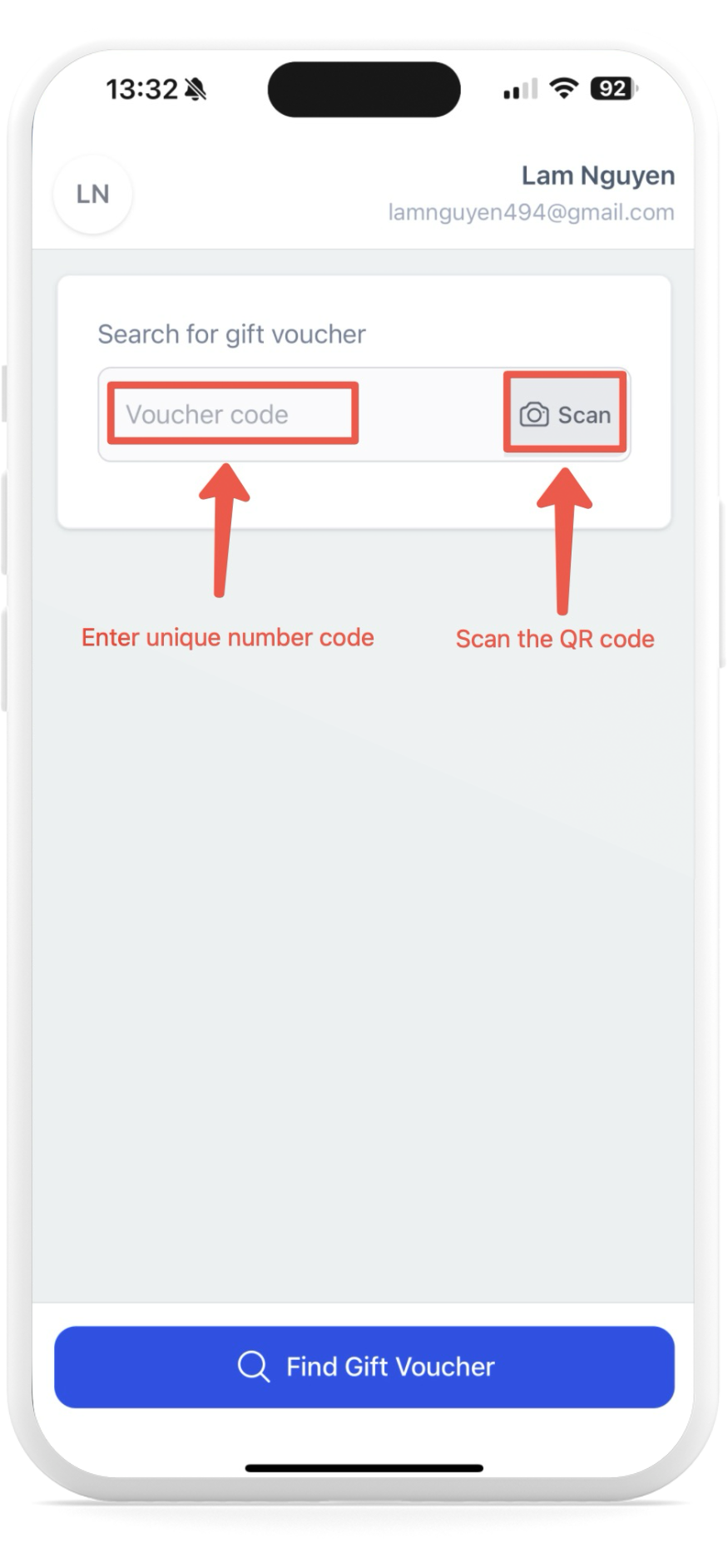
Select the voucher to redeem Below is an example of a PDF voucher indicating the unique voucher code and QR code locations.
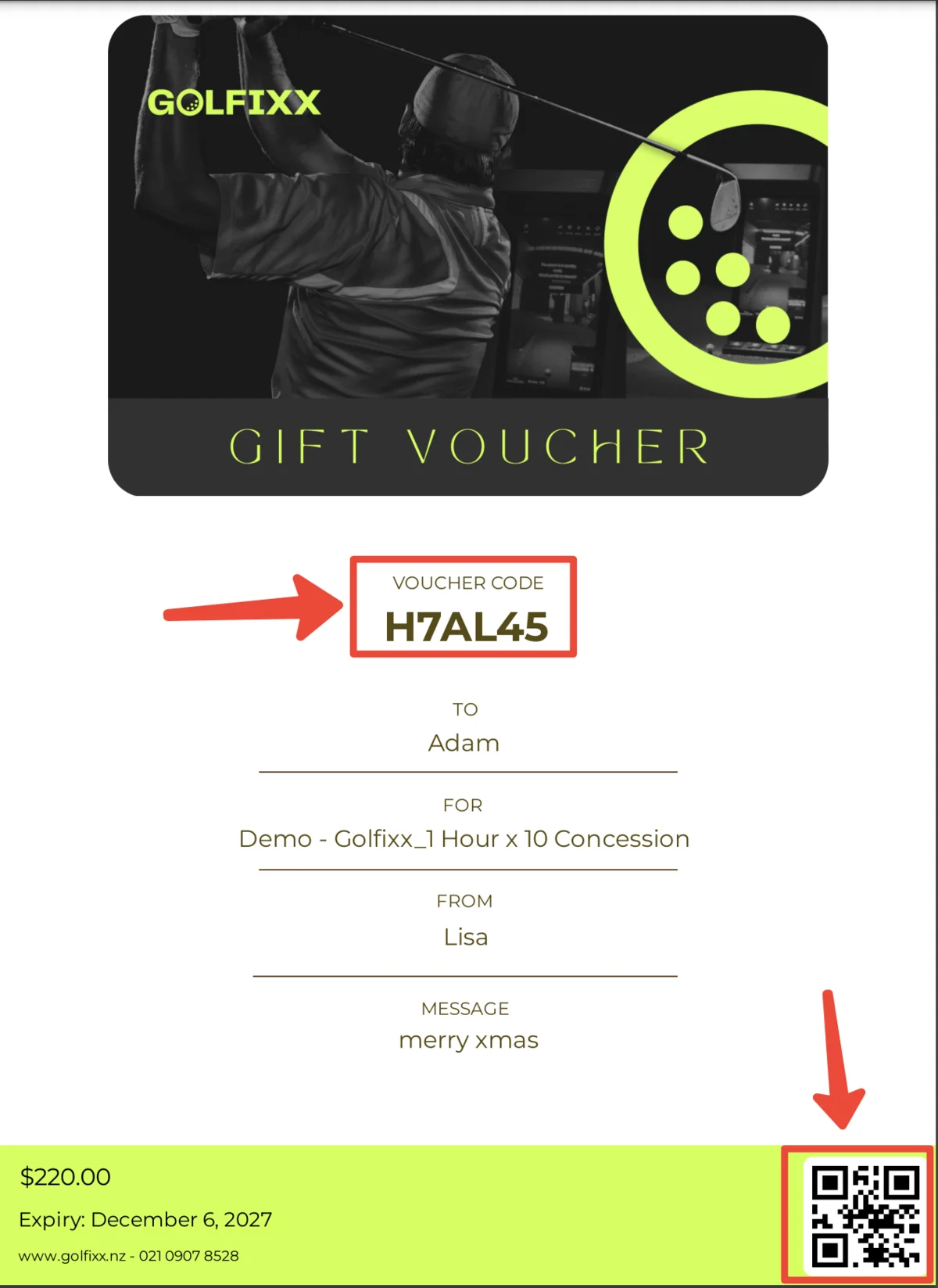
Example of a PDF voucher -
Initiate Redemption: Click on “Find Gift Voucher” to proceed to the redemption options.
-
Complete the Redemption Process:
- Full Redemption: Click “OK” to confirm the complete redemption of the gift card.
- Partial Redemption: Enter the desired amount to redeem and then click “Redeem” to process a partial redemption.
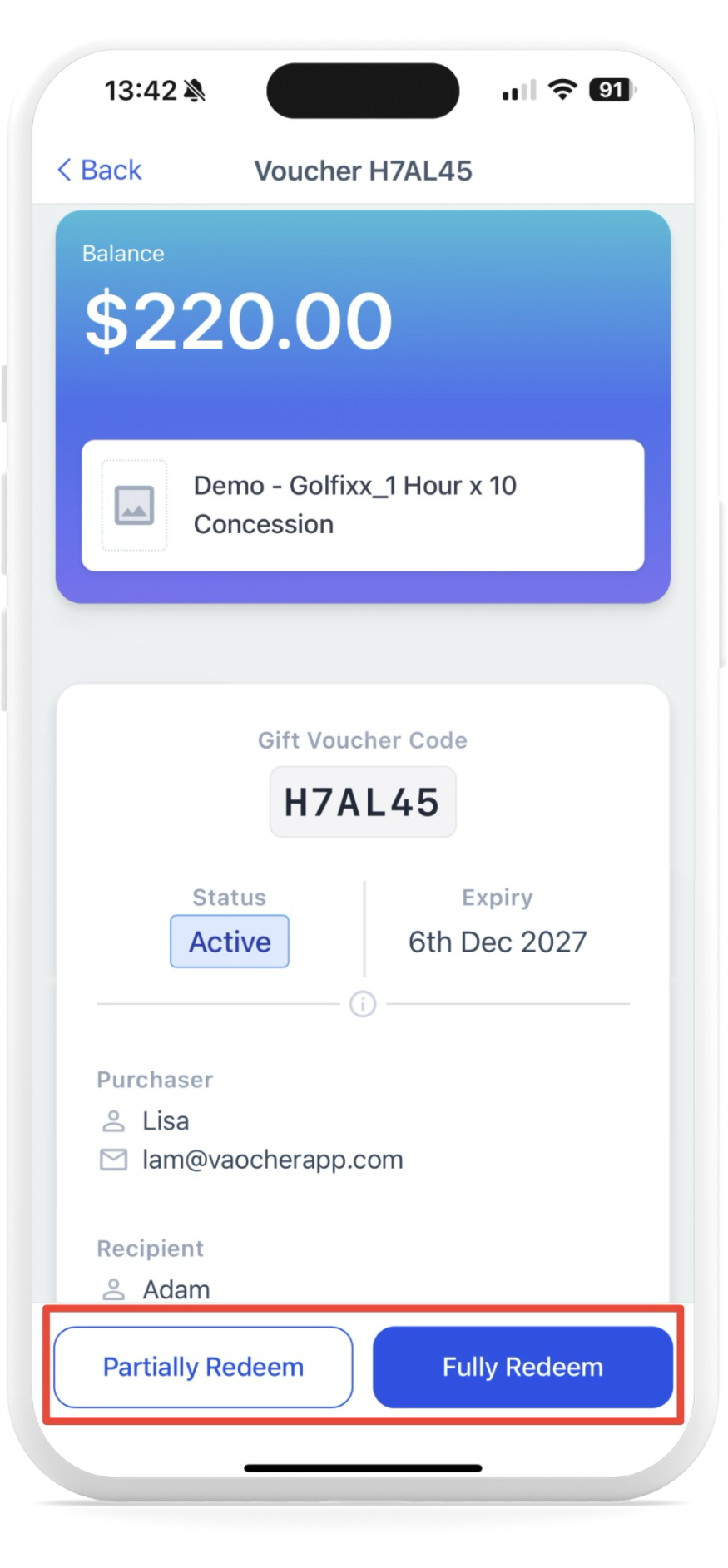
Partially Redeem or Fully Redeem Once completed, the voucher is successfully redeemed, and the transaction is finalised.
Redeeming Vouchers in Test Mode
If you wish to simulate the redemption process for training or testing purposes, you can activate test mode within your merchant dashboard and purchase test vouchers.
Learn how to enable test mode and place test orders in your merchant dashboard ›
Here’s how to redeem a test voucher in mobile app:
Enable Test Mode:
-
Open the VaocherApp mobile application.
-
Tap on your name located at the top right corner of the screen.
-
Select “Edit Profile.”
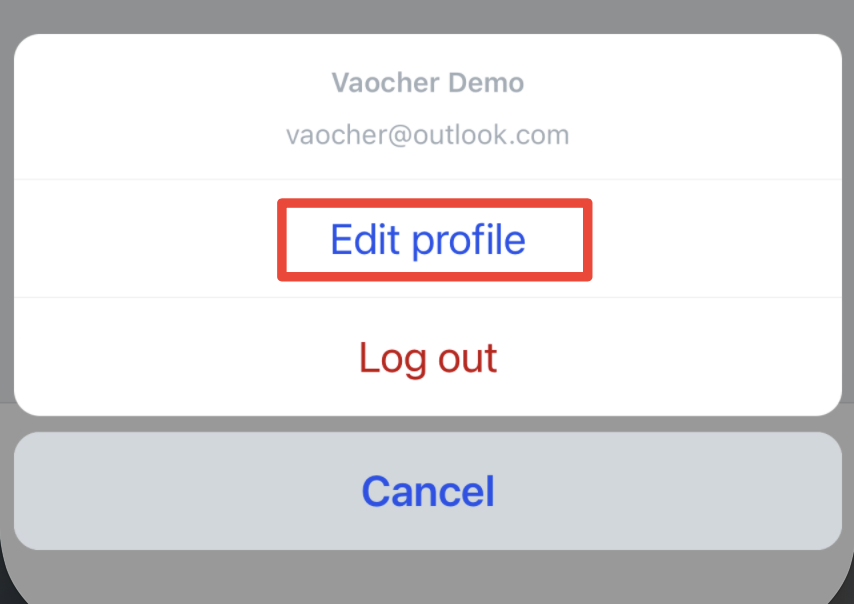
Edit Profile -
Toggle on “Test Mode.”
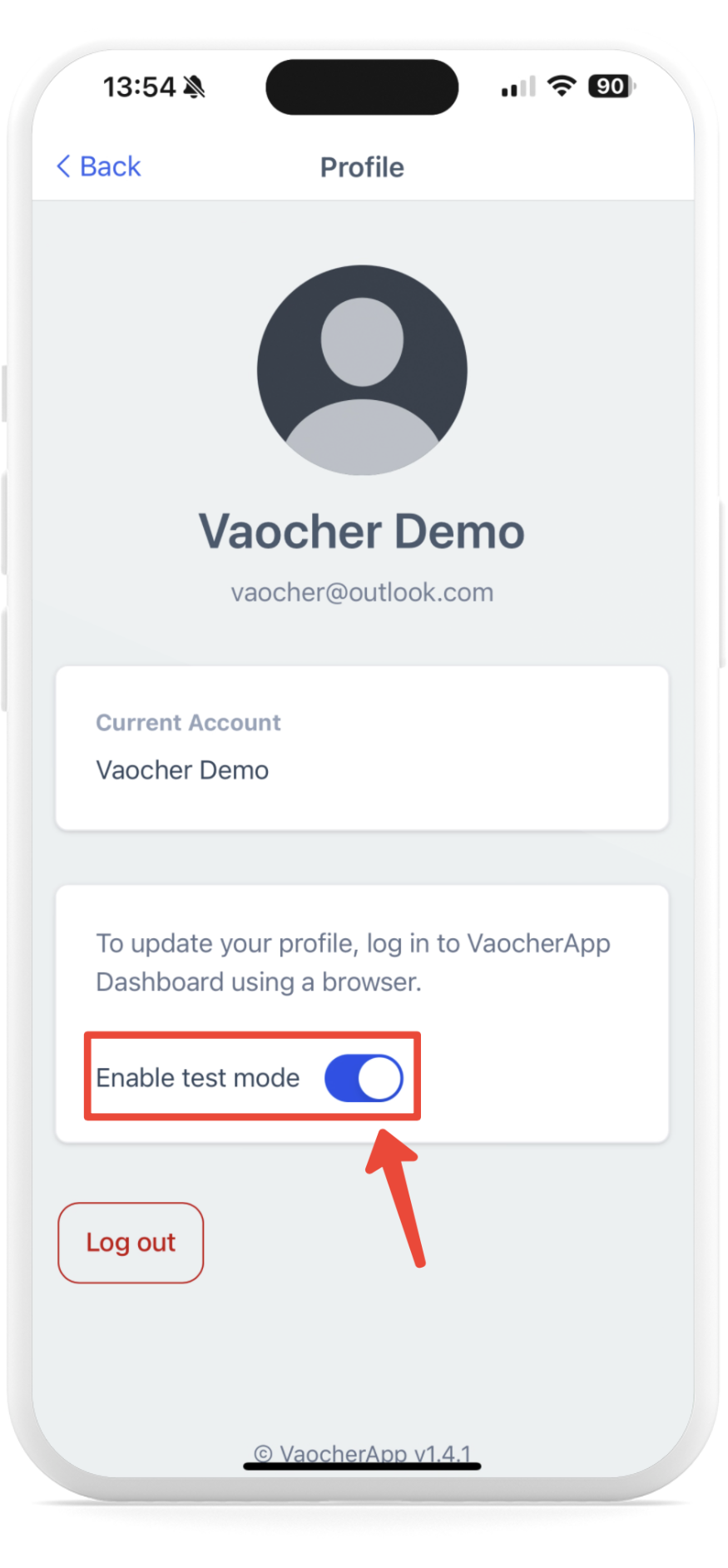
Toggle on Test Mode
Redeem the Test Voucher:
- Return to the app’s home screen.
- Search for the test voucher by entering its unique voucher code or by scanning the QR code, just as you would with a regular voucher.
- Redeem the voucher using the standard redemption process. A message will appear at the top of the voucher details indicating that it is a test voucher.
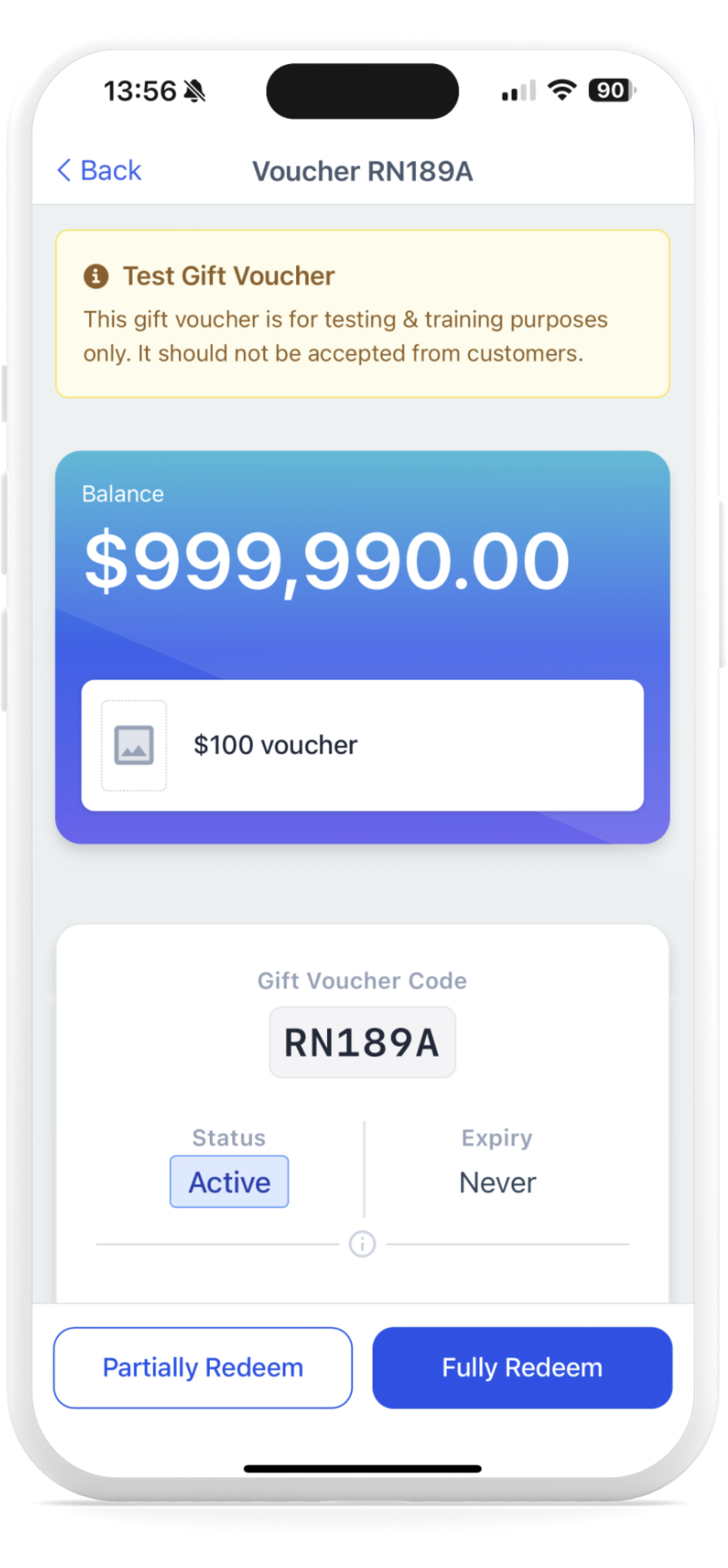
Redeem the Test Voucher
By following these easy steps, redeeming gift cards in-store with the VaocherApp mobile application becomes quick, efficient, and hassle-free!