









How to Export Financial Transactions
Want to keep a record of your transactions in VaocherApp? It’s super easy to export your financial data. Just follow the simple steps below to download a CSV file with all the details you need.
Step-by-Step Guide to Exporting Transactions
1. Go to Your Transactions Page
Head over to your Transactions page in VaocherApp.
2. Select the date range
Pick the date range for the transactions you want to export.
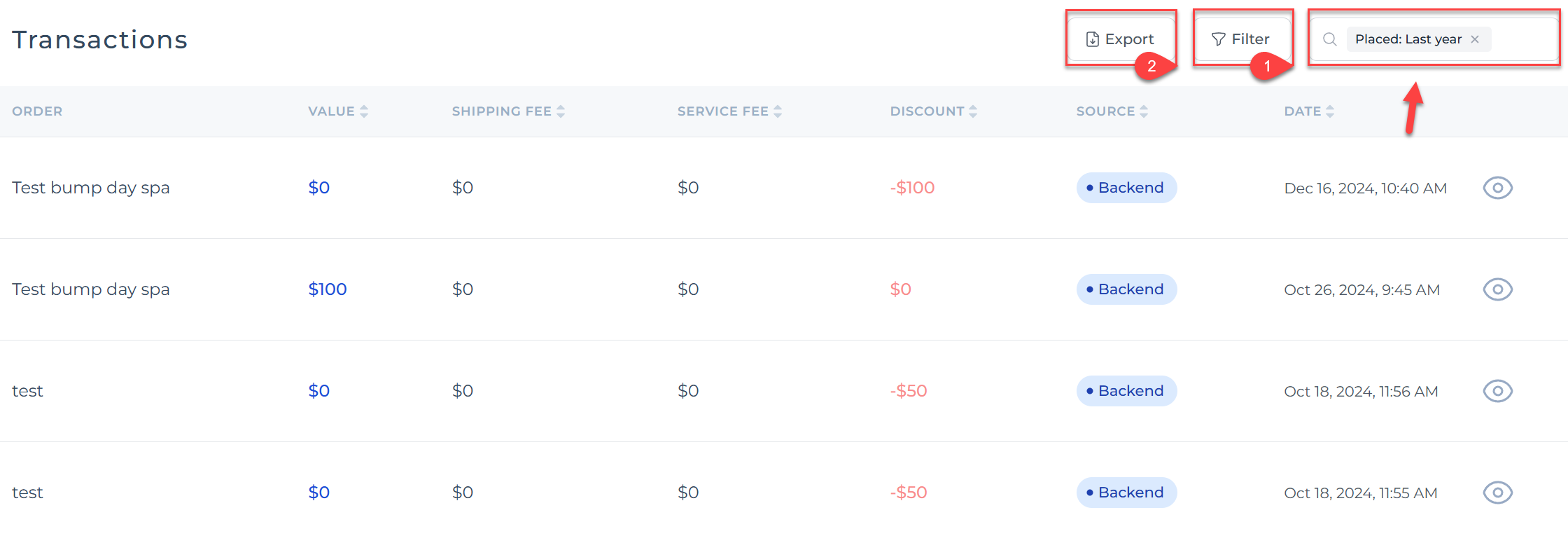
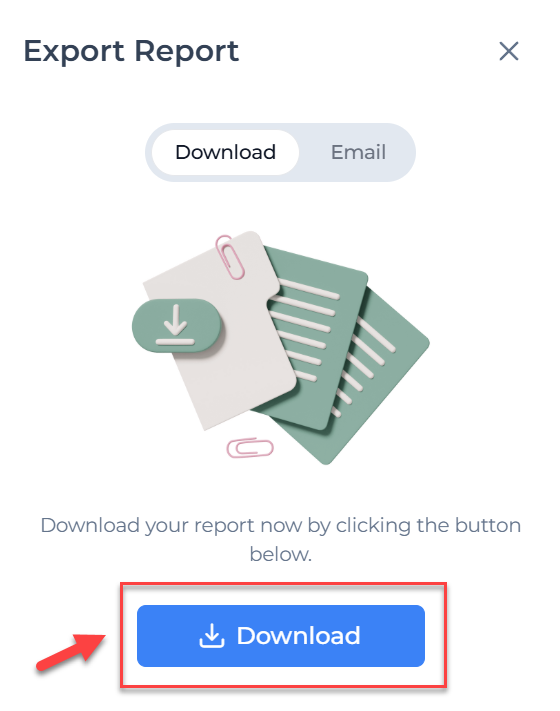
3. Click the Download Button
Once you’ve selected your date range, click the Export button.
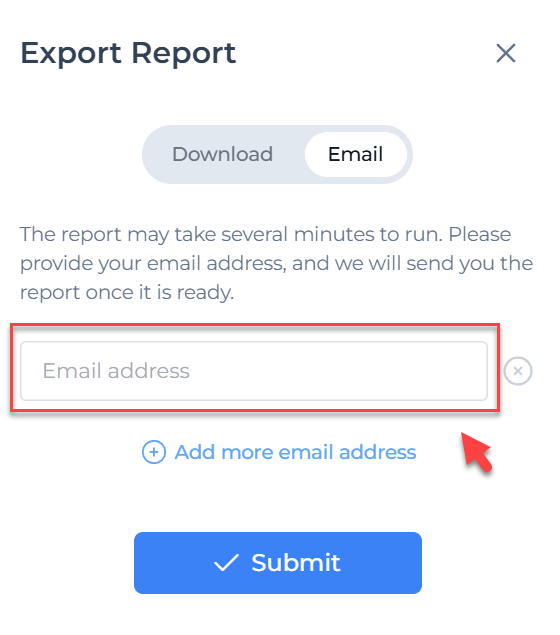
4. (Optional) Send the File to Your Email
You also have the option to get the export sent to your email. Handy if you’re on the go!
What’s Included in the CSV File?
The exported CSV file includes a detailed breakdown of each transaction. Here’s what you’ll find inside:
-
Item: Name of the voucher
-
Quantity: Number sold in the order
-
Value: Price of the item
-
Add-on: Extra items or services added
-
Shipping fee: Cost for delivery
-
Service fee: Any extra charges
-
Discount: Price reduction applied to the order
-
Source: Where the order was made (online checkout or backend)
-
Date: When the order was placed