









How to Run a Report to Check Expiring Vouchers
Need to stay on top of vouchers that are about to expire? VaocherApp makes it easy to see them and export a list.
Step 1: Open the expiry report
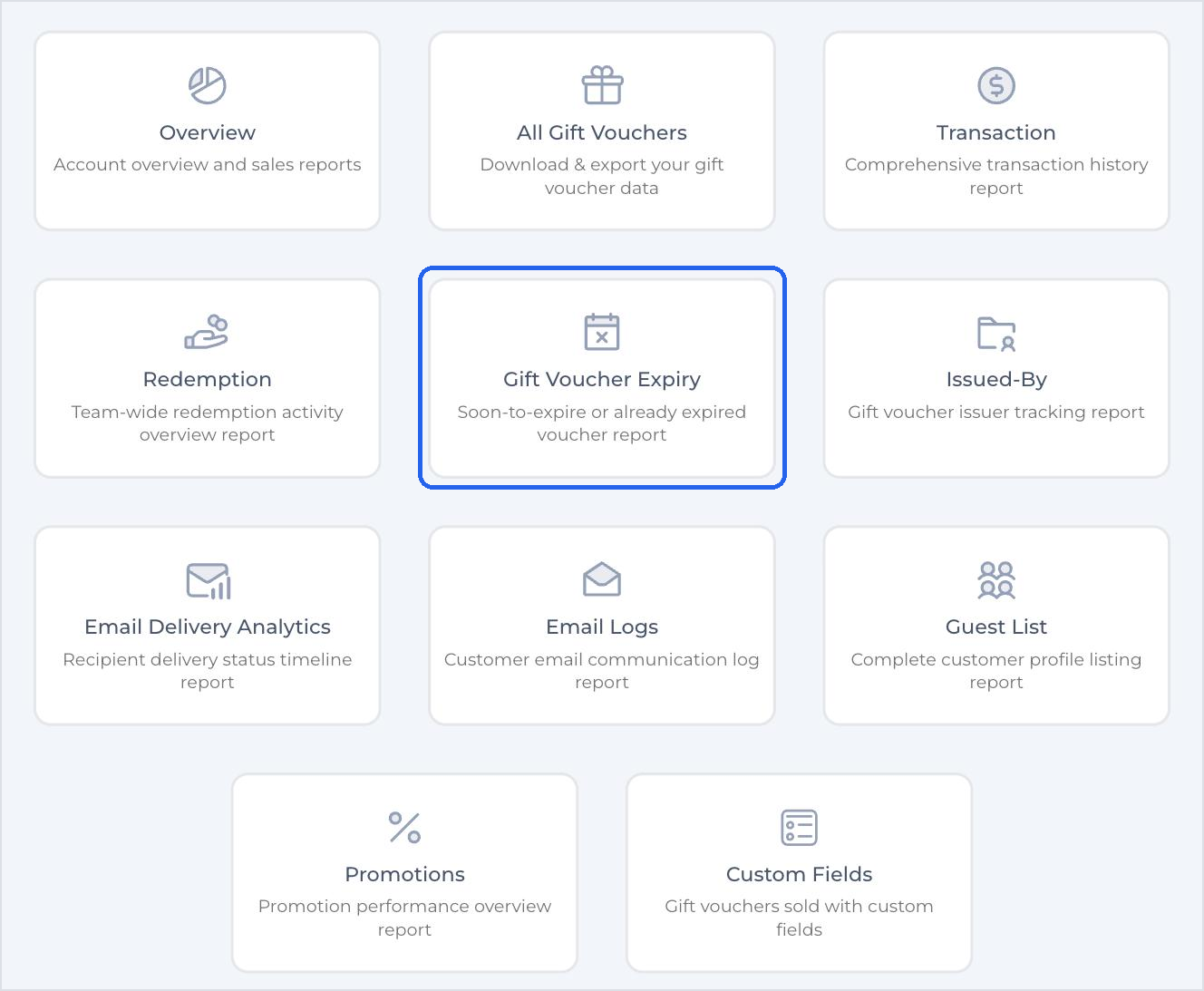
Click Reports, then Gift Voucher Expiry.
Step 2: Choose an expiry window
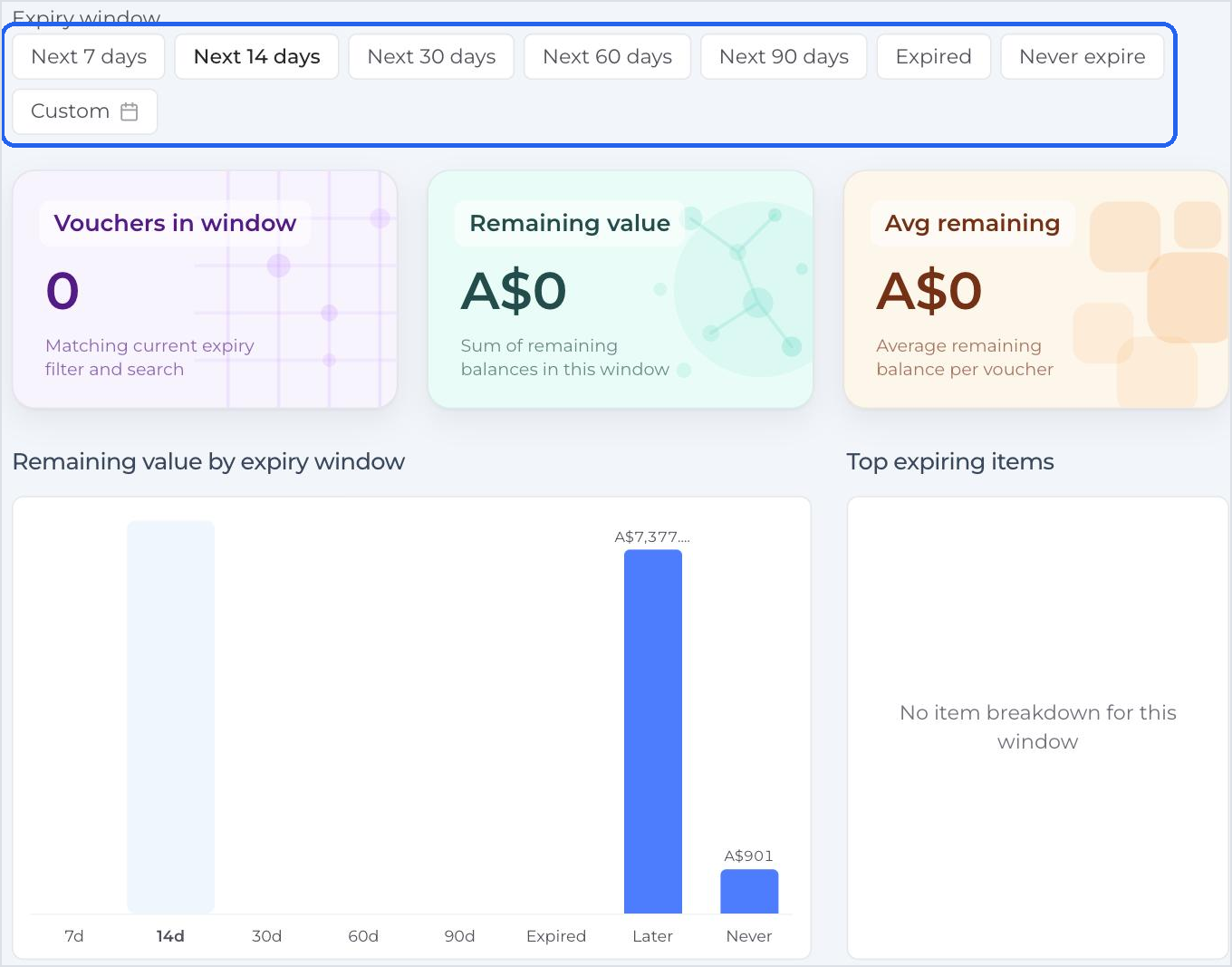
At the top, choose an Expiry window:
- Next 7 days, Next 14 days, Next 30 days, Next 60 days or Next 90 days
- Expired
- Never expire
- Custom (pick your own dates)
The report shows:
- Vouchers in window: how many vouchers match
- Remaining value: the total balance left on them
- Avg remaining: the average balance per voucher
- A chart of remaining value by expiry window, and your top expiring items
Step 3: Export the list
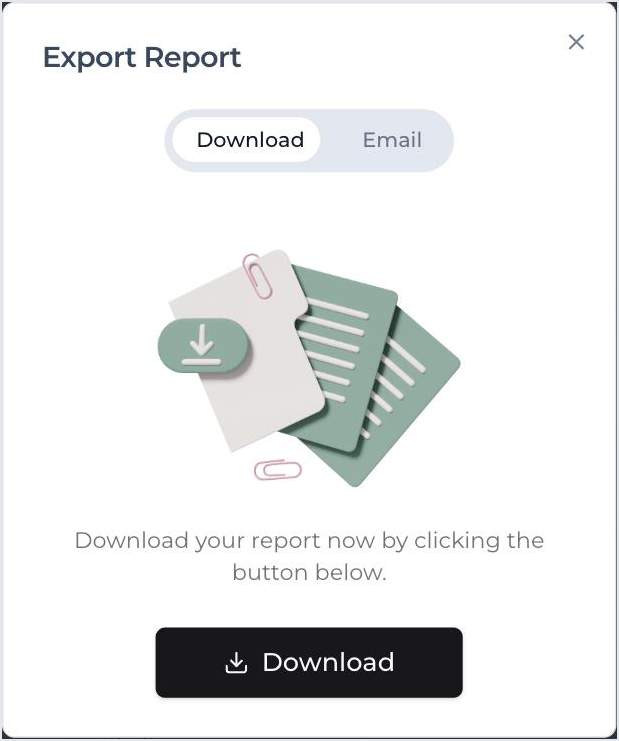
Click Export above the table, then Download to get a CSV file (or Email it for large reports). Use it to send customer reminders or run a promotion before vouchers expire.
What’s in the export
- Voucher ID:
unique reference for the voucher - Voucher code:
used to redeem the voucher - Status:
active, redeemed or voided - Expiry:
the voucher's end date - Item:
the item linked to the voucher - Item description:
a short summary of the item - Item terms and conditions:
any conditions for using the item - Initial balance:
original voucher value - Remaining balance:
value still available - Purchaser name
- Purchaser email
- Recipient name
- Recipient email
- Message:
any personal message - Source:
where the order was made: online checkout or backend - Placed:
the purchase date
With this report, you can manage upcoming expiries and keep track of your outstanding vouchers.