









How to Issue a Complimentary (Free) Gift Voucher in VaocherApp
A complimentary gift voucher, also known as a free or $0 gift voucher, allows you to issue a gift voucher without charging the customer. This feature is commonly used for promotions, goodwill gestures, giveaways, staff vouchers, or replacing an existing voucher.
In VaocherApp, you can easily issue a complimentary voucher by selecting the option “The customer is not being charged for this gift voucher(s).” when creating a new voucher.
What Is a Complimentary Gift Voucher?
A complimentary gift voucher is a voucher issued with a $0 checkout value, meaning:
- No payment is collected
- No payment gateway is used
- The voucher can still be redeemed like a normal voucher
These free gift vouchers function exactly the same as paid vouchers when redeemed in-store or online.
When to Issue a Free Gift Voucher
You may want to issue a complimentary or free gift voucher if you are:
- Offering a goodwill or apology voucher
- Running a promotion or giveaway
- Rewarding loyal customers
- Issuing staff or internal vouchers
- Replacing a lost or expired voucher
How to Issue a Complimentary Gift Voucher in VaocherApp
Follow the steps below to issue a free ($0) gift voucher.
Step 1: Go to Issue New Voucher
- Log in to your VaocherApp dashboard
- Navigate to Orders
- Click Issue New Voucher

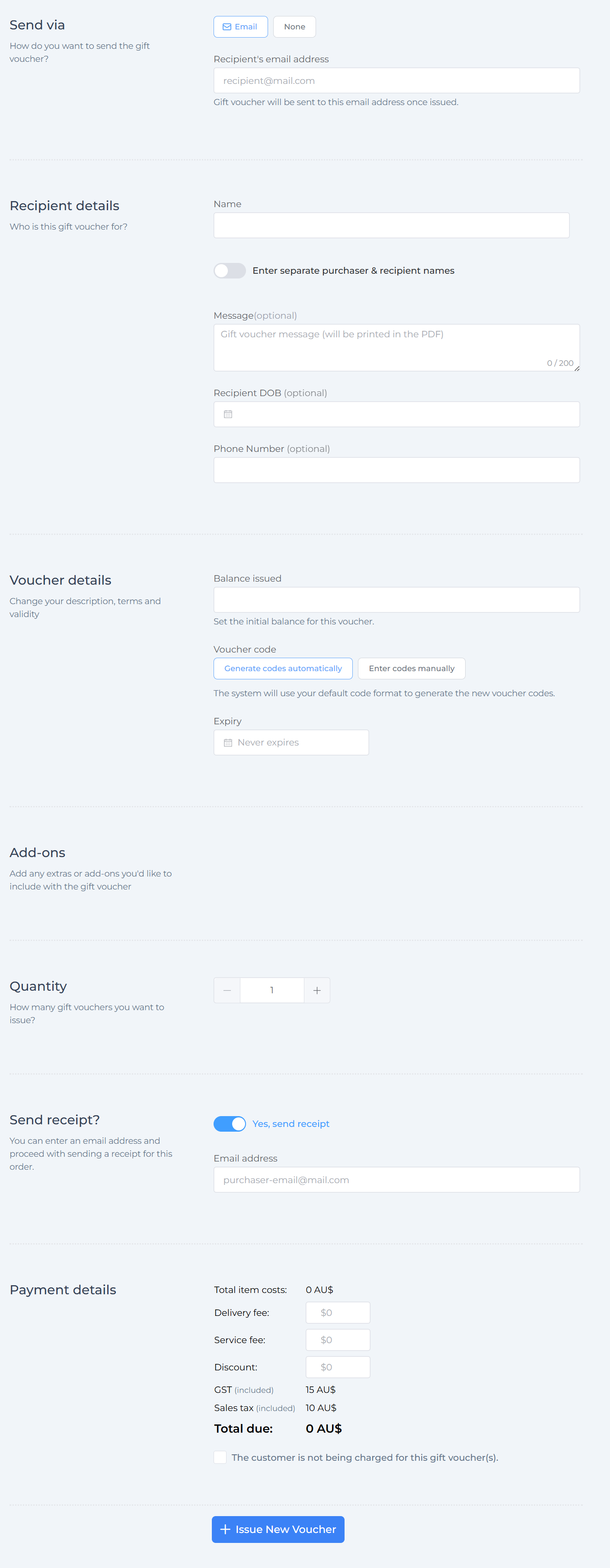
Step 2: Enter Gift Voucher Details
Complete the voucher information as normal, including:
- Send via (recipient’s email address)
- Recipient details (name, message, recipient DOB, phone number)
- Voucher details (balance issued, voucher code, expiry date)
- Quantity
- Send receipt?
- Tick Yes and enter the purchaser’s email address if you would like to send a receipt
- Payment details
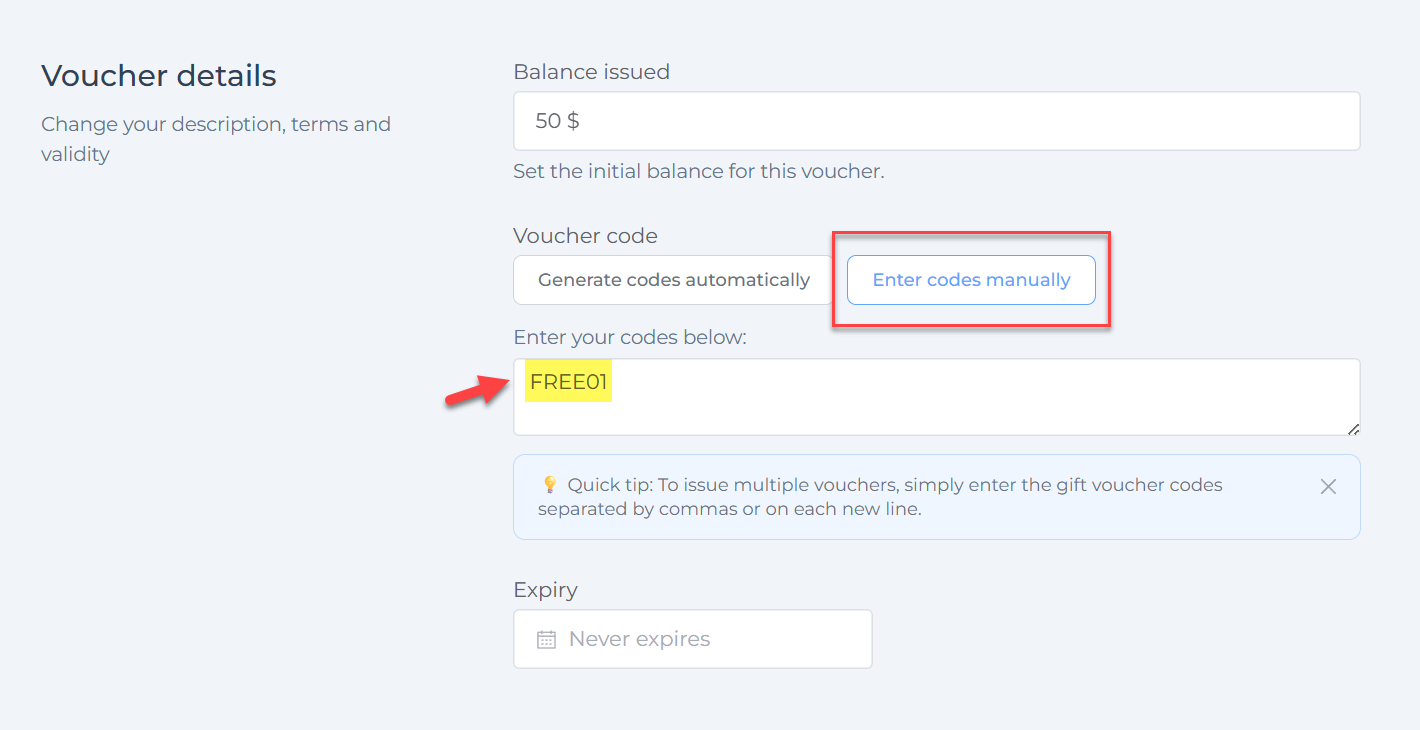
You can also choose the option in the voucher code field to enter codes manually for complimentary vouchers, which can be useful for easier identification and categorisation.
Step 3: Tick the Complimentary Voucher Option
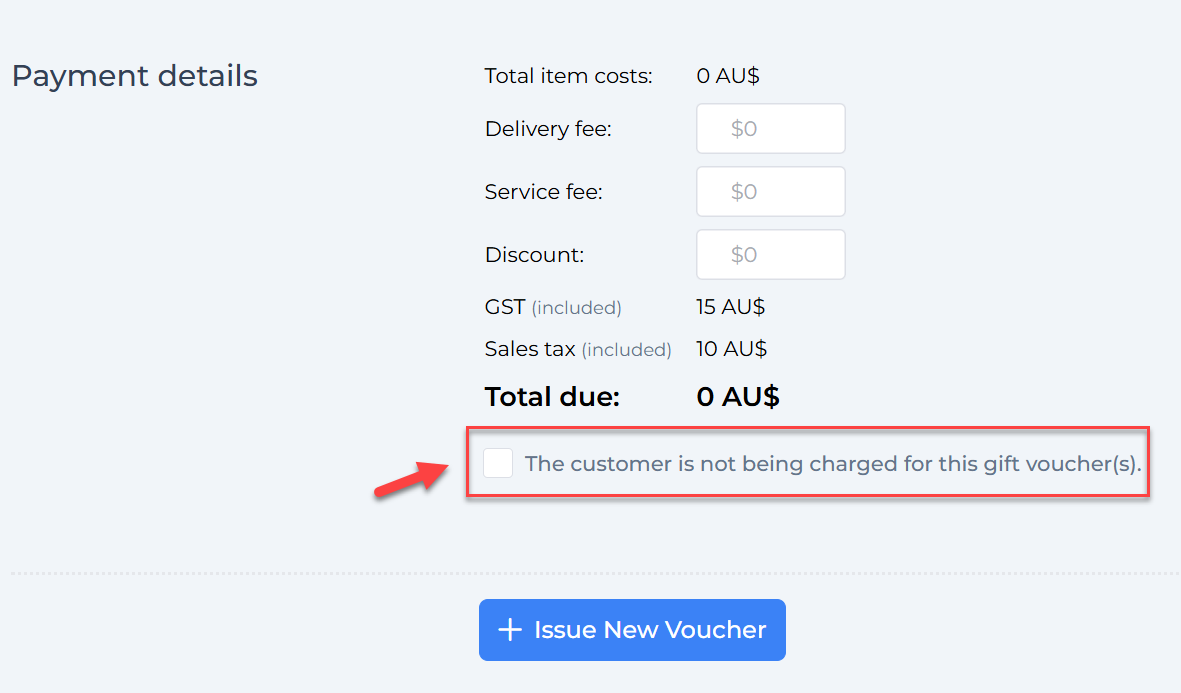
Tick the checkbox:
“The customer is not being charged for this gift voucher(s).”
When this option is selected:
- The gift voucher total becomes $0
- No payment is required
- No payment gateway is triggered
Step 4: Issue the Free Gift Voucher
Click Issue New Voucher to finish.
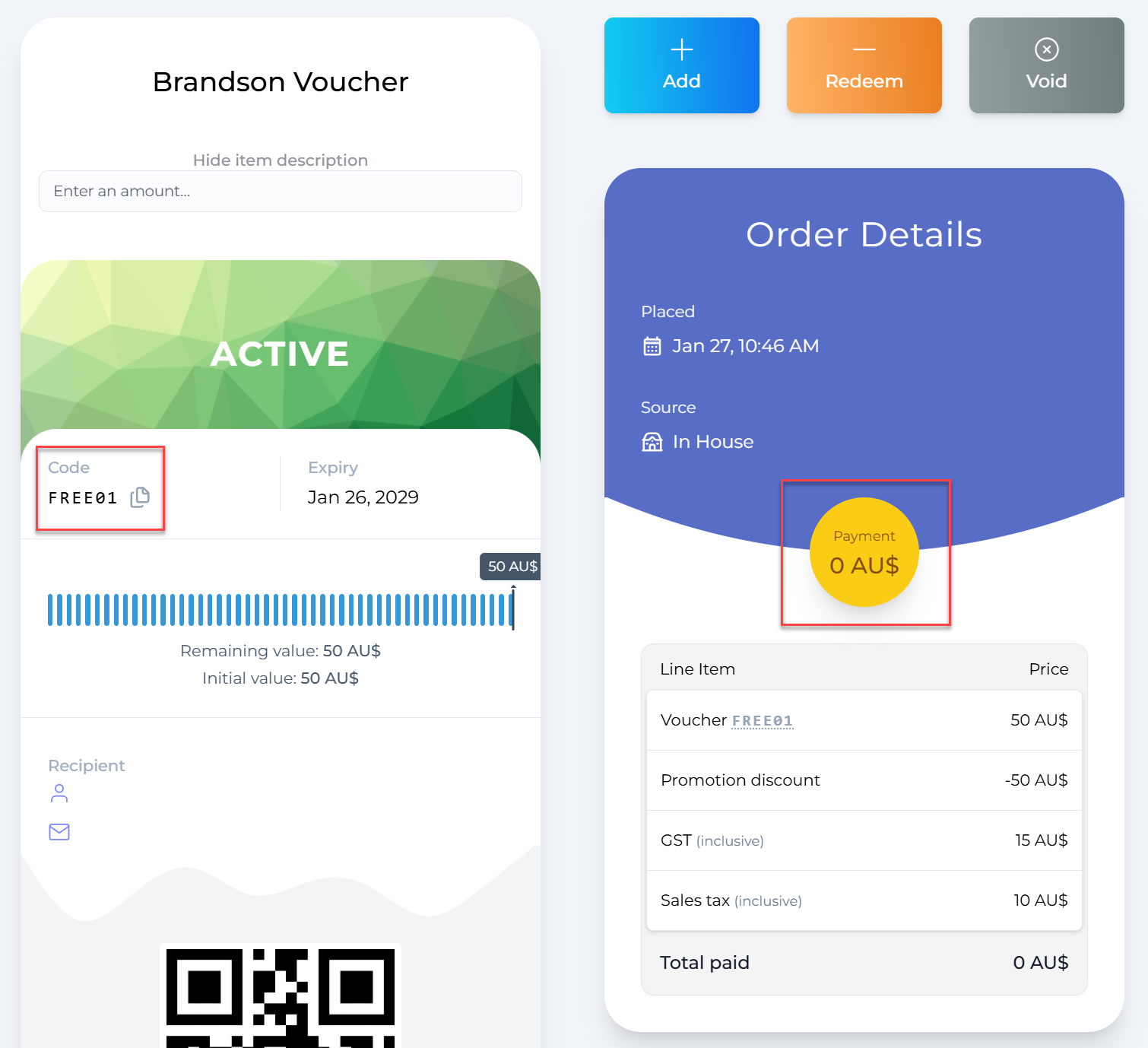
The complimentary gift voucher will:
- Be generated instantly
- Be emailed to the recipient (if an email address is entered)
- Appear in your voucher list as a complimentary voucher
- Be redeemable in the same way as a paid voucher
Important Notes About Complimentary Vouchers
- Complimentary gift vouchers do not generate revenue
- They do not affect payouts or settlements
- They do not require a connected payment method
- They follow the same expiry and redemption rules as paid vouchers
- They are fully tracked in reports
Reporting and Tracking Complimentary Gift Vouchers
All complimentary and free gift vouchers appear in your dashboard reports, allowing you to:
- Track issued and redeemed vouchers
- Monitor outstanding balances
- Keep accurate records for support and auditing
Complimentary vouchers are clearly labelled, making them easy to identify.