









How to Re-send Receipt Emails
VaocherApp is designed to streamline the process of sending transaction receipts. By default, the platform automatically sends receipt emails whenever a voucher is purchased. Below is an example of what a typical receipt email looks like:
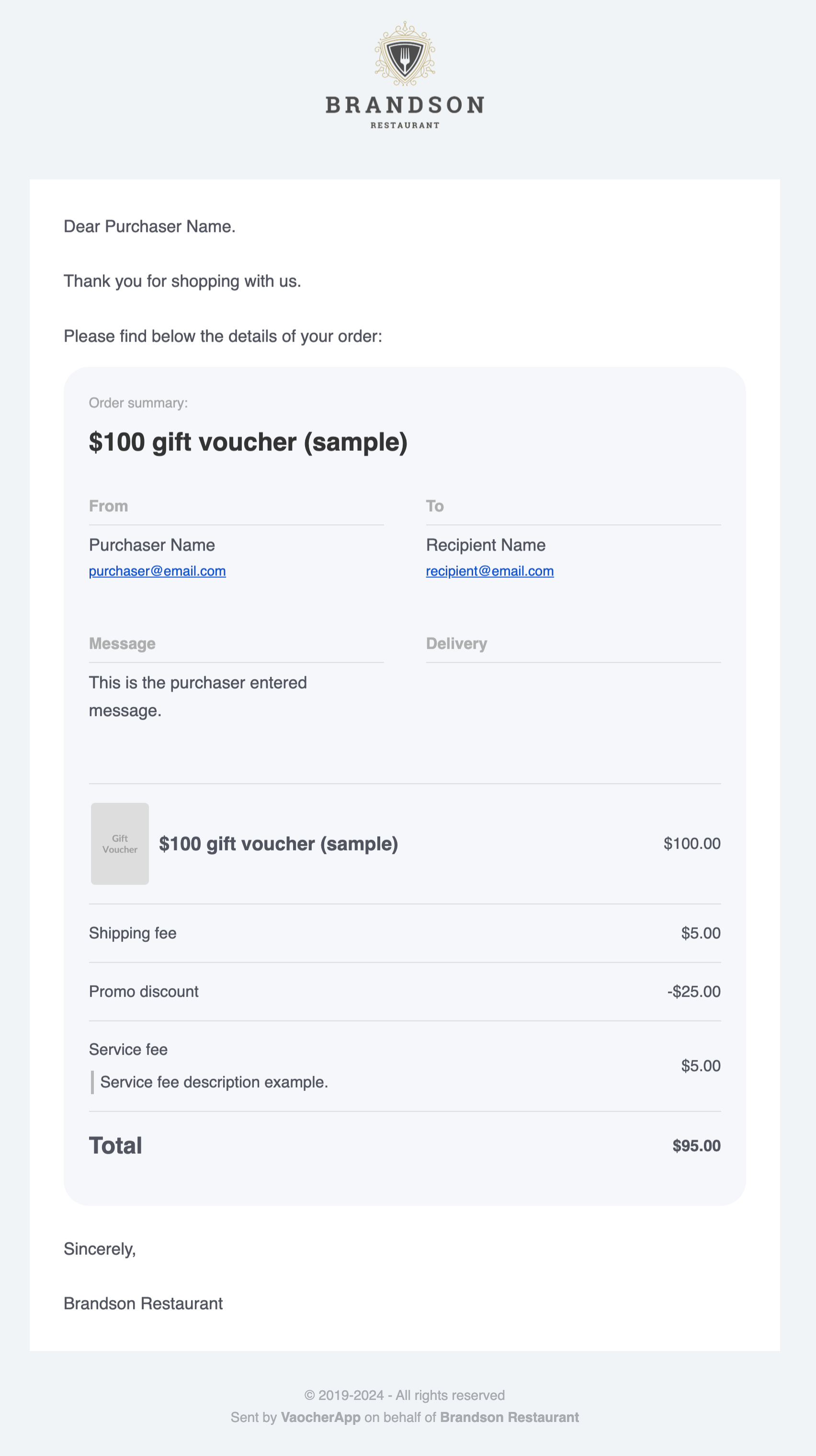
For more details on how the emails appear to your customers, please refer to our How Do the Emails Appear to the Buyer and Recipient article.
You can also monitor the status of these emails through your Email Logs.
Steps to Resend a Receipt Email
If you need to resend a receipt email, simply follow these steps:
1. Navigate to the Orders Section
Start by accessing the Orders section of your VaocherApp dashboard:
- Log In: Use your credentials to sign in to your account.
- Access Orders: Click on the Orders tab from the main menu.
2. Search for the Voucher Code
To find the correct purchase:
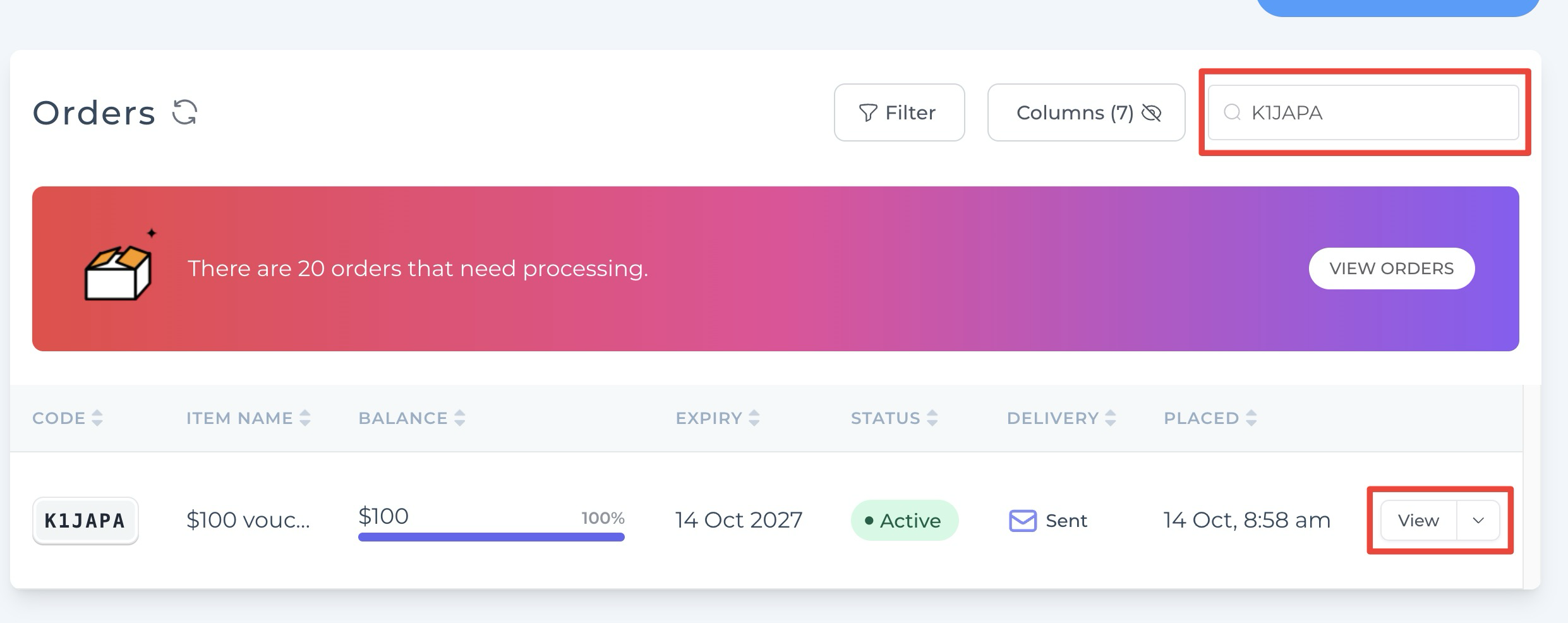
- Use the Search Bar: Enter the relevant voucher code into the search bar to locate the order.
- Browse Manually: Alternatively, scroll through your list of orders if you’re unsure of the voucher code.
3. View the Order Details
Once you’ve identified the order you need:
- Click on View: Select the View button next to the order to access detailed information.
4. Select the Email Option
With the order details open:
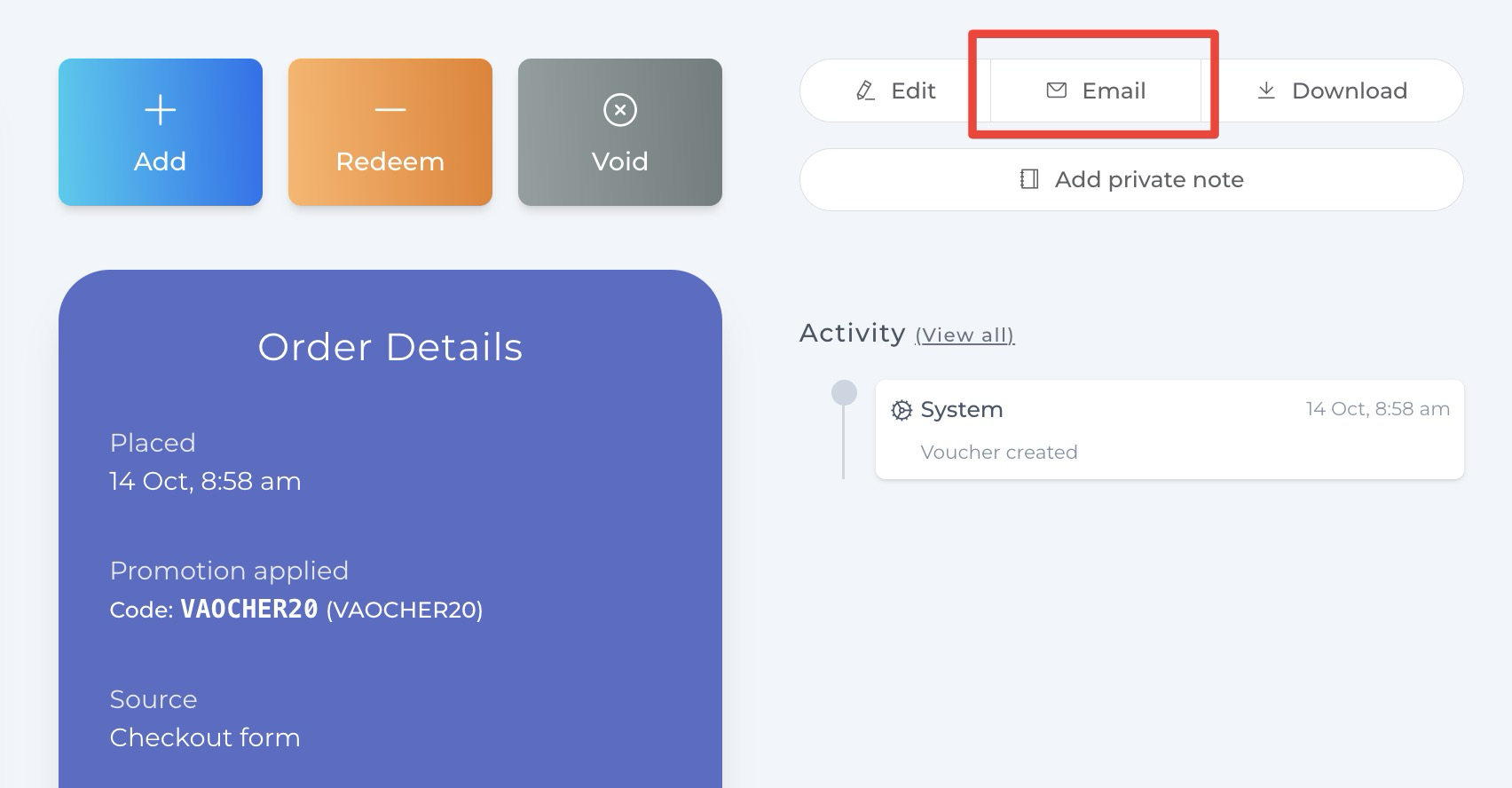
- Click the Email Button: Look for and click on the Email button on the order details page.
5. Choose “Receipt Email” from the Pop-up
After clicking the Email button:
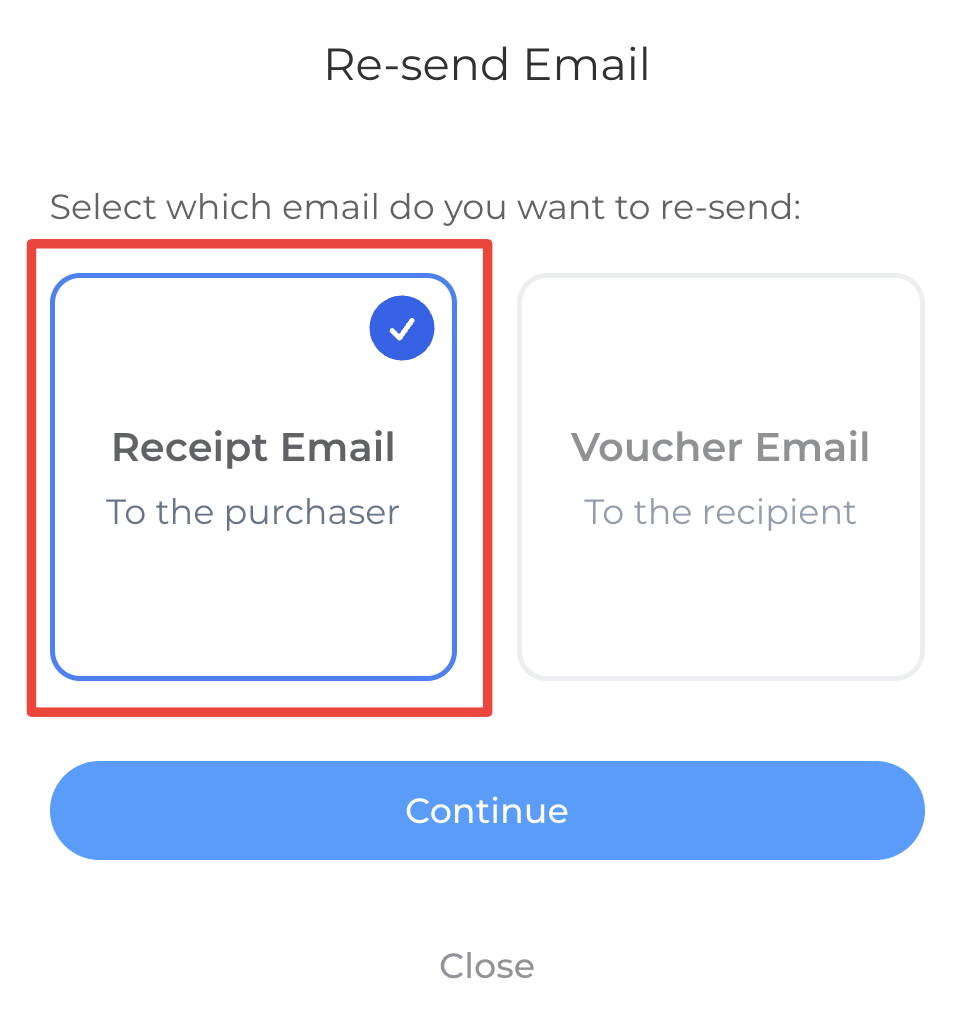
- Select Receipt Email: A pop-up window will appear. Choose Receipt Email from the options presented in the pop-up.
6. Enter the Purchaser’s Details
To complete the process:
- Fill in Required Fields: Input the purchaser’s name and email address in the fields provided. Ensure the email address is accurate to avoid delivery issues.
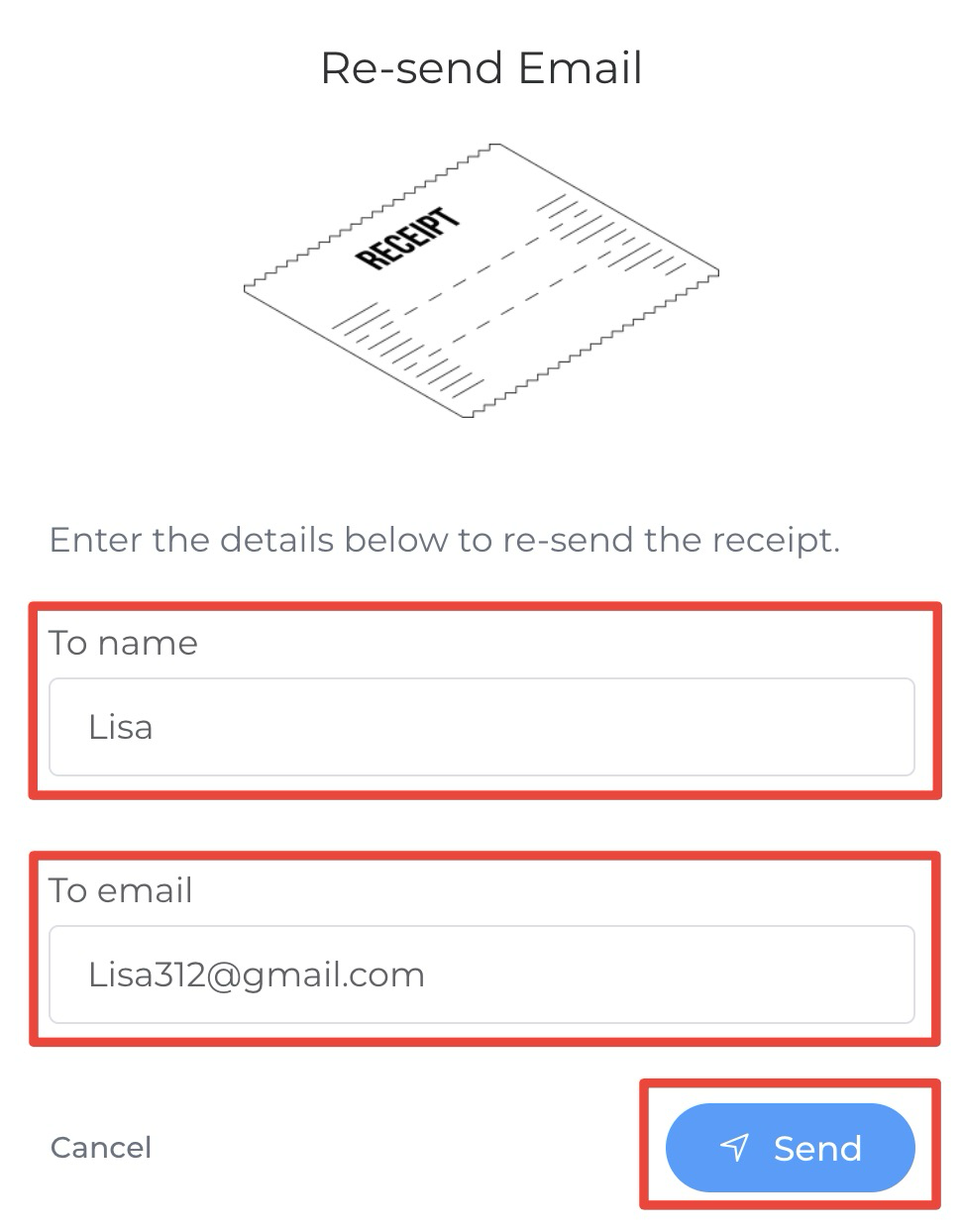
7. Click Send
Finally, send the receipt:
- Review Details: Double-check that all information is correctly filled out.
- Click Send: Press the Send button to resend the receipt email to the purchaser.
Additional Considerations
- Verify Email Addresses: Always confirm the purchaser’s email address to minimize the risk of errors.
- Monitor Email Logs: Regularly check your Email Logs to keep track of sent emails and identify any issues.
- Customer Communication: Inform your customers when you’ve resent their receipts, ensuring transparency and enhancing their experience.
Troubleshooting
If you encounter issues while resending receipt emails:
- Check Network Connection: Ensure you have a stable internet connection.
- Review Email Logs: Look for any error messages or failed delivery attempts in the Email Logs.
- Contact Support: Reach out to VaocherApp’s support team for further assistance.
Need Assistance?
If you have any questions or need further assistance, our friendly support team is here to help! You can reach us at support@vaocherapp.com or submit a request through our Contact Page. We’re always happy to assist you and ensure you have the best experience with VaocherApp.