









How to Re-send a Voucher Email in VaocherApp
If a customer hasn’t received their gift voucher email or has accidentally deleted it, you can quickly re-send the voucher email directly from your VaocherApp dashboard. This guide walks you through finding the voucher and sending the email again.
Step 1: Log in to Your VaocherApp Account
- Open your browser and go to vaocher.app/login.
- Enter your registered email and password, then click Log in.
- After logging in, you’ll arrive at your VaocherApp dashboard.
Step 2: Locate the Voucher to Resend
To find the voucher you want to resend, go to the Orders section:
- Click Orders in the left-hand menu.
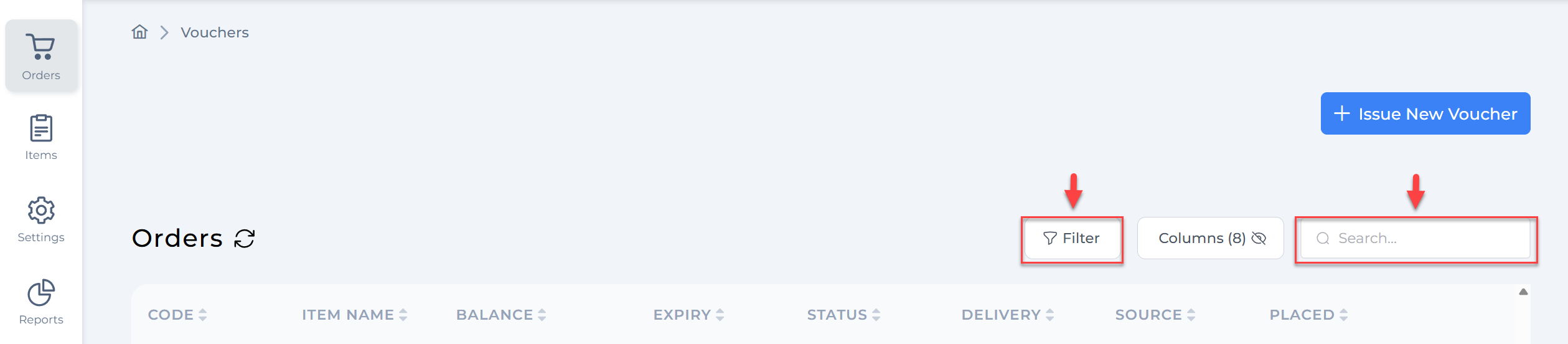
- Use the search bar to enter the order number, purchaser’s email, or customer name associated with the voucher.
- You can also apply filters like menu item, expiry date, delivery method, source, or order date to refine your search.
- Select the appropriate order to open and view its details.
Step 3: Confirm Voucher Details
On the order details page, verify important information:
- Purchaser’s email: Confirm it matches the customer’s request.
- Voucher status: Check the voucher is valid, issued, and not expired or cancelled.
- Recipient details: If different from purchaser, ensure recipient name and email are correct.
Ensuring the correct email prevents sending to the wrong address.
Step 4: Re-send the Voucher Email
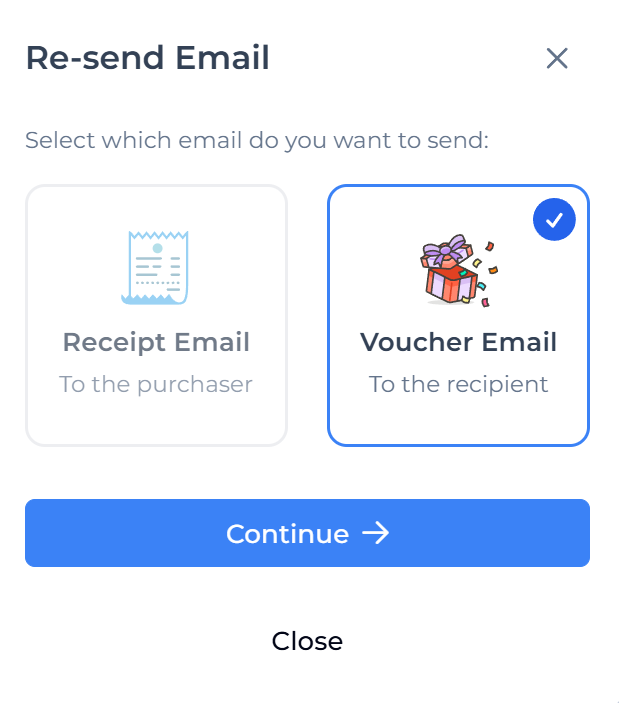
- On the voucher details page, locate the Email button near the top right.
- Click Voucher Email to send a new email containing the voucher to the customer’s email address on file.
- A confirmation message will appear once the email is sent successfully.
Step 5: Notify the Customer
- Let your customer know the voucher email has been re-sent.
- Advise them to check their inbox as well as spam, junk, or promotions folders.
- If the voucher still isn’t received, verify or update the email address in VaocherApp and repeat the re-send process.
Additional Tips
- Change recipient email: To send the voucher to a different email, update the recipient’s email in the voucher details before re-sending.
- Customise email templates: Learn how to tailor the look of voucher emails in How to customise guest’s emails.
- Scheduled deliveries: If the voucher was scheduled to send later, confirm with the customer whether an immediate re-send is needed. See Can customers schedule when the gift voucher gets sent?
- Email delivery issues: If emails repeatedly fail, the customer may need to whitelist your sending address to avoid spam filters.
Troubleshooting
- Email button not visible? You might not have permission to resend emails. Check your account permissions or contact your administrator.
- Voucher expired or void? Such vouchers cannot be re-sent. Consider issuing a new voucher.
- Email bounces back: Ask the customer for an alternative email address.